> For the complete documentation index, see [llms.txt](https://docs.snackprompt.com/llms.txt). Markdown versions of documentation pages are available by appending `.md` to page URLs; this page is available as [Markdown](https://docs.snackprompt.com/get-started/create-a-simple-knowledge-base-using-our-elements.md).
# Create a Simple 'Knowledge Base' using our Elements
Tutorial on how to use KMS (Knowledge Management System) to create structured knowledge bases that feed AI agents with their own data.
The Snack Prompt platform offers a powerful feature called **KMS (Knowledge Management System)**, enabling users to create, organize, and manage structured knowledge bases for AI applications, automation, and business processes.
## Turn a Table into an AI Knowledge Base
In Snackprompt, anything you create—from a simple document to a prompt—can become a Knowledge Base. This allows AI Agents to read and use your specific data.
In this tutorial, you will learn how to create a simple table and instantly convert it into a Knowledge Base for your AI agents.
#### What you will achieve
By the end of this tutorial, you will have a structured table filled with data that is fully accessible by AI Agents.
## Turn a Table into an AI Knowledge Base
In Snackprompt, anything you create—from a simple document to a prompt—can become a Knowledge Base. This allows AI Agents to read and use your specific data.
In this tutorial, you will learn how to create a simple table and instantly convert it into a Knowledge Base for your AI agents.
#### What you will achieve
By the end of this tutorial, you will have a structured table filled with data that is fully accessible by AI Agents.
***
#### Step 1: Create a new Table
First, we need to create the table structure.
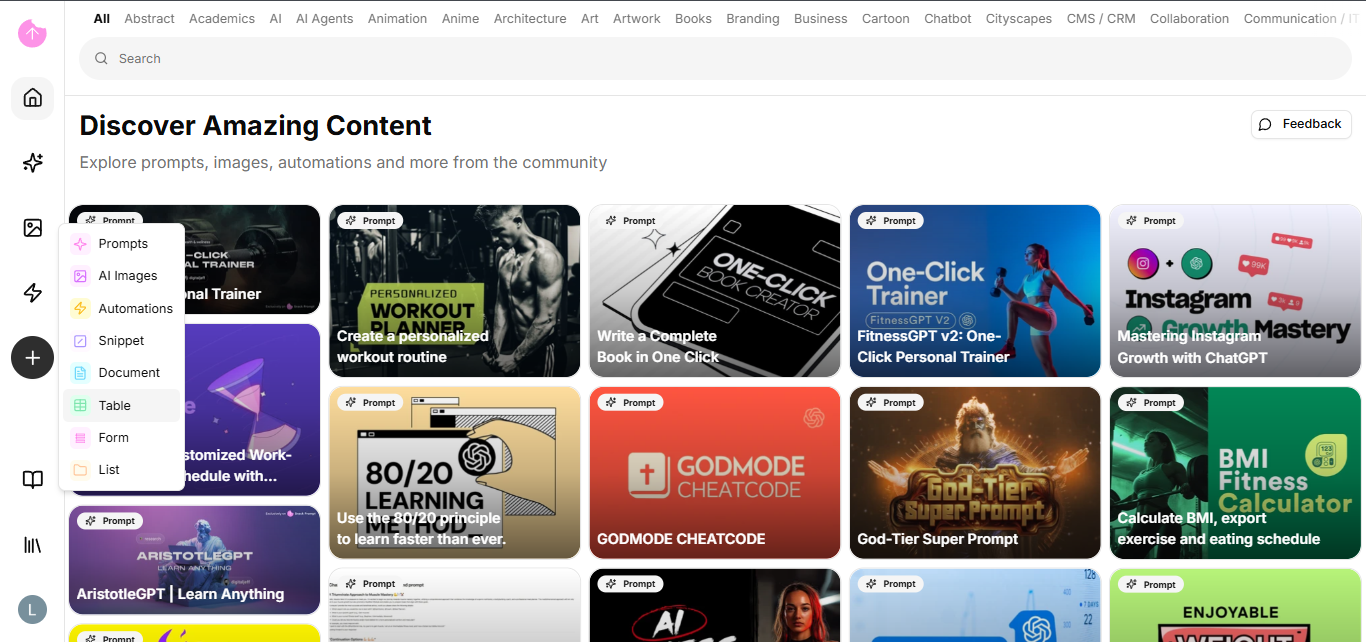
1. On the left-hand navigation bar, click the **+ (Plus)** button.
2. From the dropdown menu, select **Table**.
#### Step 2: Add your data
Now that you have your table, it's time to populate it with the information you want the AI to learn.
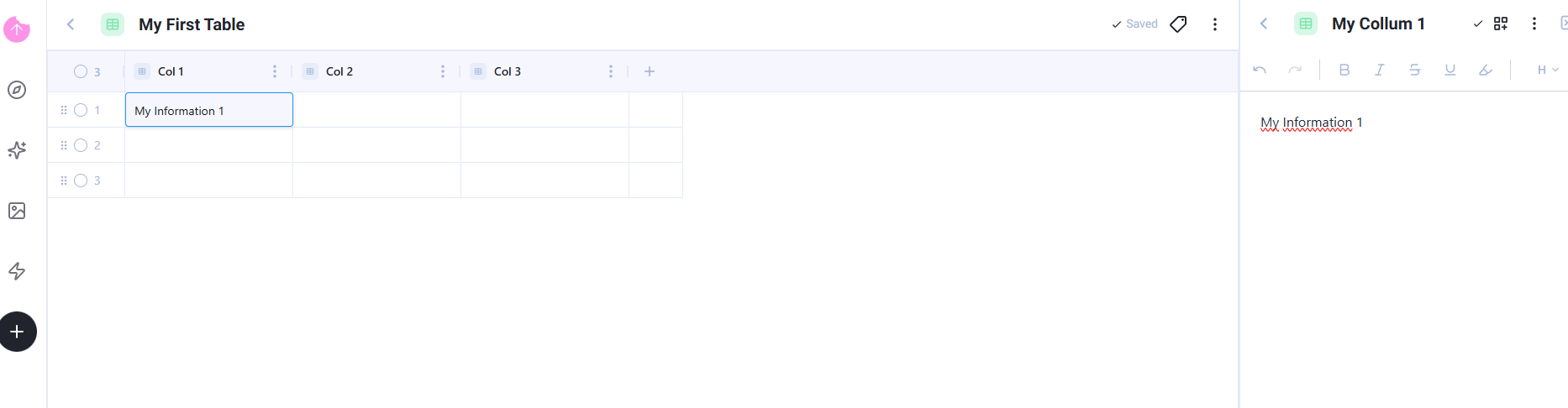
1. Give your table a title (e.g., "My First Table").
2. Fill in the columns and rows with your information. You can use the expanded side-view to easily edit the content of each cell.
#### Step 3: Enable the Knowledge Base
The final step is to make this data available to AI.
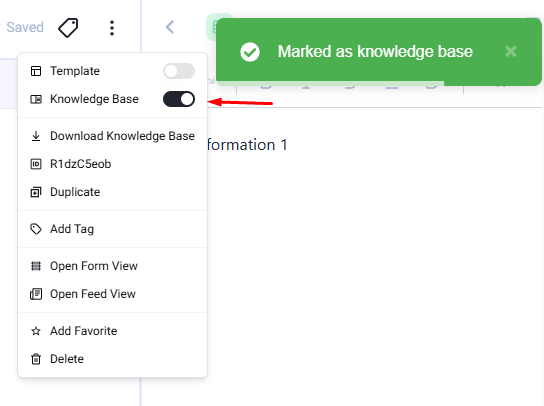
1. Navigate to the top right corner of the screen and click the **⋮ (Three dots)** menu.
2. Find the **Knowledge Base** option.
3. Click the toggle switch to turn it **ON**.
#### 🎉 Success!
Congratulations! Your table is now an active Knowledge Base. Any AI Agent connected to this base can now consume, query, and utilize the data you just organized.
\
**Next Steps:** Try creating an AI Agent and connecting it to this new Knowledge Base to test how it answers questions based on your table, using our [Knowledge Base API](/bring-your-data-into-ai/get-started/how-to-use-your-knowledge-bases.md)
What if I only want to save the style of my element? Mark it as a template.