> For the complete documentation index, see [llms.txt](https://docs.snackprompt.com/llms.txt). Markdown versions of documentation pages are available by appending `.md` to page URLs; this page is available as [Markdown](https://docs.snackprompt.com/get-started/creating-prompt.md).
# Creating and Customizing: Prompt
Learn how to transform a blank page into an interactive tool. This guide teaches you how to structure, edit, and customize high-quality prompts using our editor.
A prompt is an instruction given to an Artificial Intelligence (AI) system so that it generates a response, acting as a "bridge" between the user and the machine to guide the desired result.
### How do I edit a prompt?
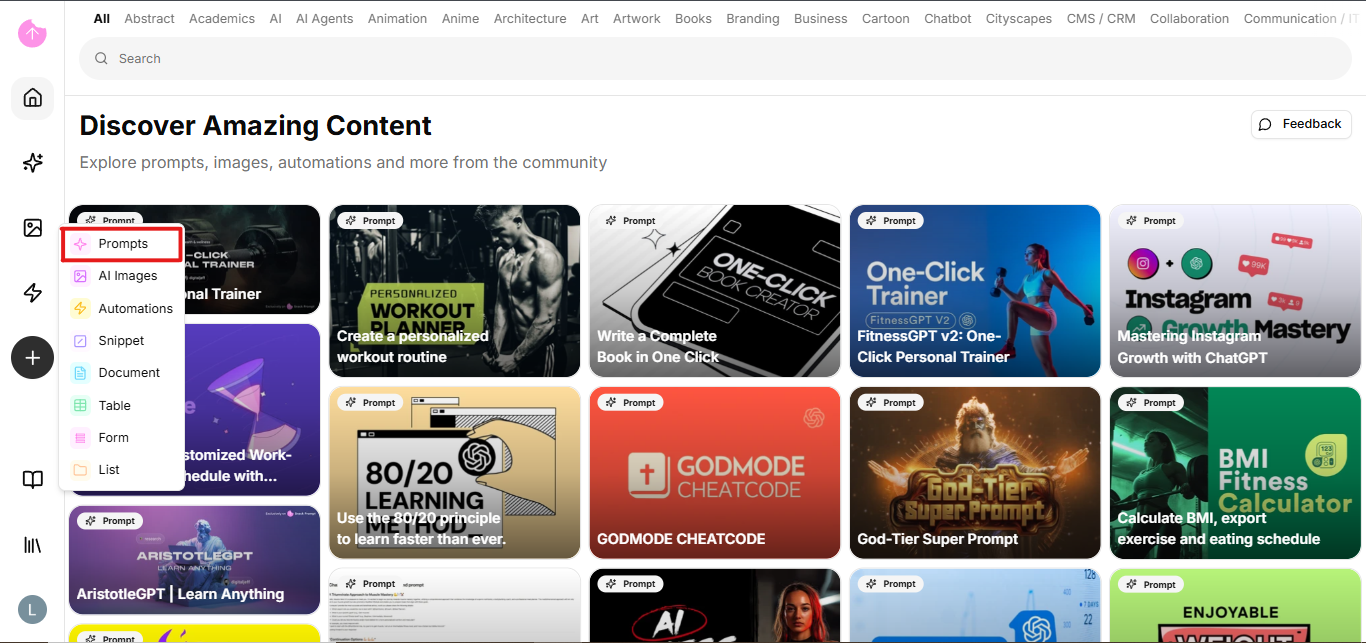
In the left-hand sidebar, on the public page, click the (+) button. A dropdown menu will appear with the prompt option.
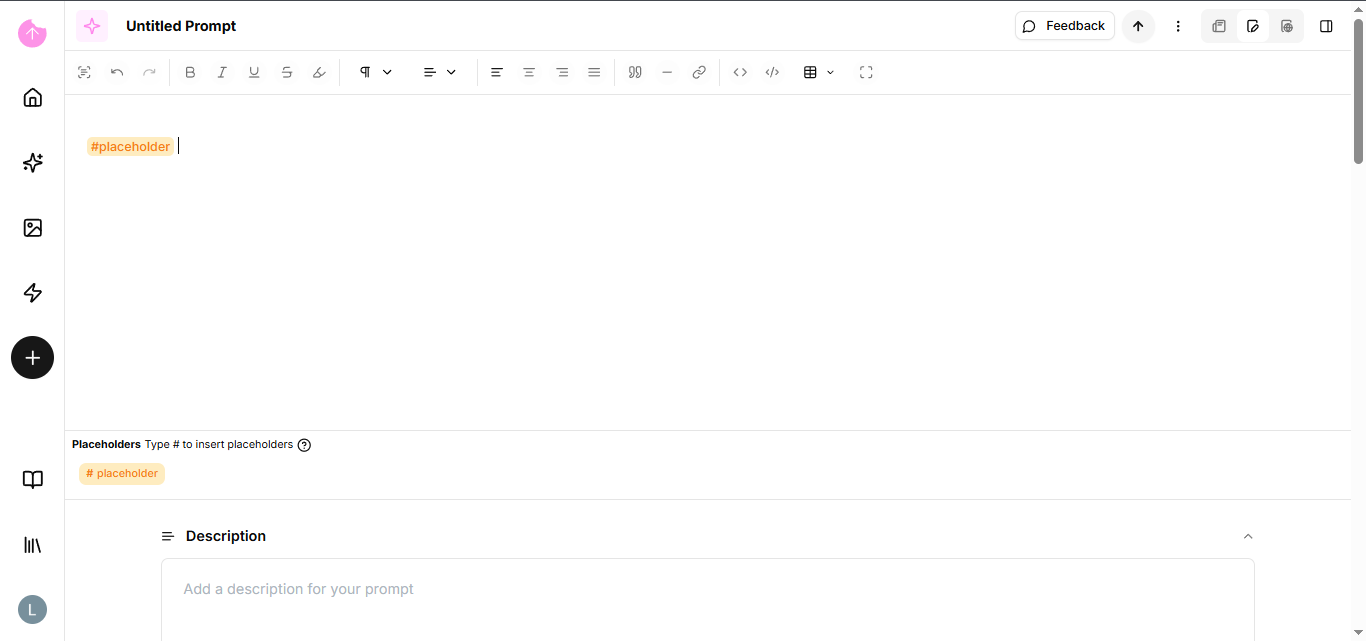
After clicking, you will be redirected to our edit page. There are fields there that you should be familiar with.
The first field is a text editor; it will contain your prompt, the instructions you will give to an AI. You can format the text in various ways, including adding a table.
### So how will you create a quality prompt?
* Be Specific: Avoid vague terms. Instead of "Write about coffee," use "Write a 300-word article about the health benefits of craft coffee."
* Define a Role (Persona): Start by stating who the AI should be. Example: "Act as a digital marketing expert" or "You are a physics teacher for children."
* Give Context: Explain the scenario. Say who the text is for, what the objective is, and where it will be used.
* Determine the Format: Explicitly state how you want the output: in bullet points, table, code, formal tone, or a numbered list.
* Impose Restrictions: Define what should not appear. Example: "Do not use technical terms" or "Do not mention competing brands."
* Iteration: The first prompt is rarely the last. If the result is not ideal, ask for adjustments: "Keep the text, but make it funnier."
{% hint style="info" %}
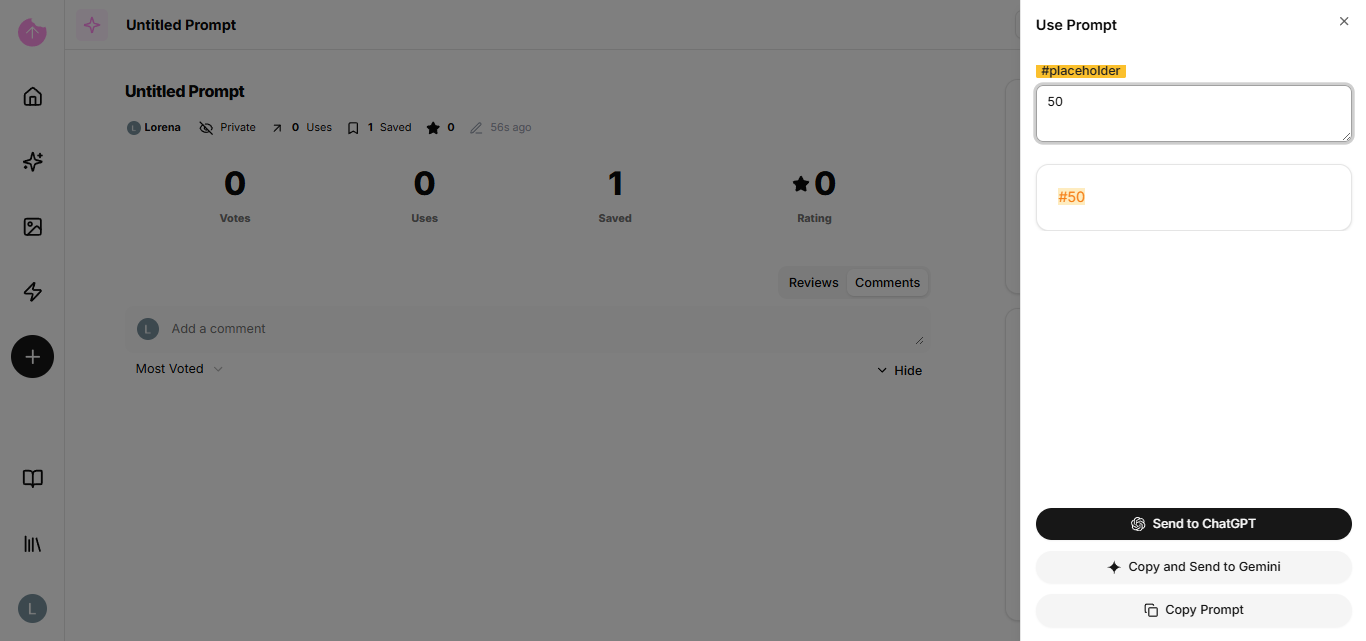
And to help with this structure in our text editor, if you put the following command "#" and what you would like to change in front of it, such as "#YourWeight", in the case of a diet prompt, when someone uses it, the user will be able to copy the prompt without needing to change this information later.
{% endhint %}
### Other fields
The remaining fields include:
* Description: a field to briefly summarize what the prompt will be about.
* Topics: You can add topics to categorize your prompt.
* How to use: You can create steps to guide users.
* Files: You can include a file.
* Video: You can include a YouTube video.
* Images: You can include images to represent the prompt.
* Visibility: You can change the visibility between public or private.
* Price: If you want to monetize your prompt, you need to set up a [Stripe account](/get-started/monetize-your-prompt.md).
### Other settings
In our header, you can change your prompt's avatar and title, give an upvote, or change page views.
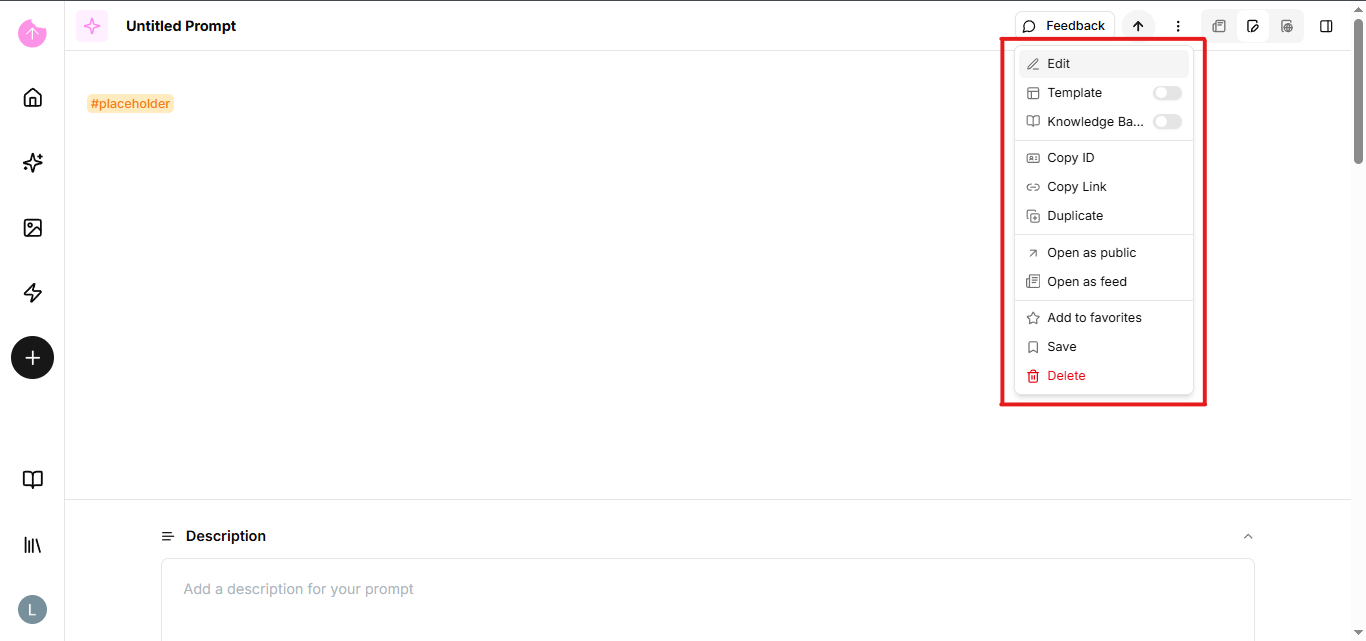
We also have a dropdown menu with some options.
* Add to favorites
* Save
* Duplicate
* Copy link
* Copy ID
* Transform into a [template](/get-started/templates.md) for future use.
* Transform into a [knowledge base](broken://pages/PMLtnlTJqXijyTe1t1QX).
{% hint style="info" %}
Click on the links to be directed to the specific page for that item.
{% endhint %}
Now that you know how to create a quality prompt, learn about our [other elements](https://docs.snackprompt.com/glossary/). Or ready to get paid for it?