> For the complete documentation index, see [llms.txt](https://docs.snackprompt.com/llms.txt). Markdown versions of documentation pages are available by appending `.md` to page URLs; this page is available as [Markdown](https://docs.snackprompt.com/how-to/how-to-organize-my-items.md).
# Organize my items
Tips and tools to organize your prompts, tables, and documents efficiently, making it easier to manage your workflow.
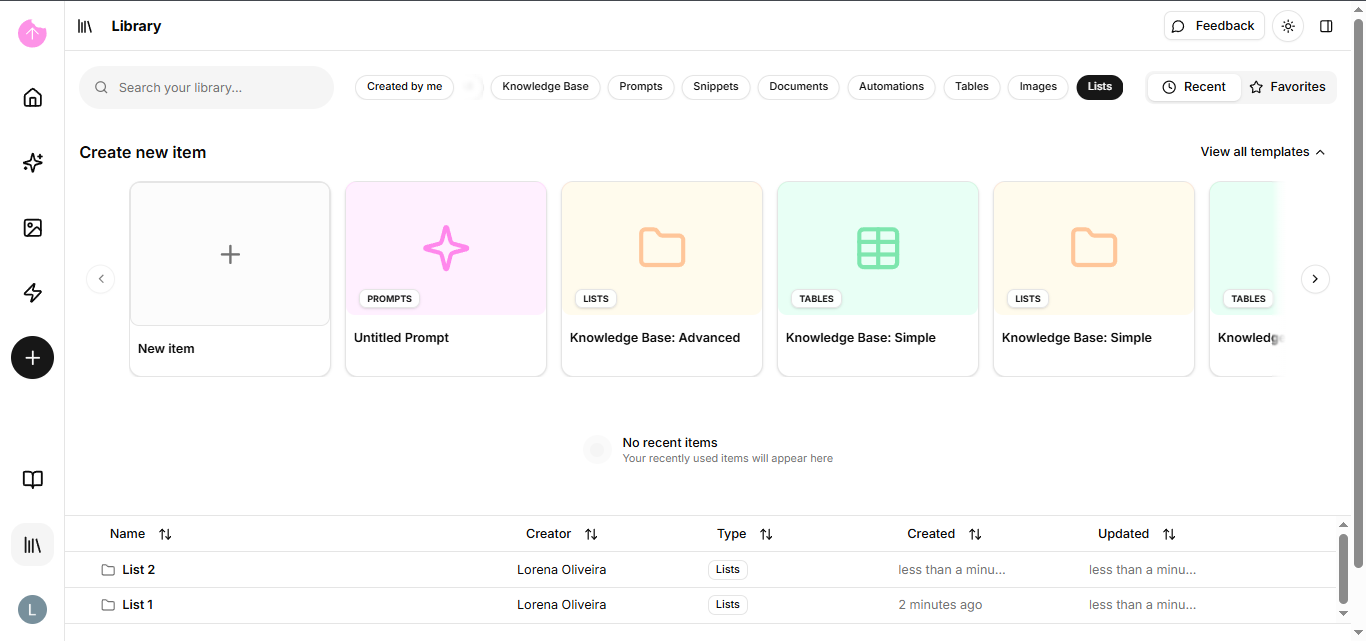
When we have many files and items, it's natural for our library to become cluttered and disorganized. That's where lists come in.
### How do I find the lists?
In the library, it appears in two forms. The first is in the list filter, where all lists are concentrated, whether they are combined lists of various items or lists with only one type of element.
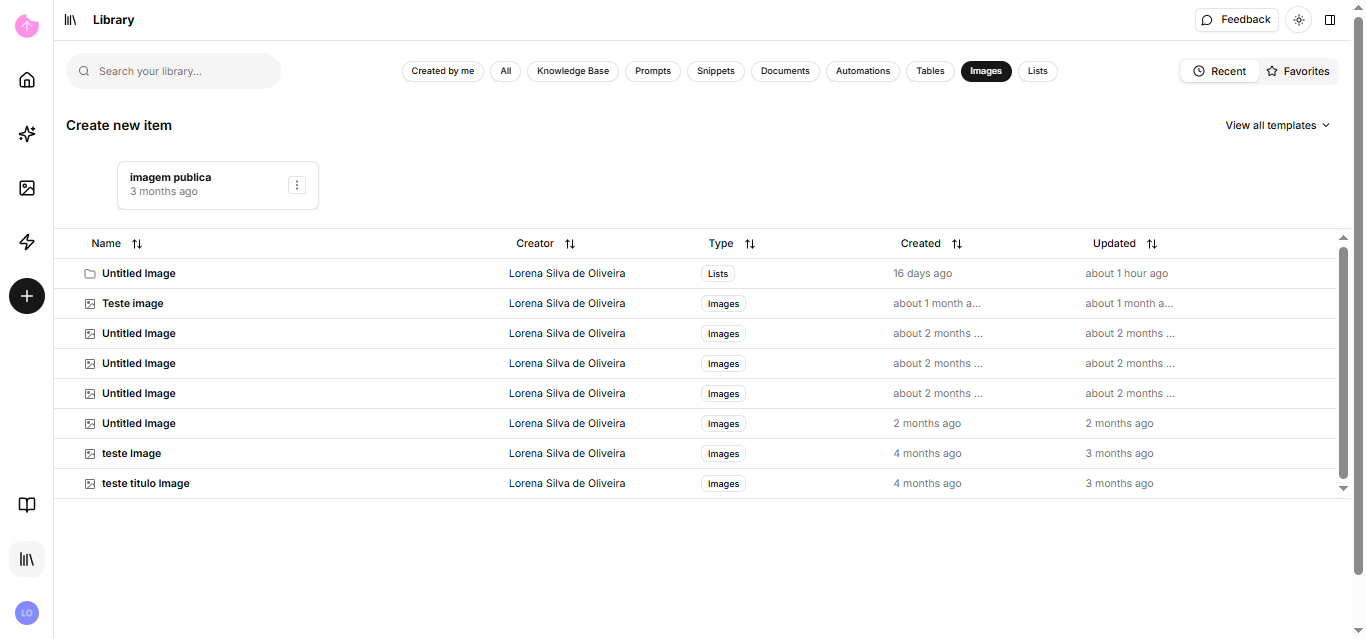
The second method involves filtering each element. Lists appear within elements if their content **only** includes that element.
### And how do I add one of my items to a list?
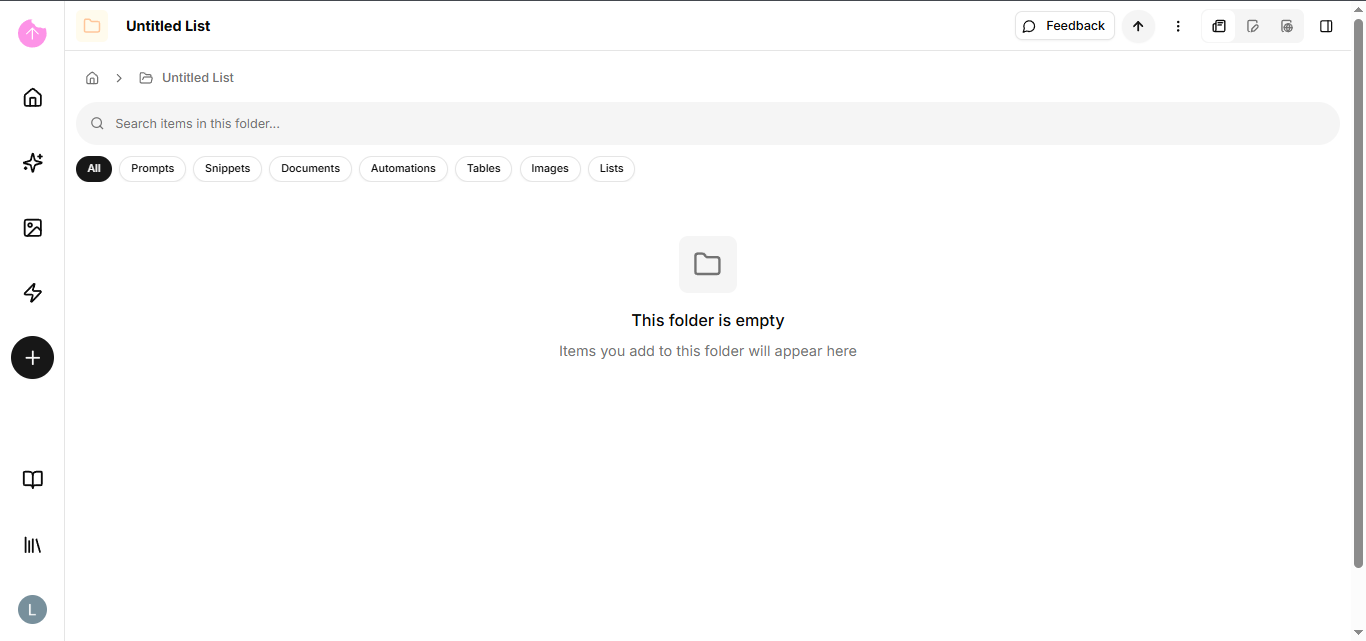
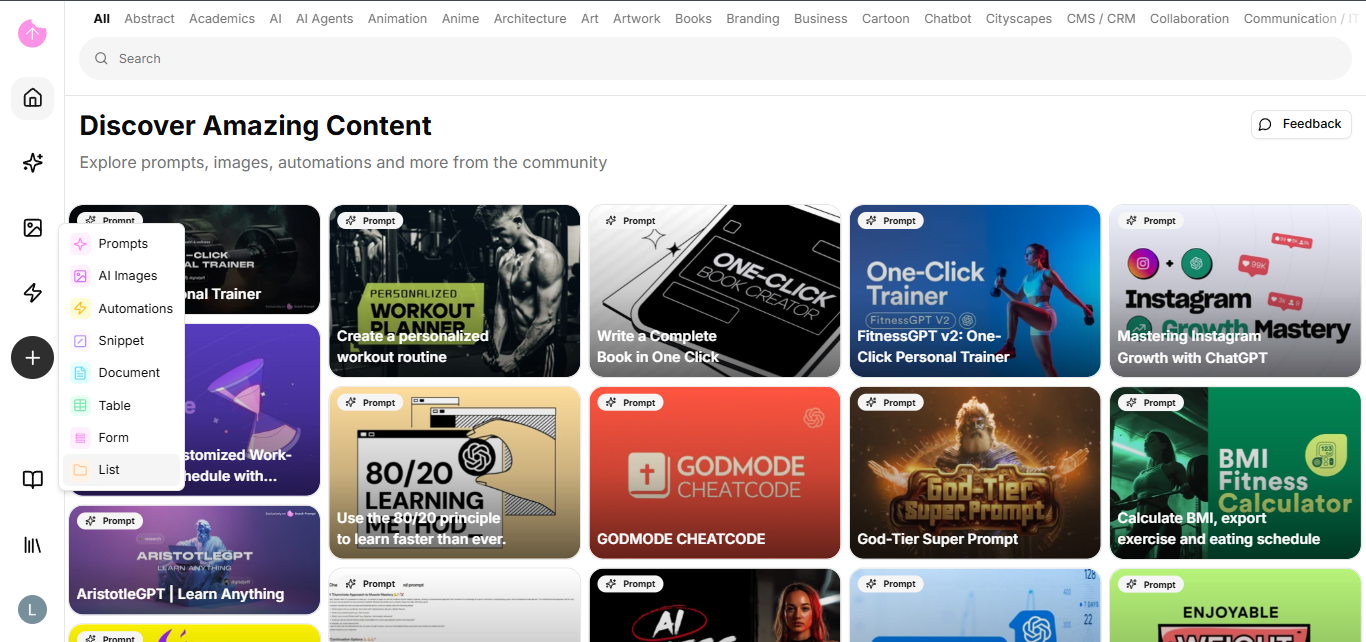
You can create a list in the left sidebar menu or access an existing list by clicking the edit list button.
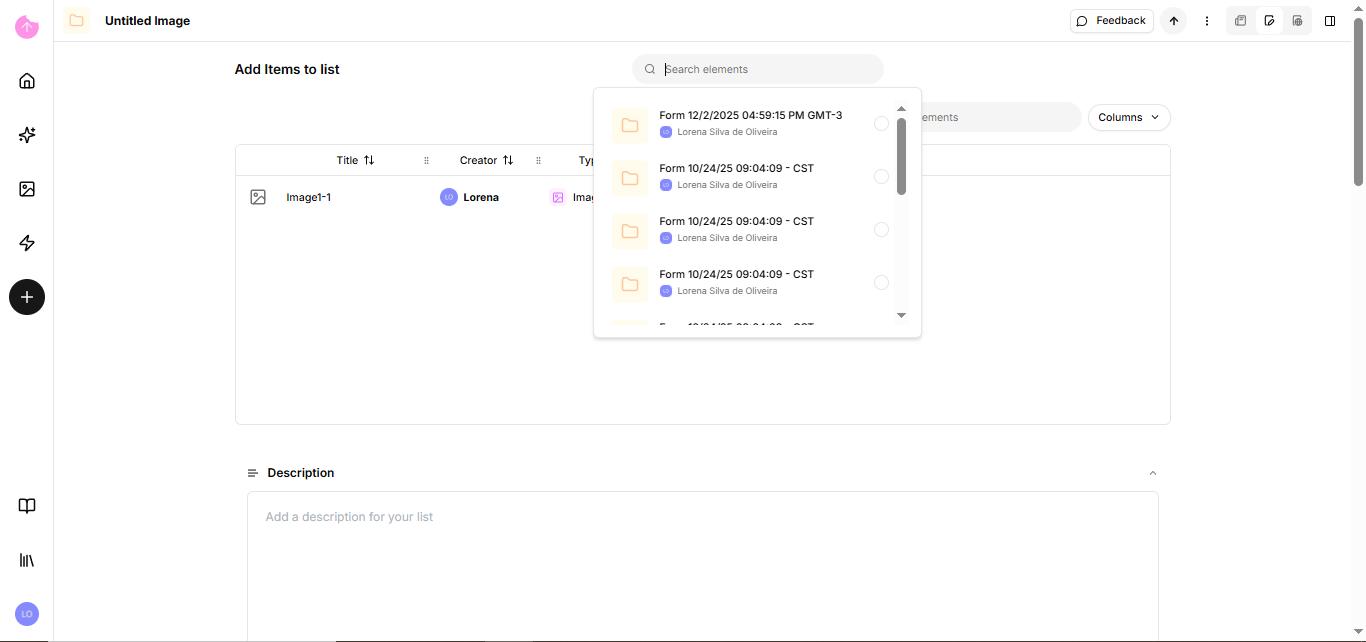
After creating it, we will add the elements to your list.
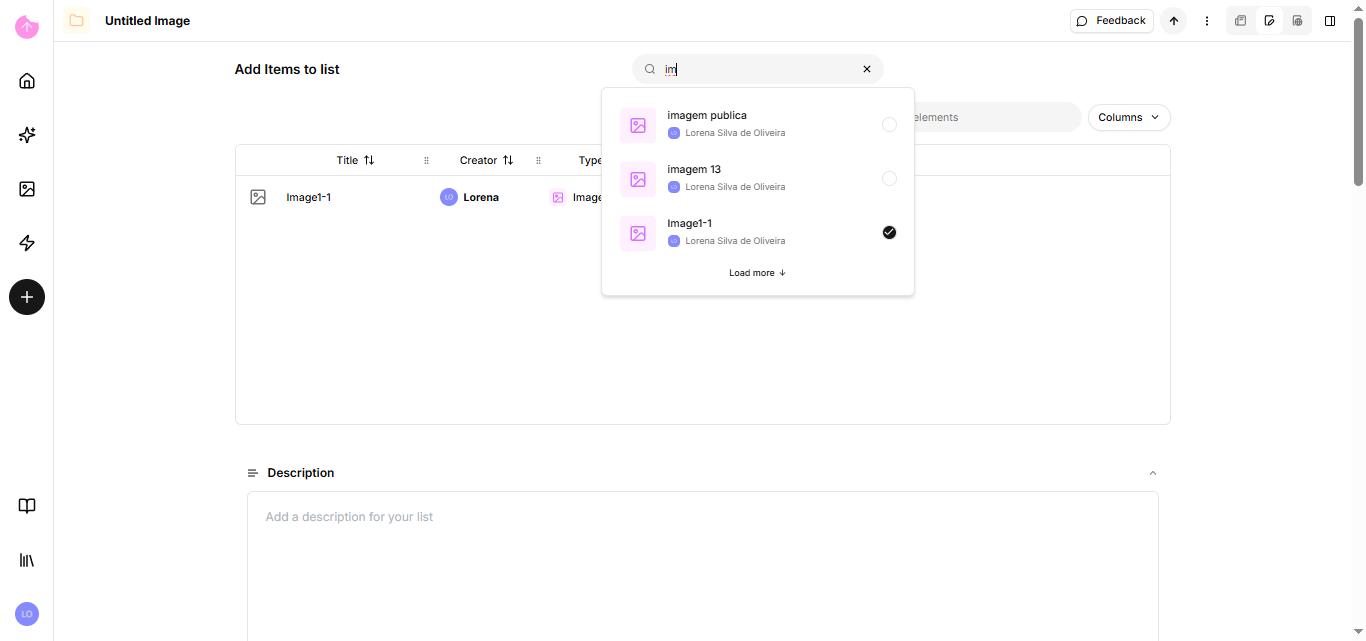
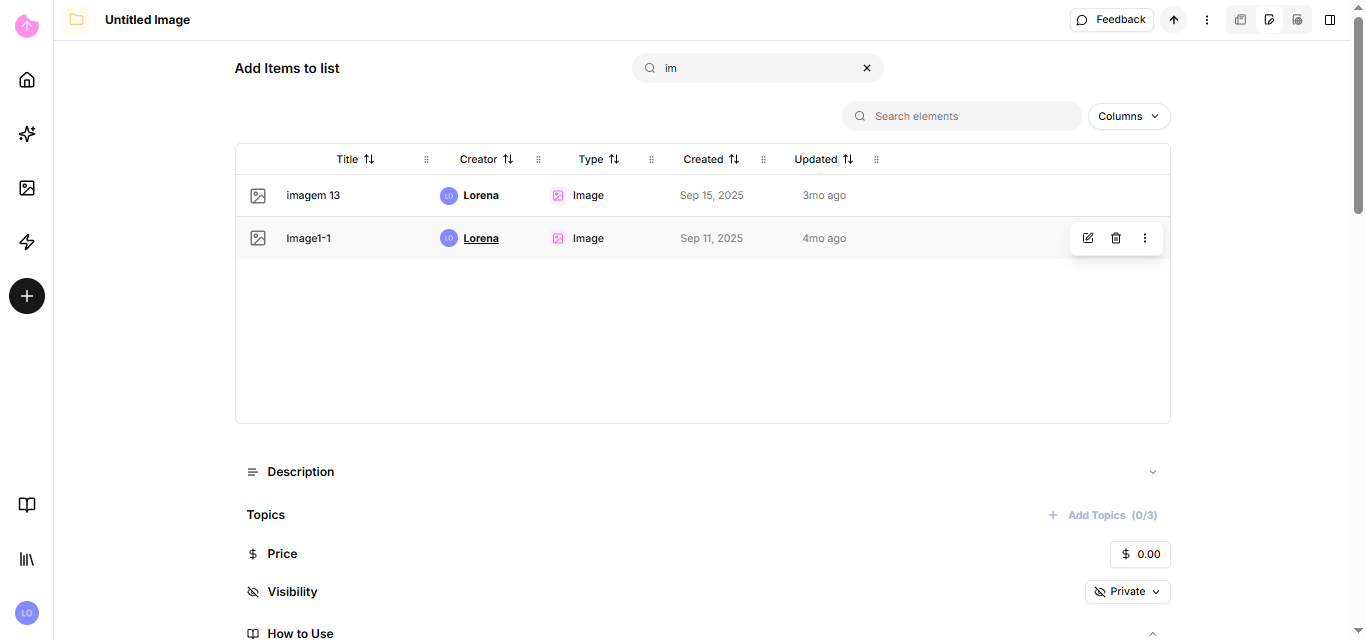
Go to the search button and clicking it will show you all the items you own. You can also search by name to make it easier.
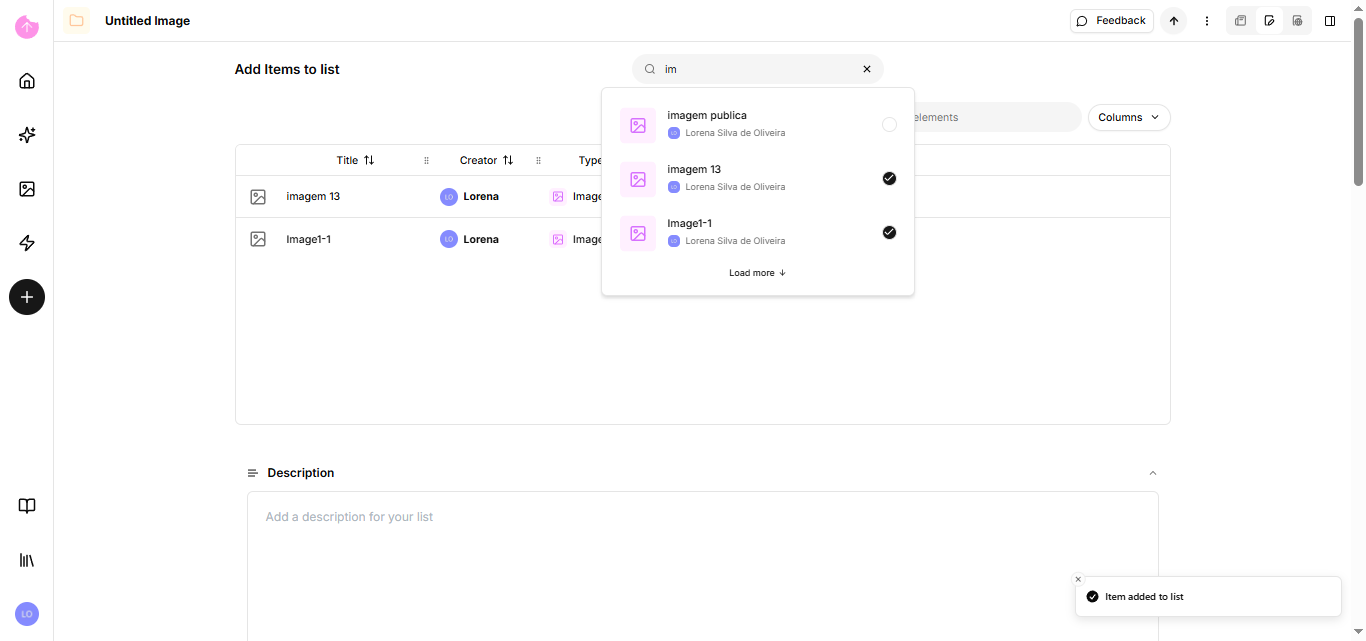
Click on the selected item to add it to the list.
On that same page you can search for items already in the list, or remove any column that you deem unnecessary to display.
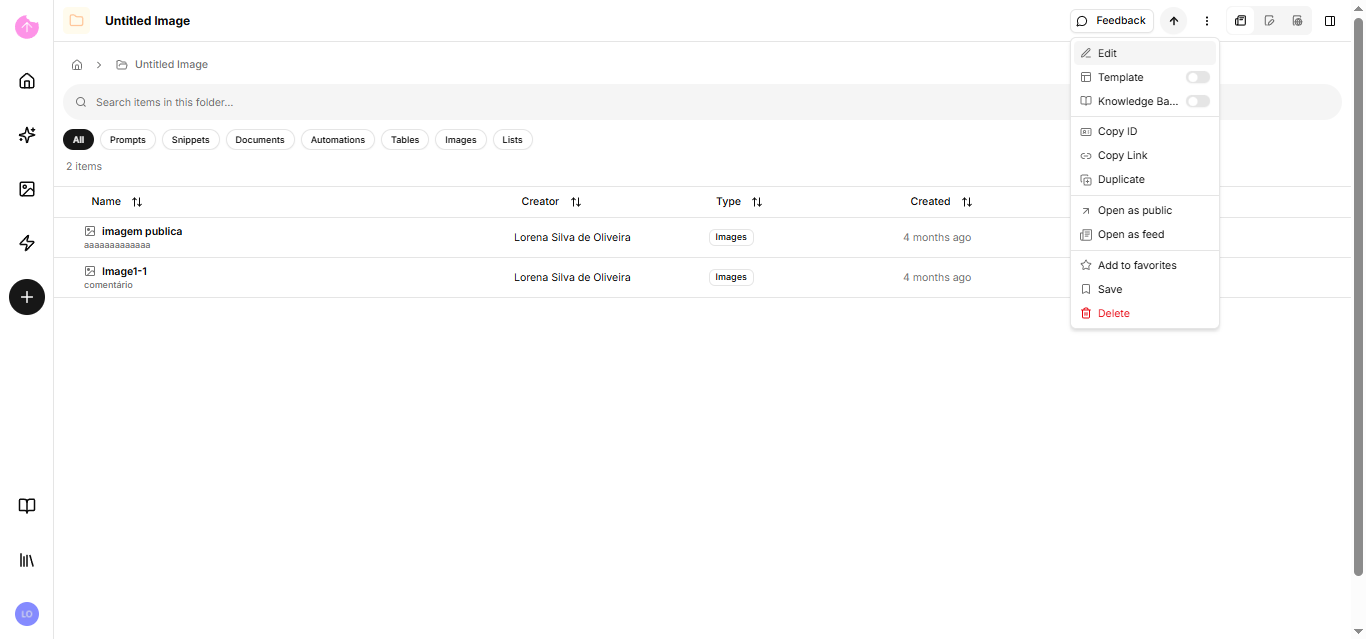
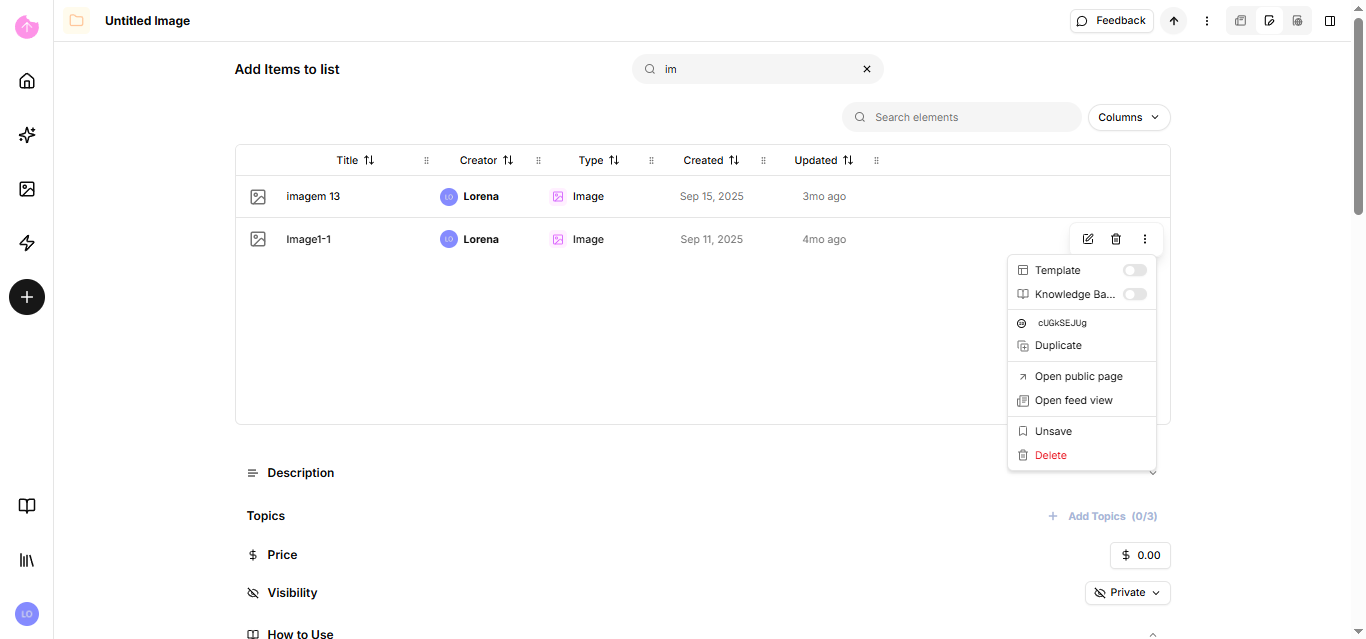
There are three options for each element. The first takes you to that element's edit page, the second removes the element from the list, and the third is a dropdown menu.
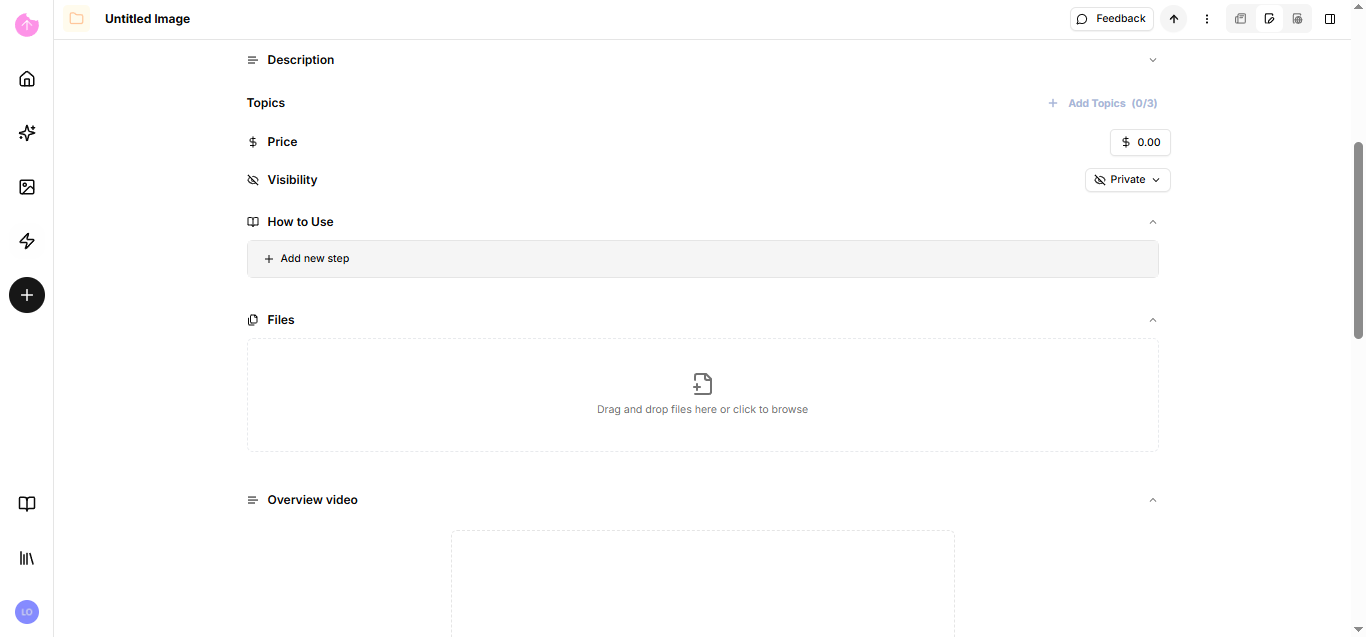
Since you can also make lists public, you have the same options as the edit page in the prompt; the only difference is that instead of the text editor, the list is the main element.
### What if I want to add an item from another user to my list?
1. First, you need to save the other person's public element. To save it, simply save it to the public page.
2. After that, the item becomes available in the list of elements and you can add it.
Now that you're familiar with our lists, let's talk about the library!