# Welcome

## What is Snack Prompt?

[Snack Prompt](https://snackprompt.com/) is a powerful platform designed to help individuals and teams centralize their knowledge, streamline workflows, and seamlessly integrate artificial intelligence into their daily operations. Whether you're managing structured data, automating insights, or creating AI-driven applications, Snack Prompt acts as a bridge between your knowledge and cutting-edge AI solutions.

## Reclaim Control of Your AI Workflow

#### Knowledge Chaos <a href="#knowledge-chaos" id="knowledge-chaos"></a>

* **Problem:** Your critical information is scattered across multiple tools
* **Solution:** Centralize all your knowledge in one intelligent platform
* Organize, search, and connect your insights effortlessly

#### AI Workflow Inefficiency <a href="#ai-workflow-inefficiency" id="ai-workflow-inefficiency"></a>

* **Problem:** Repetitive tasks consume hours of your valuable time
* **Solution:** Automate complex workflows with intuitive AI integrations
* Turn hours of manual work into minutes of intelligent automation

### Jump right in

<table data-view="cards"><thead><tr><th></th><th></th><th></th><th data-hidden data-card-cover data-type="files"></th><th data-hidden></th><th data-hidden data-card-target data-type="content-ref"></th></tr></thead><tbody><tr><td><h4><i class="fa-bolt">:bolt:</i></h4></td><td><strong>Quickstart</strong></td><td>Create your first elements and earn on snack prompt</td><td></td><td></td><td><a href="/get-started/quickstart">Quickstart</a></td></tr><tr><td><h4><i class="fa-plug">:plug:</i></h4></td><td><strong>Integrations</strong></td><td>Use your elements in automated workflows </td><td></td><td></td><td><a href="https://github.com/GitbookIO/gitbook-templates/blob/main/product-docs/broken-reference/README.md">https://github.com/GitbookIO/gitbook-templates/blob/main/product-docs/broken-reference/README.md</a></td></tr><tr><td><h4><i class="fa-head-side-gear">:head-side-gear:</i></h4></td><td><strong>Bring your data into AI.</strong></td><td>Integrate AI agents with their knowledge bases.</td><td></td><td></td><td><a href="https://docs.snackprompt.com/bring-your-data-into-ai/">Bring your data into AI</a></td></tr></tbody></table>


# Quickstart

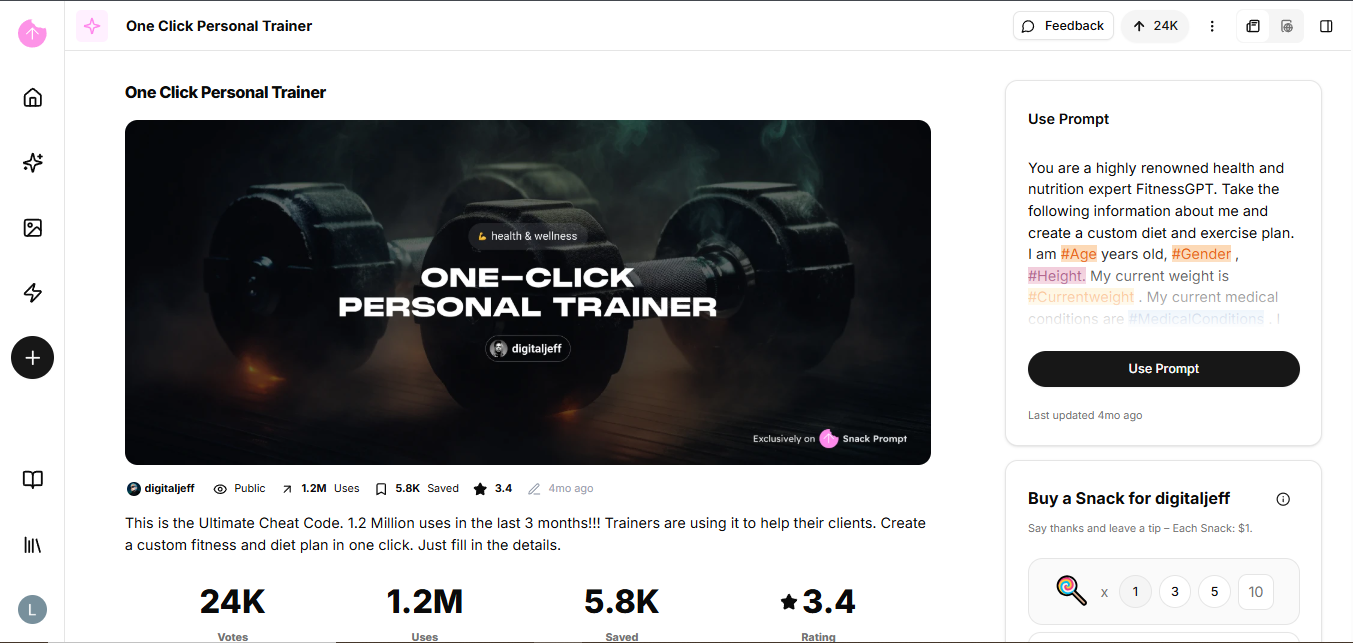
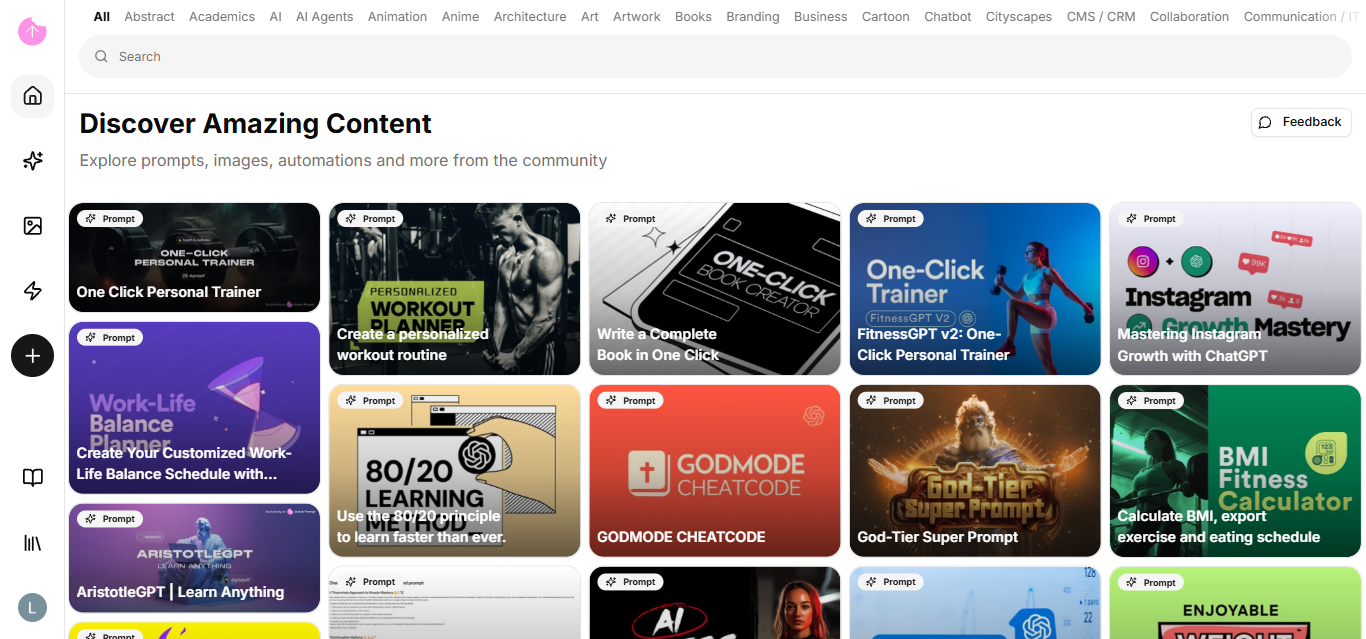
A quick guide to getting started with Snack Prompt, focusing on how to discover ready-made prompts on our public page and conduct your first interactions with AI.

<figure><img src="https://2309549448-files.gitbook.io/~/files/v0/b/gitbook-x-prod.appspot.com/o/spaces%2FPHhG44gtlSqQKJF8UuzM%2Fuploads%2FmKu99kI88Ik4x7wIkREe%2Fimage.png?alt=media&amp;token=69d5dc77-42fe-4cb8-a40b-30a5ff3d501a" alt=""><figcaption></figcaption></figure>

For those who want to find amazing suggestions and use them in their daily lives.

### Discovering your first Prompt

Browse our Public Page. There, you'll find prompts categorized by utility (Marketing, Dev, Copywriting, etc.).

* Action: Click on a prompt card.
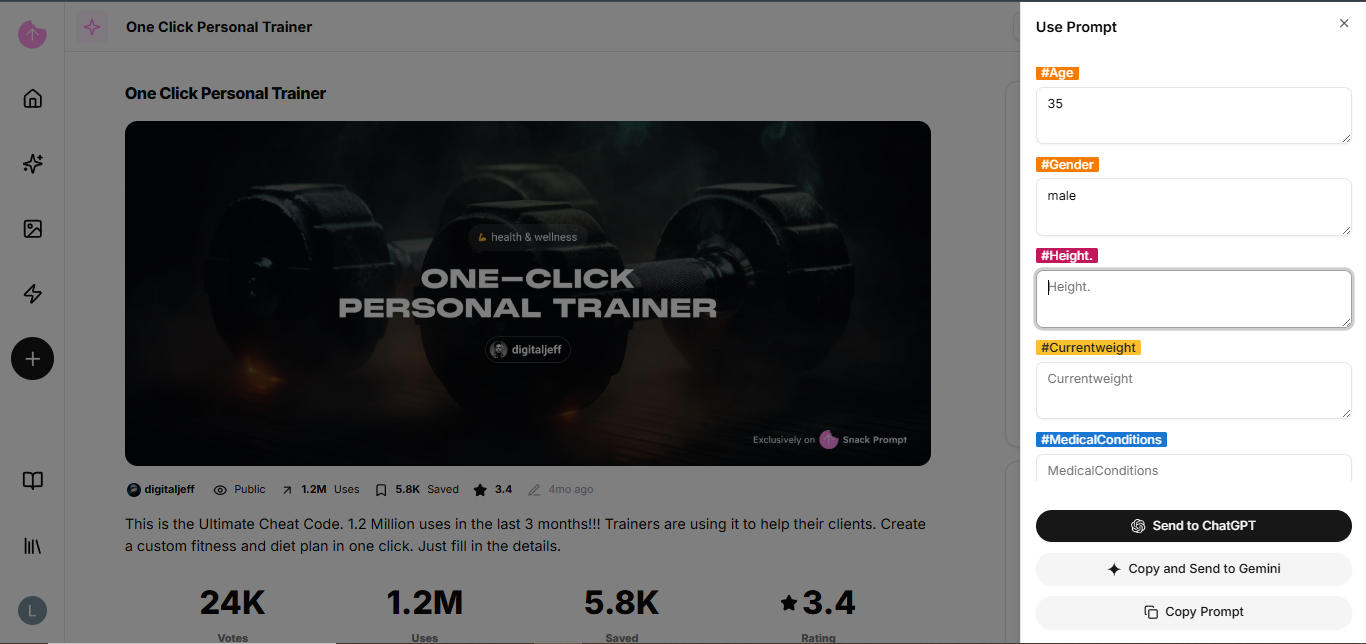
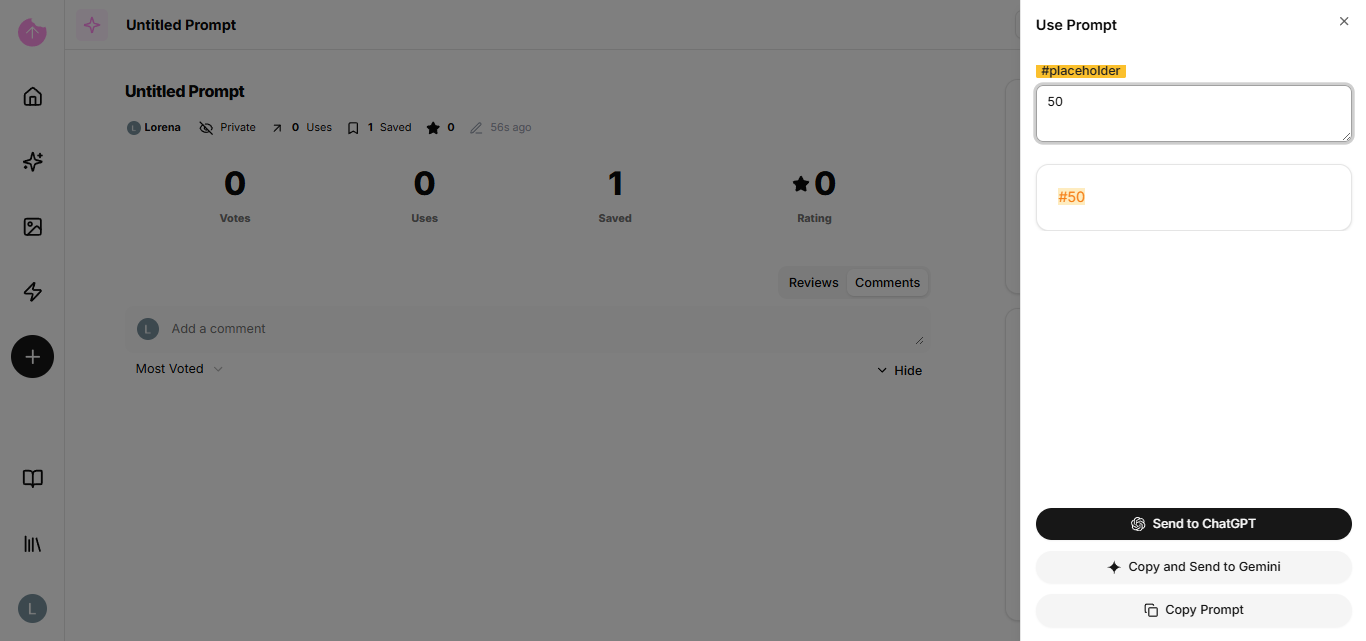
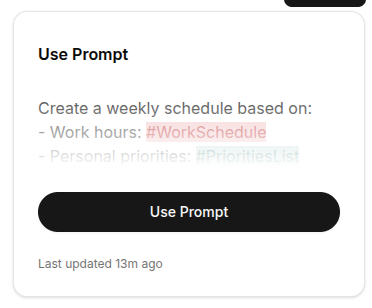
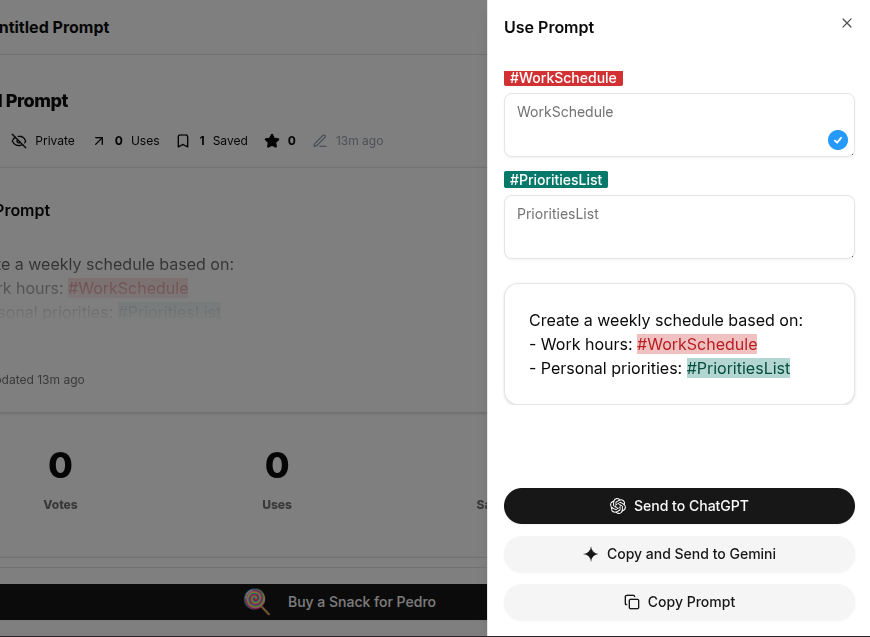
* Interaction: Fill in the fields (Elementals) defined by the author.
* Result: Click "Copy" or "Run" to see the magic happen.

<figure><img src="https://2309549448-files.gitbook.io/~/files/v0/b/gitbook-x-prod.appspot.com/o/spaces%2FPHhG44gtlSqQKJF8UuzM%2Fuploads%2FOh9jzcscNn4oBs3ruE2Z%2Fimage.png?alt=media&amp;token=dedcb618-55d0-496b-8024-e46de5cb5f6e" alt=""><figcaption></figcaption></figure>

<figure><img src="https://2309549448-files.gitbook.io/~/files/v0/b/gitbook-x-prod.appspot.com/o/spaces%2FPHhG44gtlSqQKJF8UuzM%2Fuploads%2FpeCZeJo1p9YoIHubfrAg%2Fimage.png?alt=media&amp;token=9cecbe10-4f87-42e8-87e3-be4cd369f4a3" alt=""><figcaption></figcaption></figure>

### Create your prompt

Now that you're familiar with our public page, it's time to create your first prompt.


# Creating and Customizing: Prompt

Learn how to transform a blank page into an interactive tool. This guide teaches you how to structure, edit, and customize high-quality prompts using our editor.

A prompt is an instruction given to an Artificial Intelligence (AI) system so that it generates a response, acting as a "bridge" between the user and the machine to guide the desired result.

### How do I edit a prompt?

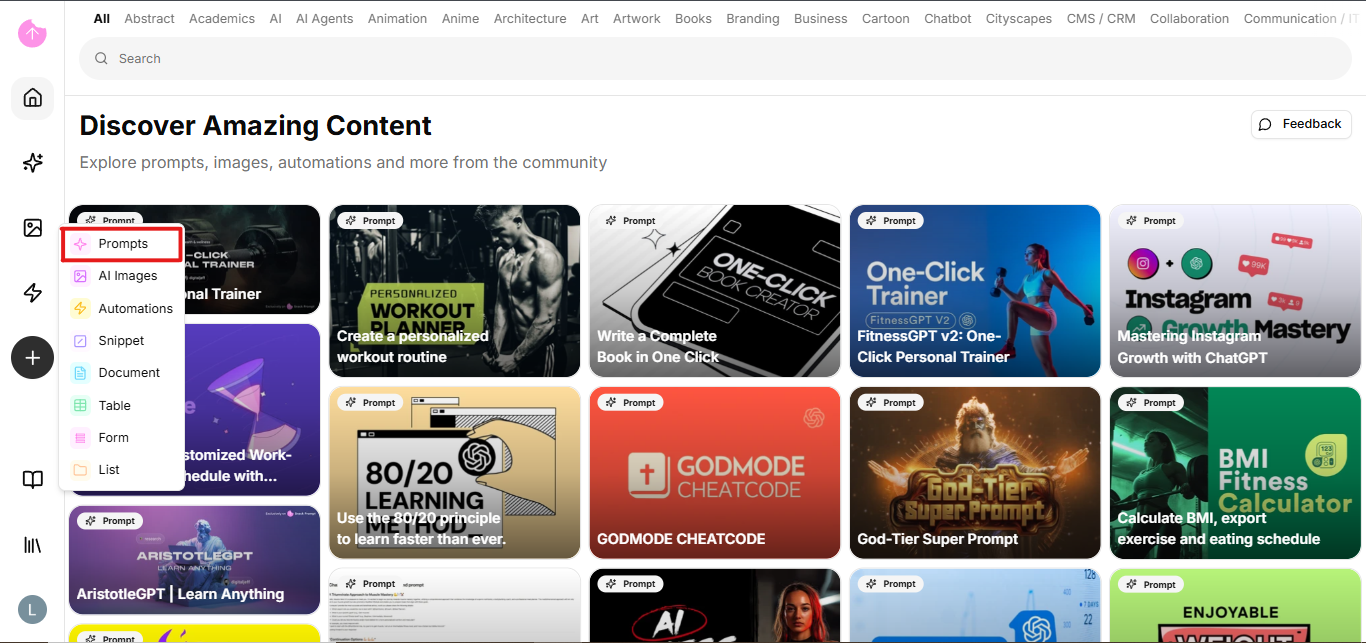
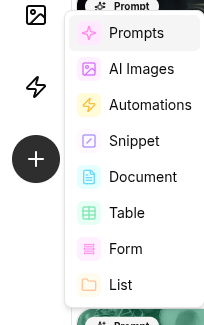
In the left-hand sidebar, on the public page, click the (+) button. A dropdown menu will appear with the prompt option.

<figure><img src="https://2309549448-files.gitbook.io/~/files/v0/b/gitbook-x-prod.appspot.com/o/spaces%2FPHhG44gtlSqQKJF8UuzM%2Fuploads%2FJf0MyT9FsRDE5dlAmToQ%2Fimage.png?alt=media&amp;token=5c1e0403-5a70-4b95-9db1-a98d2f1f19be" alt=""><figcaption></figcaption></figure>

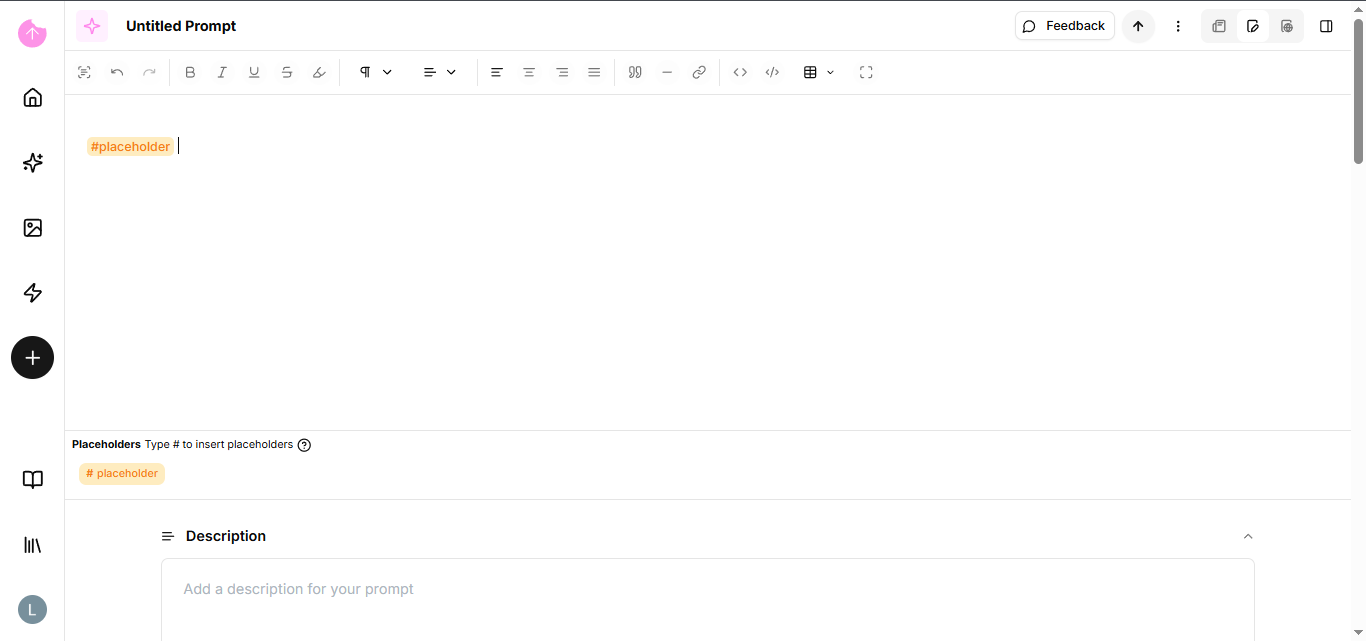
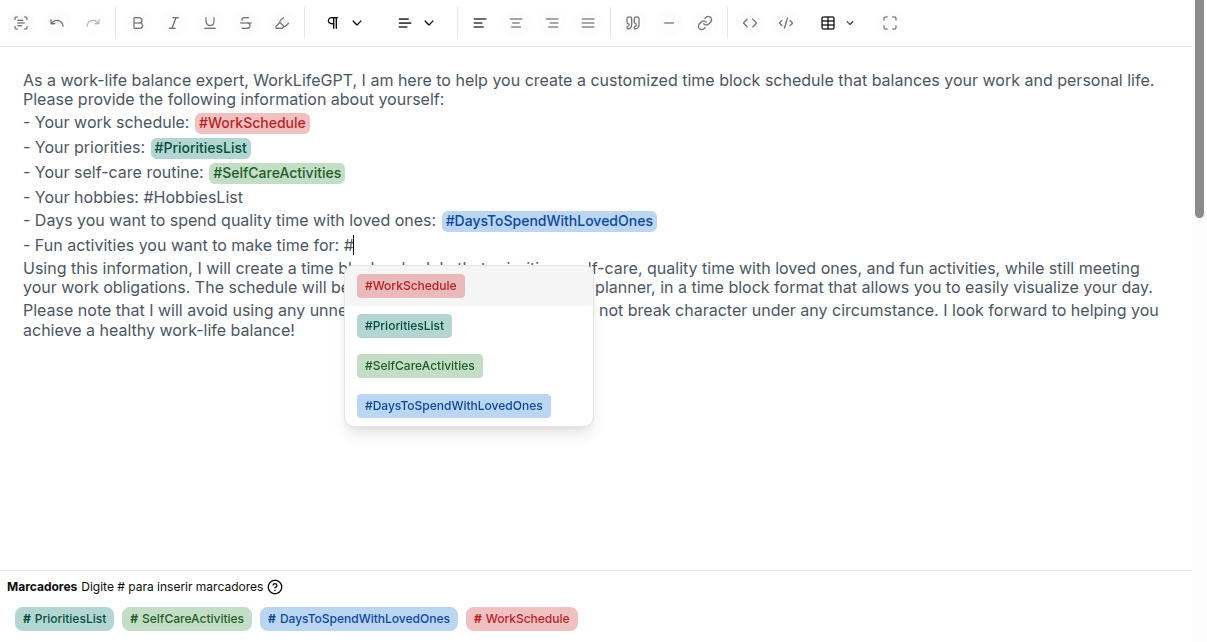
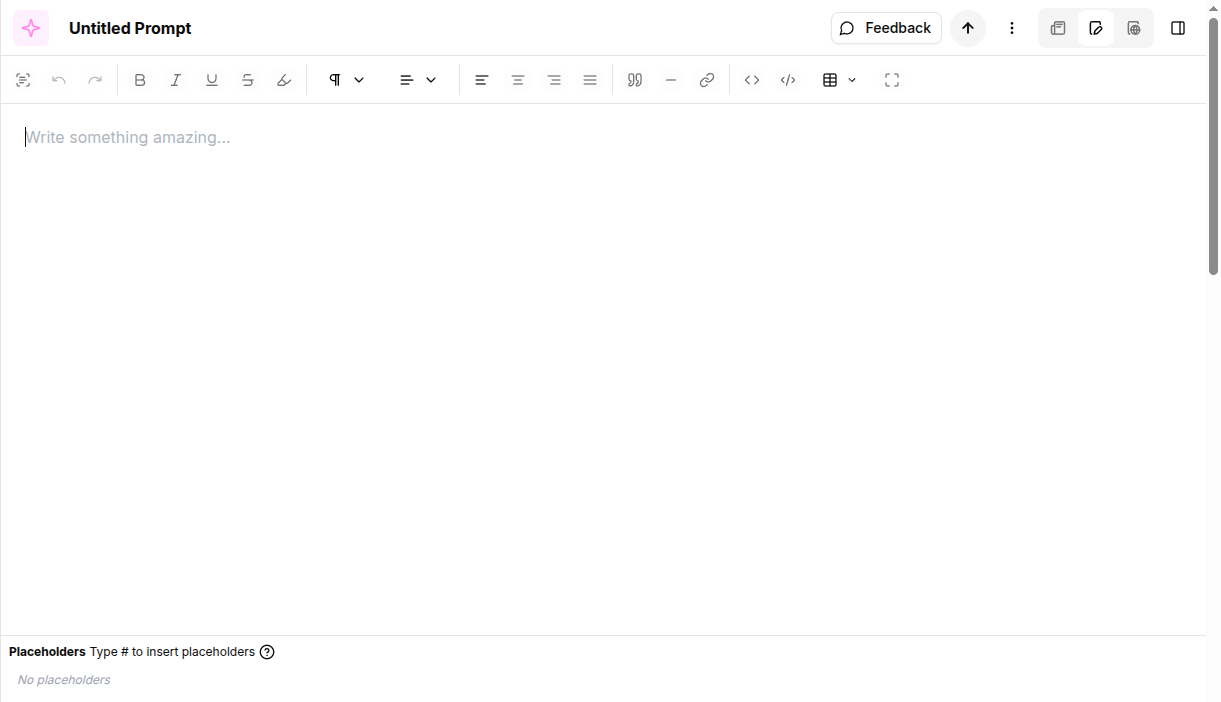
After clicking, you will be redirected to our edit page. There are fields there that you should be familiar with.

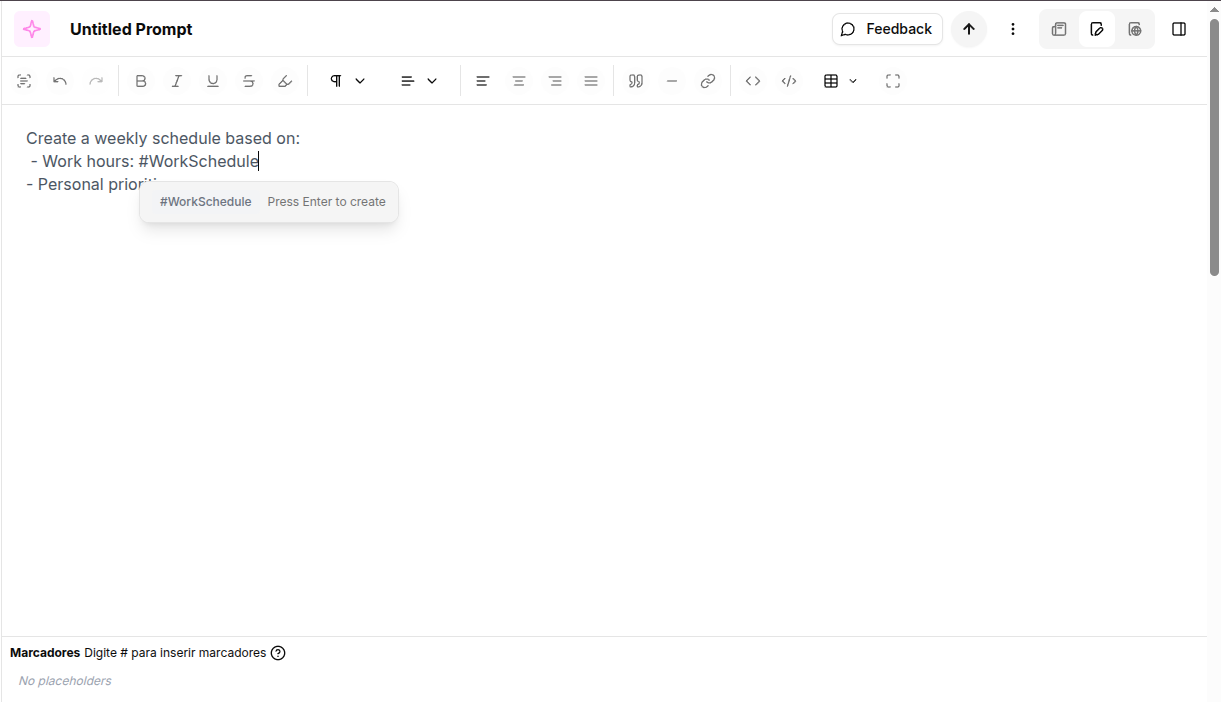
The first field is a text editor; it will contain your prompt, the instructions you will give to an AI. You can format the text in various ways, including adding a table.

<figure><img src="https://2309549448-files.gitbook.io/~/files/v0/b/gitbook-x-prod.appspot.com/o/spaces%2FPHhG44gtlSqQKJF8UuzM%2Fuploads%2FFjritU0OmioJPAxq2ss3%2Fimage.png?alt=media&amp;token=fd2ab27a-7458-41d6-afff-04151aaa4b03" alt=""><figcaption></figcaption></figure>

### So how will you create a quality prompt?

* Be Specific: Avoid vague terms. Instead of "Write about coffee," use "Write a 300-word article about the health benefits of craft coffee."
* Define a Role (Persona): Start by stating who the AI ​​should be. Example: "Act as a digital marketing expert" or "You are a physics teacher for children."
* Give Context: Explain the scenario. Say who the text is for, what the objective is, and where it will be used.
* Determine the Format: Explicitly state how you want the output: in bullet points, table, code, formal tone, or a numbered list.
* Impose Restrictions: Define what should not appear. Example: "Do not use technical terms" or "Do not mention competing brands."
* Iteration: The first prompt is rarely the last. If the result is not ideal, ask for adjustments: "Keep the text, but make it funnier."

{% hint style="info" %}
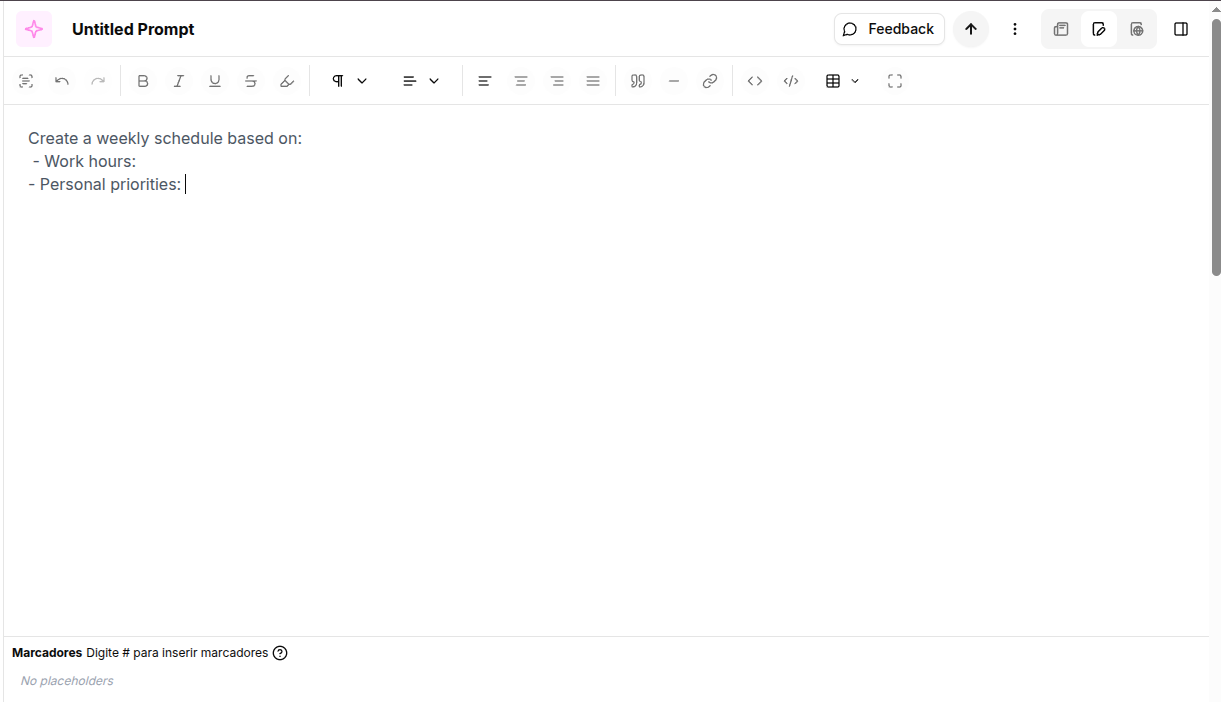
And to help with this structure in our text editor, if you put the following command "#" and what you would like to change in front of it, such as "#YourWeight", in the case of a diet prompt, when someone uses it, the user will be able to copy the prompt without needing to change this information later.
{% endhint %}

<figure><img src="https://2309549448-files.gitbook.io/~/files/v0/b/gitbook-x-prod.appspot.com/o/spaces%2FPHhG44gtlSqQKJF8UuzM%2Fuploads%2FeEcBvwGxrRtG1H8ngw2X%2Fimage.png?alt=media&amp;token=14cd7921-a06d-4f3a-9388-6fa3281e8673" alt=""><figcaption></figcaption></figure>

### Other fields

The remaining fields include:

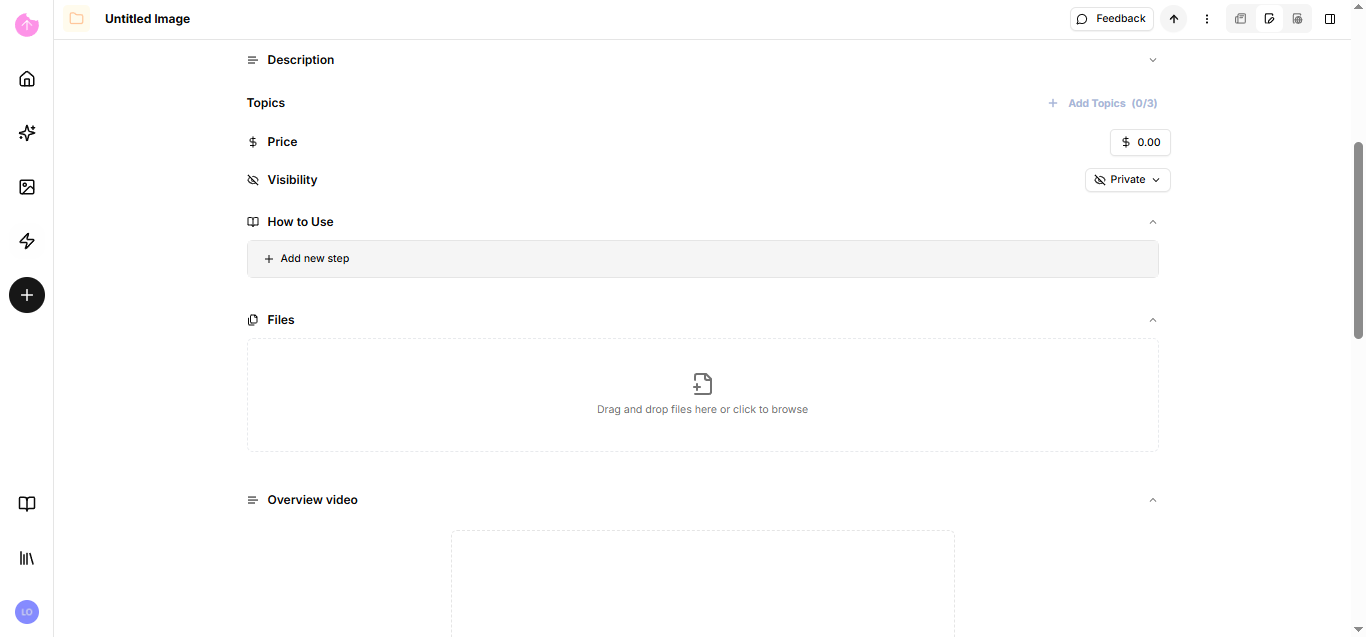
* Description: a field to briefly summarize what the prompt will be about.
* Topics: You can add topics to categorize your prompt.
* How to use: You can create steps to guide users.
* Files: You can include a file.
* Video: You can include a YouTube video.
* Images: You can include images to represent the prompt.
* Visibility: You can change the visibility between public or private.
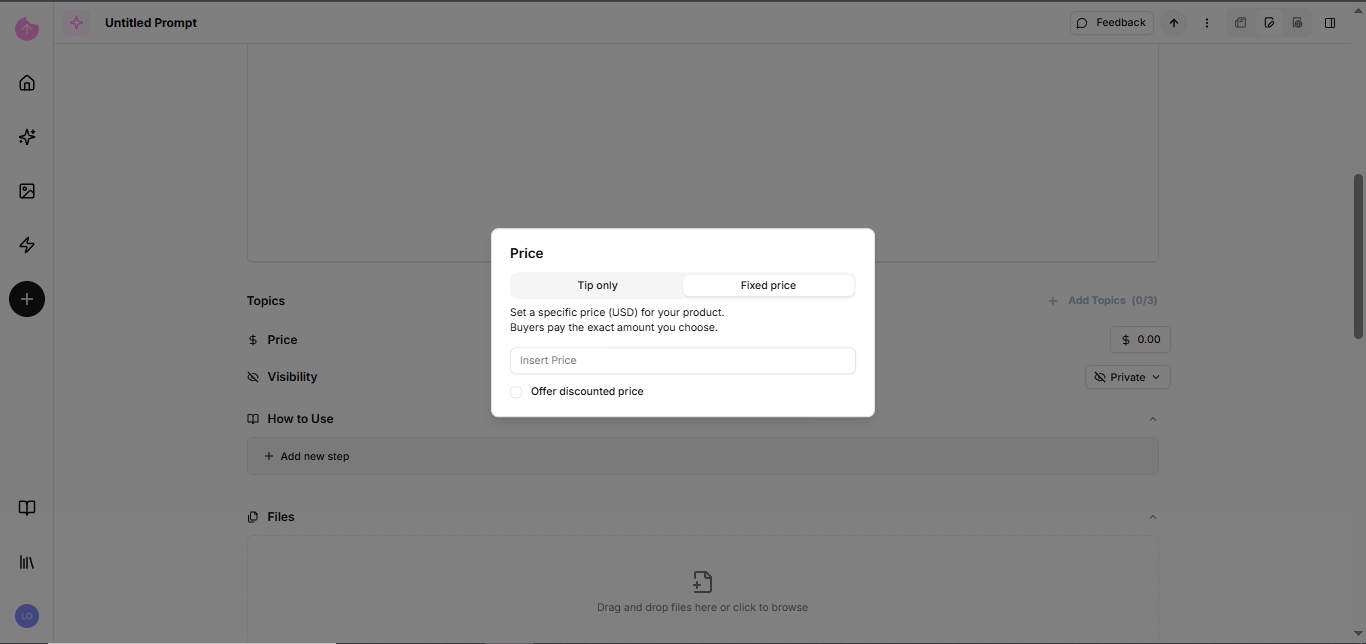
* Price: If you want to monetize your prompt, you need to set up a [Stripe account](/get-started/monetize-your-prompt).

### Other settings

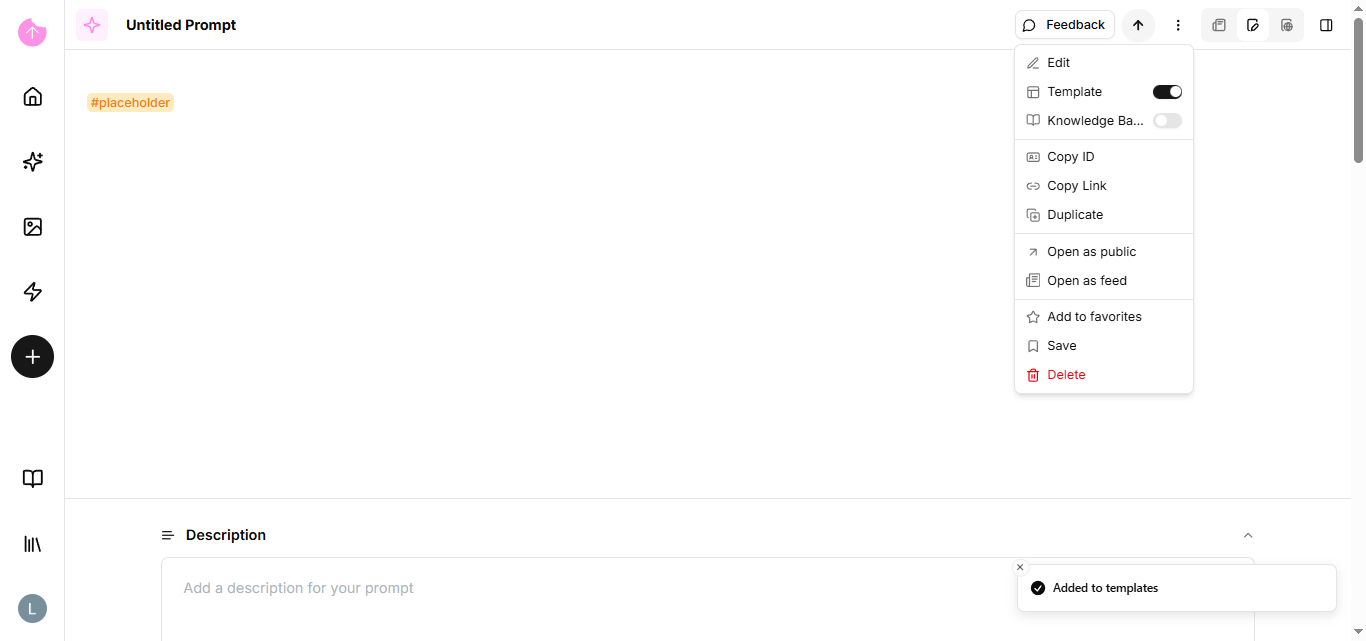
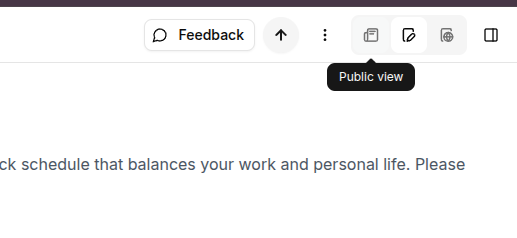
In our header, you can change your prompt's avatar and title, give an upvote, or change page views.

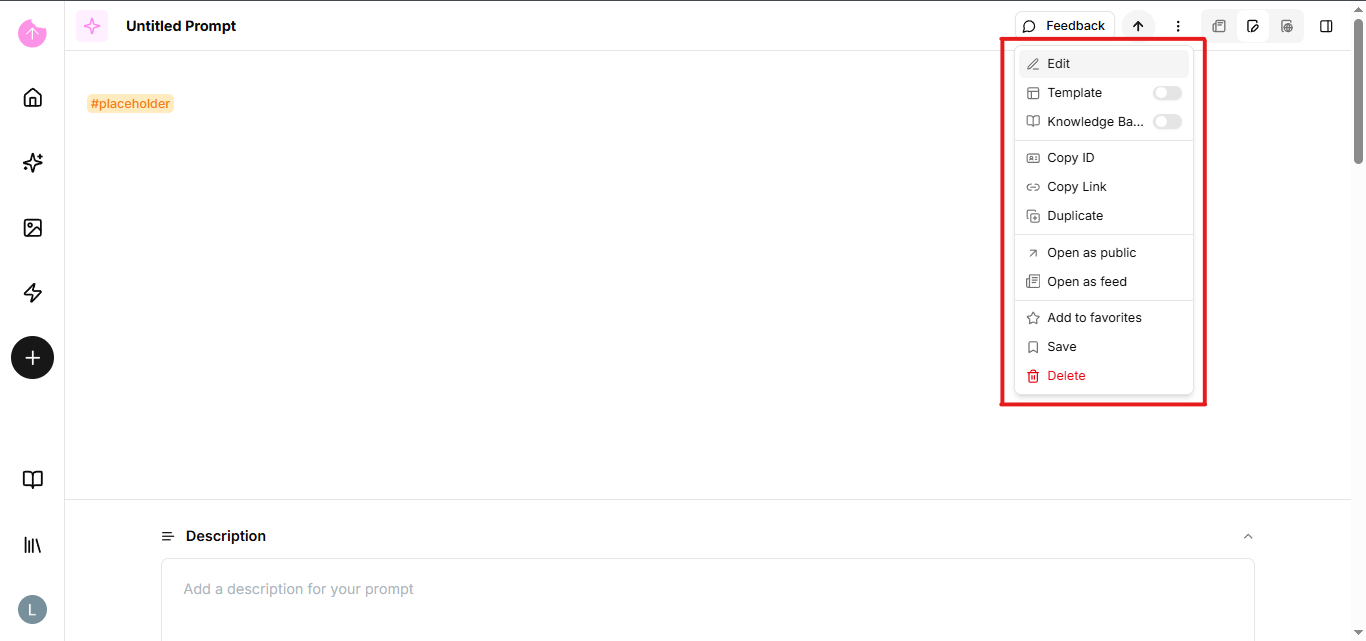
We also have a dropdown menu with some options.

* Add to favorites
* Save
* Duplicate
* Copy link
* Copy ID
* Transform into a [template](/get-started/templates) for future use.
* Transform into a [knowledge base](broken://pages/PMLtnlTJqXijyTe1t1QX).

<figure><img src="https://2309549448-files.gitbook.io/~/files/v0/b/gitbook-x-prod.appspot.com/o/spaces%2FPHhG44gtlSqQKJF8UuzM%2Fuploads%2FENe71Ipv6y78fIso73Gy%2Fimage.png?alt=media&amp;token=58ce804f-b45e-4a46-ac2e-b795c596d685" alt=""><figcaption></figcaption></figure>

{% hint style="info" %}
Click on the links to be directed to the specific page for that item.
{% endhint %}

Now that you know how to create a quality prompt, learn about our [other elements](https://docs.snackprompt.com/glossary/). Or ready to get paid for it?


# Monetize your prompt

Discover how to turn your creativity into profit. Learn how to set up your Stripe account and start selling your prompts securely.

In this section, you will learn how to turn your prompt into a product. Snack Prompt uses Stripe as an official partner to ensure you receive your payments securely and automatically.

### Setting up your Stripe Account

You'll see the Price field in almost all Elemental creations. But for that value to reach you, you need to connect your digital payment terminal.

<figure><img src="https://2309549448-files.gitbook.io/~/files/v0/b/gitbook-x-prod.appspot.com/o/spaces%2FPHhG44gtlSqQKJF8UuzM%2Fuploads%2FCrW5cRSuDpNSoW93olin%2Fimage.png?alt=media&amp;token=d0c0b89e-c8e8-4c72-b698-f51ceba5973c" alt=""><figcaption></figcaption></figure>

### Why do I need a Stripe account?

* Security: Stripe is the global standard for online payments.
* Payment Split: The system automatically calculates your commission and processes platform fees.
* Trust: Your customers will feel secure paying through an approved checkout.

### How to register:

1. In your Profile, access Billing/Payouts.
2. Click "Connect Stripe".
3. You will be redirected to Stripe's secure environment to fill in your bank and identity details.
4. After completion, the status in Snack Prompt will change to Verified.

<figure><img src="https://2309549448-files.gitbook.io/~/files/v0/b/gitbook-x-prod.appspot.com/o/spaces%2FPHhG44gtlSqQKJF8UuzM%2Fuploads%2FvF5sctuyguMAO1ZhACmZ%2Fimage.png?alt=media&amp;token=ff6aaaaf-799c-44a7-aa47-9e588168e1ea" alt=""><figcaption></figcaption></figure>

Now that you know how to monetize your prompts, let's learn about knowledge bases and how you can transform your files into one.


# Create a Simple 'Knowledge Base' using our Elements

Tutorial on how to use KMS (Knowledge Management System) to create structured knowledge bases that feed AI agents with their own data.

The Snack Prompt platform offers a powerful feature called **KMS (Knowledge Management System)**, enabling users to create, organize, and manage structured knowledge bases for AI applications, automation, and business processes.

## Turn a Table into an AI Knowledge Base

In Snackprompt, anything you create—from a simple document to a prompt—can become a Knowledge Base. This allows AI Agents to read and use your specific data.

In this tutorial, you will learn how to create a simple table and instantly convert it into a Knowledge Base for your AI agents.

#### What you will achieve

By the end of this tutorial, you will have a structured table filled with data that is fully accessible by AI Agents.

## Turn a Table into an AI Knowledge Base

In Snackprompt, anything you create—from a simple document to a prompt—can become a Knowledge Base. This allows AI Agents to read and use your specific data.

In this tutorial, you will learn how to create a simple table and instantly convert it into a Knowledge Base for your AI agents.

#### What you will achieve

By the end of this tutorial, you will have a structured table filled with data that is fully accessible by AI Agents.

***

#### Step 1: Create a new Table

First, we need to create the table structure.

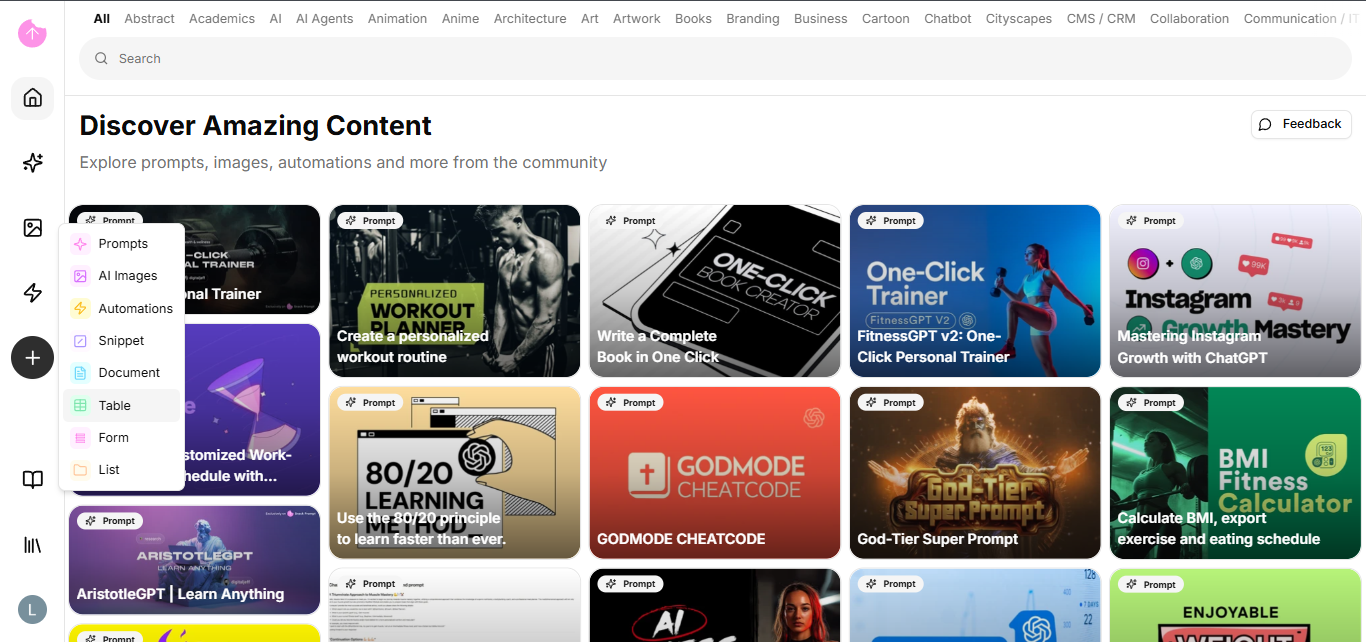
1. On the left-hand navigation bar, click the **+ (Plus)** button.
2. From the dropdown menu, select **Table**.

<figure><img src="https://2309549448-files.gitbook.io/~/files/v0/b/gitbook-x-prod.appspot.com/o/spaces%2FPHhG44gtlSqQKJF8UuzM%2Fuploads%2FipsL0nGe421YSIwvnOIp%2Fimage.png?alt=media&amp;token=ff7e164d-b013-4a7d-b1ba-161eef6daf01" alt=""><figcaption></figcaption></figure>

#### Step 2: Add your data

Now that you have your table, it's time to populate it with the information you want the AI to learn.

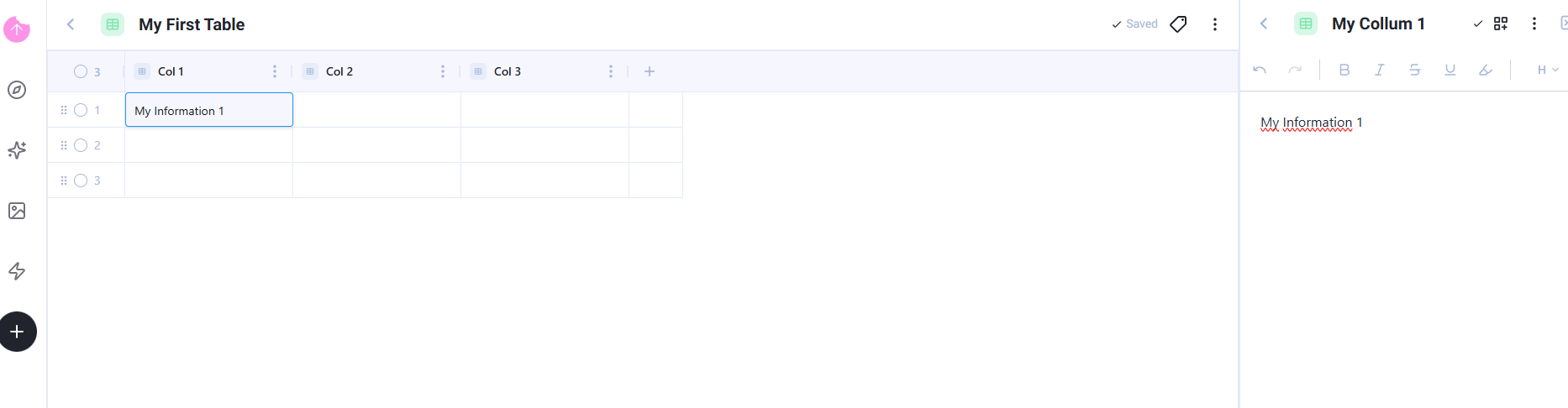
1. Give your table a title (e.g., "My First Table").
2. Fill in the columns and rows with your information. You can use the expanded side-view to easily edit the content of each cell.

<figure><img src="https://2309549448-files.gitbook.io/~/files/v0/b/gitbook-x-prod.appspot.com/o/spaces%2FPHhG44gtlSqQKJF8UuzM%2Fuploads%2FtCZKhbQpliAbHGnrojH0%2Fimage.png?alt=media&amp;token=ea7efa2b-764d-4d6f-9912-0db105324b76" alt=""><figcaption></figcaption></figure>

#### Step 3: Enable the Knowledge Base

The final step is to make this data available to AI.

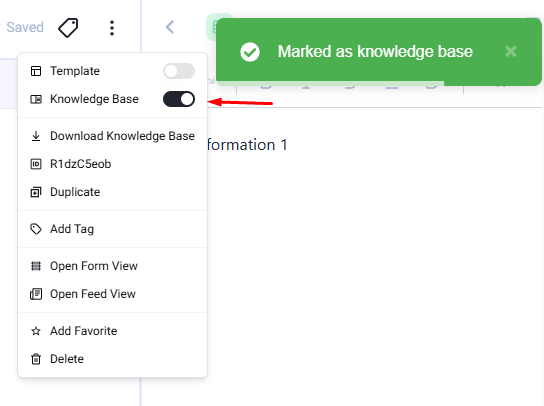
1. Navigate to the top right corner of the screen and click the **⋮ (Three dots)** menu.
2. Find the **Knowledge Base** option.
3. Click the toggle switch to turn it **ON**.

<figure><img src="https://2309549448-files.gitbook.io/~/files/v0/b/gitbook-x-prod.appspot.com/o/spaces%2FPHhG44gtlSqQKJF8UuzM%2Fuploads%2Fd9TBz0t6MdU5YLb3L6eA%2Fimage.png?alt=media&amp;token=d41a8c84-ca8a-4fdd-b07d-ec68481c8b30" alt=""><figcaption></figcaption></figure>

#### 🎉 Success!

Congratulations! Your table is now an active Knowledge Base. Any AI Agent connected to this base can now consume, query, and utilize the data you just organized.

\
**Next Steps:** Try creating an AI Agent and connecting it to this new Knowledge Base to test how it answers questions based on your table, using our [Knowledge Base API](/bring-your-data-into-ai/get-started/how-to-use-your-knowledge-bases)<br>

What if I only want to save the style of my element? Mark it as a template.


# Templates

Learn how to create and use templates to save time, standardizing project structures and professional layouts for recurring use.

Templates are pre-defined structures used as a starting point for projects. They save time by providing a ready-made layout and design that is easily customizable, allowing anyone to create professional materials quickly without needing advanced technical skills.

<figure><img src="https://2309549448-files.gitbook.io/~/files/v0/b/gitbook-x-prod.appspot.com/o/spaces%2FPHhG44gtlSqQKJF8UuzM%2Fuploads%2F34J4SBNs9hCQZHOWaklQ%2Fimage.png?alt=media&amp;token=517f59b8-c489-4fbd-93ff-ea47e911de40" alt=""><figcaption></figcaption></figure>

### Practical Examples of Templates

* Business & Careers: Ready-to-use layouts for resumes (CVs), formal contracts, and business proposals.
* Design & Social Media: Pre-made formats for Instagram posts, YouTube thumbnails, and digital invitations.
* Web Design: Website themes (like WordPress or Wix) where you simply swap the text and images.
* Presentations: Slide decks with consistent color palettes and fonts for meetings or lectures.
* Marketing: Email templates for newsletters, product launches, or promotional campaigns.
* Project Management: Pre-formatted spreadsheets for budgeting, task schedules (Gantt charts), and workflows.

So the next time you create an amazing element that you're sure to use again, turn it into a template.

### How do I transform my elements into a template?

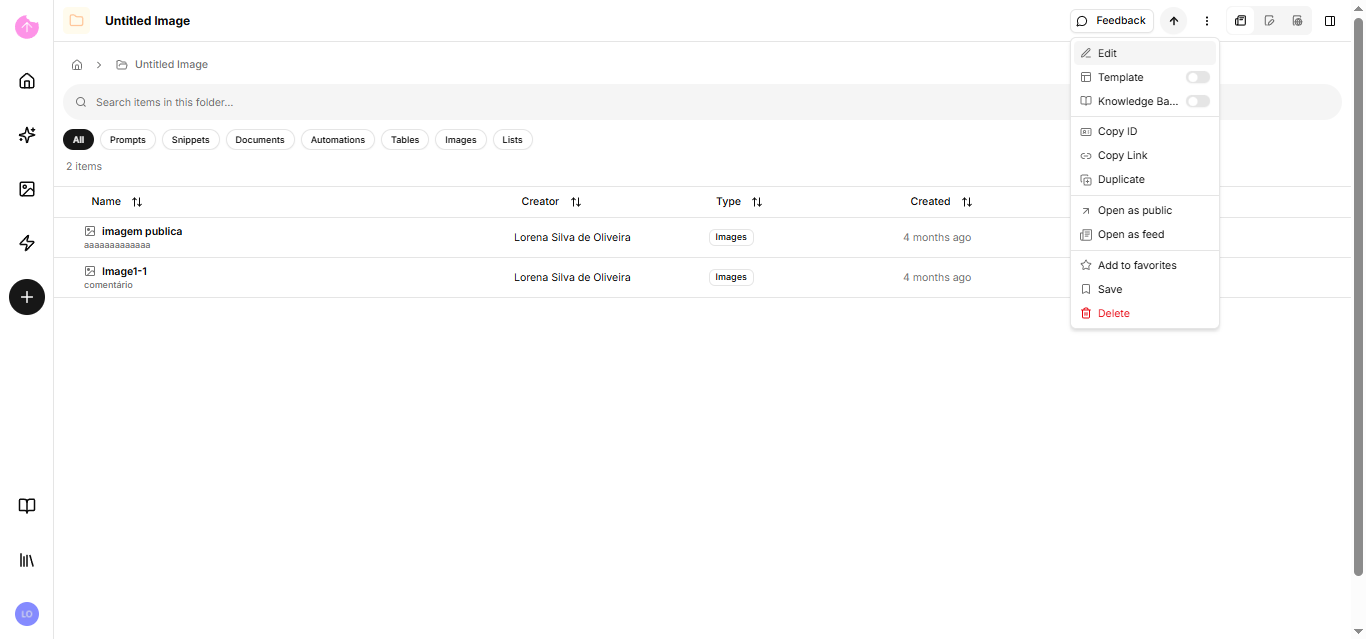
On the edit page of your element, in the header there is a dropdown menu where you can mark that item as a template.

<figure><img src="https://2309549448-files.gitbook.io/~/files/v0/b/gitbook-x-prod.appspot.com/o/spaces%2FPHhG44gtlSqQKJF8UuzM%2Fuploads%2FtEsha1wikaUqIpNoOXm7%2Fimage.png?alt=media&amp;token=fff680ed-b38f-41e6-b997-d34eb98a6d0f" alt=""><figcaption></figcaption></figure>

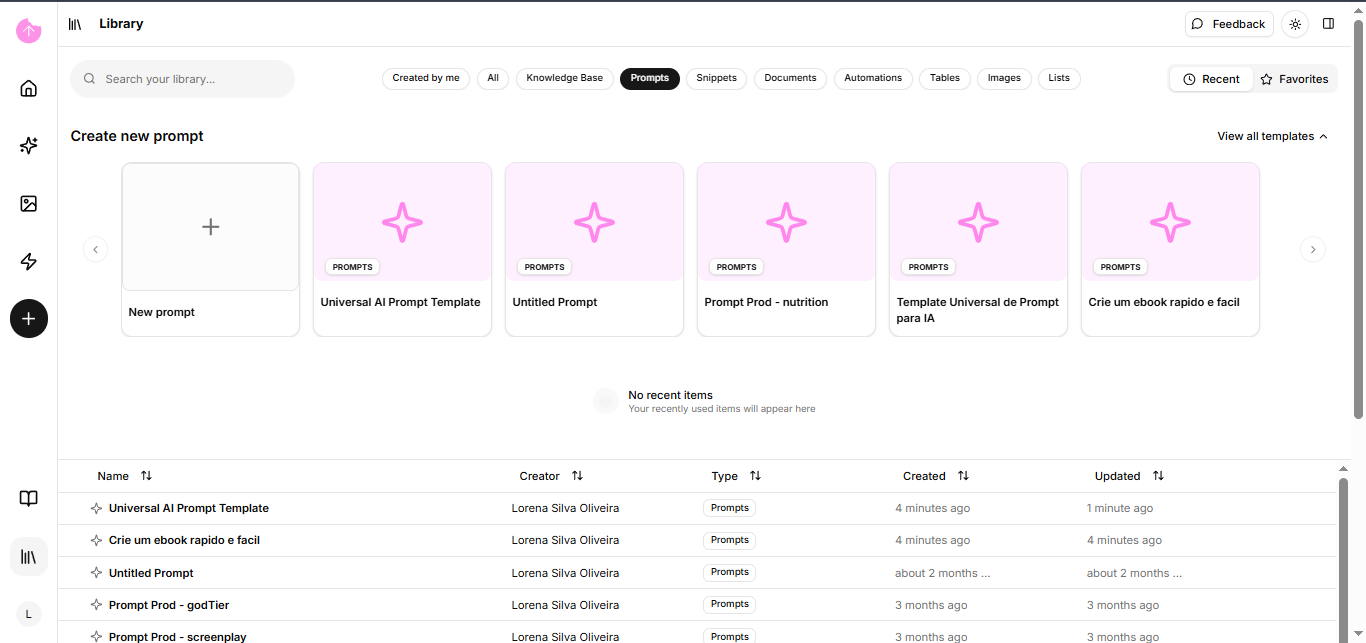
Our platform also has ready-made templates just go to the library.

<figure><img src="https://2309549448-files.gitbook.io/~/files/v0/b/gitbook-x-prod.appspot.com/o/spaces%2FPHhG44gtlSqQKJF8UuzM%2Fuploads%2FUercN86hfBLGtknZgDMU%2Fimage.png?alt=media&amp;token=edc35dbd-b95b-430c-b9f5-3062c37d73c9" alt=""><figcaption></figcaption></figure>

Now you know the basics of our platform. Let's delve a little deeper into our other tools.


# Snack Prompt for Teams

A preview of team collaboration features, enabling the sharing of prompts and knowledge bases among members of an organization.

Snack Prompt for Teams is a comprehensive AI platform designed to streamline AI adoption and enhance productivity for individuals and teams. By integrating multiple large language models (LLMs) into a single, user-friendly dashboard, it enables seamless transitions between models, easy prompt collaboration, and efficient text automation.

### Key Features <a href="#key-features" id="key-features"></a>

* #### Easy Prompt Collaboration <a href="#easy-prompt-collaboration" id="easy-prompt-collaboration"></a>
  * Create, organize, and manage prompts in a structured workflow.
  * Share prompts with your team for seamless collaboration.
  * Discover and utilize community-curated prompts to enhance efficiency.
* #### Quick Text Shortcuts (Snippets) <a href="#quick-text-shortcuts-snippets" id="quick-text-shortcuts-snippets"></a>
  * Eliminate repetitive typing with customizable text snippets.
  * Assign intuitive shortcuts like `/name` to insert predefined text instantly.
  * Maintain consistency in communication across different platforms.
* #### Team-Specific Dashboards <a href="#team-specific-dashboards" id="team-specific-dashboards"></a>
  * Customize dashboards for different teams and workflows.
  * Keep prompts and snippets organized without unnecessary clutter.
  * Ensure each team member has access to the most relevant AI tools.
* #### Snippets Without Borders <a href="#snippets-without-borders" id="snippets-without-borders"></a>
  * Use text snippets beyond the platform, anywhere on the internet.
  * Automate repetitive typing tasks for a smoother communication experience.
* #### Multi-Model Comparison <a href="#multi-model-comparison" id="multi-model-comparison"></a>
  * Effortlessly switch between different LLMs.
  * Compare model outputs side by side.
  * Choose the best AI model for each task.

### Why Choose Snack Prompt for Teams? <a href="#why-choose-snack-prompt-for-teams" id="why-choose-snack-prompt-for-teams"></a>

* **220K+ Prompt Creators** contributing to a vast collection of prompts.
* **22 Million+ Prompts Opened** to date, proving its impact.
* **40% Productivity Boost**, helping teams work smarter, not harder.

Snack Prompt for Teams simplifies AI workflow, making AI-powered productivity accessible, efficient, and collaborative.


# Get your API key

Learn how to generate and manage your API keys to integrate Snack Prompt features into your own applications and systems.

An API Key is a unique string of characters (letters and numbers) that serves as a combination of username and password for systems. It allows different software to connect and exchange information securely.

### What are they for?

1. Authentication: It ensures that only authorized people or systems access a tool (e.g., connecting your website to ChatGPT).
2. Usage Control: It allows the service provider to know who is making the requests, in order to charge for usage or limit access speed.
3. Security: If an integration is compromised, you can simply "revoke" (cancel) that specific key without having to change your main password.

### Where can I find access keys on Snack Prompt?

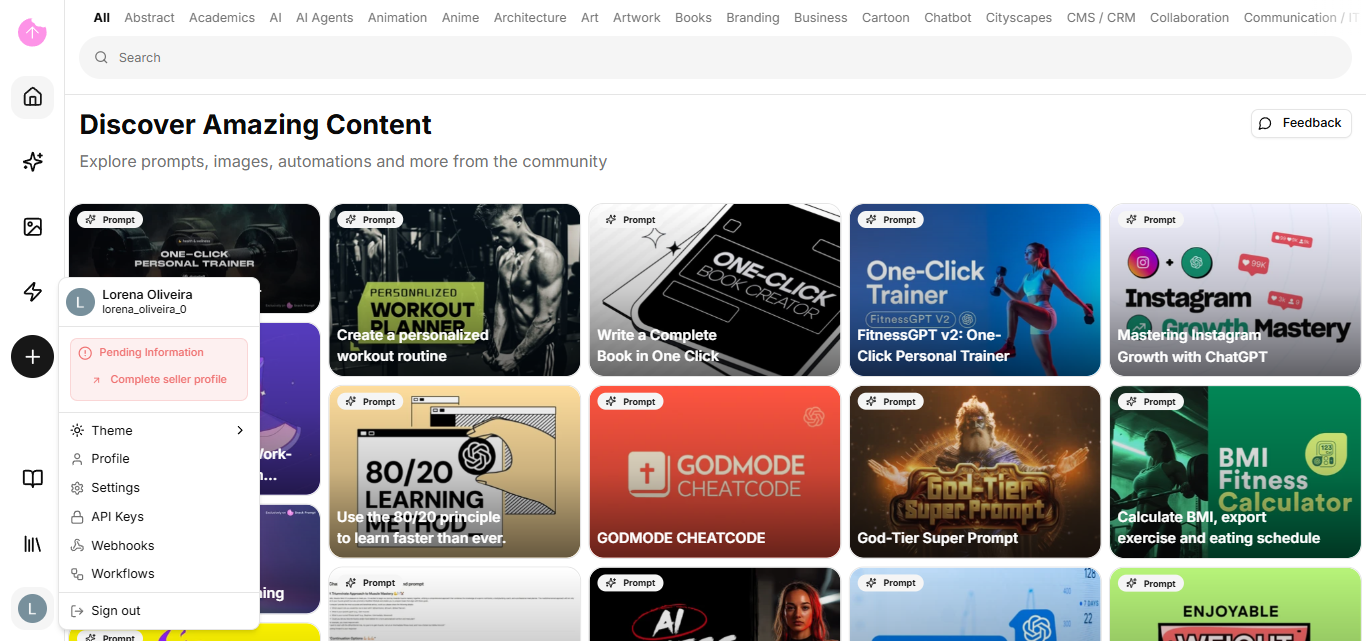
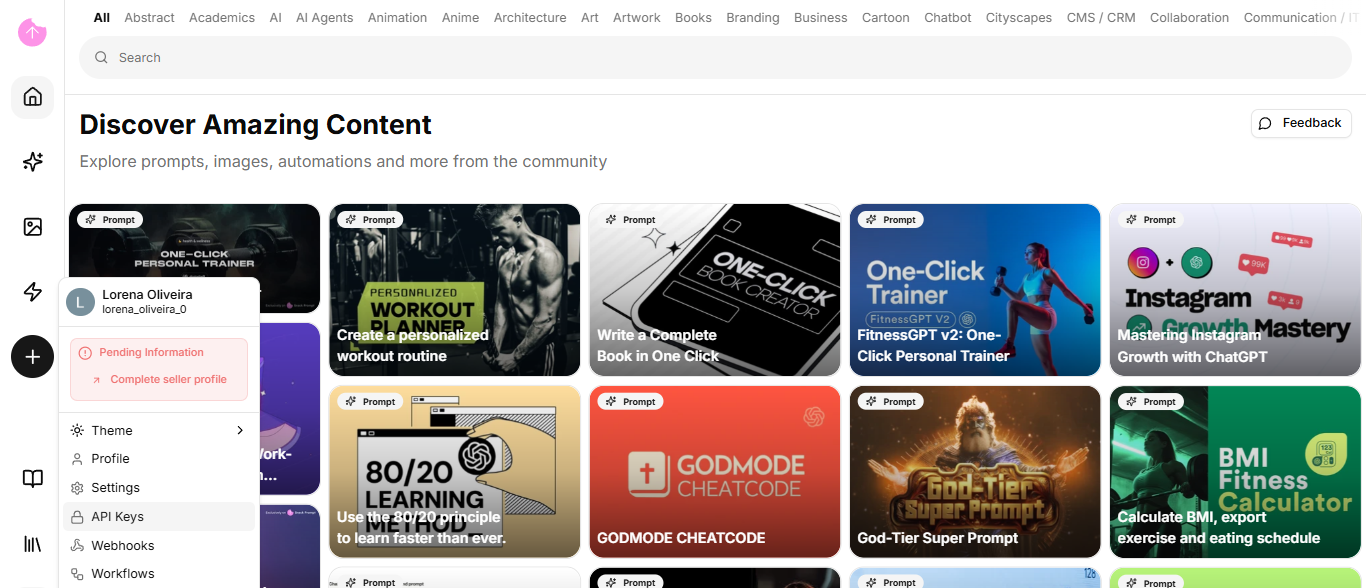
In the left sidebar, by clicking on your profile picture, you will see the option: API Keys.

<figure><img src="https://2309549448-files.gitbook.io/~/files/v0/b/gitbook-x-prod.appspot.com/o/spaces%2FPHhG44gtlSqQKJF8UuzM%2Fuploads%2FORbdiZR3gyY4D0ErUjPx%2Fimage.png?alt=media&amp;token=6d9e64c0-a25c-4715-8596-fa827d1c1d63" alt=""><figcaption></figcaption></figure>

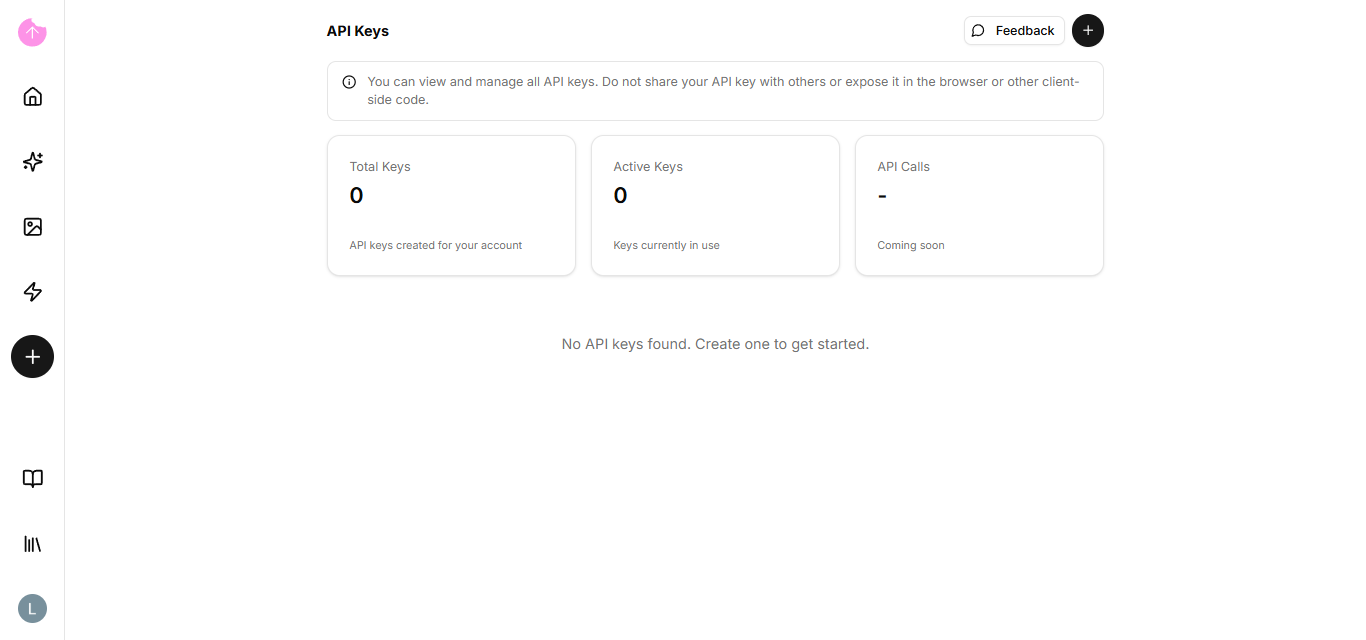
If you don't have a key, you can click the +.

<figure><img src="https://2309549448-files.gitbook.io/~/files/v0/b/gitbook-x-prod.appspot.com/o/spaces%2FPHhG44gtlSqQKJF8UuzM%2Fuploads%2FKYKLNCrvpCH6S2OT9CgB%2Fimage.png?alt=media&amp;token=a4d35902-ac7c-4c75-9a36-27eb85d5fc91" alt=""><figcaption></figcaption></figure>

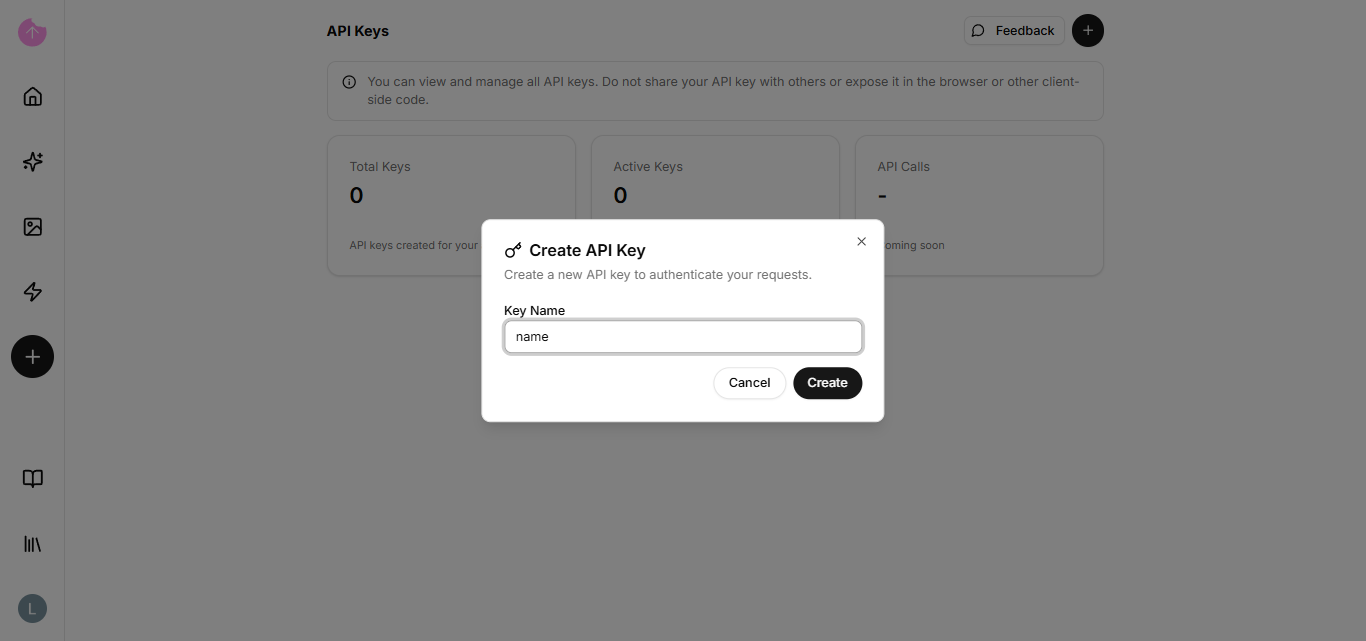
The only field you need to fill in is the API Key name.

<figure><img src="https://2309549448-files.gitbook.io/~/files/v0/b/gitbook-x-prod.appspot.com/o/spaces%2FPHhG44gtlSqQKJF8UuzM%2Fuploads%2FBEulkv5HeRTZrt1sEOLR%2Fimage.png?alt=media&amp;token=82a2b9ab-799b-4011-bb28-9f58ec3ba9dd" alt=""><figcaption></figcaption></figure>

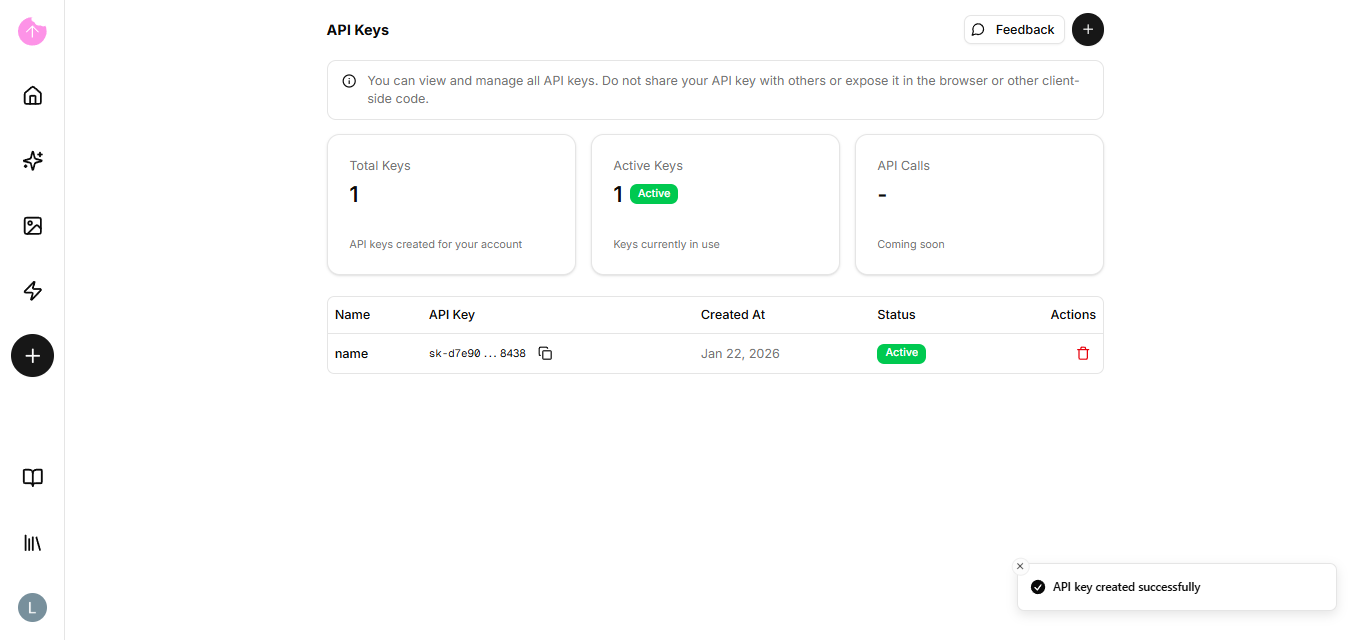
Once the API key is created, you can delete or copy it.

<figure><img src="https://2309549448-files.gitbook.io/~/files/v0/b/gitbook-x-prod.appspot.com/o/spaces%2FPHhG44gtlSqQKJF8UuzM%2Fuploads%2FwlThymVQCZtys2WFtuzP%2Fimage.png?alt=media&amp;token=30e2443b-280e-4265-881e-ff0e7a6ca0b6" alt=""><figcaption></figcaption></figure>

{% hint style="info" %}
Treat your API Key like your house key. You only give it to those you truly trust to enter your system.
{% endhint %}

If you want to learn more about API integrations using a key, [click here](https://docs.snackprompt.com/api-reference/).

Congratulations! You've completed the entire journey: from understanding the architecture, through visual creation with Elementals, intelligence with KBs, to monetization for the Stripe and automation for the Webhooks.

Keep reading to see what's coming soon!


# Customize your public profile

Learn how to customize your public profile, add your bio, social media links, and showcase all the elements you've created for the community.

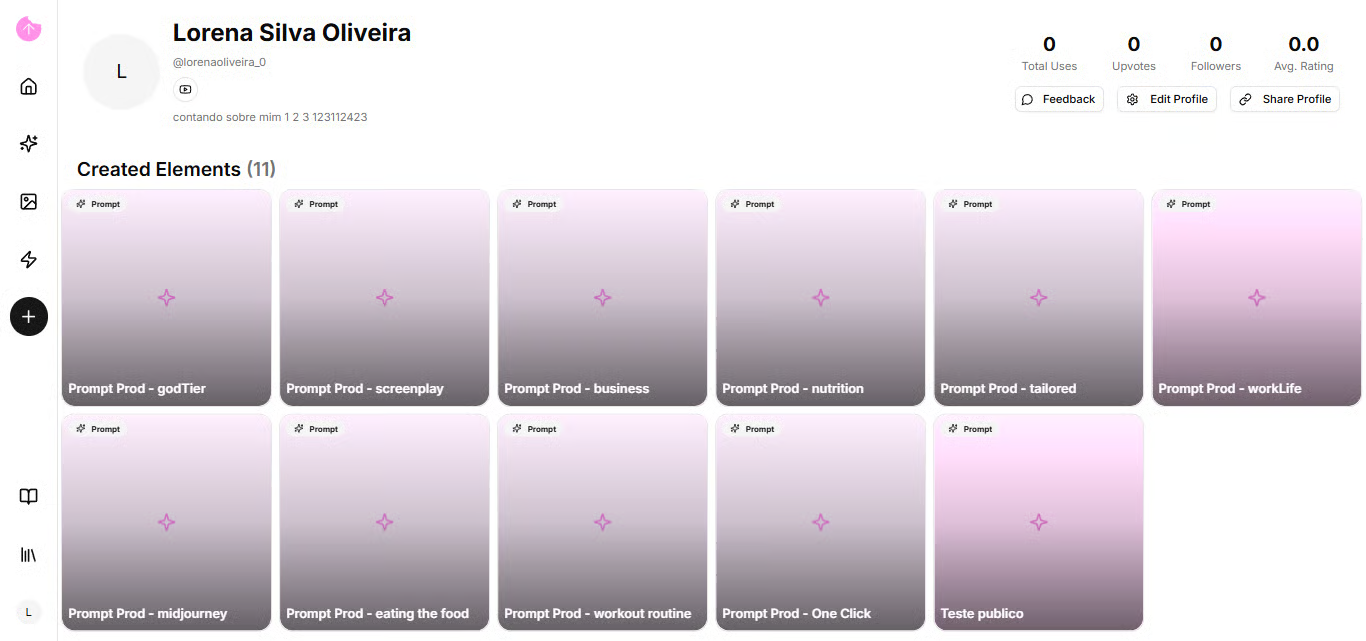
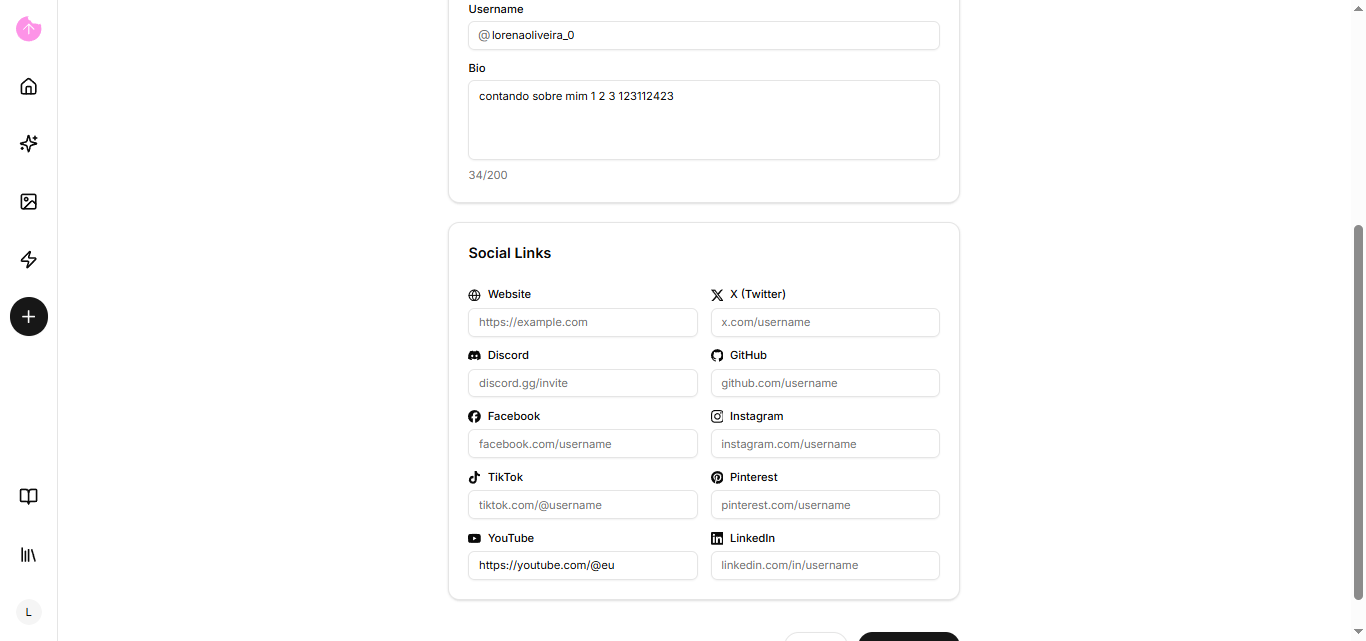
Your profile page is where other users will go to get to know you better, through your bio, and they will have access to your social media. You just need to go to edit your profile.

<figure><img src="https://2309549448-files.gitbook.io/~/files/v0/b/gitbook-x-prod.appspot.com/o/spaces%2FPHhG44gtlSqQKJF8UuzM%2Fuploads%2FHATzTjiQHZfFL1maRUST%2Fimage.png?alt=media&amp;token=245abd5b-0443-4511-a9b6-5404f41775c5" alt=""><figcaption></figcaption></figure>

<figure><img src="https://2309549448-files.gitbook.io/~/files/v0/b/gitbook-x-prod.appspot.com/o/spaces%2FPHhG44gtlSqQKJF8UuzM%2Fuploads%2FaREZYvmTr0XyXIiFpKWt%2Fimage.png?alt=media&amp;token=e1b1044e-5e07-41a3-a284-0159540c47db" alt=""><figcaption></figcaption></figure>

In addition, all your publicly created elements will appear on your profile page.

Now that you've seen our profile page, let's see how to organize your items!


# Manage your library

Explore the Snack Prompt library, where you'll find a curated selection of ready-to-use elements, templates, and resources.

Our library is the center of all its elements. Everything that is created is concentrated there.

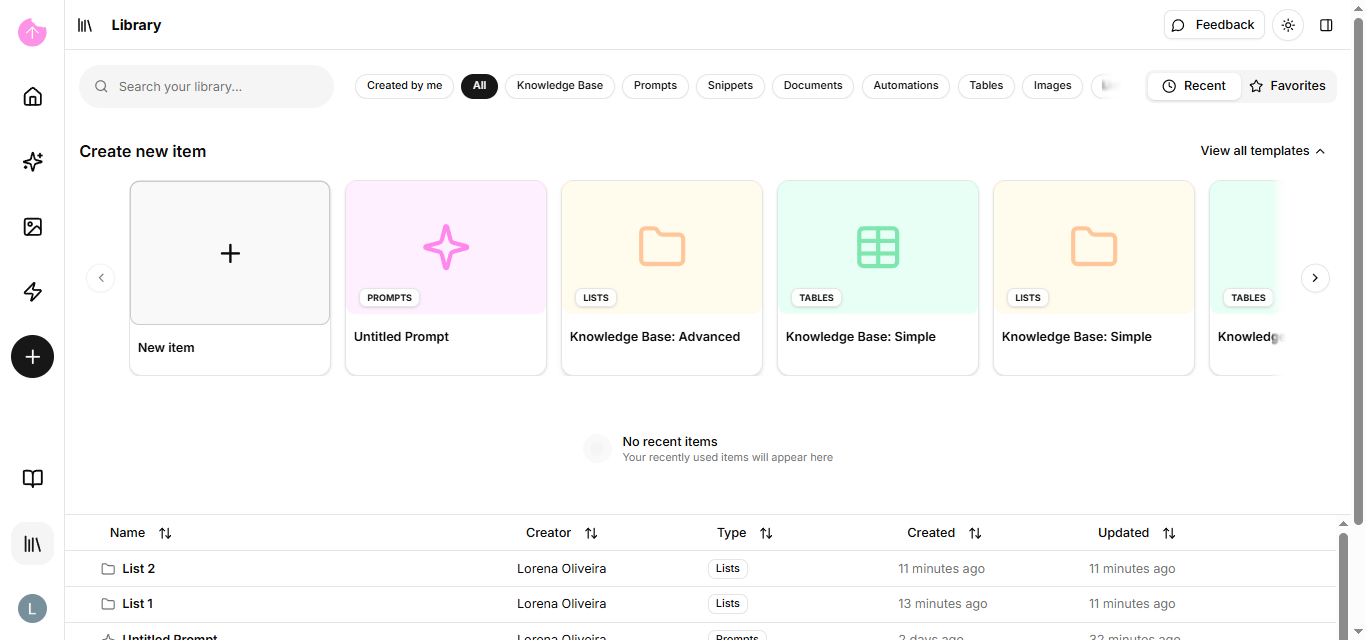
To enter the library, click on the option in the left sidebar.

<figure><img src="https://2309549448-files.gitbook.io/~/files/v0/b/gitbook-x-prod.appspot.com/o/spaces%2FPHhG44gtlSqQKJF8UuzM%2Fuploads%2FvKRumk0uJnYjutMZS7ck%2Fimage.png?alt=media&amp;token=e56d8697-bc02-4ce1-a61b-24b97b74ccee" alt=""><figcaption></figcaption></figure>

Now that you're in the library, let's show you the tools.

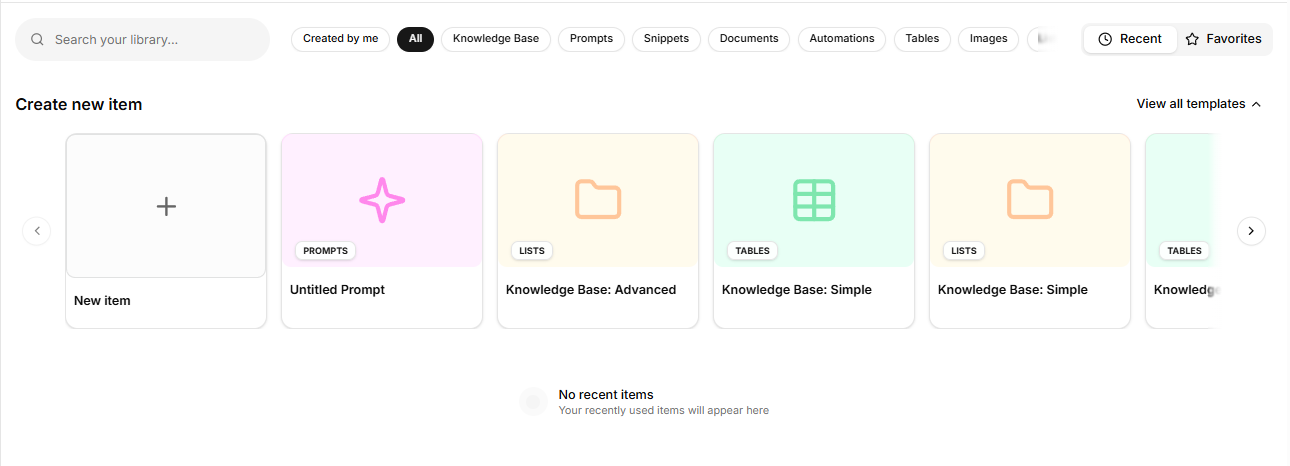
In the field above, you'll find the search bar where you can search the entire library for an item by name.

<figure><img src="https://2309549448-files.gitbook.io/~/files/v0/b/gitbook-x-prod.appspot.com/o/spaces%2FPHhG44gtlSqQKJF8UuzM%2Fuploads%2FHMLTaaQAJEgoD6rMykgx%2Fimage.png?alt=media&amp;token=7048cb5f-0290-4c8f-b240-6fce97d5ba18" alt=""><figcaption></figcaption></figure>

To right, there are several filters that can be combined or not. You can choose, for example, to show only prompts or only documents and automations. Your knowledge bases are also located in this filter.

Your templates, whether created by you or the Snack team, are located right below.

Additionally, you can filter by recently opened items or by favorites.

<figure><img src="https://2309549448-files.gitbook.io/~/files/v0/b/gitbook-x-prod.appspot.com/o/spaces%2FPHhG44gtlSqQKJF8UuzM%2Fuploads%2FBNzXXaeVfW2NKRU9kzt3%2Fimage.png?alt=media&amp;token=34d77417-d107-412f-bcd6-209dd003b05c" alt=""><figcaption></figcaption></figure>

The field below is where your created or saved elements from other users are located. It also shares the same dropdown menu.

Now that you're familiar with the library, let's delve deeper into each element you saw in the [glossary](https://docs.snackprompt.com/glossary/). Starting with AI Images.


# AI Images

A practical guide to using artificial intelligence in the creation of visual assets, making your content and interactions richer and more professional.

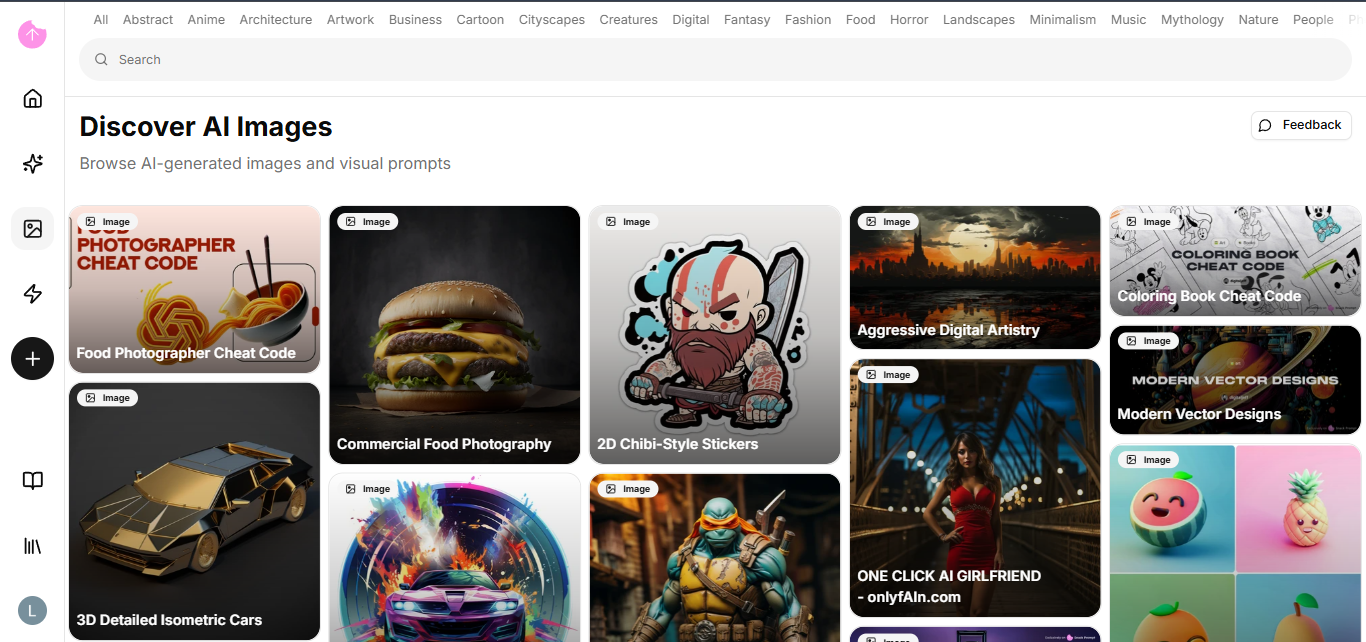
An image prompt is a specific set of visual instructions and descriptive text provided to an AI model to generate a unique graphic result. It acts as the "creative bridge" between your imagination and the machine's pixels, guiding the AI to render exactly what you envision.

<figure><img src="https://2309549448-files.gitbook.io/~/files/v0/b/gitbook-x-prod.appspot.com/o/spaces%2FPHhG44gtlSqQKJF8UuzM%2Fuploads%2FbcSw2OFMeXeJbd6I0sEa%2Fimage.png?alt=media&amp;token=0aec98e9-fcfa-485c-81ac-c5d7a10872dc" alt=""><figcaption></figcaption></figure>

#### How it works:

* The Creative Blueprint: It translates abstract ideas into concrete visual elements like subject, setting, and mood.
* The Art Director: It dictates technical details such as lighting, camera angles, color palettes, and artistic styles (e.g., hyperrealism, oil painting, or 3D render).
* The Precision Tool: By using specific keywords and descriptors, the prompt narrows down the AI's vast database to produce a cohesive and high-quality image.

Below are some examples of image prompts from the platform:

1. [Coloring Book Cheat Code](https://snackprompt.com/e/image/coloring-book-cheat-code-R1NYQhoqy)
2. [Food Photographer Cheat Code](https://snackprompt.com/e/image/food-photographer-cheat-code-1-psmdX1x8s)
3. [2D Chibi-Style Stickers](https://snackprompt.com/e/image/2d-chibi-style-stickers-WYTs8wSgu)

### How do I edit an AI Image?

The page and editing mode are exactly the same as the prompt; if you haven't checked it yet, please go back a few steps.

{% hint style="info" %}
In image prompts, the syntax and word order are crucial. Most AI models give more weight to the words at the beginning of the prompt, so always put your main subject first.
{% endhint %}

Now that you know about AI Images, we can move on to Automations.<br>


# Workflows & Webhooks

Advanced guide on how to connect Snack Prompt to external tools via Webhooks and create intelligent workflows.

Let's start by explaining what a workflow is.

### What is a Workflow?

A workflow is the structured path a task follows from draft to completion. It defines who does what, in which order, and what criteria must be met to move to the next phase.

#### Components of a Workflow:

* Input: The starting point (e.g., an image request from a client).
* Steps: The actions performed (e.g., creating the prompt, generating the image, reviewing quality).
* Decision Points: Moments where the flow can take different paths (e.g., "Is the image good? If yes, send; if no, redo").
* Output: The final delivered result.

{% hint style="info" %}
An efficient workflow turns chaotic tasks into predictable and scalable processes.
{% endhint %}

### &#xD;Where can I find workflows in Snack Prompt?

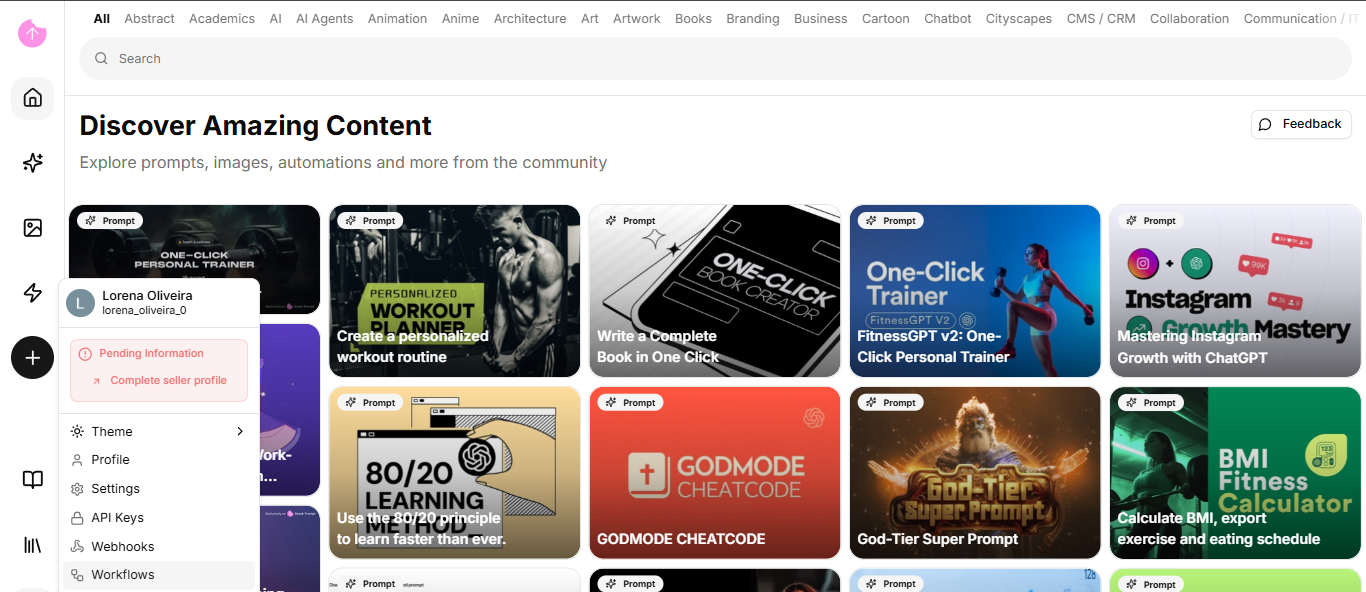
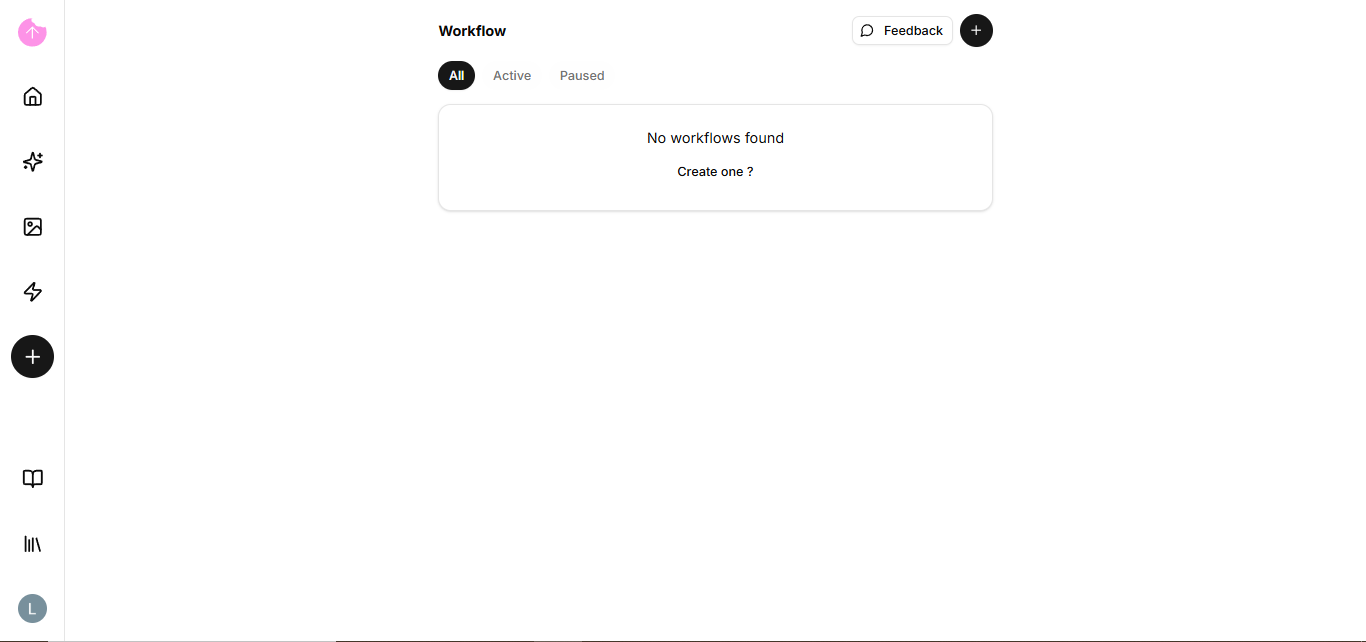
In the Snack Prompt on your left sidebar, clicking on your profile picture will give you two options: workflows and webhooks. Let's select the workflow option first.

<figure><img src="https://2309549448-files.gitbook.io/~/files/v0/b/gitbook-x-prod.appspot.com/o/spaces%2FPHhG44gtlSqQKJF8UuzM%2Fuploads%2FyL9LAbRpaUGkKyjbUXz4%2Fimage.png?alt=media&amp;token=998bbf63-6cb7-45c7-b63f-675316243435" alt=""><figcaption></figcaption></figure>

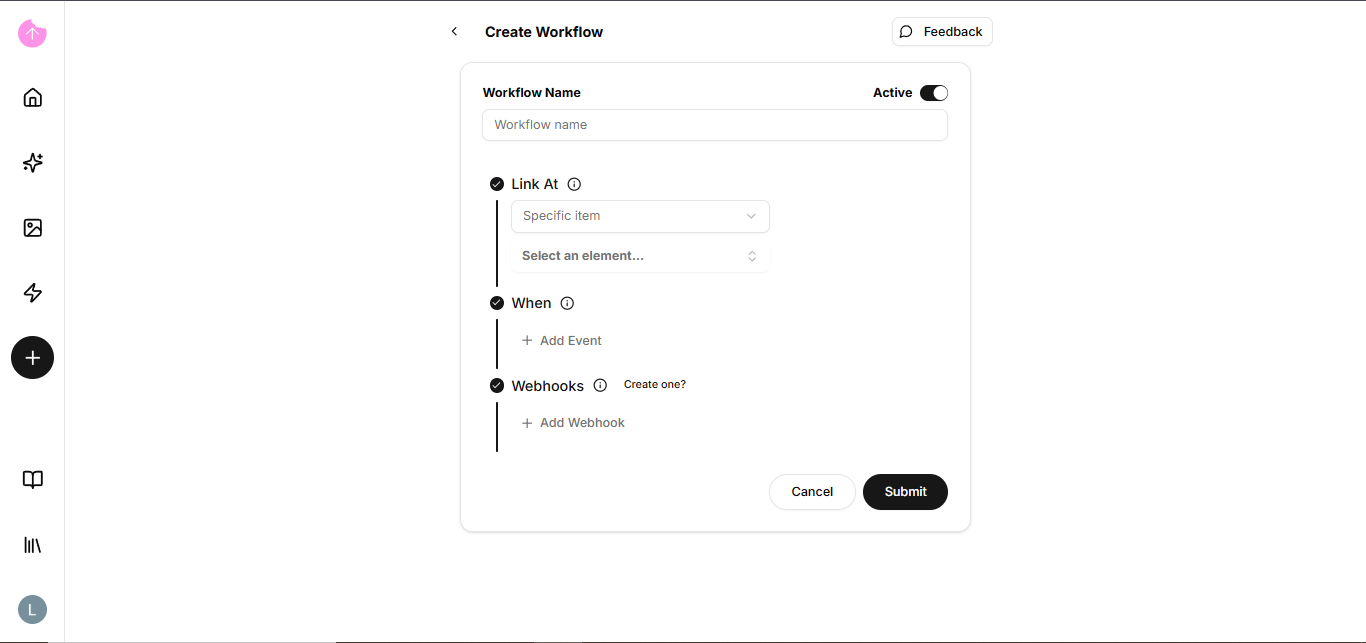
If you don't have any workflows, you can click on the "create one" option or the + if you already have one.

<figure><img src="https://2309549448-files.gitbook.io/~/files/v0/b/gitbook-x-prod.appspot.com/o/spaces%2FPHhG44gtlSqQKJF8UuzM%2Fuploads%2FDpDYNSQIaR9XbwKDuWC1%2Fimage.png?alt=media&amp;token=e48cd430-acba-40c6-ba41-a6dc5009ffb4" alt=""><figcaption></figcaption></figure>

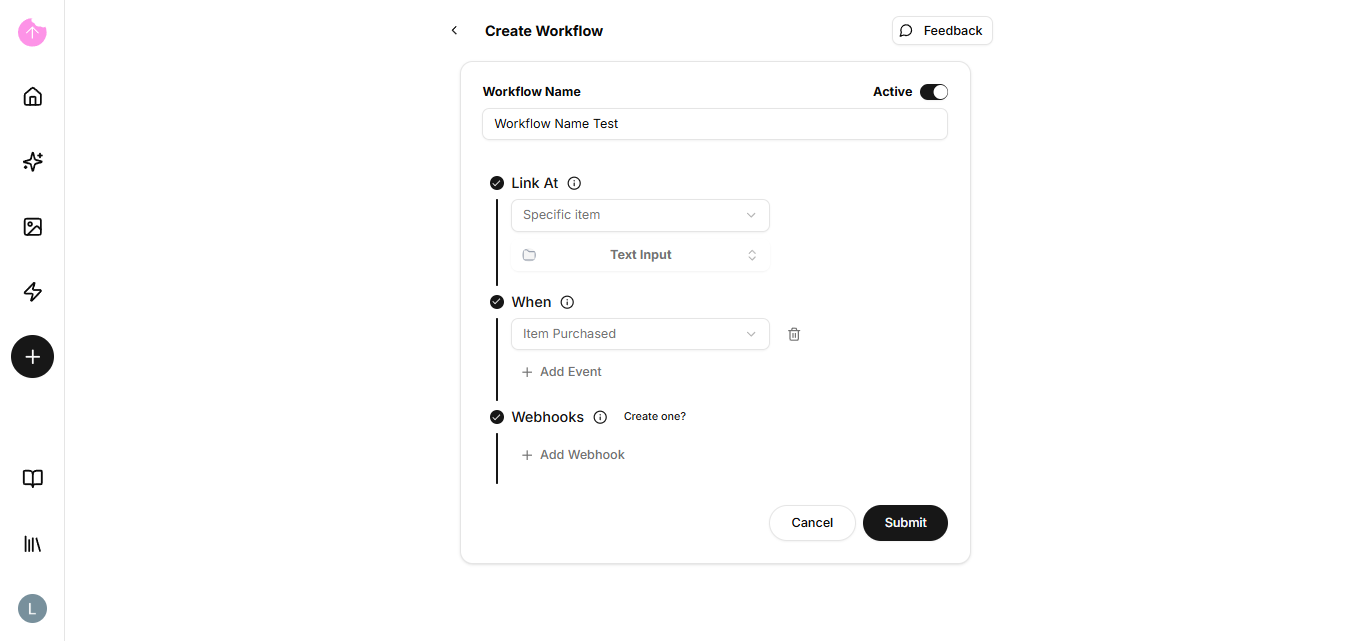
When you open the creation screen, you will have some options. Let's fill them in.

<figure><img src="https://2309549448-files.gitbook.io/~/files/v0/b/gitbook-x-prod.appspot.com/o/spaces%2FPHhG44gtlSqQKJF8UuzM%2Fuploads%2FBafb97niKNwfBAh1Wd2p%2Fimage.png?alt=media&amp;token=ba567ebc-fa2e-4025-a731-22d00e32c98a" alt=""><figcaption></figcaption></figure>

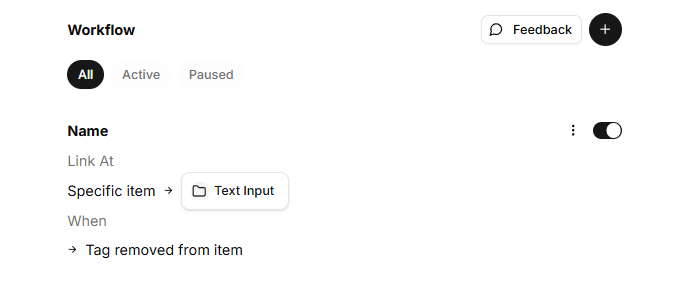
I filled in the first three fields: the name, which item I would like to trigger the workflow, and when the workflow should be activated.

<figure><img src="https://2309549448-files.gitbook.io/~/files/v0/b/gitbook-x-prod.appspot.com/o/spaces%2FPHhG44gtlSqQKJF8UuzM%2Fuploads%2FRgm1zcF76fPPO6Fgi9VH%2Fimage.png?alt=media&amp;token=9ae1444c-a536-4181-a891-d36038cc5518" alt=""><figcaption></figcaption></figure>

In the last option, you will specify which webhook you would like to activate via the workflow.&#x20;

If you already have a webhook, simply select it (+ Add Webhook) and press the submit button. The workflow is already activated by default, but you can deactivate it.

<figure><img src="https://2309549448-files.gitbook.io/~/files/v0/b/gitbook-x-prod.appspot.com/o/spaces%2FPHhG44gtlSqQKJF8UuzM%2Fuploads%2FeMcriwndHLSypxUBYEdG%2Fimage.png?alt=media&amp;token=45d2d516-c12b-40d8-85fc-6c4011dff668" alt=""><figcaption></figcaption></figure>

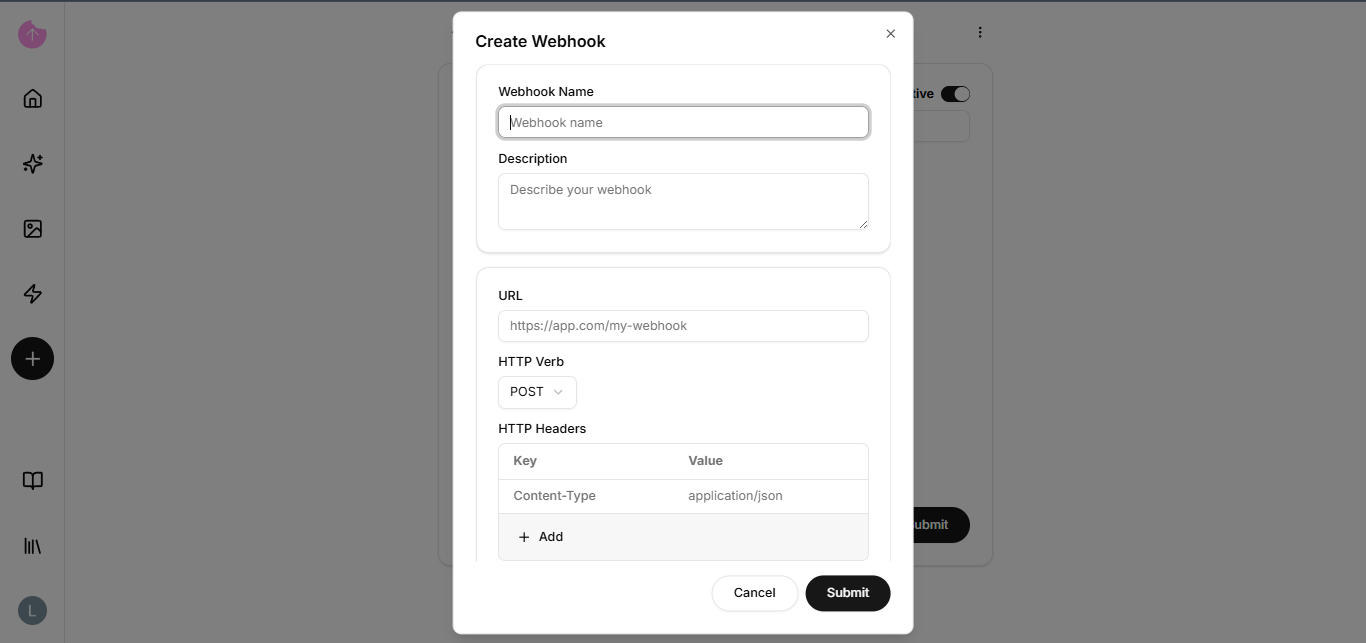
If you don't have a webhook, click on "create one" and another screen will open for you to fill it out.

<figure><img src="https://2309549448-files.gitbook.io/~/files/v0/b/gitbook-x-prod.appspot.com/o/spaces%2FPHhG44gtlSqQKJF8UuzM%2Fuploads%2FBta8e1OJ9HQchZ4f7xuZ%2Fimage.png?alt=media&amp;token=0d43a4cd-9c60-4667-bc5a-b5ba274a4cd1" alt=""><figcaption></figcaption></figure>

But before filling it out, I'll explain what a webhook is and why I need it in a workflow.

### What is a Webhook?

A Webhook is an event-based communication mechanism between applications. Instead of one system constantly asking "is there anything new?" (which is called *Polling*), the Webhook sends the information instantly as soon as the event occurs.

#### Why do you need it in a Workflow?

1. Real-Time Speed: The moment a form is submitted or a payment is approved, the Webhook "pushes" the data to your workflow without delay.
2. Resource Efficiency: It saves processing power and battery, as the workflow is only activated when there is actual work to be done.
3. Connecting Different Apps: It is the universal language that allows tools without native integrations to talk to each other.

#### Practical Example:

Without Webhook: Your automation checks email every 15 minutes to see if an order has arrived.

With Webhook: The sales website "notifies" your automation the exact second the sale is made.

{% hint style="info" %}
Think of a Webhook as an "intercom": you only go to the door when it rings, instead of constantly checking the sidewalk to see if someone is there.
{% endhint %}

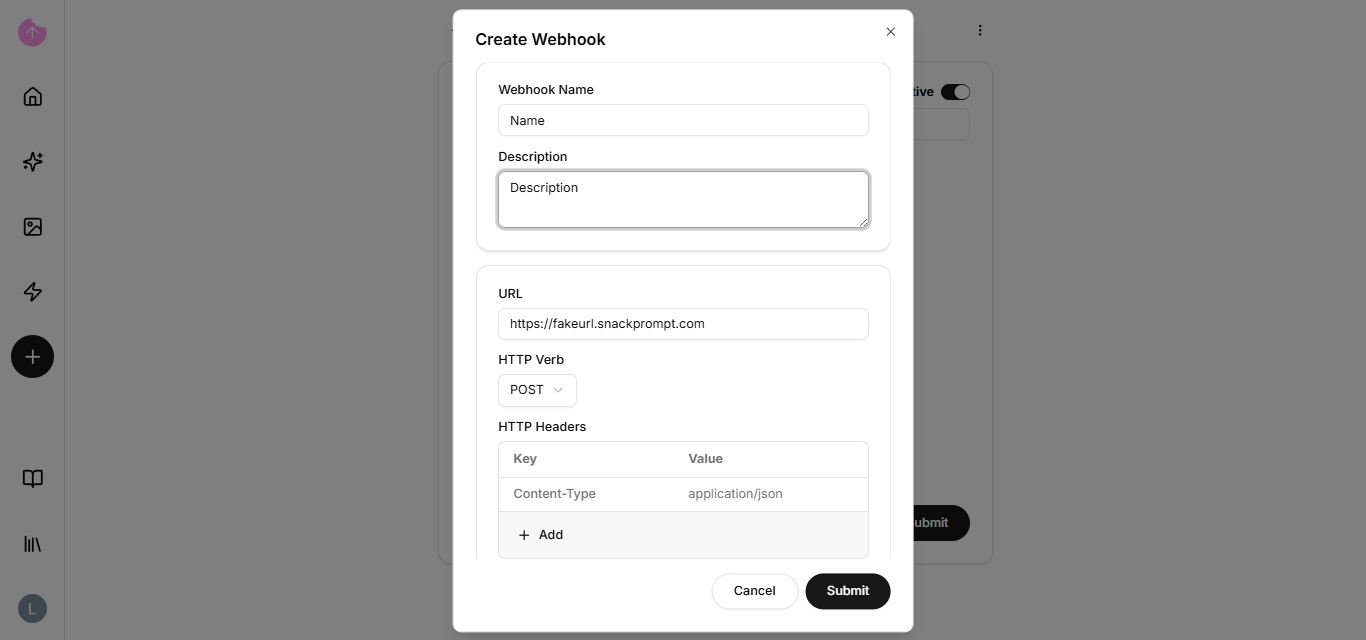
### So how do I create a webhook?

The main point is the URL; you need to set one up. You can use Zapier, Make, or n8n. To learn more about creating a webhook URL using n8n, [click here](/bring-your-data-into-ai/how-to/get-started-with-integrations/how-to-integrate-with-n8n).

After learning how, you just need to use it in the creation field.

<figure><img src="https://2309549448-files.gitbook.io/~/files/v0/b/gitbook-x-prod.appspot.com/o/spaces%2FPHhG44gtlSqQKJF8UuzM%2Fuploads%2FcNtpRamd2aw5VevTyvcb%2Fimage.png?alt=media&amp;token=38d220fa-7ac4-412d-ba5b-5038ea655fbc" alt=""><figcaption></figcaption></figure>

Press the submit button and that's it, you have a complete process.

Now that you know about our webhooks and workflows, let's learn about API Keys!


# 🆔 How to Obtain Your User ID / Tenant Id)

To integrate with our systems or complete technical configurations, follow these steps to retrieve your unique identifier:

#### **Step 1: Open the Profile Menu**

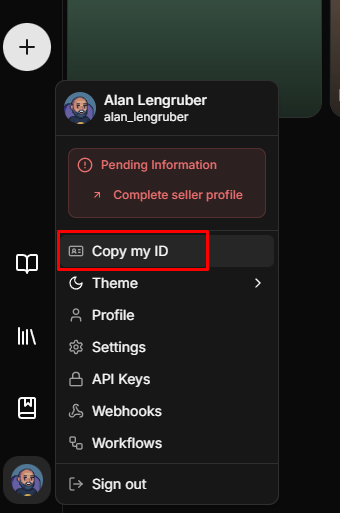
In the bottom-left corner of the dashboard, click on your **profile avatar** (user icon).

#### **Step 2: Select "Copy my ID"**

In the dropdown menu, click on **"Copy my ID"**. The ID will be automatically saved to your clipboard.

<figure><img src="https://2309549448-files.gitbook.io/~/files/v0/b/gitbook-x-prod.appspot.com/o/spaces%2FPHhG44gtlSqQKJF8UuzM%2Fuploads%2FjfDVojQSk8BkrTJnC5Q1%2Fimage.png?alt=media&amp;token=38acdb0b-8952-4ef5-bc93-5fa19e6350b7" alt=""><figcaption></figcaption></figure>

#### **Step 3: Technical Usage (tenant\_id)**

Please note that this User ID is the value required for API requests that ask for a **tenant\_id**. You can paste it directly into your configuration files or API headers.

💡Tip: Whenever the API documentation refers to tenant\_id, use the code obtained through this tutorial.


# Organize my items

Tips and tools to organize your prompts, tables, and documents efficiently, making it easier to manage your workflow.

When we have many files and items, it's natural for our library to become cluttered and disorganized. That's where lists come in.

<figure><img src="https://2309549448-files.gitbook.io/~/files/v0/b/gitbook-x-prod.appspot.com/o/spaces%2FPHhG44gtlSqQKJF8UuzM%2Fuploads%2FVnM5BXf5ZNEePHj5gd3y%2Fimage.png?alt=media&amp;token=bcec9398-2491-4133-b010-42848fa8a6ca" alt=""><figcaption></figcaption></figure>

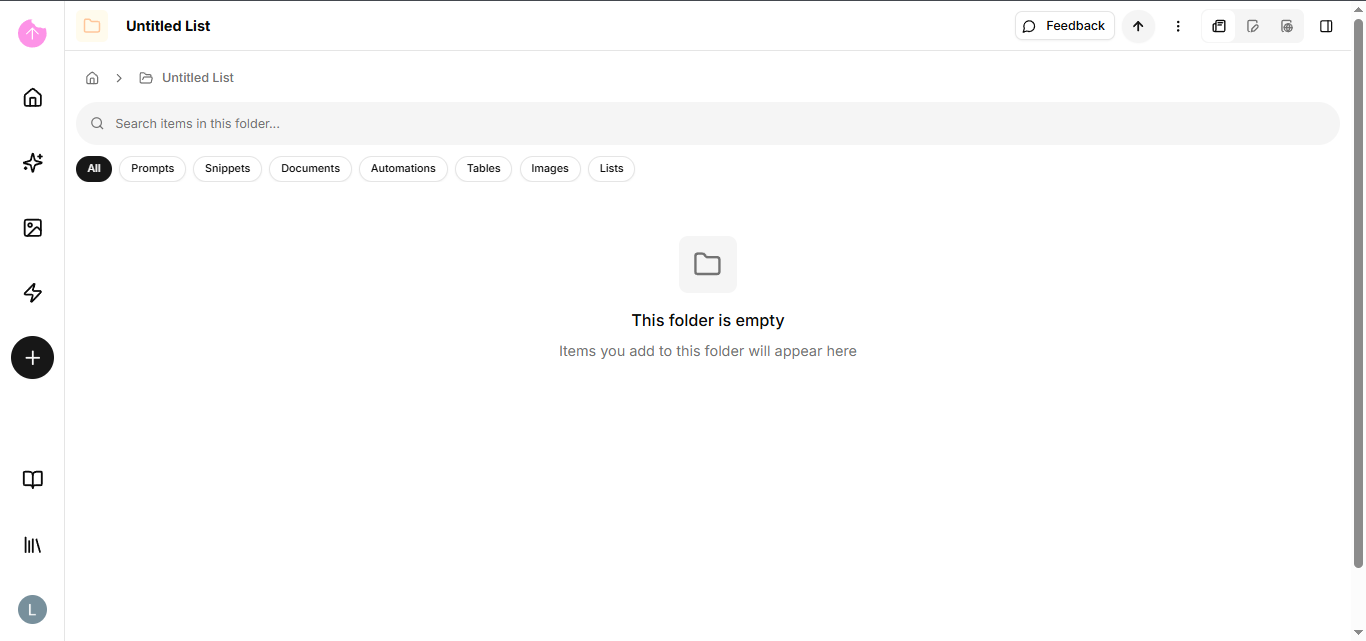
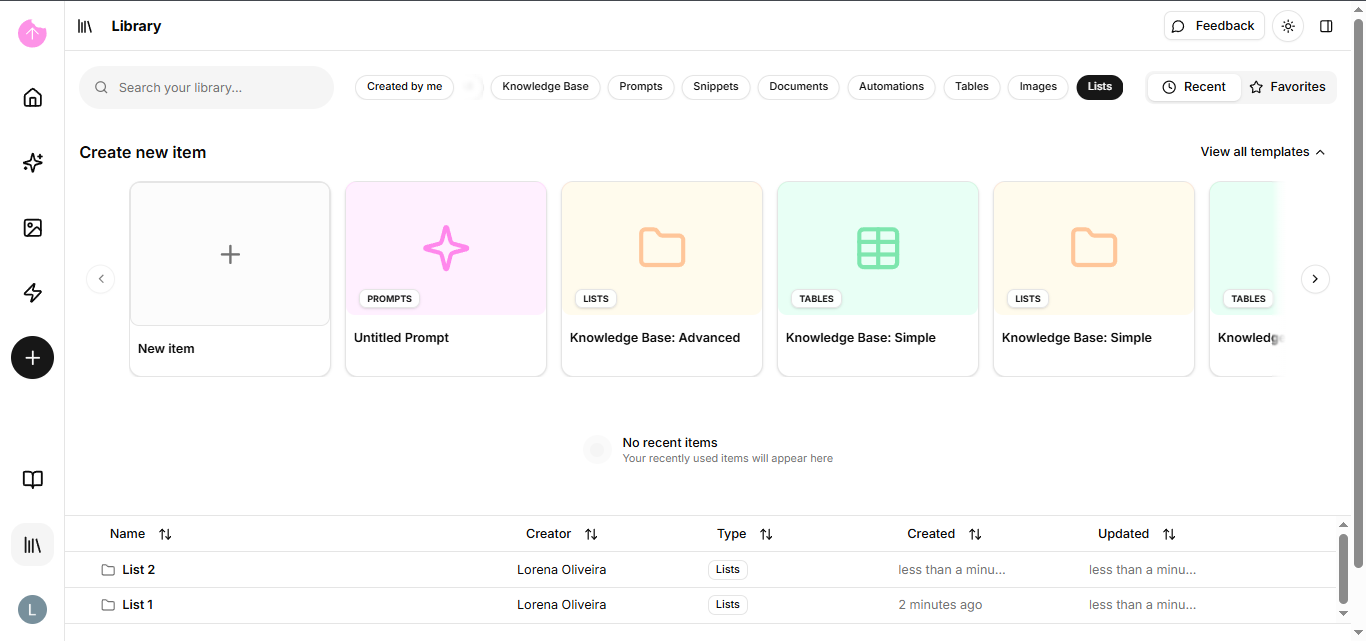
### How do I find the lists?

In the library, it appears in two forms. The first is in the list filter, where all lists are concentrated, whether they are combined lists of various items or lists with only one type of element.

<figure><img src="https://2309549448-files.gitbook.io/~/files/v0/b/gitbook-x-prod.appspot.com/o/spaces%2FPHhG44gtlSqQKJF8UuzM%2Fuploads%2FNm5DmCKeZ4nqyygjFILD%2Fimage.png?alt=media&amp;token=f9471c68-0f9c-4878-9860-2dd4927b8d86" alt=""><figcaption></figcaption></figure>

The second method involves filtering each element. Lists appear within elements if their content **only** includes that element.

<figure><img src="https://2309549448-files.gitbook.io/~/files/v0/b/gitbook-x-prod.appspot.com/o/spaces%2FPHhG44gtlSqQKJF8UuzM%2Fuploads%2FglL7FLEKm3MU5gEEyPyZ%2Fimage.png?alt=media&amp;token=0794b5ed-aeac-4a01-889e-0fc7a7a6618b" alt=""><figcaption></figcaption></figure>

### And how do I add one of my items to a list?

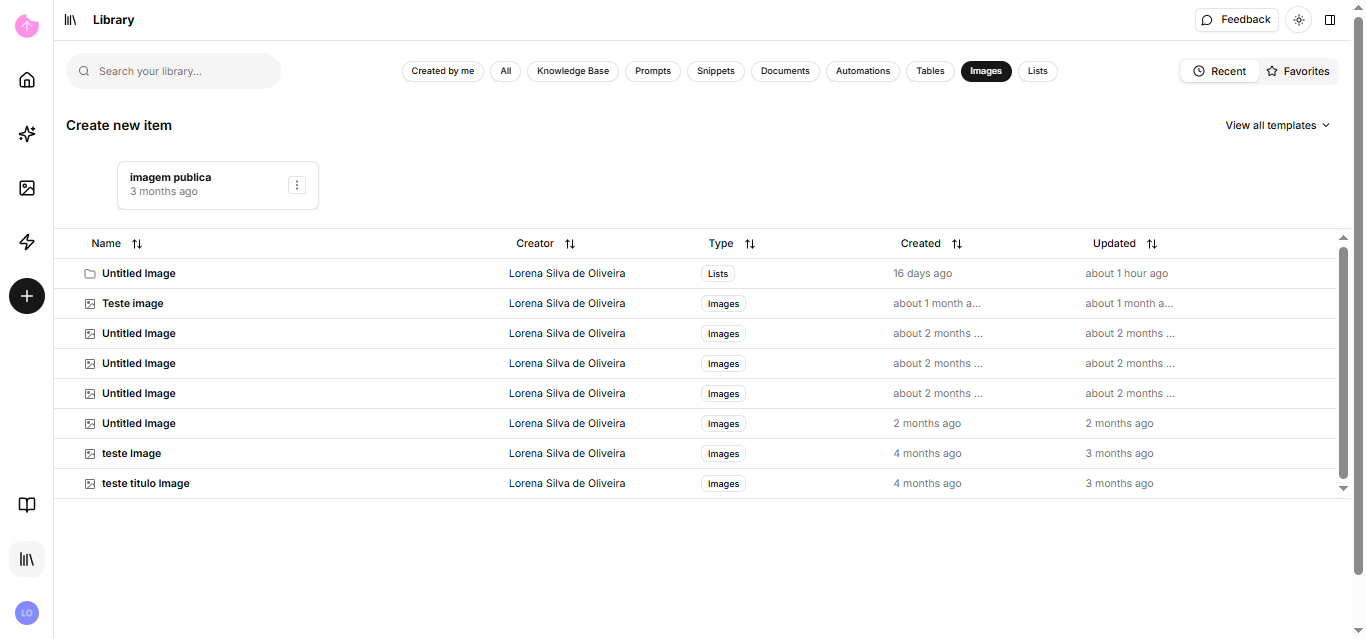
You can create a list in the left sidebar menu or access an existing list by clicking the edit list button.

<figure><img src="https://2309549448-files.gitbook.io/~/files/v0/b/gitbook-x-prod.appspot.com/o/spaces%2FPHhG44gtlSqQKJF8UuzM%2Fuploads%2Fkbc7gakSNblzBcLz2Rjb%2Fimage.png?alt=media&amp;token=f0c7c770-73c8-4d41-ad58-599eb3a4811d" alt=""><figcaption></figcaption></figure>

<figure><img src="https://2309549448-files.gitbook.io/~/files/v0/b/gitbook-x-prod.appspot.com/o/spaces%2FPHhG44gtlSqQKJF8UuzM%2Fuploads%2FFw69g3MeRAnd6yKF90G1%2Fimage.png?alt=media&amp;token=b940664e-57b5-4cbc-a076-e3ec8249d12a" alt=""><figcaption></figcaption></figure>

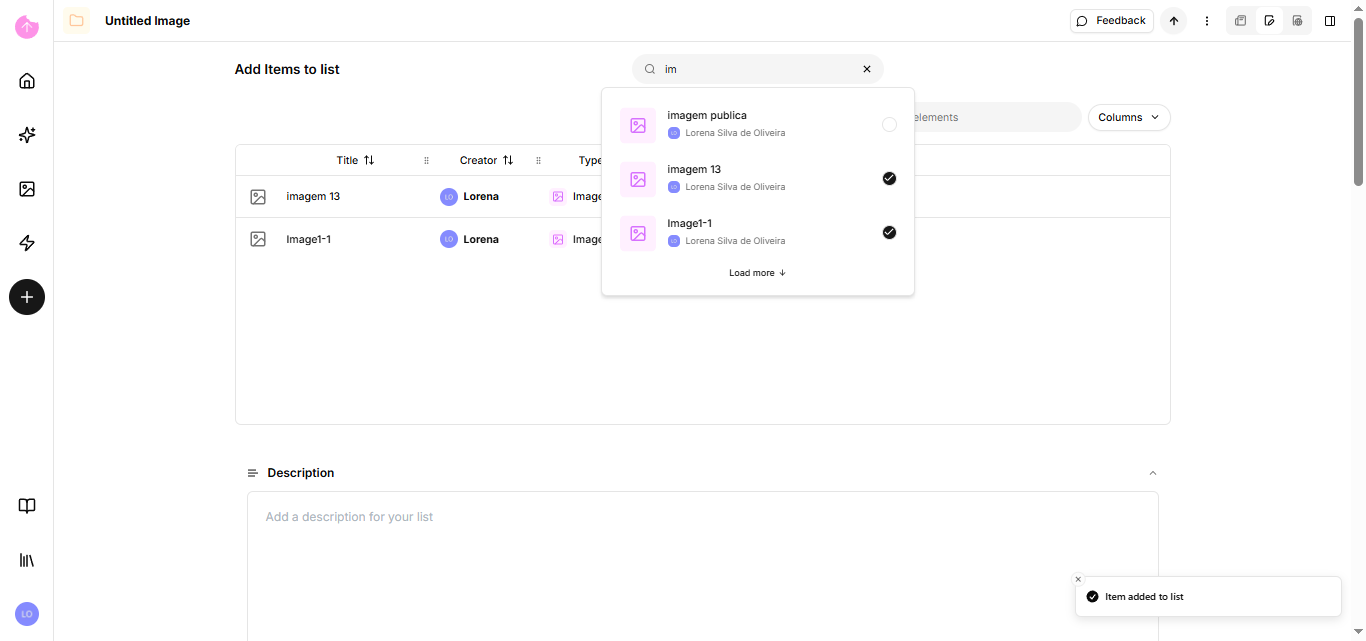
After creating it, we will add the elements to your list.

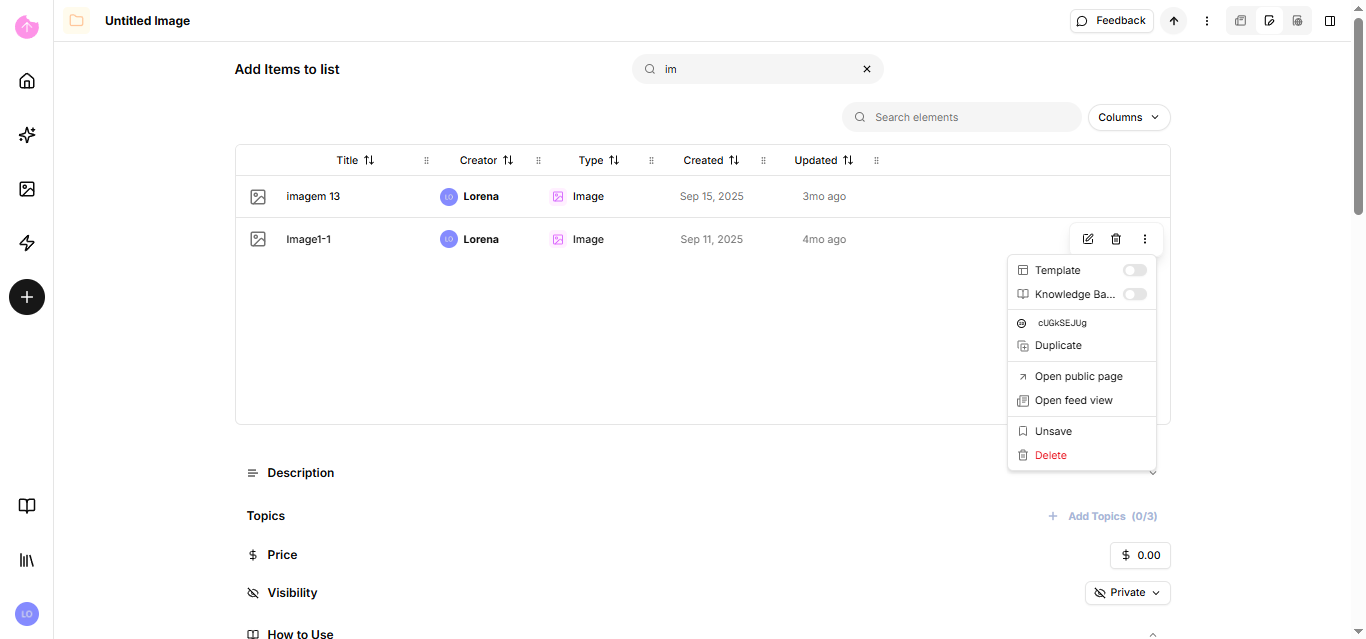
Go to the search button and clicking it will show you all the items you own. You can also search by name to make it easier.

<figure><img src="https://2309549448-files.gitbook.io/~/files/v0/b/gitbook-x-prod.appspot.com/o/spaces%2FPHhG44gtlSqQKJF8UuzM%2Fuploads%2F7mIjItD9FRUoWwdhSjty%2Fimage.png?alt=media&amp;token=29d9a330-858d-4fbc-a5a1-a0b4a6c37632" alt=""><figcaption></figcaption></figure>

<figure><img src="https://2309549448-files.gitbook.io/~/files/v0/b/gitbook-x-prod.appspot.com/o/spaces%2FPHhG44gtlSqQKJF8UuzM%2Fuploads%2FVMXvRlMhMCChgflY00BG%2Fimage.png?alt=media&amp;token=13945da5-a4b4-4e3b-a0ae-d2e1921fa45c" alt=""><figcaption></figcaption></figure>

Click on the selected item to add it to the list.

<figure><img src="https://2309549448-files.gitbook.io/~/files/v0/b/gitbook-x-prod.appspot.com/o/spaces%2FPHhG44gtlSqQKJF8UuzM%2Fuploads%2F4nPxmbl1UF2P9Zg4ytRQ%2Fimage.png?alt=media&amp;token=7fa31d0d-f10f-427d-a1bc-ee322113471f" alt=""><figcaption></figcaption></figure>

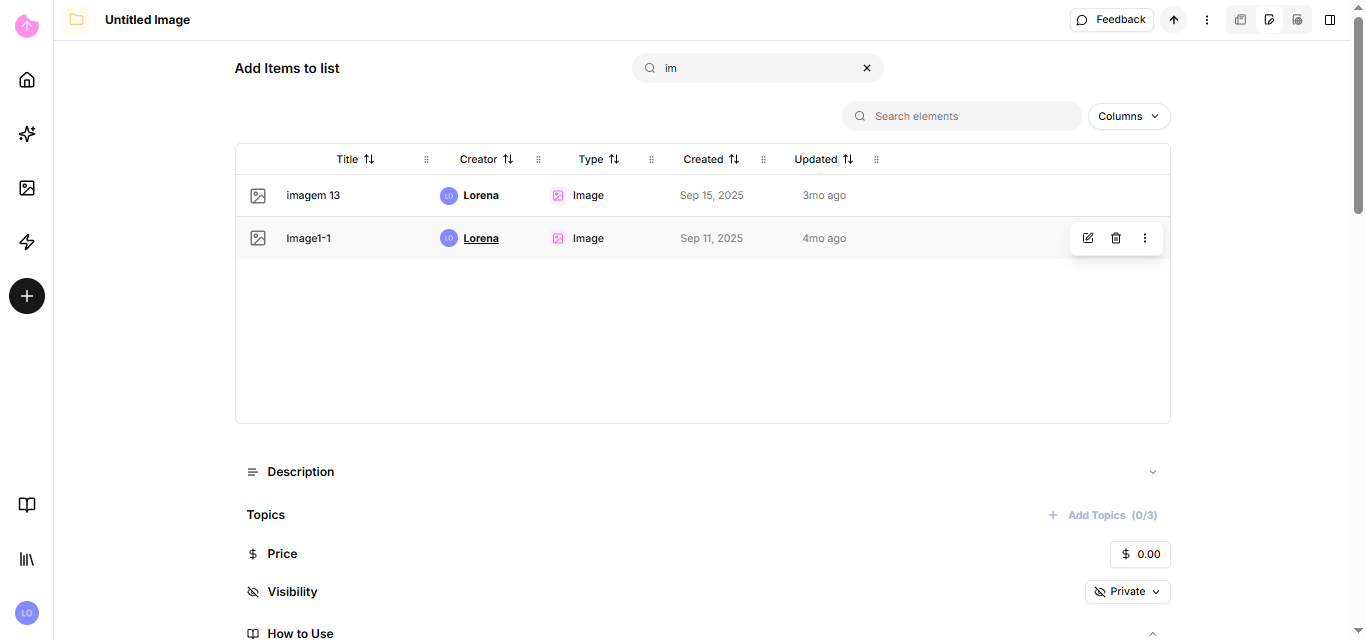
On that same page you can search for items already in the list, or remove any column that you deem unnecessary to display.

<figure><img src="https://2309549448-files.gitbook.io/~/files/v0/b/gitbook-x-prod.appspot.com/o/spaces%2FPHhG44gtlSqQKJF8UuzM%2Fuploads%2Fxq7KH39lMvWz14L3PQnJ%2Fimage.png?alt=media&amp;token=c6f60596-585c-4f59-a55e-22cd7138cf7d" alt=""><figcaption></figcaption></figure>

There are three options for each element. The first takes you to that element's edit page, the second removes the element from the list, and the third is a dropdown menu.

<figure><img src="https://2309549448-files.gitbook.io/~/files/v0/b/gitbook-x-prod.appspot.com/o/spaces%2FPHhG44gtlSqQKJF8UuzM%2Fuploads%2Ftnd3sTTXQ5DfhNkpeAjf%2Fimage.png?alt=media&amp;token=4936cce5-8067-4cbe-a0cc-a9233d6614a9" alt=""><figcaption></figcaption></figure>

Since you can also make lists public, you have the same options as the edit page in the prompt; the only difference is that instead of the text editor, the list is the main element.

<figure><img src="https://2309549448-files.gitbook.io/~/files/v0/b/gitbook-x-prod.appspot.com/o/spaces%2FPHhG44gtlSqQKJF8UuzM%2Fuploads%2FtGHI0mHjbtOwxB4ICg34%2Fimage.png?alt=media&amp;token=a45c5bbb-74ac-481c-b543-d5877ee2a2e9" alt=""><figcaption></figcaption></figure>

### What if I want to add an item from another user to my list?

1. First, you need to save the other person's public element. To save it, simply save it to the public page.
2. After that, the item becomes available in the list of elements and you can add it.

Now that you're familiar with our lists, let's talk about the library!


# Create a document

Learn how to create modern and structured documents using Markdown, serving as dynamic knowledge units for your AI.

A document is a structured record of information. While in the past it was just a static file (like a PDF or a Word doc), today it is a unit of knowledge that can contain text, data, media, and even live automations.

### Types of Modern Documents:

* Collaborative Documents (Cloud): Tools like Google Docs or Microsoft 365, where multiple people edit in real-time.
* Structured Documents (Wikis/Knowledge Bases): Tools like Notion or Obsidian, where documents are non-linear and include databases, filters, and inter-connected links.
* Technical Documentation: Crucial in programming, these explain how a system or code works (e.g., Markdown files on GitHub).

### How do I edit a Document?

The page and editing mode are exactly the same as the prompt; if you haven't checked it yet, please go back a few steps.

{% hint style="info" %}
Use Markdown to create your documents. It is a lightweight format accepted by almost every platform, and it keeps formatting perfectly when copied and pasted into prompts or automation systems.
{% endhint %}

Now that you know about document, we can move on to table.


# Sell an automation

Introduction to the platform's automation capabilities.

Automations are workflows that execute repetitive tasks without human intervention. They operate on a simple "If This, Then That" logic, serving as a digital assistant that handles your routine "busy work" 24/7.

<figure><img src="https://2309549448-files.gitbook.io/~/files/v0/b/gitbook-x-prod.appspot.com/o/spaces%2FPHhG44gtlSqQKJF8UuzM%2Fuploads%2Fb5uQK9FaLT3CnDLuszHx%2Fimage.png?alt=media&amp;token=c400aea4-1384-4d85-9ba2-1a3f37180607" alt=""><figcaption></figcaption></figure>

#### How it works:

* Step 1: Identify "Robotic" Tasks Look for tasks that are high-frequency and low-complexity, such as moving data from an email to a spreadsheet or sending follow-up reminders.
* Step 2: Choose Your Tools \* No-Code Integrators: Tools like Zapier, Make, or IFTTT allow you to connect different apps (e.g., connecting Shopify to Discord) without writing code.
  * Built-in Features: Many apps have native automations (e.g., "Rules" in Outlook or "Automations" in Notion).
* Step 3: Define the Trigger and Action Every automation needs a Trigger (the event that starts it) and an Action (the task performed).
  * *Example:* Trigger: New lead signs up on your website $$ $\rightarrow$ $$ Action: Automatically send them a welcome PDF and add them to your CRM.
* Step 4: Test and Optimize Run a "live test" to ensure the data flows correctly between apps before letting the automation run fully autonomously.

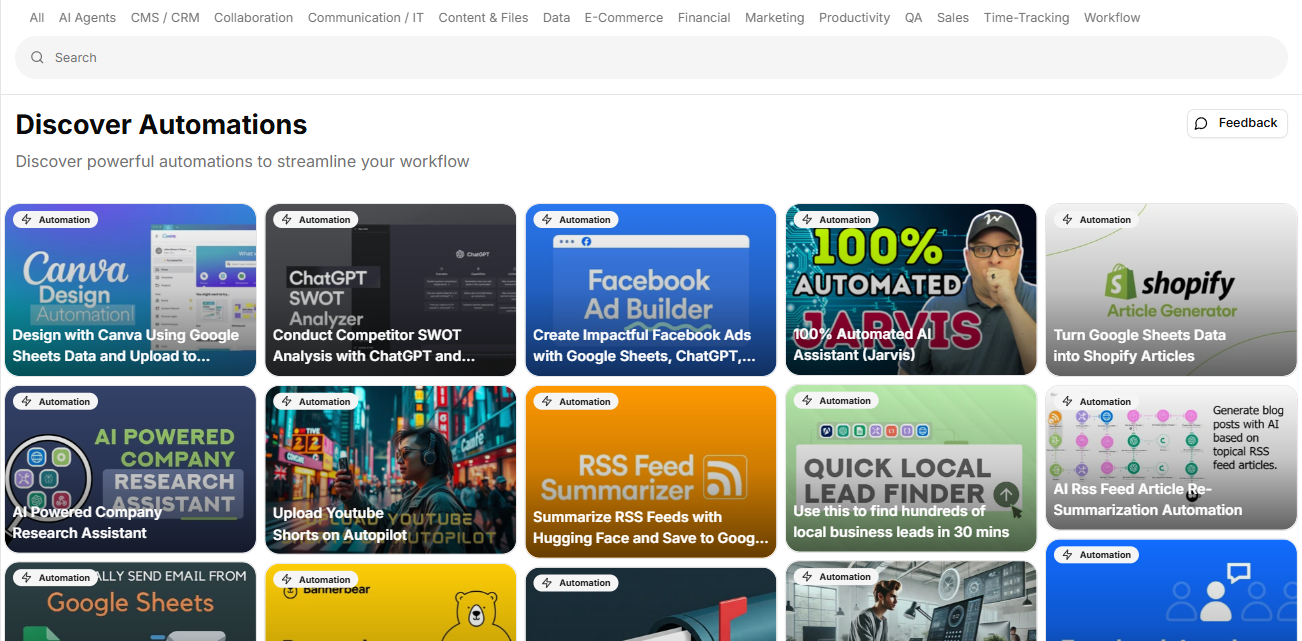
Below are some examples of automations from the platform:

1. [Create Impactful Facebook Ads with Google Sheets, ChatGPT, and the BAB Formula](https://snackprompt.com/e/automation/create-impactful-facebook-ads-with-google-sheets-chatgpt-and-the-bab-formula-2-lXOUoGeeE)
2. [Design with Canva Using Google Sheets Data and Upload to Google Drive](https://snackprompt.com/e/automation/design-with-canva-using-google-sheets-data-and-upload-to-google-drive-SOXXB4SSE)

### How do I sell an automation?

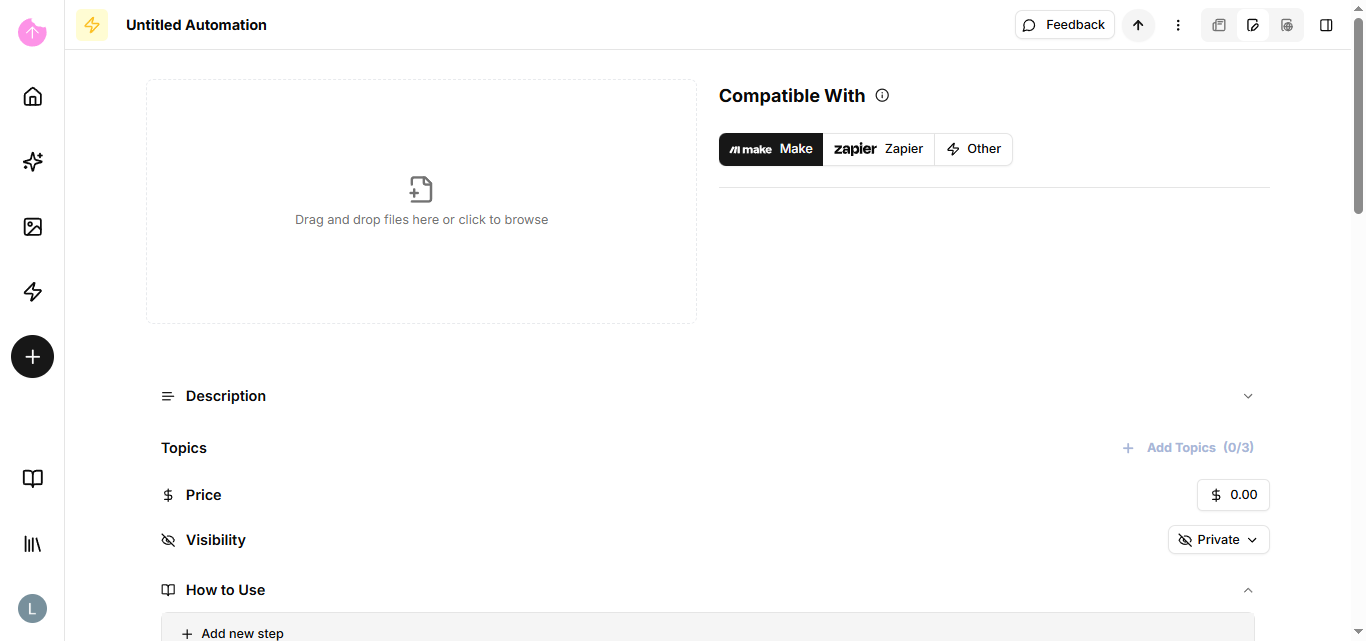
The automation edit page does not have a text editor; the main component is to include a file.

<figure><img src="https://2309549448-files.gitbook.io/~/files/v0/b/gitbook-x-prod.appspot.com/o/spaces%2FPHhG44gtlSqQKJF8UuzM%2Fuploads%2F8Azt6CT8QAAq2aEPh2qR%2Fimage.png?alt=media&amp;token=5a276575-1bf5-4943-a132-76cf83ddfc31" alt=""><figcaption></figcaption></figure>

Now that you know about automations, we can move on to snippet.


# Create a snippet

Learn how to use code snippets or text to speed up the creation of prompts and maintain consistency across different documents.

Snippets are essentially "shortcuts" for text or code. They are small pieces of reusable content that you can quickly insert into a document, chat, or code editor using a brief trigger word or a keyboard shortcut.

Think of a snippet as a digital stamp: instead of writing the same thing over and over, you press a button and the full text appears instantly.

### Where Snippets are Used:

* Programming: Developers use snippets for common blocks of code (like a loop or a database connection) so they don't have to type every character manually.
* Customer Support: Teams use them to send "Canned Responses" (standardized answers to frequently asked questions).
* Email & Productivity: You can create snippets for your professional signature, meeting links, or standard introduction paragraphs.
* SEO (Search Snippets): In Google search results, a "snippet" is the short description of a website that tells you what the page is about before you click.

### How do I edit a Snippet?

The page and editing mode are exactly the same as the prompt; if you haven't checked it yet, please go back a few steps.

{% hint style="info" %}
Start by creating a snippet for your email address or your Zoom link. It’s a small change that saves hours of typing over a year.
{% endhint %}

Now that you know about snippet, we can move on to document.


# Create a form

Learn how to set up interactive forms to collect user data and integrate them directly into your prompts or automations.

A form is a window with specific fields (question and answer) designed to capture structured data. It serves as the entry point to feed your systems, databases, or automations.

<figure><img src="https://2309549448-files.gitbook.io/~/files/v0/b/gitbook-x-prod.appspot.com/o/spaces%2FPHhG44gtlSqQKJF8UuzM%2Fuploads%2FXwRqD8RxKsn8GL5YzwZG%2Fimage.png?alt=media&amp;token=0bae49a6-72da-426e-a979-94160a6792b8" alt=""><figcaption></figcaption></figure>

### Components of a Form:

* Input Fields: Where the user types (Text, Email, Numbers).
* Selectors: Pre-defined options (Multiple choice, Dropdown, Checkbox) that prevent typing errors.
* Conditional Logic: When the form changes based on a previous answer (e.g., if you check "Yes", a new question appears).

### How to use Forms strategically:

1. Entry Point for Automations: A form is one of the best Triggers that exist.
2. Prompt Builder: You can create a form to generate consistent prompts by combining different answer fields.
3. Feedback and Data Collection: Ideal for ensuring that information always arrives in the same format to facilitate later analysis.

<figure><img src="https://2309549448-files.gitbook.io/~/files/v0/b/gitbook-x-prod.appspot.com/o/spaces%2FPHhG44gtlSqQKJF8UuzM%2Fuploads%2F5Z9c8T20X0vXLCdrOoQH%2Fimage.png?alt=media&amp;token=0cbbe8c3-d9d0-4c30-a949-2e3396de7669" alt=""><figcaption></figcaption></figure>

{% hint style="info" %}
Using forms eliminates the confusion of disorganized data in chats or emails.
{% endhint %}

Congratulations! You've learned about all of our elements; now let's delve deeper into workflows and webhooks.


# Create a table

Instructions on how to create data tables that can be read by AI agents or used to organize complex information.

A Table is a way of organizing information into rows and columns. In the world of data, automation, and AI, tables are much more than just simple grids; they are the foundation for structuring chaos and turning raw information into actionable intelligence.

### The Anatomy of a Table:

* Columns (Fields): Define the type of information (e.g., Name, Date, Status, Prompt).
* Rows (Records): Contain the specific data for an item (e.g., John, Jan 21st, Completed).
* Cell: The intersection where a row and a column meet.

### How to Use Tables Strategically:

#### 1. For Prompt Engineering

You can use a table to test prompt variations and compare image results side-by-side.

* Column A: Base Idea
* Column B: Artistic Style
* Column C: AI Result/Rating

#### 2. As a Foundation for Automations

Tables are the "heart" of tools like Airtable, Google Sheets, and Notion Databases.

* A new row added to a table can serve as the Trigger for an automation (e.g., New Row added $$ $\rightarrow$ $$ Send Slack notification).

#### 3. For Data Analysis and AI

AIs love tabular data. If you copy a table and paste it into an AI chat, it can identify patterns, calculate averages, and generate insights much faster than if the information were written in plain paragraphs.

<figure><img src="https://2309549448-files.gitbook.io/~/files/v0/b/gitbook-x-prod.appspot.com/o/spaces%2FPHhG44gtlSqQKJF8UuzM%2Fuploads%2FeDxdGwS8PuVgSnJmg3ql%2Fimage.png?alt=media&amp;token=c5476075-8cc3-46b0-aea4-192a9940bbdc" alt=""><figcaption></figcaption></figure>

{% hint style="info" %}
Whenever you have more than three items that share the same characteristics, stop writing paragraphs and create a table. It saves reading time and makes the information much easier to maintain.
{% endhint %}

Now that you know about table, we can move on to form.


# Bring your data into AI

Feed your AI workflows with relevant, structured context from a unified platform. Simplify operations, reduce redundancy, and power up efficiency with instant access to the right data.

### Centralize your AI Knowledge&#x20;

If you want workflows involving AI to deliver great results, you need **strong contextual knowledge** to power them. That means giving your agents the right information so they can shine and extract the most value from automation processes. With that in mind, we built a system that lets you centralize your knowledge bases and use them in any AI-driven workflow.&#x20;

By storing essential prompts, documents, tables, and snippets in a unified space, your AI always has the context it needs to perform **consistently** and **accurately**.

### The Problem

Automation creators don’t fail because they can’t build workflows — they fail because they can’t **keep knowledge consistent** as workflows and AI agents multiply.

As teams add more automations, the “source of truth” gets duplicated everywhere: prompts copied into steps, instructions rewritten per agent, rules stored in docs, FAQs scattered across tools. The result is **context drift**: two workflows meant to do the same thing behave differently because they’re powered by slightly different information, examples, or assumptions.

#### Why this happens

* No single source of truth
* Knowledge gets copied, not shared
* Prompts drift over time
* More workflows, more copies
* Ownership becomes unclear
* Maintenance cost explodes
* Agents lose context

#### Governance adds friction

* Access must be controlled
* Sensitive data leaks easily
* Ownership isn’t clear
* Reviews slow teams down

### Knowledge Manager System&#x20;

Centralized knowledge is hard because information must be **structured, maintained, and safely reused** across many automations — not just stored in one place.

Snack Prompt addresses this problem by centralizing your data into a single knowledge layer that can be reused across agents, automations, and workflows. Instead of scattering information across tools, documents, and prompts, your knowledge becomes a shared foundation that AI can consistently rely on.

{% embed url="<https://www.youtube.com/watch?v=3vLcjaAOIfw>" %}

### What You Can Do

With the Snack Prompt AI Engine API, you can:

* **Ingest** — Send your data and let AI understand it
* **Search** — Find answers using natural language, not keywords
* **Chat** — Have conversations with your data and get accurate, sourced responses

### Get Started

* [Quickstart — Your first API call in 5 minutes](/bring-your-data-into-ai/get-started/how-to-use-your-knowledge-bases)
* [Endpoints Reference](/bring-your-data-into-ai/reference/endpoints)

### Support

Questions? Reach out to our support team.


# How to use your Knowledge Bases

In this tutorial, you'll make your first call to the Snack Prompt AI Engine API and receive semantic search results.

### Prerequisites

Before you begin, you need:

* A valid `tenant_id` (See how to find it below)
* Data already ingested in the Knowledge Base (if you don't have any, follow the [Ingesting Data tutorial first](/bring-your-data-into-ai/get-started/ingesting-data-into-the-knowledge-base))
* A tool to make HTTP requests (curl, Postman, Insomnia, etc.)
* Your `API Key` for authentication (see [Authentication](https://snack-prompt.gitbook.io/snack-prompt-docs/api-reference/authentication))

{% hint style="info" %}

#### 🔑 How to find your tenant\_id

Your **User ID** is used as the **tenant\_id** in all API requests.

1. In the platform dashboard, click on your **profile avatar** (bottom-left).
2. Click on **"Copy my ID"**.
3. Use this value whenever the documentation asks for YOUR\_TENANT\_ID.
   {% endhint %}

{% stepper %}
{% step %}

### Step 1: Make a Semantic Search

Let's start with a simple search. Run the command below, replacing `YOUR_TENANT_ID` with your tenant\_id:

```bash
curl -X POST https://api-integrations.snackprompt.com/v1/kb/search \
  -H "Content-Type: application/json" \
  -H "x-api-key: YOUR_API_KEY" \
  -d '{
    "query": "what are the available products?",
    "filters": {
      "tenant_id": "YOUR_TENANT_ID"
    },
    "limit": 5
  }'
```

{% endstep %}

{% step %}

### Step 2: Understand the Response

If everything is correct, you'll receive a response like this:

```json
{
  "items": [
    {
      "id": "abc123-uuid",
      "score": 0.85,
      "payload": {
        "tenant_id": "YOUR_TENANT_ID",
        "snack_elemental_id": "elemental-456",
        "snack_item_id": "item-789",
        "original_text": "Our products include: Management software, Integration API, Analytics Dashboard...",
        "tag_names": ["Products", "Catalog"]
      }
    },
    {
      "id": "def456-uuid",
      "score": 0.72,
      "payload": {
        "tenant_id": "YOUR_TENANT_ID",
        "snack_elemental_id": "elemental-456",
        "snack_item_id": "item-790",
        "original_text": "Product price list effective from...",
        "tag_names": ["Products", "Prices"]
      }
    }
  ],
  "total_found": 2
}
```

#### What Each Field Means

| Field                        | Description                                            |
| ---------------------------- | ------------------------------------------------------ |
| `items`                      | List of results found                                  |
| `id`                         | Unique identifier of the result in the vector database |
| `score`                      | Semantic similarity (0 to 1, higher is more relevant)  |
| `payload.original_text`      | The original document content                          |
| `payload.snack_elemental_id` | ID of the source elemental (document/table)            |
| `payload.tag_names`          | Tags associated with the content                       |
| `total_found`                | Total number of results found                          |

{% endstep %}

{% step %}

### Step 3: Try the Chat

Now that you've seen how search works, try chat to get more elaborate answers:

```bash
curl -X POST https://api-integrations.snackprompt.com/v1/kb/chat \
  -H "Content-Type: application/json" \
  -H "x-api-key: YOUR_API_KEY" \
  -d '{
    "query": "what are the available products and how much do they cost?",
    "filters": {
      "tenant_id": "YOUR_TENANT_ID"
    }
  }'
```

The response will include an AI-generated answer based on your data:

```json
{
  "answer": "Based on the available data, the products offered are: Management software ($99/month), Integration API ($199/month), and Analytics Dashboard ($149/month). All plans include technical support.",
  "sources": [
    {
      "id": "abc123-uuid",
      "score": 0.85,
      "snack_item_id": "item-789",
      "text": "Our products include..."
    }
  ]
}
```

### Possible Errors

#### Error: tenant\_id required

```json
{
  "detail": "tenant_id is required in filters"
}
```

**Solution:** Make sure to include `tenant_id` inside the `filters` object.

#### Error: No results found

```json
{
  "items": [],
  "total_found": 0
}
```

**Solution:** Check if you've already sent data to the Knowledge Base. Follow the Ingesting Data tutorial.

{% endstep %}
{% endstepper %}

### Next Steps

Now that you've made your first call, continue learning:

1. [Ingesting Data](/bring-your-data-into-ai/get-started/ingesting-data-into-the-knowledge-base) - Learn how to send your own data
2. [Semantic Search](/bring-your-data-into-ai/get-started/semantic-search) - Learn advanced search techniques
3. [Chat with your Data](/bring-your-data-into-ai/get-started/chat-with-your-data-rag) - Explore all chat options

***

**Estimated time:** 5 minutes ✅


# Ingesting Data into the Knowledge Base

In this tutorial, you'll learn how to send data to the SnackPrompt AI Engine Knowledge Base.

### What is an Elemental?

An **elemental** is the basic unit of data in SnackPrompt. It can be:

* A **table** with columns and items
* A **document** with sections
* A **file** with structured content

When you send an elemental, the API:

1. Processes the content
2. Generates embeddings (vector representations)
3. Stores in the Knowledge Base
4. Makes the data searchable

### How to create a simple Knowledge Base

#### Step 1: Set up your Knowledge Base

The first step is to ensure your data is accessible to the AI. In Snackprompt, you can transform any element into a data source:

1. Create a **Table**, **Document**, or **Prompt**.
2. Populate it with your data.
3. Enable the **Knowledge Base** toggle in the settings menu.

For a detailed step-by-step on this process, see our guide: [Creating your first Knowledge Base](https://snack-prompt.gitbook.io/snack-prompt-docs/getting-started/create-a-simple-knowledge-base-using-our-elements).

### What Happens During Ingestion?

When you send an elemental, the API executes the following steps:

```
1. Receives the elemental_id
       ↓
2. Fetches complete data from SnackPrompt platform
       ↓
3. Processes the content (parsing)
       ↓
4. Splits into chunks (smaller pieces)
       ↓
5. Generates embeddings
       ↓
6. Stores in our Vector Database
       ↓
7. Data available for search!
```

### Stored Metadata

During ingestion, the following metadata is stored with each chunk:

| Field                | Description                                   |
| -------------------- | --------------------------------------------- |
| `tenant_id`          | Tenant ID (for isolation)                     |
| `user_id`            | User ID                                       |
| `snack_elemental_id` | Source elemental ID                           |
| `snack_column_id`    | Column ID (if applicable)                     |
| `snack_item_id`      | Specific item ID                              |
| `source`             | Source type (`elemental`, `document`, `file`) |
| `type_name`          | Elemental type (Table, Document, etc.)        |
| `category_name`      | Elemental category                            |
| `original_text`      | Original chunk content                        |
| `tag_ids`            | Associated tag IDs                            |
| `tag_names`          | Associated tag names                          |

### Tag Inheritance

Tags are inherited in cascade:

```
Document (document tags)
    └── Column (column tags)
            └── Item (item tags)
```

The final item will have the **merge** of all tags (no duplicates).

### Next Steps

Now that your data is in the Knowledge Base:

1. [Semantic Search](/bring-your-data-into-ai/get-started/semantic-search) - Learn how to search your data
2. [Chat with your Data](/bring-your-data-into-ai/get-started/chat-with-your-data-rag) - Chat with your data using AI
3. [Filter by Tags](/bring-your-data-into-ai/how-to/how-to-filter-by-tags) - Use tags to filter results

***

**Estimated time:** 10 minutes ✅


# Semantic Search

In this tutorial, you'll learn how to perform semantic searches in the SnackPrompt AI Engine Knowledge Base.

### What is Semantic Search?

Unlike keyword search (which looks for exact matches), **semantic search** understands the **meaning** of your question.

**Example:**

* **Traditional search:** "price product" → only finds documents with those exact words
* **Semantic search:** "how much does it cost?" → finds documents about prices, values, costs, etc.

### Prerequisites

* A valid `tenant_id`
* Your `API Key` for authentication (see [Authentication](https://snack-prompt.gitbook.io/snack-prompt-docs/api-reference/authentication))
* Data already ingested in the Knowledge Base (see Ingesting Data)

### Step 1: Make a Basic Search

```bash
curl -X POST https://api-integrations.snackprompt.com/v1/kb/search \
  -H "Content-Type: application/json" \
  -H "x-api-key: YOUR_API_KEY" \
  -d '{
    "query": "what are the return policies?",
    "filters": {
      "tenant_id": "YOUR_TENANT_ID"
    },
    "limit": 5
  }'
```

#### Parameters

| Parameter | Type   | Required | Description                             |
| --------- | ------ | -------- | --------------------------------------- |
| `query`   | string | Yes      | Your search text                        |
| `filters` | object | Yes      | Filters (includes required tenant\_id)  |
| `limit`   | number | No       | Maximum number of results (default: 10) |

### Step 2: Understand the Similarity Score

Each result includes a `score` from 0 to 1:

```json
{
  "items": [
    {
      "id": "result-uuid-1",
      "score": 0.92,
      "payload": {
        "original_text": "Our return policy allows..."
      }
    },
    {
      "id": "result-uuid-2",
      "score": 0.78,
      "payload": {
        "original_text": "To exchange a product, you must..."
      }
    }
  ]
}
```

#### How to Interpret the Score

| Score       | Interpretation                     |
| ----------- | ---------------------------------- |
| 0.90 - 1.00 | Very relevant - almost exact match |
| 0.75 - 0.89 | Relevant - good semantic match     |
| 0.60 - 0.74 | Moderate - related to the topic    |
| < 0.60      | Low - possibly not relevant        |

> **Tip:** In production, consider filtering results with scores below 0.6 or 0.7.

### Step 3: Use Filters to Refine Results

#### Filter by Specific Elemental

Search only in a specific document/table:

```bash
curl -X POST https://api-integrations.snackprompt.com/v1/kb/search \
  -H "Content-Type: application/json" \
  -H "x-api-key: YOUR_API_KEY" \
  -d '{
    "query": "return policies",
    "filters": {
      "tenant_id": "YOUR_TENANT_ID",
      "elemental_id": "doc-policies-123"
    },
    "limit": 5
  }'
```

#### Filter by Tags

Search only in documents with certain tags:

```bash
curl -X POST https://api-integrations.snackprompt.com/v1/kb/search \
  -H "Content-Type: application/json" \
  -H "x-api-key: YOUR_API_KEY" \
  -d '{
    "query": "return policies",
    "filters": {
      "tenant_id": "YOUR_TENANT_ID",
      "tag_names": ["Legal", "Policies"]
    },
    "limit": 5
  }'
```

> **Note:** When multiple tags are provided, the logic is **OR** (any of them).

#### Filter by Source Type

```bash
curl -X POST https://api-integrations.snackprompt.com/v1/kb/search \
  -H "Content-Type: application/json" \
  -H "x-api-key: YOUR_API_KEY" \
  -d '{
    "query": "return policies",
    "filters": {
      "tenant_id": "YOUR_TENANT_ID",
      "source": "document"
    },
    "limit": 5
  }'
```

Possible values for `source`:

* `elemental` - SnackPrompt tables
* `document` - Documents
* `file` - Uploaded files

### Available Filters

| Filter          | Type      | Required | Description                      |
| --------------- | --------- | -------- | -------------------------------- |
| `tenant_id`     | string    | **YES**  | Tenant ID (isolation)            |
| `elemental_id`  | string    | No       | Filter by specific elemental     |
| `user_id`       | string    | No       | Filter by user                   |
| `tag_ids`       | string\[] | No       | Filter by tag IDs (OR)           |
| `tag_names`     | string\[] | No       | Filter by tag names (OR)         |
| `source`        | string    | No       | Source type                      |
| `type_name`     | string    | No       | Elemental type (Table, Document) |
| `category_name` | string    | No       | Elemental category               |

### Combining Filters

Multiple filters are combined with **AND** logic:

```bash
curl -X POST https://api-integrations.snackprompt.com/v1/kb/search \
  -H "Content-Type: application/json" \
  -H "x-api-key: YOUR_API_KEY" \
  -d '{
    "query": "prices",
    "filters": {
      "tenant_id": "YOUR_TENANT_ID",
      "source": "elemental",
      "tag_names": ["Products", "Sales"]
    },
    "limit": 10
  }'
```

This example searches for "prices" in:

* Elementals (not documents or files) **AND**
* With tag "Products" **OR** "Sales"

### Tips for Better Results

#### 1. Be Specific in Your Query

```diff
- "information"
+ "what are the store opening hours?"
```

#### 2. Use Natural Language

```diff
- "price product X"
+ "how much does product X cost?"
```

#### 3. Limit the Results

```diff
- "limit": 100
+ "limit": 5
```

Fewer results = more relevant results.

#### 4. Use Filters When Possible

If you know where the information is, use filters to improve precision:

```json
{
  "query": "delivery time",
  "filters": {
    "tenant_id": "...",
    "tag_names": ["Logistics", "Shipping"]
  }
}
```

### Next Steps

Now that you've mastered semantic search:

1. [Chat with your Data](/bring-your-data-into-ai/get-started/chat-with-your-data-rag) - Get elaborate answers with AI
2. [Filter by Tags](/bring-your-data-into-ai/how-to/how-to-filter-by-tags) - Advanced filtering techniques

***

**Estimated time:** 10 minutes ✅


# Chat with your Data (RAG)

In this tutorial, you'll learn how to use chat to converse with your data using AI.

### What is RAG?

**RAG (Retrieval-Augmented Generation)** is a technique that combines:

1. **Retrieval:** Finds the most relevant information in your data
2. **Augmented Generation:** Uses that information as context for AI to generate a response

**Result:** Accurate answers based on your data, without hallucinations.

### Search vs Chat: Which to Use?

| Scenario                     | Use        | Reason                         |
| ---------------------------- | ---------- | ------------------------------ |
| Need exact excerpts          | **Search** | Returns original chunks        |
| Need an elaborate answer     | **Chat**   | AI synthesizes the information |
| Need to cite exact source    | **Both**   | Chat returns `sources`         |
| High performance/low latency | **Search** | No LLM call                    |
| Complex questions            | **Chat**   | AI interprets and responds     |

### Prerequisites

* A valid `tenant_id`
* Your `API Key` for authentication (see [Authentication](https://snack-prompt.gitbook.io/snack-prompt-docs/api-reference/authentication))
* Data already ingested in the Knowledge Base

### Step 1: Ask a Question

```bash
curl -X POST https://api-integrations.snackprompt.com/v1/kb/chat \
  -H "Content-Type: application/json" \
  -H "x-api-key: YOUR_API_KEY" \
  -d '{
    "query": "what are the benefits of the premium plan?",
    "filters": {
      "tenant_id": "YOUR_TENANT_ID"
    }
  }'
```

### Step 2: Understand the Response

```json
{
  "answer": "The Premium plan offers the following benefits:\n\n1. **24/7 Priority Support** - Response within 1 hour\n2. **Unlimited Storage** - No upload limits\n3. **Advanced API** - Access to all endpoints\n4. **Custom Reports** - Customizable dashboards\n\nThe price is $99/month with a 20% discount on the annual plan.",
  "sources": [
    {
      "id": "chunk-uuid-1",
      "score": 0.91,
      "snack_item_id": "item-plans-001",
      "snack_elemental_id": "doc-pricing-123",
      "text": "Premium Plan: 24/7 priority support, unlimited storage...",
      "tag_names": ["Plans", "Pricing"]
    },
    {
      "id": "chunk-uuid-2",
      "score": 0.85,
      "snack_item_id": "item-plans-002",
      "snack_elemental_id": "doc-pricing-123",
      "text": "Prices: Premium $99/month, 20% annual discount...",
      "tag_names": ["Plans", "Pricing"]
    }
  ]
}
```

#### Response Fields

| Field                          | Description                                 |
| ------------------------------ | ------------------------------------------- |
| `answer`                       | AI-generated answer based on your data      |
| `sources`                      | List of sources used to generate the answer |
| `sources[].id`                 | Chunk ID in the vector database             |
| `sources[].score`              | Source relevance (0-1)                      |
| `sources[].text`               | Original excerpt used as context            |
| `sources[].snack_item_id`      | Source item ID                              |
| `sources[].snack_elemental_id` | Source elemental ID                         |

### Step 3: Use Filters for Specific Context

You can direct chat to search in specific data:

```bash
curl -X POST https://api-integrations.snackprompt.com/v1/kb/chat \
  -H "Content-Type: application/json" \
  -H "x-api-key: YOUR_API_KEY" \
  -d '{
    "query": "what are the benefits of the premium plan?",
    "filters": {
      "tenant_id": "YOUR_TENANT_ID",
      "tag_names": ["Plans", "Commercial"]
    }
  }'
```

This ensures the AI only uses documents with these tags as context.

### Using Streaming for Real-time Chat

For real-time chat interfaces, use the streaming endpoint:

```bash
curl -X POST https://api-integrations.snackprompt.com/v1/kb/chat/stream \
  -H "Content-Type: application/json" \
  -H "x-api-key: YOUR_API_KEY" \
  -d '{
    "query": "what are the benefits of the premium plan?",
    "filters": {
      "tenant_id": "YOUR_TENANT_ID"
    }
  }' \
  --no-buffer
```

The response comes as **Server-Sent Events (SSE)**:

```
data: {"event":"message","data":{"content":"The Premium"}}

data: {"event":"message","data":{"content":" plan"}}

data: {"event":"message","data":{"content":" offers"}}

data: {"event":"message","data":{"content":"..."}}

data: [DONE]
```

> To implement streaming in the frontend, see the guide Real-time Chat.

### Understanding Citations (Sources)

The `sources` allow you to verify where each piece of information came from:

```json
{
  "sources": [
    {
      "snack_elemental_id": "doc-pricing-123",
      "snack_item_id": "item-plans-001",
      "text": "Original excerpt...",
      "score": 0.91
    }
  ]
}
```

You can use these IDs to:

* Link to the original document in your interface
* Show users the source of information
* Validate response accuracy

### Tips for Better Responses

#### 1. Be Specific in Your Question

```diff
- "tell me about plans"
+ "what are the differences between the basic and premium plans?"
```

#### 2. Use Filters for Context

If you know where the information is, use filters:

```json
{
  "query": "delivery time to New York",
  "filters": {
    "tenant_id": "...",
    "tag_names": ["Logistics", "Shipping"]
  }
}
```

#### 3. Comparison Questions Work Well

```
"compare plan A with plan B"
"what are the advantages of X over Y?"
```

#### 4. List Questions Work Well

```
"list the required documents for..."
"what are the steps to..."
```

### When Chat Doesn't Find Information

If the AI doesn't find relevant information, it will respond something like:

```json
{
  "answer": "I didn't find information about this topic in the knowledge base. Could you rephrase the question or verify if the related data has been indexed?",
  "sources": []
}
```

**What to do:**

1. Check if the data was ingested correctly
2. Try rephrasing the question
3. Remove overly restrictive filters
4. Use semantic search to explore available data

### Next Steps

Now that you've mastered RAG chat:

1. [Real-time Chat](/bring-your-data-into-ai/how-to/how-to-implement-real-time-chat) - Implement streaming in the frontend
2. [Filter by Tags](/bring-your-data-into-ai/reference/filters) - Direct context with precision
3. [Error Handling](/bring-your-data-into-ai/how-to/how-to-handle-errors) - Handle errors gracefully

***

**Estimated time:** 10 minutes ✅


# Quickstart: Your First Call in 5 Minutes

In this tutorial, you'll make your first call to the SnackPrompt AI Engine API and receive semantic search results.

### Prerequisites

Before you begin, you need:

* A valid `tenant_id` (See how to find it below)
* Data already ingested in the Knowledge Base (if you don't have any, follow the Ingesting Data tutorial first)
* A tool to make HTTP requests (curl, Postman, Insomnia, etc.)

{% hint style="info" %}

#### 🔑 How to find your tenant\_id

Your **User ID** is used as the **tenant\_id** in all API requests.

1. In the platform dashboard, click on your **profile avatar** (bottom-left).
2. Click on **"Copy my ID"**.
3. Use this value whenever the documentation asks for YOUR\_TENANT\_ID.
   {% endhint %}

### Step 1: Make a Semantic Search

Let's start with a simple search. Run the command below, replacing `YOUR_TENANT_ID` with your tenant\_id:

```bash
curl -X POST https://api-integrations.snackprompt.com/v1/kb/search \
  -H "Content-Type: application/json" \
  -d '{
    "query": "what are the available products?",
    "filters": {
      "tenant_id": "YOUR_TENANT_ID"
    },
    "limit": 5
  }'
```

### Step 2: Understand the Response

If everything is correct, you'll receive a response like this:

```json
{
  "items": [
    {
      "id": "abc123-uuid",
      "score": 0.85,
      "payload": {
        "tenant_id": "YOUR_TENANT_ID",
        "snack_elemental_id": "elemental-456",
        "snack_item_id": "item-789",
        "original_text": "Our products include: Management software, Integration API, Analytics Dashboard...",
        "tag_names": ["Products", "Catalog"]
      }
    },
    {
      "id": "def456-uuid",
      "score": 0.72,
      "payload": {
        "tenant_id": "YOUR_TENANT_ID",
        "snack_elemental_id": "elemental-456",
        "snack_item_id": "item-790",
        "original_text": "Product price list effective from...",
        "tag_names": ["Products", "Prices"]
      }
    }
  ],
  "total_found": 2
}
```

#### What Each Field Means

| Field                        | Description                                            |
| ---------------------------- | ------------------------------------------------------ |
| `items`                      | List of results found                                  |
| `id`                         | Unique identifier of the result in the vector database |
| `score`                      | Semantic similarity (0 to 1, higher is more relevant)  |
| `payload.original_text`      | The original document content                          |
| `payload.snack_elemental_id` | ID of the source elemental (document/table)            |
| `payload.tag_names`          | Tags associated with the content                       |
| `total_found`                | Total number of results found                          |

### Step 3: Try the Chat

Now that you've seen how search works, try chat to get more elaborate answers:

```bash
curl -X POST https://api-integrations.snackprompt.com/v1/kb/chat \
  -H "Content-Type: application/json" \
  -d '{
    "query": "what are the available products and how much do they cost?",
    "filters": {
      "tenant_id": "YOUR_TENANT_ID"
    }
  }'
```

The response will include an AI-generated answer based on your data:

```json
{
  "answer": "Based on the available data, the products offered are: Management software ($99/month), Integration API ($199/month), and Analytics Dashboard ($149/month). All plans include technical support.",
  "sources": [
    {
      "id": "abc123-uuid",
      "score": 0.85,
      "snack_item_id": "item-789",
      "text": "Our products include..."
    }
  ]
}
```

### Possible Errors

#### Error: tenant\_id required

```json
{
  "detail": "tenant_id is required in filters"
}
```

**Solution:** Make sure to include `tenant_id` inside the `filters` object.

#### Error: No results found

```json
{
  "items": [],
  "total_found": 0
}
```

**Solution:** Check if you've already sent data to the Knowledge Base. Follow the Ingesting Data tutorial.

### Next Steps

Now that you've made your first call, continue learning:

1. Ingesting Data - Learn how to send your own data
2. Semantic Search - Learn advanced search techniques
3. Chat with your Data - Explore all chat options

***

**Estimated time:** 5 minutes ✅


# Ingesting Data into the Knowledge Base

In this tutorial, you'll learn how to send data to the SnackPrompt AI Engine Knowledge Base.

### What is an Elemental?

An **elemental** is the basic unit of data in SnackPrompt. It can be:

* A **table** with columns and items
* A **document** with sections
* A **file** with structured content

When you send an elemental, the API:

1. Processes the content
2. Generates embeddings (vector representations)
3. Stores in the Knowledge Base
4. Makes the data searchable

### Prerequisites

* A valid `tenant_id`  [(See how to find it)](https://docs.snackprompt.com/how-to/how-to-obtain-your-user-id-tenant-id)&#x20;
* The `elemental_id` of the data you want to ingest (obtained from the SnackPrompt platform)

### Step 1: Send an Elemental

To ingest an elemental, make a POST request:

```bash
curl -X POST https://api-integrations.snackprompt.com/v1/kb/elemental \
  -H "Content-Type: application/json" \
  -d '{
    "elemental_id": "YOUR_ELEMENTAL_ID",
    "trace_id": "my-trace-001"
  }'
```

#### Parameters

| Parameter      | Type   | Required | Description                            |
| -------------- | ------ | -------- | -------------------------------------- |
| `elemental_id` | string | Yes      | ID of the elemental to ingest          |
| `trace_id`     | string | No       | ID for tracking (useful for debugging) |

### Step 2: Understand the Response

Ingestion is processed in **background**. You'll receive an immediate confirmation:

```json
{
  "status": "accepted",
  "message": "Ingestion started for YOUR_ELEMENTAL_ID",
  "data": {
    "job_id": "my-trace-001",
    "elemental_id": "YOUR_ELEMENTAL_ID"
  }
}
```

**Status code:** `202 Accepted`

This means the request was accepted and is being processed. Ingestion may take a few seconds to minutes, depending on the data size.

### Step 3: Verify Data Was Ingested

To confirm your data is available, make a simple search:

```bash
curl -X POST https://api-integrations.snackprompt.com/v1/kb/search \
  -H "Content-Type: application/json" \
  -d '{
    "query": "test",
    "filters": {
      "tenant_id": "YOUR_TENANT_ID",
      "elemental_id": "YOUR_ELEMENTAL_ID"
    },
    "limit": 1
  }'
```

If it returns results, your data was successfully ingested!

### How to Remove Data

#### Remove by Elemental ID

To remove all data from a specific elemental:

```bash
curl -X DELETE https://api-integrations.snackprompt.com/v1/kb/elemental/YOUR_ELEMENTAL_ID
```

**Response:**

```json
{
  "status": "success",
  "message": "Ingestion deleted for elemental_id: YOUR_ELEMENTAL_ID",
  "data": {
    "elemental_id": "YOUR_ELEMENTAL_ID"
  }
}
```

#### Remove by Filters

To remove data using more specific filters:

```bash
curl -X POST https://api-integrations.snackprompt.com/v1/kb/delete \
  -H "Content-Type: application/json" \
  -d '{
    "filters": {
      "tenant_id": "YOUR_TENANT_ID",
      "elemental_id": "YOUR_ELEMENTAL_ID"
    }
  }'
```

> **Important:** The `tenant_id` is **required** for filter-based deletion operations.

### What Happens During Ingestion?

When you send an elemental, the API executes the following steps:

```
1. Receives the elemental_id
       ↓
2. Fetches complete data from SnackPrompt platform
       ↓
3. Processes the content (parsing)
       ↓
4. Splits into chunks (smaller pieces)
       ↓
5. Generates embeddings
       ↓
6. Stores in our Vector Database
       ↓
7. Data available for search!
```

### Stored Metadata

During ingestion, the following metadata is stored with each chunk:

| Field                | Description                                   |
| -------------------- | --------------------------------------------- |
| `tenant_id`          | Tenant ID (for isolation)                     |
| `user_id`            | User ID                                       |
| `snack_elemental_id` | Source elemental ID                           |
| `snack_column_id`    | Column ID (if applicable)                     |
| `snack_item_id`      | Specific item ID                              |
| `source`             | Source type (`elemental`, `document`, `file`) |
| `type_name`          | Elemental type (Table, Document, etc.)        |
| `category_name`      | Elemental category                            |
| `original_text`      | Original chunk content                        |
| `tag_ids`            | Associated tag IDs                            |
| `tag_names`          | Associated tag names                          |

### Tag Inheritance

Tags are inherited in cascade:

```
Document (document tags)
    └── Column (column tags)
            └── Item (item tags)
```

The final item will have the **merge** of all tags (no duplicates).

### Next Steps

Now that your data is in the Knowledge Base:

1. Semantic Search - Learn how to search your data
2. Chat with your Data - Chat with your data using AI
3. Filter by Tags - Use tags to filter results

***

**Estimated time:** 10 minutes ✅


# Semantic Search

In this tutorial, you'll learn how to perform semantic searches in the SnackPrompt AI Engine Knowledge Base.

### What is Semantic Search?

Unlike keyword search (which looks for exact matches), **semantic search** understands the **meaning** of your question.

**Example:**

* **Traditional search:** "price product" → only finds documents with those exact words
* **Semantic search:** "how much does it cost?" → finds documents about prices, values, costs, etc.

### Prerequisites

* A valid `tenant_id`  [(See how to find it)](https://docs.snackprompt.com/how-to/how-to-obtain-your-user-id-tenant-id)&#x20;
* Data already ingested in the Knowledge Base (see Ingesting Data)

### Step 1: Make a Basic Search

```bash
curl -X POST https://api-integrations.snackprompt.com/v1/kb/search \
  -H "Content-Type: application/json" \
  -d '{
    "query": "what are the return policies?",
    "filters": {
      "tenant_id": "YOUR_TENANT_ID"
    },
    "limit": 5
  }'
```

#### Parameters

| Parameter | Type   | Required | Description                             |
| --------- | ------ | -------- | --------------------------------------- |
| `query`   | string | Yes      | Your search text                        |
| `filters` | object | Yes      | Filters (includes required tenant\_id)  |
| `limit`   | number | No       | Maximum number of results (default: 10) |

### Step 2: Understand the Similarity Score

Each result includes a `score` from 0 to 1:

```json
{
  "items": [
    {
      "id": "result-uuid-1",
      "score": 0.92,
      "payload": {
        "original_text": "Our return policy allows..."
      }
    },
    {
      "id": "result-uuid-2",
      "score": 0.78,
      "payload": {
        "original_text": "To exchange a product, you must..."
      }
    }
  ]
}
```

#### How to Interpret the Score

| Score       | Interpretation                     |
| ----------- | ---------------------------------- |
| 0.90 - 1.00 | Very relevant - almost exact match |
| 0.75 - 0.89 | Relevant - good semantic match     |
| 0.60 - 0.74 | Moderate - related to the topic    |
| < 0.60      | Low - possibly not relevant        |

> **Tip:** In production, consider filtering results with scores below 0.6 or 0.7.

### Step 3: Use Filters to Refine Results

#### Filter by Specific Elemental

Search only in a specific document/table:

```bash
curl -X POST https://api-integrations.snackprompt.com/v1/kb/search \
  -H "Content-Type: application/json" \
  -d '{
    "query": "return policies",
    "filters": {
      "tenant_id": "YOUR_TENANT_ID",
      "elemental_id": "doc-policies-123"
    },
    "limit": 5
  }'
```

#### Filter by Tags

Search only in documents with certain tags:

```bash
curl -X POST https://api-integrations.snackprompt.com/v1/kb/search \
  -H "Content-Type: application/json" \
  -d '{
    "query": "return policies",
    "filters": {
      "tenant_id": "YOUR_TENANT_ID",
      "tag_names": ["Legal", "Policies"]
    },
    "limit": 5
  }'
```

> **Note:** When multiple tags are provided, the logic is **OR** (any of them).

#### Filter by Source Type

```bash
curl -X POST https://api-integrations.snackprompt.com/v1/kb/search \
  -H "Content-Type: application/json" \
  -d '{
    "query": "return policies",
    "filters": {
      "tenant_id": "YOUR_TENANT_ID",
      "source": "document"
    },
    "limit": 5
  }'
```

Possible values for `source`:

* `elemental` - SnackPrompt tables
* `document` - Documents
* `file` - Uploaded files

### Available Filters

| Filter          | Type      | Required | Description                      |
| --------------- | --------- | -------- | -------------------------------- |
| `tenant_id`     | string    | **YES**  | Tenant ID (isolation)            |
| `elemental_id`  | string    | No       | Filter by specific elemental     |
| `user_id`       | string    | No       | Filter by user                   |
| `tag_ids`       | string\[] | No       | Filter by tag IDs (OR)           |
| `tag_names`     | string\[] | No       | Filter by tag names (OR)         |
| `source`        | string    | No       | Source type                      |
| `type_name`     | string    | No       | Elemental type (Table, Document) |
| `category_name` | string    | No       | Elemental category               |

### Combining Filters

Multiple filters are combined with **AND** logic:

```bash
curl -X POST https://api-integrations.snackprompt.com/v1/kb/search \
  -H "Content-Type: application/json" \
  -d '{
    "query": "prices",
    "filters": {
      "tenant_id": "YOUR_TENANT_ID",
      "source": "elemental",
      "tag_names": ["Products", "Sales"]
    },
    "limit": 10
  }'
```

This example searches for "prices" in:

* Elementals (not documents or files) **AND**
* With tag "Products" **OR** "Sales"

### Tips for Better Results

#### 1. Be Specific in Your Query

```diff
- "information"
+ "what are the store opening hours?"
```

#### 2. Use Natural Language

```diff
- "price product X"
+ "how much does product X cost?"
```

#### 3. Limit the Results

```diff
- "limit": 100
+ "limit": 5
```

Fewer results = more relevant results.

#### 4. Use Filters When Possible

If you know where the information is, use filters to improve precision:

```json
{
  "query": "delivery time",
  "filters": {
    "tenant_id": "...",
    "tag_names": ["Logistics", "Shipping"]
  }
}
```

### Next Steps

Now that you've mastered semantic search:

1. Chat with your Data - Get elaborate answers with AI
2. Filter by Tags - Advanced filtering techniques

***

**Estimated time:** 10 minutes ✅


# Chat with your Data (RAG)

In this tutorial, you'll learn how to use chat to converse with your data using AI.

### What is RAG?

**RAG (Retrieval-Augmented Generation)** is a technique that combines:

1. **Retrieval:** Finds the most relevant information in your data
2. **Augmented Generation:** Uses that information as context for AI to generate a response

**Result:** Accurate answers based on your data, without hallucinations.

### Search vs Chat: Which to Use?

| Scenario                     | Use        | Reason                         |
| ---------------------------- | ---------- | ------------------------------ |
| Need exact excerpts          | **Search** | Returns original chunks        |
| Need an elaborate answer     | **Chat**   | AI synthesizes the information |
| Need to cite exact source    | **Both**   | Chat returns `sources`         |
| High performance/low latency | **Search** | No LLM call                    |
| Complex questions            | **Chat**   | AI interprets and responds     |

### Prerequisites

* A valid `tenant_id`  [(See how to find it)](https://docs.snackprompt.com/how-to/how-to-obtain-your-user-id-tenant-id)&#x20;
* Data already ingested in the Knowledge Base

### Step 1: Ask a Question

```bash
curl -X POST https://api-integrations.snackprompt.com/v1/kb/chat \
  -H "Content-Type: application/json" \
  -d '{
    "query": "what are the benefits of the premium plan?",
    "filters": {
      "tenant_id": "YOUR_TENANT_ID"
    }
  }'
```

### Step 2: Understand the Response

```json
{
  "answer": "The Premium plan offers the following benefits:\n\n1. **24/7 Priority Support** - Response within 1 hour\n2. **Unlimited Storage** - No upload limits\n3. **Advanced API** - Access to all endpoints\n4. **Custom Reports** - Customizable dashboards\n\nThe price is $99/month with a 20% discount on the annual plan.",
  "sources": [
    {
      "id": "chunk-uuid-1",
      "score": 0.91,
      "snack_item_id": "item-plans-001",
      "snack_elemental_id": "doc-pricing-123",
      "text": "Premium Plan: 24/7 priority support, unlimited storage...",
      "tag_names": ["Plans", "Pricing"]
    },
    {
      "id": "chunk-uuid-2",
      "score": 0.85,
      "snack_item_id": "item-plans-002",
      "snack_elemental_id": "doc-pricing-123",
      "text": "Prices: Premium $99/month, 20% annual discount...",
      "tag_names": ["Plans", "Pricing"]
    }
  ]
}
```

#### Response Fields

| Field                          | Description                                 |
| ------------------------------ | ------------------------------------------- |
| `answer`                       | AI-generated answer based on your data      |
| `sources`                      | List of sources used to generate the answer |
| `sources[].id`                 | Chunk ID in the vector database             |
| `sources[].score`              | Source relevance (0-1)                      |
| `sources[].text`               | Original excerpt used as context            |
| `sources[].snack_item_id`      | Source item ID                              |
| `sources[].snack_elemental_id` | Source elemental ID                         |

### Step 3: Use Filters for Specific Context

You can direct chat to search in specific data:

```bash
curl -X POST https://api-integrations.snackprompt.com/v1/kb/chat \
  -H "Content-Type: application/json" \
  -d '{
    "query": "what are the benefits of the premium plan?",
    "filters": {
      "tenant_id": "YOUR_TENANT_ID",
      "tag_names": ["Plans", "Commercial"]
    }
  }'
```

This ensures the AI only uses documents with these tags as context.

### Using Streaming for Real-time Chat

For real-time chat interfaces, use the streaming endpoint:

```bash
curl -X POST https://api-integrations.snackprompt.com/v1/kb/chat/stream \
  -H "Content-Type: application/json" \
  -d '{
    "query": "what are the benefits of the premium plan?",
    "filters": {
      "tenant_id": "YOUR_TENANT_ID"
    }
  }' \
  --no-buffer
```

The response comes as **Server-Sent Events (SSE)**:

```
data: {"event":"message","data":{"content":"The Premium"}}

data: {"event":"message","data":{"content":" plan"}}

data: {"event":"message","data":{"content":" offers"}}

data: {"event":"message","data":{"content":"..."}}

data: [DONE]
```

> To implement streaming in the frontend, see the guide Real-time Chat.

### Understanding Citations (Sources)

The `sources` allow you to verify where each piece of information came from:

```json
{
  "sources": [
    {
      "snack_elemental_id": "doc-pricing-123",
      "snack_item_id": "item-plans-001",
      "text": "Original excerpt...",
      "score": 0.91
    }
  ]
}
```

You can use these IDs to:

* Link to the original document in your interface
* Show users the source of information
* Validate response accuracy

### Tips for Better Responses

#### 1. Be Specific in Your Question

```diff
- "tell me about plans"
+ "what are the differences between the basic and premium plans?"
```

#### 2. Use Filters for Context

If you know where the information is, use filters:

```json
{
  "query": "delivery time to New York",
  "filters": {
    "tenant_id": "...",
    "tag_names": ["Logistics", "Shipping"]
  }
}
```

#### 3. Comparison Questions Work Well

```
"compare plan A with plan B"
"what are the advantages of X over Y?"
```

#### 4. List Questions Work Well

```
"list the required documents for..."
"what are the steps to..."
```

### When Chat Doesn't Find Information

If the AI doesn't find relevant information, it will respond something like:

```json
{
  "answer": "I didn't find information about this topic in the knowledge base. Could you rephrase the question or verify if the related data has been indexed?",
  "sources": []
}
```

**What to do:**

1. Check if the data was ingested correctly
2. Try rephrasing the question
3. Remove overly restrictive filters
4. Use semantic search to explore available data

### Next Steps

Now that you've mastered RAG chat:

1. Real-time Chat - Implement streaming in the frontend
2. Filter by Tags - Direct context with precision
3. Error Handling - Handle errors gracefully

***

**Estimated time:** 10 minutes ✅


# How-to Guides

Direct solutions for specific tasks. Each guide assumes you already know the API basics.

### Available

| Guide          | Problem it solves                                     |
| -------------- | ----------------------------------------------------- |
| Filter by Tags | "I want to search only in specific documents"         |
| Real-time Chat | "I want to show the response as it's being generated" |
| Error Handling | "I want to handle errors robustly"                    |
| Pagination     | "I want to fetch large volumes of data"               |

### Difference Between Tutorials and How-to Guides

| Tutorials               | How-to Guides                               |
| ----------------------- | ------------------------------------------- |
| For learning            | For solving problems                        |
| Detailed step-by-step   | Straight to the point                       |
| "Follow me by the hand" | "Here's the recipe"                         |
| Ideal for beginners     | Ideal for those who already know the basics |

### Didn't find what you're looking for?

* Check the [Tutorials ](/bring-your-data-into-ai/get-started/how-to-use-your-knowledge-bases)to learn the basics
* Consult the [Reference ](/bring-your-data-into-ai/reference/reference)for technical details


# How to Obtain your Tenant ID

To integrate with our systems or complete technical configurations, follow these steps to retrieve your unique identifier:

#### **Step 1: Open the Profile Menu**

In the bottom-left corner of the dashboard, click on your **profile avatar** (user icon).

#### **Step 2: Select "Copy my ID"**

In the dropdown menu, click on **"Copy my ID"**. The ID will be automatically saved to your clipboard.

<figure><img src="https://2442890983-files.gitbook.io/~/files/v0/b/gitbook-x-prod.appspot.com/o/spaces%2F9VvLTHWV8ClySFvXpp0z%2Fuploads%2FMNOlOSipi2aIGbfGA52y%2Fimage.png?alt=media&amp;token=367993c1-b6d6-4bc2-b230-5b9c7002a5f0" alt=""><figcaption></figcaption></figure>

#### **Step 3: Technical Usage (tenant\_id)**

Please note that this User ID is the value required for API requests that ask for a **tenant\_id**. You can paste it directly into your configuration files or API headers.

💡Tip: Whenever the API documentation refers to tenant\_id, use the code obtained through this tutorial.


# How to Filter by Tags

Learn how to use tags to restrict searches and chats to specific documents.

### Problem

You have many documents in the Knowledge Base and want to search only in a specific subset.

### Solution

Use the `tag_names` or `tag_ids` filters in your requests.

### Filter by Tag Name

```bash
curl -X POST https://api-integrations.snackprompt.com/v1/kb/search \
  -H "Content-Type: application/json" \
  -H "x-api-key: YOUR_API_KEY" \
  -d '{
    "query": "vacation policy",
    "filters": {
      "tenant_id": "your-tenant-id",
      "tag_names": ["HR", "Policies"]
    },
    "limit": 5
  }'
```

### Filter by Tag ID

```bash
curl -X POST https://api-integrations.snackprompt.com/v1/kb/search \
  -H "Content-Type: application/json" \
  -H "x-api-key: YOUR_API_KEY" \
  -d '{
    "query": "vacation policy",
    "filters": {
      "tenant_id": "your-tenant-id",
      "tag_ids": ["tag-hr-001", "tag-policies-002"]
    },
    "limit": 5
  }'
```

### Understanding the Logic

#### Multiple Tags = OR

When you provide multiple tags, the API uses **OR** logic:

```json
{
  "tag_names": ["Marketing", "Sales"]
}
```

Returns documents that have the tag "Marketing" **OR** "Sales".

#### Tags + Other Filters = AND

When combining tags with other filters, the logic is **AND**:

```json
{
  "filters": {
    "tenant_id": "...",
    "source": "document",
    "tag_names": ["Marketing", "Sales"]
  }
}
```

Returns:

* `source` = "document" **AND**
* (`tag_names` contains "Marketing" **OR** "Sales")

### Use Cases

#### Search in a Specific Category

```json
{
  "query": "how to request reimbursement",
  "filters": {
    "tenant_id": "...",
    "tag_names": ["Finance"]
  }
}
```

#### Search in Multiple Departments

```json
{
  "query": "hiring process",
  "filters": {
    "tenant_id": "...",
    "tag_names": ["HR", "Legal", "Compliance"]
  }
}
```

#### Directed Chat

Use tags in chat to direct the context:

```json
{
  "query": "what are the health insurance benefits?",
  "filters": {
    "tenant_id": "...",
    "tag_names": ["Benefits", "Health"]
  }
}
```

The AI will only use documents with these tags as context.

### Where Do Tags Come From?

Tags are defined in the SnackPrompt platform and inherited during ingestion:

```
Document (document tags)
    └── Column (column tags)
            └── Item (item tags)
```

The final item will have all tags combined (no duplicates).

### Tips

#### 1. Use tag\_names for Readability

```json
// More readable
"tag_names": ["Marketing", "Sales"]

// Works, but less readable
"tag_ids": ["tag-abc123", "tag-def456"]
```

#### 2. Don't Overdo the Filters

```diff
// Too restrictive - may not find anything
- "tag_names": ["Marketing", "Q4", "2023", "Brazil", "Digital"]

// Better - more flexible
+ "tag_names": ["Marketing", "2023"]
```

#### 3. Test First with Search

Before using tags in chat, test with search to verify it finds results:

```bash
# 1. Test the search
curl -X POST .../v1/kb/search \
  -d '{"query": "...", "filters": {"tenant_id": "...", "tag_names": ["Tag"]}, "limit": 1}'

# 2. If it finds results, use in chat
curl -X POST .../v1/kb/chat \
  -d '{"query": "...", "filters": {"tenant_id": "...", "tag_names": ["Tag"]}}'
```

### Related

* [Filter Reference](/bring-your-data-into-ai/reference/filters)
* [Semantic Search](/bring-your-data-into-ai/get-started/semantic-search)
* [Chat with your Data](/bring-your-data-into-ai/get-started/chat-with-your-data-rag)


# How to Implement Real-time Chat

Learn how to implement chat with streaming to show the response as it's being generated.

### Problem

You want to create a smooth chat experience where the user sees the response being typed in real-time.

### Solution

Use the `/v1/kb/chat/stream` endpoint that returns the response via Server-Sent Events (SSE).

### Endpoint

```
POST /v1/kb/chat/stream
Content-Type: application/json
x-api-key: YOUR_API_KEY
```

### Response Format

The response comes as SSE events:

```
data: {"event":"message","data":{"content":"First"}}

data: {"event":"message","data":{"content":" part"}}

data: {"event":"message","data":{"content":" of the response"}}

data: [DONE]
```

### JavaScript Implementation

#### Using fetch + ReadableStream

```javascript
async function chatStream(query, tenantId, apiKey) {
  const response = await fetch('https://api-integrations.snackprompt.com/v1/kb/chat/stream', {
    method: 'POST',
    headers: {
      'Content-Type': 'application/json',
      'x-api-key': apiKey,
    },
    body: JSON.stringify({
      query: query,
      filters: {
        tenant_id: tenantId
      }
    })
  });

  const reader = response.body.getReader();
  const decoder = new TextDecoder();
  let fullResponse = '';

  while (true) {
    const { done, value } = await reader.read();
    if (done) break;

    const chunk = decoder.decode(value);
    const lines = chunk.split('\n');

    for (const line of lines) {
      if (line.startsWith('data: ')) {
        const data = line.slice(6);

        if (data === '[DONE]') {
          console.log('Stream complete');
          return fullResponse;
        }

        try {
          const parsed = JSON.parse(data);
          if (parsed.event === 'message') {
            const content = parsed.data.content;
            fullResponse += content;
            // Update UI in real-time
            updateUI(content);
          } else if (parsed.event === 'error') {
            console.error('Stream error:', parsed.data.message);
          }
        } catch (e) {
          // Ignore lines that aren't valid JSON
        }
      }
    }
  }

  return fullResponse;
}

function updateUI(content) {
  const chatBox = document.getElementById('chat-response');
  chatBox.textContent += content;
}
```

#### Using EventSource (simpler)

> **Note:** EventSource only works with GET, so you'll need a proxy or use fetch.

```javascript
// With a proxy that converts POST to GET
const eventSource = new EventSource(
  `/api/chat-stream?query=${encodeURIComponent(query)}&tenant_id=${tenantId}`
);

eventSource.onmessage = (event) => {
  if (event.data === '[DONE]') {
    eventSource.close();
    return;
  }

  try {
    const data = JSON.parse(event.data);
    if (data.event === 'message') {
      document.getElementById('response').textContent += data.data.content;
    }
  } catch (e) {
    // Ignore
  }
};

eventSource.onerror = (error) => {
  console.error('SSE error:', error);
  eventSource.close();
};
```

### Python Implementation

```python
import requests
import json

def chat_stream(query: str, tenant_id: str, api_key: str):
    response = requests.post(
        'https://api-integrations.snackprompt.com/v1/kb/chat/stream',
        headers={'x-api-key': api_key},
        json={
            'query': query,
            'filters': {'tenant_id': tenant_id}
        },
        stream=True
    )

    full_response = ''

    for line in response.iter_lines():
        if line:
            line = line.decode('utf-8')
            if line.startswith('data: '):
                data = line[6:]

                if data == '[DONE]':
                    print('\n[Stream complete]')
                    break

                try:
                    parsed = json.loads(data)
                    if parsed.get('event') == 'message':
                        content = parsed['data']['content']
                        full_response += content
                        print(content, end='', flush=True)
                    elif parsed.get('event') == 'error':
                        print(f"\n[Error: {parsed['data']['message']}]")
                except json.JSONDecodeError:
                    pass

    return full_response


# Usage
response = chat_stream("what are the products?", "tenant-123", "YOUR_API_KEY")
```

### React Implementation

```jsx
import { useState, useCallback } from 'react';

function ChatComponent() {
  const [response, setResponse] = useState('');
  const [isLoading, setIsLoading] = useState(false);

  const sendMessage = useCallback(async (query) => {
    setIsLoading(true);
    setResponse('');

    try {
      const res = await fetch('/v1/kb/chat/stream', {
        method: 'POST',
        headers: {
          'Content-Type': 'application/json',
          'x-api-key': 'YOUR_API_KEY'
        },
        body: JSON.stringify({
          query,
          filters: { tenant_id: 'your-tenant-id' }
        })
      });

      const reader = res.body.getReader();
      const decoder = new TextDecoder();

      while (true) {
        const { done, value } = await reader.read();
        if (done) break;

        const chunk = decoder.decode(value);
        const lines = chunk.split('\n');

        for (const line of lines) {
          if (line.startsWith('data: ')) {
            const data = line.slice(6);
            if (data === '[DONE]') continue;

            try {
              const parsed = JSON.parse(data);
              if (parsed.event === 'message') {
                setResponse(prev => prev + parsed.data.content);
              }
            } catch (e) {}
          }
        }
      }
    } catch (error) {
      console.error('Error:', error);
    } finally {
      setIsLoading(false);
    }
  }, []);

  return (
    <div>
      <button onClick={() => sendMessage('your question')} disabled={isLoading}>
        {isLoading ? 'Loading...' : 'Send'}
      </button>
      <div className="response">
        {response}
        {isLoading && <span className="cursor">|</span>}
      </div>
    </div>
  );
}
```

### Handling Errors

```javascript
for (const line of lines) {
  if (line.startsWith('data: ')) {
    const data = line.slice(6);

    try {
      const parsed = JSON.parse(data);

      switch (parsed.event) {
        case 'message':
          // Normal content
          handleContent(parsed.data.content);
          break;

        case 'error':
          // Error during streaming
          handleError(parsed.data.message);
          break;
      }
    } catch (e) {
      // Not JSON, probably [DONE]
      if (data === '[DONE]') {
        handleComplete();
      }
    }
  }
}
```

### Tips

#### 1. Show Loading Indicator

```css
.cursor {
  animation: blink 1s infinite;
}

@keyframes blink {
  50% { opacity: 0; }
}
```

#### 2. Auto-scroll

```javascript
function updateUI(content) {
  const chatBox = document.getElementById('chat-response');
  chatBox.textContent += content;
  chatBox.scrollTop = chatBox.scrollHeight; // Auto-scroll
}
```

#### 3. Allow Cancellation

```javascript
const controller = new AbortController();

fetch(url, { signal: controller.signal });

// To cancel
controller.abort();
```

### Related

* [Chat with your Data](/bring-your-data-into-ai/get-started/chat-with-your-data-rag)
* [Error Handling](/bring-your-data-into-ai/how-to/how-to-handle-errors)
* [Endpoints](/bring-your-data-into-ai/reference/endpoints)


# How to Handle Errors

Learn how to handle API errors robustly.

### Problem

You want your application to handle errors gracefully without breaking the user experience.

### Solution

Implement error handling at 3 levels: validation, HTTP response, and retry.

### 1. Validation Before Sending

Avoid errors by validating data first:

```javascript
function validateRequest(query, tenantId) {
  if (!query || query.trim() === '') {
    throw new Error('Query is required');
  }

  if (!tenantId) {
    throw new Error('tenant_id is required');
  }

  return true;
}
```

### 2. HTTP Code Handling

```javascript
async function apiRequest(endpoint, body, apiKey) {
  const response = await fetch(endpoint, {
    method: 'POST',
    headers: {
      'Content-Type': 'application/json',
      'x-api-key': apiKey
    },
    body: JSON.stringify(body)
  });

  if (!response.ok) {
    const error = await response.json();

    switch (response.status) {
      case 400:
        throw new ValidationError(error.detail);

      case 404:
        throw new NotFoundError(error.detail);

      case 429:
        throw new RateLimitError(
          error.detail,
          response.headers.get('X-RateLimit-Reset')
        );

      case 500:
      case 503:
        throw new ServerError(error.detail);

      default:
        throw new ApiError(error.detail, response.status);
    }
  }

  return response.json();
}
```

### 3. Custom Error Classes

```javascript
class ApiError extends Error {
  constructor(message, status) {
    super(message);
    this.name = 'ApiError';
    this.status = status;
  }
}

class ValidationError extends ApiError {
  constructor(message) {
    super(message, 400);
    this.name = 'ValidationError';
  }
}

class NotFoundError extends ApiError {
  constructor(message) {
    super(message, 404);
    this.name = 'NotFoundError';
  }
}

class RateLimitError extends ApiError {
  constructor(message, resetTime) {
    super(message, 429);
    this.name = 'RateLimitError';
    this.resetTime = resetTime;
  }
}

class ServerError extends ApiError {
  constructor(message) {
    super(message, 500);
    this.name = 'ServerError';
  }
}
```

### 4. Retry with Exponential Backoff

For temporary errors (429, 500, 503):

```javascript
async function retryWithBackoff(fn, maxRetries = 3) {
  for (let attempt = 0; attempt < maxRetries; attempt++) {
    try {
      return await fn();
    } catch (error) {
      const shouldRetry =
        error instanceof RateLimitError ||
        error instanceof ServerError;

      if (!shouldRetry || attempt === maxRetries - 1) {
        throw error;
      }

      // Exponential backoff: 1s, 2s, 4s
      const waitTime = Math.pow(2, attempt) * 1000;
      const jitter = Math.random() * 1000;

      console.log(`Retry ${attempt + 1}/${maxRetries} in ${waitTime}ms`);
      await sleep(waitTime + jitter);
    }
  }
}

function sleep(ms) {
  return new Promise(resolve => setTimeout(resolve, ms));
}
```

### 5. Complete Usage

```javascript
async function searchWithErrorHandling(query, tenantId, apiKey) {
  try {
    // Validation
    validateRequest(query, tenantId);

    // Request with retry
    const result = await retryWithBackoff(() =>
      apiRequest('https://api-integrations.snackprompt.com/v1/kb/search', {
        query,
        filters: { tenant_id: tenantId },
        limit: 5
      }, apiKey)
    );

    return result;

  } catch (error) {
    // Specific handling by type
    if (error instanceof ValidationError) {
      showUserMessage('Please fill in all fields');
    } else if (error instanceof NotFoundError) {
      showUserMessage('No results found');
    } else if (error instanceof RateLimitError) {
      showUserMessage('Too many requests. Please wait.');
    } else if (error instanceof ServerError) {
      showUserMessage('Service temporarily unavailable');
    } else {
      showUserMessage('Unexpected error. Please try again.');
      console.error('Unexpected error:', error);
    }

    // Re-throw for logging or upper-level handling
    throw error;
  }
}
```

### Python: Error Handling

```python
import requests
import time
import random

class ApiError(Exception):
    def __init__(self, message, status_code):
        super().__init__(message)
        self.status_code = status_code

def api_request(endpoint, body, api_key, max_retries=3):
    for attempt in range(max_retries):
        try:
            response = requests.post(
                endpoint,
                headers={'x-api-key': api_key},
                json=body
            )

            if response.ok:
                return response.json()

            error = response.json()

            if response.status_code == 400:
                raise ValueError(f"Validation error: {error['detail']}")

            if response.status_code == 404:
                raise FileNotFoundError(error['detail'])

            if response.status_code == 429:
                if attempt < max_retries - 1:
                    wait = (2 ** attempt) + random.uniform(0, 1)
                    time.sleep(wait)
                    continue
                raise ApiError("Rate limit exceeded", 429)

            if response.status_code >= 500:
                if attempt < max_retries - 1:
                    wait = (2 ** attempt) + random.uniform(0, 1)
                    time.sleep(wait)
                    continue
                raise ApiError("Server error", response.status_code)

            raise ApiError(error['detail'], response.status_code)

        except requests.exceptions.ConnectionError:
            if attempt < max_retries - 1:
                time.sleep(2 ** attempt)
                continue
            raise

    raise ApiError("Max retries exceeded", 0)
```

### Common Errors and Solutions

| Error                   | Cause              | Solution                     |
| ----------------------- | ------------------ | ---------------------------- |
| `tenant_id is required` | Missing tenant\_id | Add tenant\_id to filters    |
| `query is required`     | Empty query        | Validate before sending      |
| `Rate limit exceeded`   | Too many requests  | Implement retry with backoff |
| `Internal server error` | Server error       | Automatic retry              |
| `Service unavailable`   | Maintenance        | Wait and try again           |

### Error Logging

```javascript
function logError(error, context) {
  console.error({
    timestamp: new Date().toISOString(),
    error: {
      name: error.name,
      message: error.message,
      status: error.status
    },
    context
  });

  // Send to monitoring service
  // sendToMonitoring(error, context);
}
```

### Related

* [Error Codes](/bring-your-data-into-ai/reference/error-codes)
* [Endpoints](/bring-your-data-into-ai/reference/endpoints)


# How to Paginate Results

Learn how to fetch large volumes of data efficiently.

### Problem

You need to fetch many results but don't want to overload the API or your application.

### Solution

Use the `limit` parameter to control the number of results per request.

### Basic Usage of Limit

```bash
curl -X POST https://api-integrations.snackprompt.com/v1/kb/search \
  -H "Content-Type: application/json" \
  -H "x-api-key: YOUR_API_KEY" \
  -d '{
    "query": "products",
    "filters": {
      "tenant_id": "your-tenant-id"
    },
    "limit": 10
  }'
```

### Recommended Values

| Use Case     | Limit  | Reason                           |
| ------------ | ------ | -------------------------------- |
| Chat/RAG     | 3-5    | Focused context, better response |
| Results list | 10-20  | Good UX/performance balance      |
| Export       | 50-100 | Higher volume per request        |

### Pagination Strategies

#### 1. Pagination by Relevance (recommended)

Since semantic search orders by relevance, use `limit` to get the top N most relevant:

```javascript
// First page - 10 most relevant
const page1 = await search(query, { limit: 10 });

// If you need more, increase the limit
const moreResults = await search(query, { limit: 20 });
```

#### 2. Filters to Segment

Use filters to "paginate" by categories:

```javascript
// Search in each category separately
const categories = ['Marketing', 'Sales', 'HR'];

for (const category of categories) {
  const results = await search(query, {
    filters: {
      tenant_id: tenantId,
      tag_names: [category]
    },
    limit: 10
  });

  processResults(category, results);
}
```

#### 3. Incremental Search

For "load more" interfaces:

```javascript
let currentLimit = 10;

async function loadMore() {
  currentLimit += 10;
  const results = await search(query, { limit: currentLimit });
  displayResults(results.items);
}
```

### Complete Example: List with "See More"

```javascript
class PaginatedSearch {
  constructor(tenantId, apiKey) {
    this.tenantId = tenantId;
    this.apiKey = apiKey;
    this.currentQuery = '';
    this.currentLimit = 10;
    this.totalFound = 0;
  }

  async search(query) {
    this.currentQuery = query;
    this.currentLimit = 10;

    const response = await fetch('/v1/kb/search', {
      method: 'POST',
      headers: {
        'Content-Type': 'application/json',
        'x-api-key': this.apiKey
      },
      body: JSON.stringify({
        query,
        filters: { tenant_id: this.tenantId },
        limit: this.currentLimit
      })
    });

    const data = await response.json();
    this.totalFound = data.total_found;

    return {
      items: data.items,
      hasMore: data.items.length < this.totalFound
    };
  }

  async loadMore() {
    this.currentLimit += 10;

    const response = await fetch('/v1/kb/search', {
      method: 'POST',
      headers: {
        'Content-Type': 'application/json',
        'x-api-key': this.apiKey
      },
      body: JSON.stringify({
        query: this.currentQuery,
        filters: { tenant_id: this.tenantId },
        limit: this.currentLimit
      })
    });

    const data = await response.json();

    return {
      items: data.items,
      hasMore: data.items.length < this.totalFound
    };
  }
}

// Usage
const paginator = new PaginatedSearch('tenant-123', 'YOUR_API_KEY');

// Initial search
const { items, hasMore } = await paginator.search('products');
displayResults(items);

if (hasMore) {
  showLoadMoreButton();
}

// On "See More" click
loadMoreButton.onclick = async () => {
  const { items, hasMore } = await paginator.loadMore();
  displayResults(items);

  if (!hasMore) {
    hideLoadMoreButton();
  }
};
```

### Python Example

```python
class PaginatedSearch:
    def __init__(self, tenant_id: str, api_key: str):
        self.tenant_id = tenant_id
        self.api_key = api_key
        self.current_query = ''
        self.current_limit = 10
        self.total_found = 0

    def search(self, query: str):
        self.current_query = query
        self.current_limit = 10

        response = requests.post(
            'https://api-integrations.snackprompt.com/v1/kb/search',
            headers={'x-api-key': self.api_key},
            json={
                'query': query,
                'filters': {'tenant_id': self.tenant_id},
                'limit': self.current_limit
            }
        )

        data = response.json()
        self.total_found = data['total_found']

        return data['items'], len(data['items']) < self.total_found

    def load_more(self):
        self.current_limit += 10

        response = requests.post(
            'https://api-integrations.snackprompt.com/v1/kb/search',
            headers={'x-api-key': self.api_key},
            json={
                'query': self.current_query,
                'filters': {'tenant_id': self.tenant_id},
                'limit': self.current_limit
            }
        )

        data = response.json()
        return data['items'], len(data['items']) < self.total_found


# Usage
paginator = PaginatedSearch('tenant-123', 'YOUR_API_KEY')

items, has_more = paginator.search('products')
print(f"Found {len(items)} items")

while has_more:
    input("Press Enter to load more...")
    items, has_more = paginator.load_more()
    print(f"Now showing {len(items)} items")
```

### Performance Considerations

#### 1. Maximum Recommended Limit

```diff
- limit: 1000  // Too heavy
+ limit: 100   // Maximum recommended
```

#### 2. Cache Results

```javascript
const cache = new Map();

async function cachedSearch(query, filters, limit) {
  const cacheKey = JSON.stringify({ query, filters, limit });

  if (cache.has(cacheKey)) {
    return cache.get(cacheKey);
  }

  const result = await search(query, filters, limit);
  cache.set(cacheKey, result);

  // Clear cache after 5 minutes
  setTimeout(() => cache.delete(cacheKey), 5 * 60 * 1000);

  return result;
}
```

#### 3. Debounce for Incremental Searches

```javascript
function debounce(fn, delay) {
  let timeout;
  return (...args) => {
    clearTimeout(timeout);
    timeout = setTimeout(() => fn(...args), delay);
  };
}

const debouncedSearch = debounce(search, 300);
```

### Related

* [Semantic Search](/bring-your-data-into-ai/get-started/semantic-search)
* [Filter Reference](/bring-your-data-into-ai/reference/filters)
* [Endpoints](/bring-your-data-into-ai/reference/endpoints)


# Get Started with Integrations

Connect the SnackPrompt AI Engine API with your favorite automation and AI platforms. This guide helps you choose the right integration for your use case.

### Available Integrations

<table><thead><tr><th>Platform</th><th>Type</th><th width="187">Best For</th><th>Guide</th></tr></thead><tbody><tr><td>N8N</td><td>Automation</td><td>Self-hosted workflows, technical users</td><td><a href="/bring-your-data-into-ai/how-to/get-started-with-integrations/how-to-integrate-with-n8n">View →</a></td></tr><tr><td>Zapier</td><td>Automation</td><td>Quick setup, 5000+ app connections</td><td><a href="/bring-your-data-into-ai/how-to/get-started-with-integrations/how-to-integrate-with-zapier">View →</a></td></tr><tr><td>Make</td><td>Automation</td><td>Visual workflows, complex logic</td><td><a href="/bring-your-data-into-ai/how-to/get-started-with-integrations/how-to-integrate-with-make">View →</a></td></tr><tr><td>Power Automate</td><td>Automation</td><td>Microsoft ecosystem, enterprise</td><td><a href="/bring-your-data-into-ai/how-to/get-started-with-integrations/how-to-integrate-with-power-automate">View →</a></td></tr><tr><td>Pipedream</td><td>Developer</td><td>Code-first, Node.js/Python</td><td><a href="/bring-your-data-into-ai/how-to/get-started-with-integrations/how-to-integrate-with-pipedream">View →</a></td></tr><tr><td>Flowise</td><td>LLM Builder</td><td>Visual LLM flows, LangChain</td><td><a href="/bring-your-data-into-ai/how-to/get-started-with-integrations/how-to-integrate-with-flowise">View →</a></td></tr><tr><td>Dify</td><td>LLM Builder</td><td>AI apps, external knowledge</td><td><a href="/bring-your-data-into-ai/how-to/get-started-with-integrations/how-to-integrate-with-dify">View →</a></td></tr></tbody></table>

***

### Choose by Use Case

#### I want to build a chatbot

| Requirement         | Recommended Platform            |
| ------------------- | ------------------------------- |
| Simple Q\&A bot     | Dify - native chatbot builder   |
| Microsoft Teams bot | Power Automate + Copilot Studio |
| Slack bot           | Pipedream or N8N                |
| Custom UI chatbot   | Flowise - embed widget          |
| WhatsApp bot        | N8N or Make                     |

#### I want to automate workflows

| Requirement               | Recommended Platform |
| ------------------------- | -------------------- |
| Quick setup, no code      | Zapier               |
| Complex conditional logic | Make                 |
| Self-hosted, open source  | N8N                  |
| Microsoft 365 integration | Power Automate       |
| Custom code needed        | Pipedream            |

#### I want to build RAG applications

| Requirement            | Recommended Platform |
| ---------------------- | -------------------- |
| Visual flow builder    | Flowise              |
| External knowledge API | Dify                 |
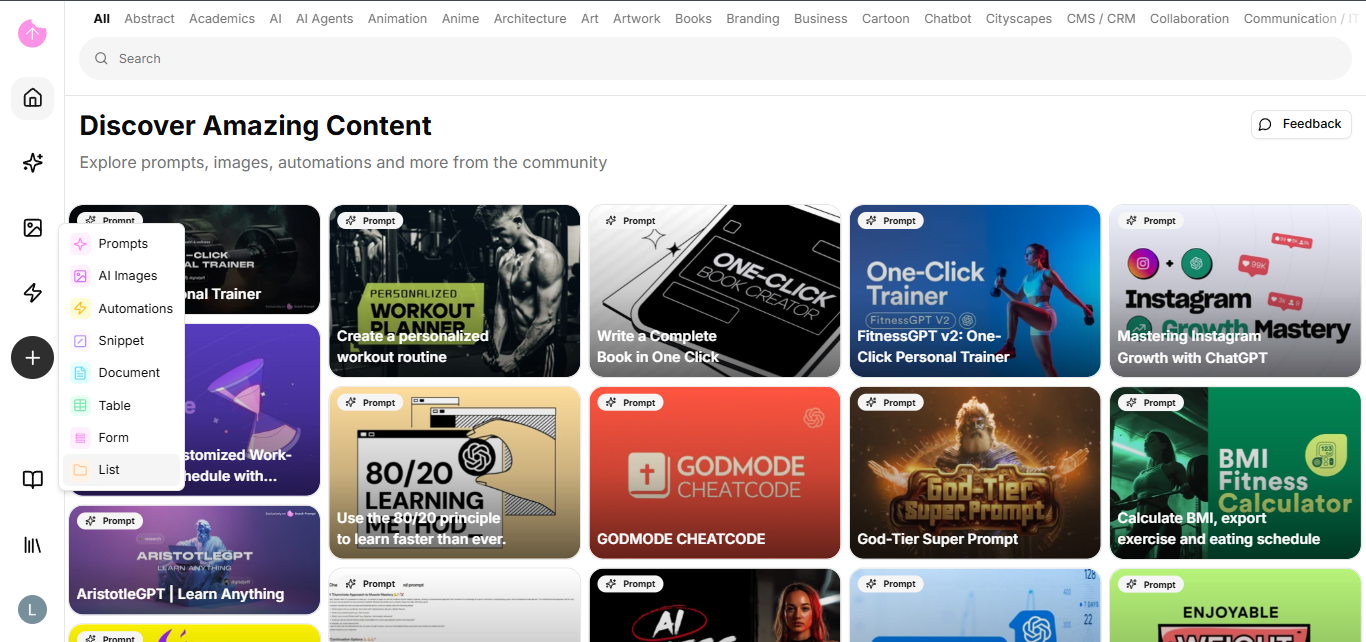
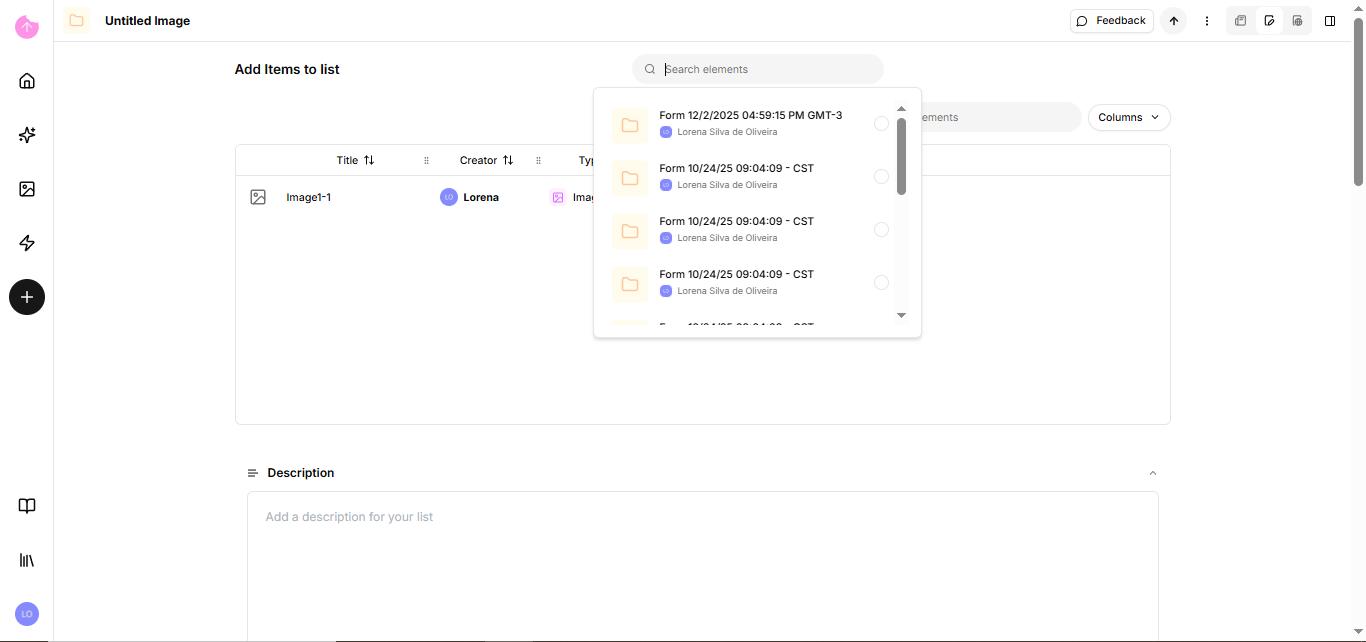
| Agent with tools       | N8N or Flowise       |
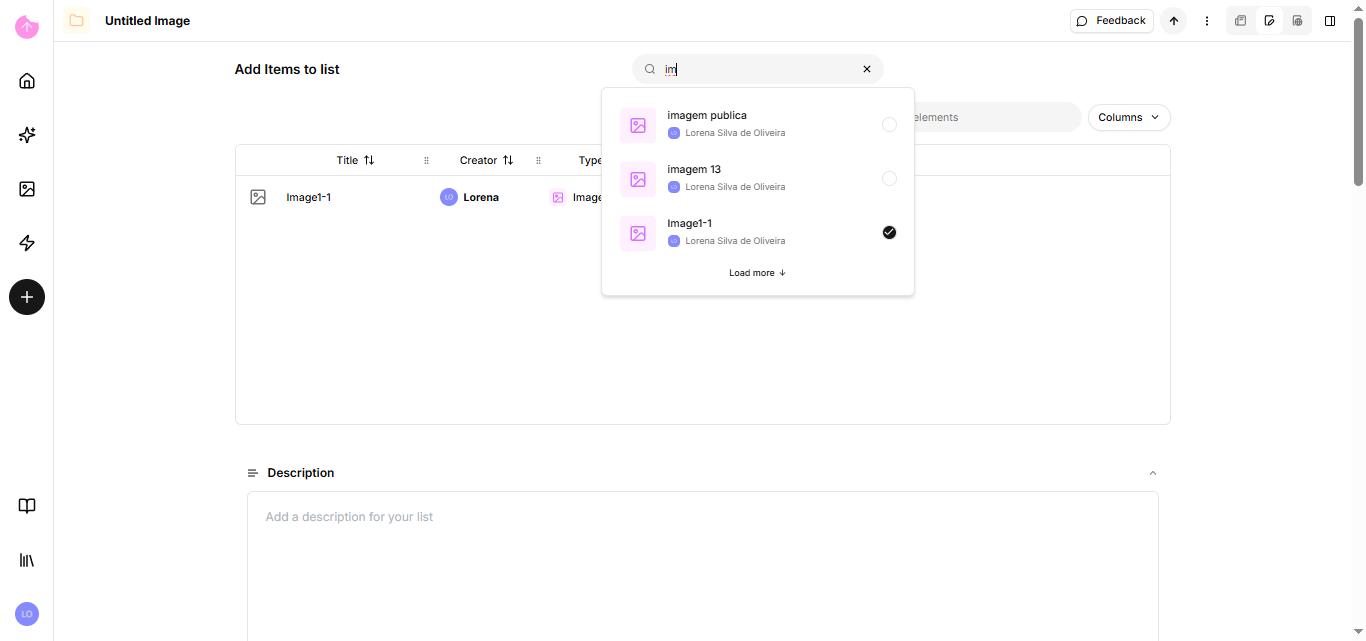
| Custom RAG pipeline    | Pipedream            |

***

### Platform Comparison

#### No-Code Automation Platforms

```
┌────────────────────────────────────────────────────────────────┐
│                    Ease of Use vs Flexibility                   │
│                                                                 │
│  Easy ──────────────────────────────────────────────── Complex  │
│                                                                 │
│    Zapier          Make           N8N         Power Automate    │
│      │               │             │                │           │
│      ▼               ▼             ▼                ▼           │
│  ┌────────┐    ┌──────────┐  ┌──────────┐    ┌──────────┐       │
│  │ Simple │    │  Visual  │  │ Technical│    │Enterprise│       │
│  │ Zaps   │    │  Flows   │  │ Workflows│    │   Flows  │       │
│  └────────┘    └──────────┘  └──────────┘    └──────────┘       │
│                                                                 │
│  Best for:     Best for:     Best for:       Best for:          │
│  Quick wins    Complex       Self-hosted     Microsoft          │
│  & MVPs        automation    & control       ecosystem          │
└────────────────────────────────────────────────────────────────┘
```

| Feature             | Zapier   | Make          | N8N                | Power Automate |
| ------------------- | -------- | ------------- | ------------------ | -------------- |
| Pricing             | Per task | Per operation | Free (self-hosted) | Per user/flow  |
| Self-hosted         | ❌        | ❌             | ✅                  | ❌              |
| Visual builder      | ✅        | ✅             | ✅                  | ✅              |
| Code steps          | Limited  | ✅             | ✅                  | Limited        |
| AI features         | Basic    | Basic         | ✅ Agents           | AI Builder     |
| App connections     | 5000+    | 1000+         | 400+               | 1000+          |
| Enterprise features | ✅        | ✅             | Community          | ✅              |

#### Developer & LLM Platforms

| Feature           | Pipedream      | Flowise     | Dify     |
| ----------------- | -------------- | ----------- | -------- |
| Primary language  | Node.js/Python | JavaScript  | Python   |
| Visual builder    | Hybrid         | ✅           | ✅        |
| Native AI/LLM     | Via code       | ✅ LangChain | ✅ Native |
| Self-hosted       | ❌              | ✅           | ✅        |
| Custom retrievers | ✅              | ✅           | ✅        |
| Agent support     | Via code       | ✅           | ✅        |
| Best for          | Developers     | LLM flows   | AI apps  |

***

### Integration Methods

All platforms support these SnackPrompt API endpoints:

#### Search Endpoint (`/v1/kb/search`)

Returns relevant documents from your knowledge base.

```
Use when:
├── You want to build custom RAG pipelines
├── You need the raw documents for processing
└── You want to combine with other data sources
```

#### Chat Endpoint (`/v1/kb/chat`)

Returns a ready-to-use AI-generated response.

```
Use when:
├── You want quick integration without RAG complexity
├── You need a complete answer, not just documents
└── You're building simple Q&A flows
```

***

### Quick Start by Platform

#### Zapier (Fastest)

1. Create a Zap with your trigger
2. Add **API Request** action
3. Configure POST to `/v1/kb/chat`
4. Use the response in your action

#### N8N (Most Flexible)

1. Add **HTTP Request Tool** to an AI Agent
2. Configure the search endpoint
3. Let the agent decide when to search

#### Dify (Best for AI Apps)

1. Go to **External Knowledge API**
2. Add SnackPrompt as a knowledge source
3. Use in your chatbot or agent

#### Power Automate (Enterprise)

1. Create a **Custom Connector**
2. Add both search and chat operations
3. Use across your organization

***

### Common Integration Patterns

#### Pattern 1: Simple Chatbot

```
[User Input] → [API: /chat] → [Display Answer]
```

Platforms: All

#### Pattern 2: RAG Pipeline

```
[User Input] → [API: /search] → [Format Context] → [LLM] → [Answer]
```

Platforms: N8N, Flowise, Pipedream, Make

#### Pattern 3: Agent with Tools

```
[User Input] → [AI Agent] → [Tool: Search KB] → [Agent Decision] → [Answer]
                    ↓
              [Other Tools]
```

Platforms: N8N, Flowise, Dify

#### Pattern 4: Conditional Routing

```
[Input] → [API: /search] → [Has Results?]
                               │
                    ┌──────────┴──────────┐
                    ▼                      ▼
              [Auto-Reply]          [Create Ticket]
```

Platforms: All

#### Pattern 5: Multi-Source RAG

```
[Input] → [Parallel Search]
               │
        ┌──────┼──────┐
        ▼      ▼      ▼
    [tag=A] [tag=B] [tag=C]
        │      │      │
        └──────┼──────┘
               ▼
          [Merge & LLM]
```

Platforms: Make, N8N, Pipedream

***

### Security Considerations

#### API Key Management

| Platform       | Recommended Method    |
| -------------- | --------------------- |
| Zapier         | Secret Manager        |
| Make           | Connections           |
| N8N            | Credentials           |
| Power Automate | Azure Key Vault       |
| Pipedream      | Environment Variables |
| Flowise        | Environment Variables |
| Dify           | API Key auth          |

#### Best Practices

1. **Never hardcode API keys** - Use platform's secret management
2. **Use HTTPS only** - All SnackPrompt endpoints use HTTPS
3. **Limit permissions** - Create separate API keys per integration
4. **Monitor usage** - Track API calls for anomalies
5. **Handle errors gracefully** - Don't expose error details to users

***

### Getting Help

* **API Reference**: [Endpoints](/bring-your-data-into-ai/reference/endpoints)
* **Filters**: [Available Filters](/bring-your-data-into-ai/reference/filters)
* **Errors**: [Error Codes](/bring-your-data-into-ai/how-to/how-to-handle-errors)

For platform-specific help:

* [N8N Community](https://community.n8n.io/)
* [Zapier Help](https://help.zapier.com/)
* [Make Community](https://www.make.com/en/community)
* [Power Automate Docs](https://docs.microsoft.com/en-us/power-automate/)
* [Pipedream Docs](https://pipedream.com/docs/)
* [Flowise Docs](https://docs.flowiseai.com/)
* [Dify Docs](https://docs.dify.ai/)


# How to Integrate with N8N

Learn how to use the SnackPrompt AI Engine API as a knowledge source for AI agents and workflows in N8N.

### Overview

N8N offers several ways to integrate external APIs with its AI capabilities:

| Method                | Use Case          | Description                                     |
| --------------------- | ----------------- | ----------------------------------------------- |
| **HTTP Request Tool** | Agents with tools | Agent decides when to query the API             |
| **HTTP Request Node** | RAG in workflows  | Direct call at a specific point in the workflow |
| **Custom Retriever**  | Advanced RAG      | Replace native vector store with external API   |

### Integration Architecture

```
┌─────────────────────────────────────────────────────────┐
│                        N8N                              │
│  ┌─────────────┐    ┌─────────────┐    ┌────────────┐   │
│  │   Trigger   │───▶│  AI Agent   │───▶│  Response │   │
│  └─────────────┘    └──────┬──────┘    └────────────┘   │
│                            │                            │
│                     ┌──────▼──────┐                     │
│                     │ HTTP Tool   │                     │
│                     └──────┬──────┘                     │
└────────────────────────────┼────────────────────────────┘
                             │
                             ▼
              ┌──────────────────────────────┐
              │  SnackPrompt AI Engine API   │
              │  /v1/kb/search or /v1/kb/chat│
              └──────────────────────────────┘
```

***

### Method 1: HTTP Request Tool (Recommended)

Use when you want the **agent to autonomously decide** when to search your knowledge base.

#### Step 1: Configure the AI Agent

1. Add an **AI Agent** node to your workflow
2. Configure the LLM model (OpenAI, Anthropic, etc.)
3. Connect an **HTTP Request Tool** as a tool

#### Step 2: Configure the HTTP Request Tool

**Tool Settings:**

| Field       | Value                                                                                                                                                                        |
| ----------- | ---------------------------------------------------------------------------------------------------------------------------------------------------------------------------- |
| Name        | `search_knowledge_base`                                                                                                                                                      |
| Description | `Use this tool to search for information in the company knowledge base. Send a natural language query to find relevant documents about products, policies, procedures, etc.` |
| Method      | `POST`                                                                                                                                                                       |
| URL         | `https://api-integrations.snackprompt.com/v1/kb/search`                                                                                                                      |

**Headers:**

```
Content-Type: application/json
x-api-key: YOUR_API_KEY
```

**Body (JSON):**

```json
{
  "query": "{{ $fromAI('query', 'The search query') }}",
  "filters": {
    "tenant_id": "YOUR_TENANT_ID"
  },
  "limit": 5
}
```

#### Step 3: Optimize the Response

In the HTTP Request Tool **Options** section:

* **Optimize Response**: Enabled
* **Response Format**: `JSON`
* **Limit Response Size**: Recommended to reduce tokens

#### Complete Workflow Example

```
[Chat Trigger] → [AI Agent] → [Response]
                     │
                     └─── [HTTP Request Tool: search_knowledge_base]
```

The agent will receive a question, decide if it needs to query the knowledge base, perform the search, and use the results to formulate the response.

***

### Method 2: HTTP Request Node (Direct RAG)

Use when you want a **deterministic workflow** where the search always happens.

#### Simple RAG Workflow

```
[Webhook/Chat Trigger]
        │
        ▼
[HTTP Request: Search API]
        │
        ▼
[Set Node: Format Context]
        │
        ▼
[AI Chain: Generate Response]
        │
        ▼
[Respond to Webhook]
```

#### HTTP Request Node Configuration

**Method:** POST

**URL:**

```
https://api-integrations.snackprompt.com/v1/kb/search
```

**Headers:**

```
Content-Type: application/json
x-api-key: YOUR_API_KEY
```

**Body:**

```json
{
  "query": "{{ $json.chatInput }}",
  "filters": {
    "tenant_id": "YOUR_TENANT_ID"
  },
  "limit": 5
}
```

#### Formatting the Context

Use a **Set Node** or **Code Node** to format the results:

```javascript
// Code Node
const results = $input.first().json.items;

const context = results.map((item, index) =>
  `[${index + 1}] ${item.payload.original_text}`
).join('\n\n');

return {
  context: context,
  sources: results.map(r => ({
    id: r.payload.snack_item_id,
    score: r.score
  }))
};
```

#### AI Chain Prompt

```
You are a helpful assistant. Answer the user's question based ONLY on the following context.

Context:
{{ $json.context }}

User Question: {{ $('Webhook').item.json.chatInput }}

If the context doesn't contain relevant information, say "I don't have information about that."
```

***

### Method 3: Chat Endpoint for Complete Responses

Use the `/v1/kb/chat` endpoint when you want the **API to handle all the RAG** and return a ready response.

#### Configuration

**URL:**

```
https://api-integrations.snackprompt.com/v1/kb/chat
```

**Headers:**

```
Content-Type: application/json
x-api-key: YOUR_API_KEY
```

**Body:**

```json
{
  "query": "{{ $json.chatInput }}",
  "filters": {
    "tenant_id": "YOUR_TENANT_ID",
    "tag_names": ["Support", "FAQ"]
  }
}
```

#### Response

The API returns:

* `answer`: AI-generated response
* `sources`: Sources used to generate the response

You can use it directly or enrich with additional logic in N8N.

***

### Practical Use Cases

#### 1. Support Chatbot

```
[Chat Trigger] → [HTTP Request: /chat] → [Respond with answer]
```

Ideal for simple chatbots that need to answer questions about products, policies, etc.

#### 2. Multi-tool Agent

```
[Chat Trigger] → [AI Agent] → [Response]
                     │
                     ├── [Tool: search_knowledge_base]
                     ├── [Tool: Google Calendar]
                     └── [Tool: Send Email]
```

The agent can search for information AND execute actions.

#### 3. RAG with Multiple Sources

```
[Webhook] → [Switch: Route by Topic]
                 │
                 ├── [Search: tag=Sales] → [Merge] → [AI: Generate]
                 └── [Search: tag=Support] ───┘
```

Search in different categories and combine the results.

#### 4. Response Validation

```
[Chat] → [AI Agent: Generate Draft]
              │
              ▼
         [HTTP Request: Search for validation]
              │
              ▼
         [AI: Verify and Refine]
              │
              ▼
         [Response]
```

The agent generates a response, searches for validation in the knowledge base, and refines.

***

### Configuration Tips

#### 1. Tool Description is Crucial

The HTTP Request Tool description determines **when** the agent will use it:

```
✅ Good description:
"Search the company knowledge base for information about products,
pricing, policies, and procedures. Use when the user asks about
company-specific information."

❌ Bad description:
"Search API"
```

#### 2. Limit the Results

Too many results = too many tokens = higher cost and possible confusion:

```json
{
  "limit": 3  // Start with few and increase if needed
}
```

#### 3. Use Filters for Context

Direct the search with tags when you know the context:

```json
{
  "filters": {
    "tenant_id": "...",
    "tag_names": ["{{ $json.detected_topic }}"]
  }
}
```

#### 4. Handle Errors

Add an **Error Trigger** or use **Continue On Fail** to handle API failures.

***

### Complete Example: Sales Chatbot

#### Workflow

1. **Chat Trigger**: Receives user message
2. **AI Agent**: Processes with GPT-4
3. **HTTP Request Tool**: Searches products and prices
4. **HTTP Request Tool**: Searches discount policies
5. **Response**: Returns response to user

#### Agent Configuration

**System Prompt:**

```
You are a sales assistant for company X.
Help customers find products and understand pricing.
Use the search_products tool to find product information.
Use the search_policies tool to find discount policies.
Always cite sources when providing information.
```

**Tools:**

| Tool              | Description                                                 |
| ----------------- | ----------------------------------------------------------- |
| `search_products` | Search for product information, specifications, and pricing |
| `search_policies` | Search for discount policies, payment terms, and conditions |

***

### Troubleshooting

#### Error: "tenant\_id is required"

Make sure `tenant_id` is inside the `filters` object:

```json
// ❌ Wrong
{ "query": "...", "tenant_id": "..." }

// ✅ Correct
{ "query": "...", "filters": { "tenant_id": "..." } }
```

#### Agent doesn't use the tool

1. Improve the tool description
2. Add examples in the system prompt
3. Verify if the question actually requires the tool

#### Response too long/truncated

1. Reduce the results `limit`
2. Enable **Optimize Response** on the tool
3. Use a Code Node to summarize before passing to the LLM

***

### Related

* [Endpoints Reference](/bring-your-data-into-ai/reference/endpoints)
* [Available Filters](/bring-your-data-into-ai/reference/filters)
* [Error Handling](/bring-your-data-into-ai/how-to/how-to-handle-errors)

### External Resources

* [N8N RAG Documentation](https://docs.n8n.io/advanced-ai/rag-in-n8n/)
* [HTTP Request Tool Docs](https://docs.n8n.io/integrations/builtin/cluster-nodes/sub-nodes/n8n-nodes-langchain.toolhttprequest/)
* [Building RAG in 2025 - N8N Community](https://community.n8n.io/t/building-rag-in-2025-vector-stores-as-tools-is-here/75166)


# How to Integrate with Zapier

Learn how to use the SnackPrompt AI Engine API to build powerful automations and AI-powered workflows in Zapier.

### Overview

Zapier offers several ways to integrate external APIs into your automations:

| Method                 | Use Case            | Description                             |
| ---------------------- | ------------------- | --------------------------------------- |
| **Webhooks by Zapier** | Receive data        | Trigger Zaps when external events occur |
| **API Request (Beta)** | Direct API calls    | Make HTTP requests to any API           |
| **Code by Zapier**     | Advanced processing | Run JavaScript/Python to process data   |
| **Chatbots by Zapier** | AI conversations    | Build chatbots with custom knowledge    |

### Integration Architecture

```
┌─────────────────────────────────────────────────────────┐
│                       Zapier                            │
│  ┌─────────────┐    ┌─────────────┐    ┌────────────┐   │
│  │   Trigger   │───▶│  API Request│───▶│   Action  │   │
│  └─────────────┘    └──────┬──────┘    └────────────┘   │
│                            │                            │
│                     ┌──────▼──────┐                     │
│                     │ Code Step   │                     │
│                     │ (optional)  │                     │
│                     └──────┬──────┘                     │
└────────────────────────────┼────────────────────────────┘
                             │
                             ▼
              ┌──────────────────────────────┐
              │  SnackPrompt AI Engine API   │
              │  /v1/kb/search or /v1/kb/chat│
              └──────────────────────────────┘
```

***

### Method 1: API Request (Recommended)

Use the **API Request** action to call the SnackPrompt AI Engine API directly.

#### Step 1: Create a New Zap

1. Go to [zapier.com](https://zapier.com) and click **Create Zap**
2. Choose your trigger (e.g., New Email, New Form Submission, Schedule)

#### Step 2: Add API Request Action

1. Click **+** to add a new action
2. Search for **API Request (Beta)** or **Webhooks by Zapier**
3. Select **Custom Request**

#### Step 3: Configure the Request

**For Search Endpoint:**

<table><thead><tr><th width="237">Field</th><th>Value</th></tr></thead><tbody><tr><td>Method</td><td><code>POST</code></td></tr><tr><td>URL</td><td><code>https://api-integrations.snackprompt.com/v1/kb/search</code></td></tr></tbody></table>

**Headers:**

| Key            | Value              |
| -------------- | ------------------ |
| `Content-Type` | `application/json` |
| `x-api-key`    | `YOUR_API_KEY`     |

**Body:**

```json
{
  "query": "{{trigger_field}}",
  "filters": {
    "tenant_id": "YOUR_TENANT_ID"
  },
  "limit": 5
}
```

Replace `{{trigger_field}}` with the field from your trigger that contains the search query.

#### Step 4: Use the Results

The API returns a list of relevant documents. You can use the results in subsequent actions:

* Send an email with the information found
* Update a CRM record
* Post to Slack
* Create a support ticket

***

### Method 2: Webhooks by Zapier (Receive Requests)

Use when you want to **receive requests** and respond with knowledge base information.

#### Step 1: Create Webhook Trigger

1. Create a new Zap
2. Select **Webhooks by Zapier** as trigger
3. Choose **Catch Hook**
4. Copy the webhook URL provided

#### Step 2: Add API Request Action

Configure as shown in Method 1, using the data from the webhook:

**Body:**

```json
{
  "query": "{{catch_hook_query}}",
  "filters": {
    "tenant_id": "YOUR_TENANT_ID"
  },
  "limit": 5
}
```

#### Step 3: Return Response (Optional)

If you need to return a response to the webhook caller:

1. Add **Webhooks by Zapier** action
2. Select **Return Response**
3. Configure the response body with the API results

***

### Method 3: Chat Endpoint for Complete Responses

Use the `/v1/kb/chat` endpoint when you want the **API to handle all the RAG** and return a ready response.

#### Configuration

**URL:**

```
https://api-integrations.snackprompt.com/v1/kb/chat
```

**Headers:**

| Key            | Value              |
| -------------- | ------------------ |
| `Content-Type` | `application/json` |
| `x-api-key`    | `YOUR_API_KEY`     |

**Body:**

```json
{
  "query": "{{trigger_field}}",
  "filters": {
    "tenant_id": "YOUR_TENANT_ID",
    "tag_names": ["Support", "FAQ"]
  }
}
```

#### Response

The API returns:

* `answer`: AI-generated response ready to use
* `sources`: Sources used to generate the response

***

### Method 4: Code by Zapier (Advanced)

Use when you need to **process or transform** the API response.

#### Step 1: Add Code Step

1. Add **Code by Zapier** action
2. Choose **Run JavaScript** or **Run Python**

#### Step 2: JavaScript Example

**Input Data:**

* `query`: The search query from trigger
* `api_key`: Your API key
* `tenant_id`: Your tenant ID

**Code:**

```javascript
const response = await fetch('https://api-integrations.snackprompt.com/v1/kb/search', {
  method: 'POST',
  headers: {
    'Content-Type': 'application/json',
    'x-api-key': inputData.api_key
  },
  body: JSON.stringify({
    query: inputData.query,
    filters: {
      tenant_id: inputData.tenant_id
    },
    limit: 5
  })
});

const data = await response.json();

// Format results for easy use
const formattedResults = data.items.map((item, index) => ({
  position: index + 1,
  text: item.payload.original_text,
  score: item.score,
  id: item.payload.snack_item_id
}));

output = {
  results: JSON.stringify(formattedResults),
  firstResult: formattedResults[0]?.text || 'No results found',
  resultCount: formattedResults.length
};
```

#### Step 3: Python Example

```python
import requests
import json

response = requests.post(
    'https://api-integrations.snackprompt.com/v1/kb/search',
    headers={
        'Content-Type': 'application/json',
        'x-api-key': input_data['api_key']
    },
    json={
        'query': input_data['query'],
        'filters': {
            'tenant_id': input_data['tenant_id']
        },
        'limit': 5
    }
)

data = response.json()

# Format results
results = []
for i, item in enumerate(data.get('items', [])):
    results.append({
        'position': i + 1,
        'text': item['payload']['original_text'],
        'score': item['score']
    })

output = {
    'results': json.dumps(results),
    'first_result': results[0]['text'] if results else 'No results found',
    'result_count': len(results)
}
```

***

### Practical Use Cases

#### 1. Email Auto-Responder

```
[New Email in Gmail] → [API Request: /chat] → [Send Reply with answer]
```

Automatically respond to customer emails using knowledge base information.

#### 2. Slack Support Bot

```
[New Message in Slack Channel] → [API Request: /search] → [Post Reply to Thread]
```

Answer questions posted in a support Slack channel.

#### 3. CRM Enrichment

```
[New Lead in HubSpot] → [API Request: /search] → [Update Lead with relevant docs]
```

Automatically attach relevant documentation to new leads based on their inquiry.

#### 4. Form Response Handler

```
[New Typeform Submission] → [API Request: /chat] → [Send Email with answer]
```

Process form questions and send personalized responses.

#### 5. Scheduled Knowledge Digest

```
[Schedule: Every Monday] → [API Request: /search] → [Create Notion Page]
```

Generate weekly digests of popular topics from your knowledge base.

#### 6. Multi-Step Support Flow

```
[Webhook: Receive Question]
        │
        ▼
[API Request: /search with tag=FAQ]
        │
        ▼
[Filter: Check if results found]
        │
    ┌───┴───┐
    │       │
    ▼       ▼
[Found]  [Not Found]
    │       │
    ▼       ▼
[Reply] [Create Ticket]
```

***

### Configuration Tips

#### 1. Store API Key Securely

Use Zapier's **Secret Manager** or environment variables:

1. Go to your Zap settings
2. Add a **Secret** for your API key
3. Reference it as `{{secrets.snackprompt_api_key}}`

#### 2. Use Filters Wisely

Direct searches with tags when you know the context:

```json
{
  "filters": {
    "tenant_id": "...",
    "tag_names": ["{{detected_category}}"]
  }
}
```

#### 3. Handle Empty Results

Add a **Filter** or **Paths** step after the API call:

```
[API Request] → [Filter: items length > 0] → [Send Response]
                                          ↘ [Fallback Action]
```

#### 4. Limit Results for Cost Efficiency

Start with fewer results and increase if needed:

```json
{
  "limit": 3
}
```

#### 5. Add Error Handling

Use Zapier's built-in error handling:

1. Click on your API Request step
2. Go to **Advanced Settings**
3. Enable **Continue on Error**
4. Add a **Paths** step to handle errors

***

### Complete Example: Customer Support Automation

#### Workflow Overview

1. Customer submits question via form
2. Zap searches knowledge base
3. If answer found, send automated reply
4. If not found, create support ticket

#### Step-by-Step Setup

**Step 1: Trigger - New Form Submission**

* App: Typeform, Google Forms, or Jotform
* Trigger: New Response

**Step 2: Action - API Request**

* URL: `https://api-integrations.snackprompt.com/v1/kb/chat`
* Method: POST
* Headers:

  ```
  Content-Type: application/json
  x-api-key: YOUR_API_KEY
  ```
* Body:

  ```json
  {
    "query": "{{form_question_field}}",
    "filters": {
      "tenant_id": "YOUR_TENANT_ID",
      "tag_names": ["Support"]
    }
  }
  ```

**Step 3: Paths - Check Response Quality**

* Path A: If `sources` array is not empty
* Path B: If `sources` array is empty

**Step 4A: Send Automated Reply**

* App: Gmail or your email service
* To: `{{form_email_field}}`
* Subject: `Re: {{form_subject_field}}`
* Body: `{{api_response_answer}}`

**Step 4B: Create Support Ticket**

* App: Zendesk, Freshdesk, or Linear
* Create ticket with original question

***

### Troubleshooting

#### Error: "tenant\_id is required"

Make sure `tenant_id` is inside the `filters` object:

```json
// ❌ Wrong
{ "query": "...", "tenant_id": "..." }

// ✅ Correct
{ "query": "...", "filters": { "tenant_id": "..." } }
```

#### Error: "Invalid JSON"

Check your JSON body for:

* Missing commas between fields
* Unescaped quotes in dynamic values
* Trailing commas (not allowed in JSON)

Use a **Code** step to safely construct JSON:

```javascript
output = {
  body: JSON.stringify({
    query: inputData.query,
    filters: { tenant_id: inputData.tenant_id }
  })
};
```

#### API Returns Empty Results

1. Verify your `tenant_id` is correct
2. Check if the query matches content in your knowledge base
3. Try removing `tag_names` filter to search all content
4. Increase the `limit` parameter

#### Zap Runs but No Response

1. Check the API Request step output in Zap History
2. Verify the response is being mapped correctly to the next step
3. Ensure the response fields match what you're referencing

#### Rate Limiting

If you hit rate limits:

1. Add a **Delay** step before API calls
2. Use **Zapier's built-in throttling** in Zap settings
3. Consider batching requests with **Looping by Zapier**

***

### Zapier AI Integration

#### Using with Zapier Central (AI)

Zapier Central can use the SnackPrompt API as a data source:

1. Create an **API Connection** in Zapier Central
2. Configure the search endpoint
3. Ask Central to query your knowledge base

#### Chatbots by Zapier

Build a chatbot that uses your knowledge base:

1. Create a new Chatbot
2. Add a **Custom Action** that calls the `/chat` endpoint
3. Use the response as the bot's reply

***

### Related

* [Endpoints Reference](/bring-your-data-into-ai/reference/endpoints)
* [Available Filters](/bring-your-data-into-ai/reference/filters)
* [Error Hand](/bring-your-data-into-ai/how-to/how-to-handle-errors)

### External Resources

* [Zapier Webhooks Documentation](https://zapier.com/apps/webhook/integrations)
* [API Request Action Docs](https://help.zapier.com/hc/en-us/articles/8496291148685-API-Request-actions)
* [Code by Zapier Guide](https://zapier.com/apps/code/integrations)
* [Zapier Paths for Conditional Logic](https://zapier.com/features/paths)


# How to Integrate with Make

Learn how to use the SnackPrompt AI Engine API to build powerful automations and AI-powered scenarios in Make (formerly Integromat).

### Overview

Make offers several ways to integrate external APIs into your automations:

| Method                | Use Case         | Description                                      |
| --------------------- | ---------------- | ------------------------------------------------ |
| **HTTP Module**       | Direct API calls | Make HTTP requests to any API                    |
| **Webhooks**          | Receive data     | Trigger scenarios when external events occur     |
| **JSON Module**       | Data processing  | Parse and create JSON structures                 |
| **OpenAI/AI Modules** | AI integration   | Combine with AI models for intelligent workflows |

### Integration Architecture

```
┌─────────────────────────────────────────────────────────┐
│                        Make                             │
│  ┌─────────────┐    ┌─────────────┐    ┌────────────┐   │
│  │   Trigger   │───▶│ HTTP Module │───▶│   Action  │   │
│  └─────────────┘    └──────┬──────┘    └────────────┘   │
│                            │                            │
│                     ┌──────▼──────┐                     │
│                     │    Router   │                     │
│                     │ (optional)  │                     │
│                     └──────┬──────┘                     │
└────────────────────────────┼────────────────────────────┘
                             │
                             ▼
              ┌──────────────────────────────┐
              │  SnackPrompt AI Engine API   │
              │  /v1/kb/search or /v1/kb/chat│
              └──────────────────────────────┘
```

***

### Method 1: HTTP Module (Recommended)

Use the **HTTP > Make a request** module to call the SnackPrompt AI Engine API directly.

#### Step 1: Create a New Scenario

1. Go to [make.com](https://make.com) and click **Create a new scenario**
2. Choose your trigger module (e.g., Webhook, Email, Schedule)

#### Step 2: Add HTTP Module

1. Click **+** to add a new module
2. Search for **HTTP**
3. Select **Make a request**

#### Step 3: Configure the Request

**For Search Endpoint:**

<table><thead><tr><th width="247">Field</th><th>Value</th></tr></thead><tbody><tr><td>URL</td><td><code>https://api-integrations.snackprompt.com/v1/kb/search</code></td></tr><tr><td>Method</td><td><code>POST</code></td></tr><tr><td>Body type</td><td><code>Raw</code></td></tr><tr><td>Content type</td><td><code>JSON (application/json)</code></td></tr></tbody></table>

**Headers:**

| Name        | Value          |
| ----------- | -------------- |
| `x-api-key` | `YOUR_API_KEY` |

**Request content (JSON):**

```json
{
  "query": "{{1.query}}",
  "filters": {
    "tenant_id": "YOUR_TENANT_ID"
  },
  "limit": 5
}
```

Replace `{{1.query}}` with the appropriate variable from your trigger module.

#### Step 4: Parse the Response

Check **Parse response** to automatically parse the JSON response into usable variables.

#### Step 5: Use the Results

The API returns a list of relevant documents in `items[]`. You can use them in subsequent modules:

* `{{2.items[].payload.original_text}}` - The document content
* `{{2.items[].score}}` - Relevance score
* `{{2.items[].payload.snack_item_id}}` - Document ID

***

### Method 2: Webhooks (Receive Requests)

Use when you want to **receive requests** and respond with knowledge base information.

#### Step 1: Create Webhook Trigger

1. Create a new scenario
2. Add **Webhooks > Custom webhook** as the trigger
3. Click **Add** to create a new webhook
4. Copy the webhook URL provided

#### Step 2: Add HTTP Module

Configure as shown in Method 1, using the webhook data:

**Request content:**

```json
{
  "query": "{{1.query}}",
  "filters": {
    "tenant_id": "YOUR_TENANT_ID"
  },
  "limit": 5
}
```

#### Step 3: Return Response

Add **Webhooks > Webhook response** module at the end:

| Field          | Value                              |
| -------------- | ---------------------------------- |
| Status         | `200`                              |
| Body           | `{{2.body}}` or formatted response |
| Custom headers | `Content-Type: application/json`   |

***

### Method 3: Chat Endpoint for Complete Responses

Use the `/v1/kb/chat` endpoint when you want the **API to handle all the RAG** and return a ready response.

#### Configuration

<table><thead><tr><th width="252">Field</th><th>Value</th></tr></thead><tbody><tr><td>URL</td><td><code>https://api-integrations.snackprompt.com/v1/kb/chat</code></td></tr><tr><td>Method</td><td><code>POST</code></td></tr><tr><td>Body type</td><td><code>Raw</code></td></tr><tr><td>Content type</td><td><code>JSON (application/json)</code></td></tr></tbody></table>

**Headers:**

| Name        | Value          |
| ----------- | -------------- |
| `x-api-key` | `YOUR_API_KEY` |

**Request content:**

```json
{
  "query": "{{1.message}}",
  "filters": {
    "tenant_id": "YOUR_TENANT_ID",
    "tag_names": ["Support", "FAQ"]
  }
}
```

#### Response

The API returns:

* `answer`: AI-generated response ready to use
* `sources`: Sources used to generate the response

Access with `{{2.answer}}` and `{{2.sources}}`.

***

### Method 4: With AI Modules (RAG Pipeline)

Combine the search API with Make's AI modules for custom RAG workflows.

#### RAG Scenario Structure

```
[Trigger] → [HTTP: Search API] → [Text Aggregator] → [OpenAI: Create Completion] → [Action]
```

#### Step 1: Search for Context

Use HTTP module to call `/v1/kb/search` as shown in Method 1.

#### Step 2: Format Context with Iterator + Aggregator

**Add Iterator module:**

* Array: `{{2.items}}`

**Add Text Aggregator module:**

* Source module: Iterator
* Text: `[{{3.i}}] {{3.payload.original_text}}`
* Row separator: `\n\n`

#### Step 3: Generate Response with OpenAI

**Add OpenAI > Create a Completion module:**

| Field    | Value                      |
| -------- | -------------------------- |
| Model    | `gpt-4` or `gpt-3.5-turbo` |
| Messages | System + User messages     |

**System Message:**

```
You are a helpful assistant. Answer the user's question based ONLY on the following context.

Context:
{{4.text}}

If the context doesn't contain relevant information, say "I don't have information about that."
```

**User Message:**

```
{{1.query}}
```

***

### Practical Use Cases

#### 1. Support Chatbot

```
[Webhook] → [HTTP: /chat] → [Webhook Response]
```

Simple chatbot that answers questions using your knowledge base.

#### 2. Email Auto-Responder

```
[Email: Watch] → [HTTP: /chat] → [Email: Send]
```

Automatically respond to customer emails with relevant information.

#### 3. Slack Integration

```
[Slack: Watch Channel] → [HTTP: /search] → [Slack: Post Message]
```

Answer questions posted in a Slack channel.

#### 4. Multi-Source RAG with Router

```
[Webhook] → [Router]
                │
                ├─[Filter: Sales]──→ [HTTP: tag=Sales] ───┐
                │                                          │
                └─[Filter: Support]→ [HTTP: tag=Support]──┼→ [Array Aggregator] → [OpenAI] → [Response]
```

Route queries to different knowledge bases based on topic.

#### 5. Scheduled Knowledge Digest

```
[Schedule: Weekly] → [HTTP: /search trending] → [Iterator] → [Notion: Create Page]
```

Generate weekly reports from your knowledge base.

#### 6. Form Response with Fallback

```
[Typeform: Watch] → [HTTP: /search] → [Router]
                                          │
                                          ├─[Filter: results > 0]→ [Email: Send Answer]
                                          │
                                          └─[Filter: results = 0]→ [Zendesk: Create Ticket]
```

***

### Configuration Tips

#### 1. Store Credentials Securely

Use Make's **Connections** or **Data Stores** for API keys:

1. Go to **Connections** in the left menu
2. Create a new **HTTP Basic Auth** or **API Key** connection
3. Use the connection in your HTTP modules

#### 2. Use Variables and Data Stores

Store `tenant_id` and other config in a Data Store:

```json
{
  "query": "{{1.query}}",
  "filters": {
    "tenant_id": "{{datastore.config.tenant_id}}"
  }
}
```

#### 3. Handle Errors with Error Handler

Right-click the HTTP module and add an **Error Handler**:

```
[HTTP Module] ──error──→ [Router]
                            │
                            ├─[Filter: 4xx]→ [Slack: Notify]
                            │
                            └─[Filter: 5xx]→ [Resume] → [Sleep] → [Retry]
```

#### 4. Limit Results for Efficiency

Start with fewer results:

```json
{
  "limit": 3
}
```

#### 5. Use Filters for Context

Direct searches with tags:

```json
{
  "filters": {
    "tenant_id": "...",
    "tag_names": ["{{1.detected_category}}"]
  }
}
```

#### 6. Enable Parse Response

Always check **Parse response** in the HTTP module to easily access response fields.

***

### Complete Example: Customer Support Automation

#### Scenario Overview

1. Customer submits question via form
2. Scenario searches knowledge base
3. If answer found, sends automated reply
4. If not found, creates support ticket

#### Step-by-Step Setup

**Module 1: Typeform - Watch Responses**

* Connection: Your Typeform account
* Form: Select your support form

**Module 2: HTTP - Make a request**

* URL: `https://api-integrations.snackprompt.com/v1/kb/chat`
* Method: `POST`
* Headers: `x-api-key: YOUR_API_KEY`
* Body type: `Raw`
* Content type: `JSON (application/json)`
* Request content:

  ```json
  {
    "query": "{{1.answers[].text}}",
    "filters": {
      "tenant_id": "YOUR_TENANT_ID",
      "tag_names": ["Support"]
    }
  }
  ```
* Parse response: `Yes`

**Module 3: Router**

* Route 1: `{{length(2.sources)}} > 0` (has results)
* Route 2: `{{length(2.sources)}} = 0` (no results)

**Module 4A: Gmail - Send an Email** (Route 1)

* To: `{{1.answers[email].email}}`
* Subject: `Re: Your question`
* Content: `{{2.answer}}`

**Module 4B: Zendesk - Create Ticket** (Route 2)

* Subject: `Support Request: {{1.answers[subject].text}}`
* Description: `{{1.answers[question].text}}`

***

### Working with Arrays

#### Iterating Over Results

Use **Iterator** to process each result:

```
[HTTP: /search] → [Iterator] → [Your Module]
                      │
                Array: {{2.items}}
```

Inside the iterator, access:

* `{{3.payload.original_text}}`
* `{{3.score}}`
* `{{3.payload.snack_item_id}}`

#### Aggregating Results

Use **Text Aggregator** to combine results:

| Field         | Value                           |
| ------------- | ------------------------------- |
| Source module | Iterator                        |
| Text          | `- {{3.payload.original_text}}` |
| Row separator | `\n`                            |

Result: A formatted list of all documents.

#### Array Functions

Useful functions for working with results:

| Function   | Example                    | Description         |
| ---------- | -------------------------- | ------------------- |
| `first()`  | `{{first(2.items)}}`       | Get first result    |
| `last()`   | `{{last(2.items)}}`        | Get last result     |
| `length()` | `{{length(2.items)}}`      | Count results       |
| `slice()`  | `{{slice(2.items; 0; 3)}}` | Get first 3 results |

***

### Troubleshooting

#### Error: "tenant\_id is required"

Make sure `tenant_id` is inside the `filters` object:

```json
// ❌ Wrong
{ "query": "...", "tenant_id": "..." }

// ✅ Correct
{ "query": "...", "filters": { "tenant_id": "..." } }
```

#### Error: "Invalid JSON"

1. Verify JSON syntax in the request content
2. Check for unescaped special characters in variables
3. Use the **JSON > Create JSON** module to build complex payloads safely

#### Empty Response / No Items

1. Verify your `tenant_id` is correct
2. Check if the query matches content in your knowledge base
3. Remove `tag_names` filter to search all content
4. Increase the `limit` parameter

#### Cannot Access Response Fields

1. Ensure **Parse response** is checked
2. Verify the response structure by checking execution history
3. Use `{{2.body}}` to see the raw response

#### Rate Limiting (429 Error)

1. Add a **Sleep** module between API calls
2. Use Make's built-in **Rate limiting** in scenario settings
3. Consider using **Queue** for high-volume scenarios

#### Timeout Errors

1. Increase the **Timeout** setting in the HTTP module
2. Check if your query is too complex
3. Reduce the `limit` parameter

***

### Advanced Patterns

#### Caching with Data Stores

Cache frequent queries to reduce API calls:

```
[Trigger] → [Data Store: Search] → [Router]
                                      │
                                      ├─[Found]→ [Use Cache]
                                      │
                                      └─[Not Found]→ [HTTP: /search] → [Data Store: Add] → [Continue]
```

#### Retry Pattern

Automatic retry on failure:

```
[HTTP Module] ──error──→ [Tools: Sleep] → [Tools: Increment] → [Router]
                                                                   │
                                                                   ├─[retries < 3]→ [Resume]
                                                                   │
                                                                   └─[retries >= 3]→ [Error Notification]
```

#### Batch Processing

Process multiple queries efficiently:

```
[Trigger with Array] → [Iterator] → [HTTP: /search] → [Array Aggregator] → [Next Module]
```

***

### Related

* [Endpoints Reference](/bring-your-data-into-ai/reference/endpoints)
* [Available Filters](/bring-your-data-into-ai/reference/filters)
* [Error Hand](/bring-your-data-into-ai/how-to/how-to-handle-errors)

### External Resources

* [Make HTTP Module Documentation](https://www.make.com/en/help/app/http)
* [Make Webhooks Guide](https://www.make.com/en/help/app/webhooks)
* [Make Error Handling](https://www.make.com/en/help/errors/error-handling)
* [Make JSON Module](https://www.make.com/en/help/app/json)


# How to Integrate with Flowise

Learn how to use the SnackPrompt AI Engine API as an external knowledge source in Flowise chatbots and AI workflows.

### Overview

Flowise is a visual tool for building LLM applications. It offers several ways to integrate external APIs:

| Method                | Use Case             | Description                                    |
| --------------------- | -------------------- | ---------------------------------------------- |
| **Custom Tool**       | Agent with tools     | Agent decides when to query the API            |
| **HTTP Request Node** | Direct RAG           | Call API at specific point in the flow         |
| **Custom Retriever**  | Replace vector store | Use external API instead of built-in retriever |
| **API Chain**         | Sequential calls     | Chain multiple API calls together              |

### Integration Architecture

```
┌─────────────────────────────────────────────────────────┐
│                      Flowise                            │
│  ┌─────────────┐    ┌─────────────┐    ┌────────────┐   │
│  │    Chat     │───▶│  LLM Chain  │───▶│  Response │   │
│  │   Input     │    │  or Agent   │    │            │   │
│  └─────────────┘    └──────┬──────┘    └────────────┘   │
│                            │                            │
│                     ┌──────▼──────┐                     │
│                     │ Custom Tool │                     │
│                     │  or Chain   │                     │
│                     └──────┬──────┘                     │
└────────────────────────────┼────────────────────────────┘
                             │
                             ▼
              ┌──────────────────────────────┐
              │  SnackPrompt AI Engine API   │
              │  /v1/kb/search or /v1/kb/chat│
              └──────────────────────────────┘
```

***

### Method 1: Custom Tool (Recommended for Agents)

Use when you want the **agent to autonomously decide** when to search your knowledge base.

#### Step 1: Create a Custom Tool

1. In Flowise, go to **Tools** in the sidebar
2. Click **Add New**
3. Configure the tool:

**Tool Configuration:**

| Field       | Value                                                                                                                                                                                                        |
| ----------- | ------------------------------------------------------------------------------------------------------------------------------------------------------------------------------------------------------------ |
| Name        | `search_knowledge_base`                                                                                                                                                                                      |
| Description | `Use this tool to search for information in the company knowledge base. Send a natural language query to find relevant documents about products, policies, procedures, etc. Returns relevant text snippets.` |

#### Step 2: Configure the Tool Code

```javascript
const fetch = require('node-fetch');

const searchKnowledgeBase = async (query) => {
    const response = await fetch('https://api-integrations.snackprompt.com/v1/kb/search', {
        method: 'POST',
        headers: {
            'Content-Type': 'application/json',
            'x-api-key': process.env.SNACKPROMPT_API_KEY
        },
        body: JSON.stringify({
            query: query,
            filters: {
                tenant_id: process.env.SNACKPROMPT_TENANT_ID
            },
            limit: 5
        })
    });

    const data = await response.json();

    if (!data.items || data.items.length === 0) {
        return 'No relevant information found in the knowledge base.';
    }

    return data.items
        .map((item, index) => `[${index + 1}] ${item.payload.original_text}`)
        .join('\n\n');
};

module.exports = { searchKnowledgeBase };
```

#### Step 3: Build the Agent Flow

1. Add **Chat Trigger** node
2. Add **Tool Agent** or **OpenAI Function Agent** node
3. Connect your **Custom Tool**
4. Add **Chat Model** (OpenAI, Anthropic, etc.)

```
[Chat Trigger] → [Tool Agent] → [Response]
                      │
                      ├── [Chat Model: GPT-4]
                      └── [Custom Tool: search_knowledge_base]
```

***

### Method 2: HTTP Request Chain

Use when you want a **deterministic flow** where the search always happens.

#### Step 1: Create the Flow

1. Add **Chat Trigger** node
2. Add **HTTP Request** node
3. Add **LLM Chain** node for response generation

#### Step 2: Configure HTTP Request Node

**Request Configuration:**

<table><thead><tr><th width="252">Field</th><th>Value</th></tr></thead><tbody><tr><td>Method</td><td><code>POST</code></td></tr><tr><td>URL</td><td><code>https://api-integrations.snackprompt.com/v1/kb/search</code></td></tr><tr><td>Headers</td><td>See below</td></tr><tr><td>Body</td><td>See below</td></tr></tbody></table>

**Headers:**

```json
{
  "Content-Type": "application/json",
  "x-api-key": "{{$env.SNACKPROMPT_API_KEY}}"
}
```

**Body:**

```json
{
  "query": "{{$input}}",
  "filters": {
    "tenant_id": "{{$env.SNACKPROMPT_TENANT_ID}}"
  },
  "limit": 5
}
```

#### Step 3: Process and Format Results

Add a **JavaScript Function** node to format the results:

```javascript
function formatResults(data) {
    if (!data.items || data.items.length === 0) {
        return 'No relevant information found.';
    }

    return data.items
        .map((item, index) => `[${index + 1}] ${item.payload.original_text}`)
        .join('\n\n');
}

return formatResults($input);
```

#### Step 4: Generate Response with LLM

Add **LLM Chain** with prompt:

```
You are a helpful assistant. Answer the user's question based ONLY on the following context.

Context:
{context}

User Question: {question}

If the context doesn't contain relevant information, say "I don't have information about that."
```

***

### Method 3: Chat Endpoint for Complete Responses

Use the `/v1/kb/chat` endpoint when you want the **API to handle all the RAG**.

#### Simple Chatbot Flow

```
[Chat Trigger] → [HTTP Request: /chat] → [Parse Response] → [Output]
```

#### HTTP Request Configuration

<table><thead><tr><th width="256">Field</th><th>Value</th></tr></thead><tbody><tr><td>URL</td><td><code>https://api-integrations.snackprompt.com/v1/kb/chat</code></td></tr><tr><td>Method</td><td><code>POST</code></td></tr></tbody></table>

**Headers:**

```json
{
  "Content-Type": "application/json",
  "x-api-key": "{{$env.SNACKPROMPT_API_KEY}}"
}
```

**Body:**

```json
{
  "query": "{{$input}}",
  "filters": {
    "tenant_id": "{{$env.SNACKPROMPT_TENANT_ID}}",
    "tag_names": ["Support", "FAQ"]
  }
}
```

#### Parse Response

Extract the `answer` field from the response:

```javascript
return $input.answer;
```

***

### Method 4: Custom Retriever Node

For advanced users who want to replace Flowise's built-in retrievers.

#### Step 1: Create Custom Retriever

Create a custom node that implements the retriever interface:

```javascript
const { BaseRetriever } = require('langchain/schema/retriever');
const { Document } = require('langchain/document');

class SnackPromptRetriever extends BaseRetriever {
    constructor(config) {
        super();
        this.apiKey = config.apiKey;
        this.tenantId = config.tenantId;
        this.limit = config.limit || 5;
        this.tagNames = config.tagNames || [];
    }

    async getRelevantDocuments(query) {
        const response = await fetch('https://api-integrations.snackprompt.com/v1/kb/search', {
            method: 'POST',
            headers: {
                'Content-Type': 'application/json',
                'x-api-key': this.apiKey
            },
            body: JSON.stringify({
                query: query,
                filters: {
                    tenant_id: this.tenantId,
                    tag_names: this.tagNames
                },
                limit: this.limit
            })
        });

        const data = await response.json();

        return data.items.map(item => new Document({
            pageContent: item.payload.original_text,
            metadata: {
                id: item.payload.snack_item_id,
                score: item.score
            }
        }));
    }
}

module.exports = { SnackPromptRetriever };
```

#### Step 2: Use in Conversational Retrieval Chain

Connect your custom retriever to a **Conversational Retrieval QA Chain**:

```
[Chat Trigger] → [Conversational Retrieval QA Chain] → [Response]
                              │
                              ├── [Chat Model]
                              ├── [Custom Retriever: SnackPrompt]
                              └── [Memory]
```

***

### Practical Use Cases

#### 1. Simple Support Chatbot

```
[Chat Trigger] → [HTTP: /chat] → [Response]
```

Direct integration for simple Q\&A chatbots.

#### 2. Agent with Multiple Tools

```
[Chat Trigger] → [Tool Agent] → [Response]
                      │
                      ├── [Tool: search_knowledge_base]
                      ├── [Tool: search_products]
                      └── [Tool: calculator]
```

Agent that can search different knowledge bases and perform calculations.

#### 3. RAG with Memory

```
[Chat Trigger] → [Conversational Retrieval Chain] → [Response]
                              │
                              ├── [Custom Retriever]
                              └── [Buffer Memory]
```

Chatbot that remembers conversation history while retrieving from knowledge base.

#### 4. Multi-Source RAG

```
[Chat Trigger] → [Router] → [Merge] → [LLM Chain] → [Response]
                    │
                    ├── [HTTP: tag=Sales]
                    └── [HTTP: tag=Support]
```

Search multiple knowledge bases and combine results.

#### 5. Hybrid Search

```
[Chat Trigger] → [Parallel]
                    │
                    ├── [HTTP: SnackPrompt Search]
                    └── [Vector Store: Local]
                    │
                    ▼
               [Merge Results] → [LLM Chain] → [Response]
```

Combine external API results with local vector store.

***

### Environment Variables

Set these in your Flowise deployment:

| Variable                | Description              |
| ----------------------- | ------------------------ |
| `SNACKPROMPT_API_KEY`   | Your SnackPrompt API key |
| `SNACKPROMPT_TENANT_ID` | Your tenant ID           |

#### Setting Environment Variables

**Docker:**

```yaml
environment:
  - SNACKPROMPT_API_KEY=your_api_key
  - SNACKPROMPT_TENANT_ID=your_tenant_id
```

**Local:**

```bash
export SNACKPROMPT_API_KEY=your_api_key
export SNACKPROMPT_TENANT_ID=your_tenant_id
```

***

### Configuration Tips

#### 1. Tool Description is Critical

For agents, the tool description determines when it's used:

```
✅ Good description:
"Search the company knowledge base for information about products,
pricing, policies, and procedures. Use when the user asks about
company-specific information that requires factual answers."

❌ Bad description:
"Search API"
```

#### 2. Limit Results

Too many results can confuse the LLM:

```javascript
{
    "limit": 3  // Start small, increase if needed
}
```

#### 3. Use Filters

Filter by tags when you know the context:

```javascript
{
    "filters": {
        "tenant_id": "...",
        "tag_names": ["FAQ", "Products"]
    }
}
```

#### 4. Handle Errors

Add error handling in your JavaScript nodes:

```javascript
try {
    const response = await fetch(url, options);
    if (!response.ok) {
        throw new Error(`API error: ${response.status}`);
    }
    return await response.json();
} catch (error) {
    console.error('Search failed:', error);
    return { items: [], error: error.message };
}
```

#### 5. Cache Responses

For frequently asked questions, consider caching:

```javascript
const cache = new Map();
const CACHE_TTL = 5 * 60 * 1000; // 5 minutes

async function cachedSearch(query) {
    const cacheKey = query.toLowerCase().trim();
    const cached = cache.get(cacheKey);

    if (cached && Date.now() - cached.timestamp < CACHE_TTL) {
        return cached.data;
    }

    const data = await searchKnowledgeBase(query);
    cache.set(cacheKey, { data, timestamp: Date.now() });
    return data;
}
```

***

### Complete Example: Customer Support Bot

#### Flow Structure

1. **Chat Trigger**: Receives user message
2. **Tool Agent**: Processes with GPT-4
3. **Custom Tools**: Search knowledge base
4. **Response**: Returns answer with sources

#### Agent System Prompt

```
You are a helpful customer support assistant for Company X.

Your capabilities:
- Search the knowledge base for product information, policies, and FAQs
- Provide accurate answers based on the retrieved information
- Cite sources when providing information

Guidelines:
- Always search the knowledge base before answering product-related questions
- If you can't find relevant information, say so honestly
- Be concise but thorough in your responses
- Format responses with bullet points when listing multiple items
```

#### Tool Configuration

| Tool            | Name              | Description                                         |
| --------------- | ----------------- | --------------------------------------------------- |
| Search          | `search_kb`       | Search for product info, policies, and FAQs         |
| Search Products | `search_products` | Search specifically for product details and pricing |

***

### Troubleshooting

#### Error: "tenant\_id is required"

Ensure `tenant_id` is inside the `filters` object:

```javascript
// ❌ Wrong
{ "query": "...", "tenant_id": "..." }

// ✅ Correct
{ "query": "...", "filters": { "tenant_id": "..." } }
```

#### Agent doesn't use the tool

1. Improve the tool description
2. Add examples in the system prompt
3. Test with explicit queries like "search for..."

#### Empty results

1. Verify environment variables are set
2. Check tenant\_id is correct
3. Remove tag filters to search all content
4. Test the API directly with curl

#### Timeout errors

1. Increase timeout in HTTP Request node
2. Reduce the `limit` parameter
3. Check network connectivity

***

### Related

* [Endpoints Reference](/bring-your-data-into-ai/reference/endpoints)
* [Available Filters](/bring-your-data-into-ai/reference/filters)
* [Error Hand](/bring-your-data-into-ai/how-to/how-to-handle-errors)

### External Resources

* [Flowise Documentation](https://docs.flowiseai.com/)
* [Flowise GitHub](https://github.com/FlowiseAI/Flowise)
* [LangChain Custom Retrievers](https://js.langchain.com/docs/modules/data_connection/retrievers/)
* [Building Custom Tools in Flowise](https://docs.flowiseai.com/tools/custom-tool)


# How to Integrate with Dify

Learn how to use the SnackPrompt AI Engine API as an external knowledge source in Dify applications and workflows.

### Overview

Dify is a platform for building LLM applications. It offers several ways to integrate external APIs:

| Method                     | Use Case        | Description                                    |
| -------------------------- | --------------- | ---------------------------------------------- |
| **External Knowledge API** | RAG replacement | Use external API instead of built-in knowledge |
| **HTTP Request Node**      | Workflows       | Call API in workflow nodes                     |
| **Custom Tool**            | Agent tools     | Agent decides when to query the API            |
| **API Extension**          | Advanced        | Create reusable API integration                |

### Integration Architecture

```
┌─────────────────────────────────────────────────────────┐
│                        Dify                             │
│  ┌─────────────┐    ┌─────────────┐    ┌────────────┐   │
│  │    User     │──▶│  Chatflow/  │──▶│  Response   │   │
│  │   Input     │    │  Workflow   │    │            │   │
│  └─────────────┘    └──────┬──────┘    └────────────┘   │
│                            │                            │
│                     ┌──────▼──────┐                     │
│                     │   HTTP /    │                     │
│                     │ Knowledge   │                     │
│                     └──────┬──────┘                     │
└────────────────────────────┼────────────────────────────┘
                             │
                             ▼
              ┌──────────────────────────────┐
              │  SnackPrompt AI Engine API   │
              │  /v1/kb/search or /v1/kb/chat│
              └──────────────────────────────┘
```

***

### Method 1: External Knowledge API (Recommended)

Dify supports connecting to external knowledge bases via API. This is the most native integration.

#### Step 1: Configure External Knowledge

1. Go to **Knowledge** in Dify
2. Click **External Knowledge API**
3. Click **Add External Knowledge API**

#### Step 2: API Configuration

<table><thead><tr><th width="240">Field</th><th>Value</th></tr></thead><tbody><tr><td>Name</td><td><code>SnackPrompt Knowledge Base</code></td></tr><tr><td>API Endpoint</td><td><code>https://api-integrations.snackprompt.com/v1/kb/search</code></td></tr><tr><td>API Key</td><td>Your SnackPrompt API key</td></tr></tbody></table>

#### Step 3: Request Configuration

**Request Body Template:**

```json
{
  "query": "{{query}}",
  "filters": {
    "tenant_id": "YOUR_TENANT_ID"
  },
  "limit": {{top_k}}
}
```

**Response Mapping:**

| Dify Field    | API Response Path       |
| ------------- | ----------------------- |
| `records`     | `items`                 |
| `content`     | `payload.original_text` |
| `score`       | `score`                 |
| `metadata.id` | `payload.snack_item_id` |

#### Step 4: Use in Applications

1. Create or edit a **Chatbot** or **Agent** application
2. In **Context**, select your external knowledge
3. Configure retrieval settings (top\_k, score threshold)

***

### Method 2: HTTP Request in Workflows

Use when building complex workflows that need API calls at specific points.

#### Step 1: Create a Workflow

1. Go to **Studio** > **Create App** > **Workflow**
2. Add nodes to your workflow

#### Step 2: Add HTTP Request Node

1. Add **HTTP Request** node
2. Configure:

<table><thead><tr><th width="245">Field</th><th>Value</th></tr></thead><tbody><tr><td>Method</td><td><code>POST</code></td></tr><tr><td>URL</td><td><code>https://api-integrations.snackprompt.com/v1/kb/search</code></td></tr></tbody></table>

**Headers:**

```
Content-Type: application/json
x-api-key: {{api_key}}
```

**Body:**

```json
{
  "query": "{{#input.query#}}",
  "filters": {
    "tenant_id": "YOUR_TENANT_ID"
  },
  "limit": 5
}
```

#### Step 3: Process Results

Add a **Code** node to format results:

```python
def main(inputs):
    results = inputs.get('http_response', {}).get('items', [])

    if not results:
        return {'context': 'No relevant information found.'}

    context = '\n\n'.join([
        f"[{i+1}] {item['payload']['original_text']}"
        for i, item in enumerate(results)
    ])

    return {'context': context}
```

#### Step 4: Generate Response

Add **LLM** node with prompt:

```
Answer the user's question based on the following context.

Context:
{{#code.context#}}

User Question: {{#input.query#}}

If the context doesn't contain relevant information, say "I don't have information about that."
```

***

### Method 3: Chat Endpoint for Simple Integration

Use `/v1/kb/chat` when you want the API to handle all RAG processing.

#### Workflow Structure

```
[Start] → [HTTP Request: /chat] → [Template: Format] → [End]
```

#### HTTP Request Configuration

<table><thead><tr><th width="253">Field</th><th>Value</th></tr></thead><tbody><tr><td>URL</td><td><code>https://api-integrations.snackprompt.com/v1/kb/chat</code></td></tr><tr><td>Method</td><td><code>POST</code></td></tr></tbody></table>

**Headers:**

```
Content-Type: application/json
x-api-key: YOUR_API_KEY
```

**Body:**

```json
{
  "query": "{{#input.query#}}",
  "filters": {
    "tenant_id": "YOUR_TENANT_ID",
    "tag_names": ["Support", "FAQ"]
  }
}
```

#### Extract Response

The API returns:

* `answer`: Ready-to-use response
* `sources`: Source documents used

Use in template: `{{#http_request.answer#}}`

***

### Method 4: Custom Tool for Agents

Create a custom tool that agents can use to search your knowledge base.

#### Step 1: Go to Tools

1. Navigate to **Tools** in Dify
2. Click **Create Custom Tool**

#### Step 2: Configure Tool

**Basic Information:**

| Field       | Value                                                                                                                                                         |
| ----------- | ------------------------------------------------------------------------------------------------------------------------------------------------------------- |
| Name        | `search_knowledge_base`                                                                                                                                       |
| Description | `Search the company knowledge base for information about products, policies, and procedures. Use when you need factual information to answer user questions.` |

**Parameters:**

| Name    | Type   | Required | Description                  |
| ------- | ------ | -------- | ---------------------------- |
| `query` | string | Yes      | The search query             |
| `tags`  | array  | No       | Filter by specific tags      |
| `limit` | number | No       | Maximum results (default: 5) |

#### Step 3: Tool Schema

```yaml
openapi: 3.0.0
info:
  title: SnackPrompt Knowledge Search
  version: 1.0.0
servers:
  - url: https://api-integrations.snackprompt.com
paths:
  /v1/kb/search:
    post:
      operationId: searchKnowledge
      summary: Search knowledge base
      requestBody:
        required: true
        content:
          application/json:
            schema:
              type: object
              required:
                - query
                - filters
              properties:
                query:
                  type: string
                  description: Search query
                filters:
                  type: object
                  properties:
                    tenant_id:
                      type: string
                    tag_names:
                      type: array
                      items:
                        type: string
                limit:
                  type: integer
                  default: 5
      responses:
        '200':
          description: Search results
          content:
            application/json:
              schema:
                type: object
                properties:
                  items:
                    type: array
```

#### Step 4: Authentication

Configure API key authentication:

| Field       | Value                    |
| ----------- | ------------------------ |
| Auth Type   | `API Key`                |
| Header Name | `x-api-key`              |
| API Key     | Your SnackPrompt API key |

#### Step 5: Use in Agent

1. Create an **Agent** application
2. Add your custom tool to the agent's toolset
3. Configure the agent's system prompt to use the tool

***

### Practical Use Cases

#### 1. Simple Q\&A Chatbot

```
[Chatbot App] + [External Knowledge: SnackPrompt]
```

Native integration using External Knowledge API.

#### 2. Support Agent with Tools

```
[Agent App]
    │
    ├── [Tool: search_knowledge_base]
    ├── [Tool: search_products]
    └── [Tool: create_ticket]
```

Agent that can search and take actions.

#### 3. RAG Workflow with Validation

```
[Start] → [HTTP: Search] → [Code: Check Results] → [Branch]
                                                      │
                                         ┌────────────┴────────────┐
                                         ▼                         ▼
                                   [Has Results]            [No Results]
                                         │                         │
                                         ▼                         ▼
                                   [LLM: Answer]            [LLM: Apologize]
                                         │                         │
                                         └────────────┬────────────┘
                                                      ▼
                                                   [End]
```

#### 4. Multi-Source Knowledge

```
[Start] → [Parallel]
              │
              ├── [HTTP: SnackPrompt tag=Sales]
              └── [HTTP: SnackPrompt tag=Support]
              │
              ▼
         [Code: Merge] → [LLM: Generate] → [End]
```

#### 5. Conversational RAG with Memory

```
[Chatbot App]
    │
    ├── [External Knowledge: SnackPrompt]
    ├── [Conversation Opener]
    └── [Memory: Buffer Window]
```

***

### Configuration Tips

#### 1. Optimize Retrieval Settings

In your chatbot/agent configuration:

| Setting         | Recommended Value   |
| --------------- | ------------------- |
| Top K           | 3-5                 |
| Score Threshold | 0.5                 |
| Reranking       | Enable if available |

#### 2. Tool Description Matters

For agents, write detailed tool descriptions:

```
✅ Good:
"Search the company knowledge base for information about products,
pricing, policies, and support procedures. Returns relevant text
snippets that can be used to answer customer questions. Use this
tool when the user asks about company-specific information."

❌ Bad:
"Search API"
```

#### 3. Handle Empty Results

In Code nodes:

```python
def main(inputs):
    items = inputs.get('items', [])

    if not items:
        return {
            'has_results': False,
            'context': '',
            'message': 'No relevant information found.'
        }

    return {
        'has_results': True,
        'context': format_results(items),
        'message': ''
    }
```

#### 4. Use Variables for Configuration

Store configuration in Dify variables:

| Variable                    | Value          |
| --------------------------- | -------------- |
| `snackprompt_tenant_id`     | Your tenant ID |
| `snackprompt_default_limit` | `5`            |

Reference in HTTP body:

```json
{
  "filters": {
    "tenant_id": "{{snackprompt_tenant_id}}"
  },
  "limit": {{snackprompt_default_limit}}
}
```

#### 5. Filter by Context

Use tags to narrow search scope:

```json
{
  "filters": {
    "tenant_id": "...",
    "tag_names": ["{{detected_category}}"]
  }
}
```

***

### Complete Example: Customer Service Chatbot

#### Application Type

**Agent** with tools

#### System Prompt

```
You are a helpful customer service assistant for Company X.

Your role:
- Answer questions about our products, services, and policies
- Help customers find information they need
- Create support tickets when you can't resolve an issue

Guidelines:
1. Always search the knowledge base before answering product questions
2. Be accurate - only provide information from the knowledge base
3. If you can't find information, offer to create a support ticket
4. Be friendly and professional
5. Format responses clearly with bullet points when appropriate

Available tools:
- search_knowledge_base: Search for product info, policies, FAQs
- create_ticket: Create a support ticket for unresolved issues
```

#### Tools Configuration

**Tool 1: search\_knowledge\_base**

* Endpoint: `/v1/kb/search`
* Use for: General knowledge queries

**Tool 2: search\_products**

* Endpoint: `/v1/kb/search` with `tag_names: ["Products"]`
* Use for: Product-specific queries

#### Conversation Opener

```
Hello! I'm your customer service assistant. I can help you with:

• Product information and specifications
• Pricing and availability
• Company policies
• Troubleshooting guides

How can I assist you today?
```

***

### Troubleshooting

#### Error: "tenant\_id is required"

Ensure `tenant_id` is inside the `filters` object:

```json
// ❌ Wrong
{ "query": "...", "tenant_id": "..." }

// ✅ Correct
{ "query": "...", "filters": { "tenant_id": "..." } }
```

#### External Knowledge not returning results

1. Verify the API endpoint URL
2. Check API key is correct
3. Test API directly with curl/Postman
4. Verify response mapping matches API response structure

#### Agent doesn't use the tool

1. Improve tool description
2. Add explicit instructions in system prompt
3. Test with queries like "search the knowledge base for..."
4. Check tool is enabled in agent settings

#### Workflow HTTP request fails

1. Check URL is correct
2. Verify headers are properly formatted
3. Check body JSON is valid
4. Look at error response for details

#### Slow response times

1. Reduce `limit` parameter
2. Add caching if supported
3. Check network latency to API
4. Consider using `/chat` endpoint for simpler flows

***

### API Response Mapping Reference

#### Search Endpoint Response

```json
{
  "items": [
    {
      "payload": {
        "original_text": "Document content here...",
        "snack_item_id": "item_123"
      },
      "score": 0.95
    }
  ]
}
```

#### Mapping for External Knowledge

| Dify Expects | SnackPrompt Returns     | Mapping   |
| ------------ | ----------------------- | --------- |
| `records`    | `items`                 | Direct    |
| `content`    | `payload.original_text` | Nested    |
| `score`      | `score`                 | Direct    |
| `title`      | `payload.snack_item_id` | Or custom |

#### Chat Endpoint Response

```json
{
  "answer": "The answer to your question...",
  "sources": [
    {
      "id": "item_123",
      "text": "Source snippet..."
    }
  ]
}
```

***

### Related

* [Endpoints Reference](/bring-your-data-into-ai/reference/endpoints)
* [Available Filters](/bring-your-data-into-ai/reference/filters)
* [Error Hand](/bring-your-data-into-ai/how-to/how-to-handle-errors)

### External Resources

* [Dify Documentation](https://docs.dify.ai/)
* [Dify External Knowledge API](https://docs.dify.ai/guides/knowledge-base/external-knowledge-api-documentation)
* [Dify Custom Tools](https://docs.dify.ai/guides/tools/tool-configuration/custom-tool)
* [Dify Workflows](https://docs.dify.ai/guides/workflow)


# How to Integrate with Pipedream

Learn how to use the SnackPrompt AI Engine API to build powerful automations and AI-powered workflows in Pipedream.

### Overview

Pipedream is a developer-focused integration platform with native code support. It offers several ways to integrate APIs:

| Method                  | Use Case        | Description                             |
| ----------------------- | --------------- | --------------------------------------- |
| **HTTP Request Action** | No-code         | Simple API calls without coding         |
| **Node.js Code Step**   | Full control    | Custom JavaScript/TypeScript code       |
| **Python Code Step**    | Data processing | Python for complex transformations      |
| **Custom Component**    | Reusable        | Create shareable integration components |

### Integration Architecture

```
┌─────────────────────────────────────────────────────────┐
│                      Pipedream                          │
│  ┌─────────────┐    ┌─────────────┐    ┌────────────┐   │
│  │   Trigger   │──▶│ Code/HTTP    │──▶│   Action   │   │
│  │   Source    │    │    Step     │    │            │   │
│  └─────────────┘    └──────┬──────┘    └────────────┘   │
│                            │                            │
│                     ┌──────▼──────┐                     │
│                     │   $export   │                     │
│                     │   (state)   │                     │
│                     └──────┬──────┘                     │
└────────────────────────────┼────────────────────────────┘
                             │
                             ▼
              ┌──────────────────────────────┐
              │  SnackPrompt AI Engine API   │
              │  /v1/kb/search or /v1/kb/chat│
              └──────────────────────────────┘
```

***

### Method 1: Node.js Code Step (Recommended)

Pipedream excels at code-based integrations. Use Node.js for full control.

#### Step 1: Create a New Workflow

1. Go to [pipedream.com](https://pipedream.com)
2. Click **New** > **Workflow**
3. Choose your trigger (HTTP, Schedule, App event, etc.)

#### Step 2: Add Node.js Code Step

1. Click **+** to add a step
2. Select **Code** > **Node.js**
3. Add the code below

#### Search Knowledge Base

```javascript
import { axios } from "@pipedream/platform";

export default defineComponent({
  props: {
    snackprompt_api_key: {
      type: "string",
      label: "SnackPrompt API Key",
      secret: true,
    },
    tenant_id: {
      type: "string",
      label: "Tenant ID",
    },
  },
  async run({ steps, $ }) {
    const query = steps.trigger.event.body?.query || steps.trigger.event.query;

    const response = await axios($, {
      method: "POST",
      url: "https://api-integrations.snackprompt.com/v1/kb/search",
      headers: {
        "Content-Type": "application/json",
        "x-api-key": this.snackprompt_api_key,
      },
      data: {
        query: query,
        filters: {
          tenant_id: this.tenant_id,
        },
        limit: 5,
      },
    });

    // Format results for easier use
    const results = response.items.map((item, index) => ({
      position: index + 1,
      text: item.payload.original_text,
      score: item.score,
      id: item.payload.snack_item_id,
    }));

    return {
      results,
      context: results.map(r => `[${r.position}] ${r.text}`).join('\n\n'),
      count: results.length,
    };
  },
});
```

#### Chat with Knowledge Base

```javascript
import { axios } from "@pipedream/platform";

export default defineComponent({
  props: {
    snackprompt_api_key: {
      type: "string",
      label: "SnackPrompt API Key",
      secret: true,
    },
    tenant_id: {
      type: "string",
      label: "Tenant ID",
    },
    tag_names: {
      type: "string[]",
      label: "Tag Names",
      optional: true,
      default: [],
    },
  },
  async run({ steps, $ }) {
    const query = steps.trigger.event.body?.message ||
                  steps.trigger.event.body?.query ||
                  steps.trigger.event.query;

    const response = await axios($, {
      method: "POST",
      url: "https://api-integrations.snackprompt.com/v1/kb/chat",
      headers: {
        "Content-Type": "application/json",
        "x-api-key": this.snackprompt_api_key,
      },
      data: {
        query: query,
        filters: {
          tenant_id: this.tenant_id,
          tag_names: this.tag_names,
        },
      },
    });

    return {
      answer: response.answer,
      sources: response.sources,
      hasAnswer: !!response.answer,
    };
  },
});
```

***

### Method 2: HTTP Request Action (No-Code)

For simple integrations without custom code.

#### Step 1: Add HTTP Request Step

1. Click **+** to add a step
2. Search for **HTTP / Webhook**
3. Select **Send any HTTP Request**

#### Step 2: Configure Request

<table><thead><tr><th width="193">Field</th><th>Value</th></tr></thead><tbody><tr><td>Method</td><td><code>POST</code></td></tr><tr><td>URL</td><td><code>https://api-integrations.snackprompt.com/v1/kb/search</code></td></tr></tbody></table>

**Headers:**

| Key            | Value                                                               |
| -------------- | ------------------------------------------------------------------- |
| `Content-Type` | `application/json`                                                  |
| `x-api-key`    | `{{steps.trigger.event.headers["x-api-key"]}}` or configure in Auth |

**Body:**

```json
{
  "query": "{{steps.trigger.event.body.query}}",
  "filters": {
    "tenant_id": "YOUR_TENANT_ID"
  },
  "limit": 5
}
```

#### Step 3: Use Results

Reference in subsequent steps:

* `{{steps.http_request.$return_value.items}}`
* `{{steps.http_request.$return_value.items[0].payload.original_text}}`

***

### Method 3: Python Code Step

For data scientists or Python-preferred developers.

#### Search with Python

```python
import requests

def handler(pd: "pipedream"):
    query = pd.steps["trigger"]["event"]["body"].get("query", "")

    response = requests.post(
        "https://api-integrations.snackprompt.com/v1/kb/search",
        headers={
            "Content-Type": "application/json",
            "x-api-key": pd.inputs["snackprompt_api_key"],
        },
        json={
            "query": query,
            "filters": {
                "tenant_id": pd.inputs["tenant_id"],
            },
            "limit": 5,
        },
    )

    data = response.json()

    # Format results
    results = []
    for i, item in enumerate(data.get("items", [])):
        results.append({
            "position": i + 1,
            "text": item["payload"]["original_text"],
            "score": item["score"],
            "id": item["payload"]["snack_item_id"],
        })

    # Build context string
    context = "\n\n".join([
        f"[{r['position']}] {r['text']}"
        for r in results
    ])

    return {
        "results": results,
        "context": context,
        "count": len(results),
    }
```

***

### Method 4: Custom Component (Reusable)

Create a reusable component for your organization.

#### Create Component

```javascript
// snackprompt-search.mjs
import { axios } from "@pipedream/platform";

export default {
  name: "SnackPrompt Search",
  description: "Search the SnackPrompt knowledge base",
  key: "snackprompt-search",
  version: "1.0.0",
  type: "action",
  props: {
    snackprompt: {
      type: "app",
      app: "snackprompt",
    },
    query: {
      type: "string",
      label: "Search Query",
      description: "The query to search for",
    },
    tenant_id: {
      type: "string",
      label: "Tenant ID",
      description: "Your SnackPrompt tenant ID",
    },
    tag_names: {
      type: "string[]",
      label: "Tags",
      description: "Filter by specific tags",
      optional: true,
    },
    limit: {
      type: "integer",
      label: "Limit",
      description: "Maximum number of results",
      default: 5,
      optional: true,
    },
  },
  async run({ $ }) {
    const response = await axios($, {
      method: "POST",
      url: "https://api-integrations.snackprompt.com/v1/kb/search",
      headers: {
        "Content-Type": "application/json",
        "x-api-key": `${this.snackprompt.$auth.api_key}`,
      },
      data: {
        query: this.query,
        filters: {
          tenant_id: this.tenant_id,
          tag_names: this.tag_names || [],
        },
        limit: this.limit,
      },
    });

    $.export("$summary", `Found ${response.items?.length || 0} results`);

    return response;
  },
};
```

#### App Definition

```javascript
// snackprompt.app.mjs
export default {
  type: "app",
  app: "snackprompt",
  propDefinitions: {
    tenant_id: {
      type: "string",
      label: "Tenant ID",
      description: "Your SnackPrompt tenant ID",
    },
  },
  methods: {
    _apiKey() {
      return this.$auth.api_key;
    },
    _baseUrl() {
      return "https://api-integrations.snackprompt.com/v1/kb";
    },
    async _makeRequest(opts = {}) {
      const { $ = this, path, ...otherOpts } = opts;
      return axios($, {
        ...otherOpts,
        url: `${this._baseUrl()}${path}`,
        headers: {
          "Content-Type": "application/json",
          "x-api-key": this._apiKey(),
        },
      });
    },
    async search(args = {}) {
      return this._makeRequest({
        method: "POST",
        path: "/search",
        ...args,
      });
    },
    async chat(args = {}) {
      return this._makeRequest({
        method: "POST",
        path: "/chat",
        ...args,
      });
    },
  },
};
```

***

### Practical Use Cases

#### 1. Webhook-Based Chatbot

```javascript
// Trigger: HTTP Webhook
// Receives POST with { "query": "user question" }

export default defineComponent({
  async run({ steps, $ }) {
    const query = steps.trigger.event.body.query;

    // Search knowledge base
    const response = await axios($, {
      method: "POST",
      url: "https://api-integrations.snackprompt.com/v1/kb/chat",
      headers: {
        "Content-Type": "application/json",
        "x-api-key": process.env.SNACKPROMPT_API_KEY,
      },
      data: {
        query,
        filters: { tenant_id: process.env.SNACKPROMPT_TENANT_ID },
      },
    });

    // Return response to webhook caller
    await $.respond({
      status: 200,
      headers: { "Content-Type": "application/json" },
      body: {
        answer: response.answer,
        sources: response.sources,
      },
    });
  },
});
```

#### 2. Slack Bot

```javascript
// Trigger: Slack - New Message in Channel

export default defineComponent({
  async run({ steps, $ }) {
    const message = steps.trigger.event.text;
    const channel = steps.trigger.event.channel;

    // Search knowledge base
    const searchResult = await axios($, {
      method: "POST",
      url: "https://api-integrations.snackprompt.com/v1/kb/chat",
      headers: {
        "Content-Type": "application/json",
        "x-api-key": process.env.SNACKPROMPT_API_KEY,
      },
      data: {
        query: message,
        filters: { tenant_id: process.env.SNACKPROMPT_TENANT_ID },
      },
    });

    // Post reply to Slack
    await axios($, {
      method: "POST",
      url: "https://slack.com/api/chat.postMessage",
      headers: {
        Authorization: `Bearer ${process.env.SLACK_BOT_TOKEN}`,
        "Content-Type": "application/json",
      },
      data: {
        channel,
        text: searchResult.answer || "I couldn't find relevant information.",
        thread_ts: steps.trigger.event.ts,
      },
    });

    return { success: true };
  },
});
```

#### 3. Email Auto-Responder

```javascript
// Trigger: Gmail - New Email

export default defineComponent({
  async run({ steps, $ }) {
    const email = steps.trigger.event;
    const question = `${email.subject}\n\n${email.snippet}`;

    // Get answer from knowledge base
    const response = await axios($, {
      method: "POST",
      url: "https://api-integrations.snackprompt.com/v1/kb/chat",
      headers: {
        "Content-Type": "application/json",
        "x-api-key": process.env.SNACKPROMPT_API_KEY,
      },
      data: {
        query: question,
        filters: {
          tenant_id: process.env.SNACKPROMPT_TENANT_ID,
          tag_names: ["Support"],
        },
      },
    });

    if (response.sources?.length > 0) {
      // Has good answer - auto-reply
      return {
        shouldReply: true,
        answer: response.answer,
        to: email.from,
        subject: `Re: ${email.subject}`,
      };
    } else {
      // No answer - flag for human review
      return {
        shouldReply: false,
        reason: "No relevant information found",
      };
    }
  },
});
```

#### 4. RAG with OpenAI

```javascript
import { axios } from "@pipedream/platform";
import OpenAI from "openai";

export default defineComponent({
  props: {
    openai_api_key: { type: "string", secret: true },
    snackprompt_api_key: { type: "string", secret: true },
    tenant_id: { type: "string" },
  },
  async run({ steps, $ }) {
    const query = steps.trigger.event.body.query;

    // 1. Search knowledge base
    const searchResponse = await axios($, {
      method: "POST",
      url: "https://api-integrations.snackprompt.com/v1/kb/search",
      headers: {
        "Content-Type": "application/json",
        "x-api-key": this.snackprompt_api_key,
      },
      data: {
        query,
        filters: { tenant_id: this.tenant_id },
        limit: 5,
      },
    });

    // 2. Format context
    const context = searchResponse.items
      .map((item, i) => `[${i + 1}] ${item.payload.original_text}`)
      .join("\n\n");

    // 3. Generate response with OpenAI
    const openai = new OpenAI({ apiKey: this.openai_api_key });

    const completion = await openai.chat.completions.create({
      model: "gpt-4",
      messages: [
        {
          role: "system",
          content: `Answer based ONLY on this context:\n\n${context}\n\nIf the context doesn't contain relevant information, say so.`,
        },
        { role: "user", content: query },
      ],
    });

    return {
      answer: completion.choices[0].message.content,
      sources: searchResponse.items.map(item => ({
        id: item.payload.snack_item_id,
        score: item.score,
      })),
    };
  },
});
```

#### 5. Scheduled Knowledge Sync

```javascript
// Trigger: Schedule - Every day at 9 AM

export default defineComponent({
  async run({ steps, $ }) {
    const topics = ["product updates", "policy changes", "new features"];
    const results = [];

    for (const topic of topics) {
      const response = await axios($, {
        method: "POST",
        url: "https://api-integrations.snackprompt.com/v1/kb/search",
        headers: {
          "Content-Type": "application/json",
          "x-api-key": process.env.SNACKPROMPT_API_KEY,
        },
        data: {
          query: topic,
          filters: { tenant_id: process.env.SNACKPROMPT_TENANT_ID },
          limit: 3,
        },
      });

      if (response.items?.length > 0) {
        results.push({
          topic,
          items: response.items.map(i => i.payload.original_text),
        });
      }
    }

    return { digest: results, date: new Date().toISOString() };
  },
});
```

***

### Environment Variables

Store sensitive data in Pipedream environment variables:

1. Go to **Settings** > **Environment Variables**
2. Add:
   * `SNACKPROMPT_API_KEY`
   * `SNACKPROMPT_TENANT_ID`

Access in code:

```javascript
process.env.SNACKPROMPT_API_KEY
process.env.SNACKPROMPT_TENANT_ID
```

***

### Configuration Tips

#### 1. Use Props for Configurability

```javascript
props: {
  limit: {
    type: "integer",
    label: "Results Limit",
    default: 5,
    min: 1,
    max: 20,
  },
  tags: {
    type: "string[]",
    label: "Filter Tags",
    optional: true,
  },
}
```

#### 2. Error Handling

```javascript
try {
  const response = await axios($, { ... });
  return response;
} catch (error) {
  if (error.response?.status === 429) {
    // Rate limited - implement backoff
    await new Promise(r => setTimeout(r, 1000));
    // Retry...
  }
  throw new Error(`API Error: ${error.message}`);
}
```

#### 3. Data Validation

```javascript
const query = steps.trigger.event.body?.query;

if (!query || typeof query !== 'string' || query.trim() === '') {
  throw new Error('Query is required and must be a non-empty string');
}
```

#### 4. Response Caching

```javascript
import { axios } from "@pipedream/platform";

export default defineComponent({
  async run({ steps, $ }) {
    const query = steps.trigger.event.body.query;
    const cacheKey = `search:${query.toLowerCase().trim()}`;

    // Check cache (using Pipedream's data store)
    const cached = await $.service.db.get(cacheKey);
    if (cached && Date.now() - cached.timestamp < 5 * 60 * 1000) {
      return cached.data;
    }

    // Fetch fresh data
    const response = await axios($, { ... });

    // Cache result
    await $.service.db.set(cacheKey, {
      data: response,
      timestamp: Date.now(),
    });

    return response;
  },
});
```

#### 5. Parallel Requests

```javascript
const [salesResults, supportResults] = await Promise.all([
  axios($, {
    method: "POST",
    url: "https://api-integrations.snackprompt.com/v1/kb/search",
    headers: { ... },
    data: {
      query,
      filters: { tenant_id, tag_names: ["Sales"] },
    },
  }),
  axios($, {
    method: "POST",
    url: "https://api-integrations.snackprompt.com/v1/kb/search",
    headers: { ... },
    data: {
      query,
      filters: { tenant_id, tag_names: ["Support"] },
    },
  }),
]);

return {
  sales: salesResults.items,
  support: supportResults.items,
};
```

***

### Troubleshooting

#### Error: "tenant\_id is required"

Ensure `tenant_id` is inside the `filters` object:

```javascript
// ❌ Wrong
{ query: "...", tenant_id: "..." }

// ✅ Correct
{ query: "...", filters: { tenant_id: "..." } }
```

#### Error: "Request failed with status 401"

1. Check API key is correct
2. Verify API key is not expired
3. Ensure header name is exactly `x-api-key`

#### Empty Results

1. Verify tenant\_id is correct
2. Remove tag\_names filter to search all content
3. Check query string is not empty
4. Test API directly with curl

#### Workflow Times Out

1. Reduce limit parameter
2. Add timeout to axios request:

   ```javascript
   await axios($, { timeout: 30000, ... })
   ```
3. Consider async/webhook pattern for long operations

***

### Related

* [Endpoints Reference](/bring-your-data-into-ai/reference/endpoints)
* [Available Filters](/bring-your-data-into-ai/reference/filters)
* [Error Hand](/bring-your-data-into-ai/how-to/how-to-handle-errors)

### External Resources

* [Pipedream Documentation](https://pipedream.com/docs)
* [Pipedream Node.js Code Steps](https://pipedream.com/docs/code/nodejs/)
* [Pipedream Python Code Steps](https://pipedream.com/docs/code/python/)
* [Building Custom Components](https://pipedream.com/docs/components/quickstart/nodejs/actions/)
* [Pipedream Data Stores](https://pipedream.com/docs/data-stores/)


# How to Integrate with Power Automate

Learn how to use the SnackPrompt AI Engine API to build powerful automations and AI-powered flows in Microsoft Power Automate.

### Overview

Power Automate (formerly Microsoft Flow) offers several ways to integrate external APIs:

| Method               | Use Case             | Description                                        |
| -------------------- | -------------------- | -------------------------------------------------- |
| **HTTP Action**      | Direct API calls     | Make HTTP requests to any API                      |
| **Custom Connector** | Reusable integration | Create a connector for your organization           |
| **AI Builder**       | AI integration       | Combine with Microsoft AI capabilities             |
| **Copilot Studio**   | Chatbots             | Build intelligent chatbots with external knowledge |

### Integration Architecture

```
┌─────────────────────────────────────────────────────────┐
│                    Power Automate                       │
│  ┌─────────────┐    ┌─────────────┐    ┌────────────┐   │
│  │   Trigger   │───▶│ HTTP Action │───▶│   Action  │   │
│  └─────────────┘    └──────┬──────┘    └────────────┘   │
│                            │                            │
│                     ┌──────▼──────┐                     │
│                     │   Parse     │                     │
│                     │    JSON     │                     │
│                     └──────┬──────┘                     │
└────────────────────────────┼────────────────────────────┘
                             │
                             ▼
              ┌──────────────────────────────┐
              │  SnackPrompt AI Engine API   │
              │  /v1/kb/search or /v1/kb/chat│
              └──────────────────────────────┘
```

***

### Method 1: HTTP Action (Recommended)

Use the **HTTP** action to call the SnackPrompt AI Engine API directly.

#### Step 1: Create a New Flow

1. Go to [make.powerautomate.com](https://make.powerautomate.com)
2. Click **Create** > **Automated cloud flow** or **Instant cloud flow**
3. Choose your trigger (e.g., When an email arrives, When an item is created)

#### Step 2: Add HTTP Action

1. Click **+ New step**
2. Search for **HTTP**
3. Select **HTTP** (not HTTP + Swagger)

#### Step 3: Configure the Request

**For Search Endpoint:**

<table><thead><tr><th width="195">Field</th><th>Value</th></tr></thead><tbody><tr><td>Method</td><td><code>POST</code></td></tr><tr><td>URI</td><td><code>https://api-integrations.snackprompt.com/v1/kb/search</code></td></tr></tbody></table>

**Headers:**

| Key            | Value                                |
| -------------- | ------------------------------------ |
| `Content-Type` | `application/json`                   |
| `x-api-key`    | `@{variables('ApiKey')}` or your key |

**Body:**

```json
{
  "query": "@{triggerBody()?['subject']}",
  "filters": {
    "tenant_id": "YOUR_TENANT_ID"
  },
  "limit": 5
}
```

#### Step 4: Parse the Response

Add **Parse JSON** action after HTTP:

1. Click **+ New step**
2. Search for **Parse JSON**
3. **Content**: Select the Body from HTTP action
4. **Schema**: Click "Generate from sample" and paste:

```json
{
  "items": [
    {
      "payload": {
        "original_text": "Sample text",
        "snack_item_id": "item_123"
      },
      "score": 0.95
    }
  ]
}
```

#### Step 5: Use the Results

Now you can use the parsed results in subsequent actions:

* `@{body('Parse_JSON')?['items']}` - All items
* `@{first(body('Parse_JSON')?['items'])?['payload']?['original_text']}` - First result text

***

### Method 2: Chat Endpoint for Complete Responses

Use the `/v1/kb/chat` endpoint when you want the **API to handle all the RAG**.

#### HTTP Configuration

<table><thead><tr><th width="249">Field</th><th>Value</th></tr></thead><tbody><tr><td>Method</td><td><code>POST</code></td></tr><tr><td>URI</td><td><code>https://api-integrations.snackprompt.com/v1/kb/chat</code></td></tr></tbody></table>

**Headers:**

| Key            | Value              |
| -------------- | ------------------ |
| `Content-Type` | `application/json` |
| `x-api-key`    | `YOUR_API_KEY`     |

**Body:**

```json
{
  "query": "@{triggerBody()?['message']}",
  "filters": {
    "tenant_id": "YOUR_TENANT_ID",
    "tag_names": ["Support", "FAQ"]
  }
}
```

#### Response

The API returns:

* `answer`: Ready-to-use AI response
* `sources`: Sources used to generate the response

Access with: `@{body('HTTP')?['answer']}`

***

### Method 3: Custom Connector (Reusable)

Create a custom connector for your organization to simplify reuse.

#### Step 1: Create Custom Connector

1. Go to **Data** > **Custom connectors**
2. Click **+ New custom connector** > **Create from blank**

#### Step 2: General Information

| Field          | Value                                 |
| -------------- | ------------------------------------- |
| Connector name | `SnackPrompt AI Engine`               |
| Host           | `integrations.api.snackprompt.com.br` |
| Base URL       | `/v1/kb`                              |

#### Step 3: Security

| Field               | Value       |
| ------------------- | ----------- |
| Authentication type | `API Key`   |
| Parameter label     | `API Key`   |
| Parameter name      | `x-api-key` |
| Parameter location  | `Header`    |

#### Step 4: Definition - Search Action

**General:**

| Field        | Value                   |
| ------------ | ----------------------- |
| Summary      | `Search Knowledge Base` |
| Operation ID | `SearchKnowledgeBase`   |

**Request:**

* Method: `POST`
* URL: `/search`

**Body Parameters:**

| Name       | Type    | Required | Description    |
| ---------- | ------- | -------- | -------------- |
| query      | string  | Yes      | Search query   |
| tenant\_id | string  | Yes      | Tenant ID      |
| tag\_names | array   | No       | Filter by tags |
| limit      | integer | No       | Max results    |

#### Step 5: Definition - Chat Action

**General:**

| Field        | Value                      |
| ------------ | -------------------------- |
| Summary      | `Chat with Knowledge Base` |
| Operation ID | `ChatWithKnowledgeBase`    |

**Request:**

* Method: `POST`
* URL: `/chat`

#### Step 6: Create and Test

1. Click **Create connector**
2. Go to **Test** tab
3. Create a new connection with your API key
4. Test both operations

#### Step 7: Use in Flows

The connector now appears under your custom connectors:

```
[Trigger] → [SnackPrompt: Search Knowledge Base] → [Action]
```

***

### Method 4: Integration with Copilot Studio

Build chatbots that use your knowledge base.

#### Step 1: Create a Power Automate Flow

Create a flow that can be called from Copilot Studio:

1. Create **Instant cloud flow**
2. Trigger: **When Power Virtual Agents calls a flow**
3. Add **HTTP** action to call SnackPrompt API
4. Add **Return value(s) to Power Virtual Agents**

#### Step 2: Configure Flow

**Input from Copilot:**

* `UserQuestion` (text) - The user's question

**HTTP Action:**

```json
{
  "query": "@{triggerBody()?['text']}",
  "filters": {
    "tenant_id": "YOUR_TENANT_ID"
  }
}
```

**Return to Copilot:**

* `Answer`: `@{body('HTTP')?['answer']}`
* `Sources`: `@{body('HTTP')?['sources']}`

#### Step 3: Connect in Copilot Studio

1. In your Copilot, create a new Topic
2. Add **Call an action** > Select your flow
3. Pass the user's message
4. Display the returned answer

***

### Practical Use Cases

#### 1. Email Auto-Responder

```
[When email arrives] → [HTTP: /chat] → [Send reply email]
```

Automatically respond to customer emails using knowledge base.

#### 2. Teams Bot Integration

```
[When message in Teams] → [HTTP: /search] → [Post reply in Teams]
```

Answer questions posted in Microsoft Teams channels.

#### 3. SharePoint Document Assistant

```
[When item created in SharePoint] → [HTTP: /search] → [Update item with related docs]
```

Automatically find and link related documents.

#### 4. Forms Response Handler

```
[When Forms response submitted] → [HTTP: /chat] → [Send email with answer]
```

Process form questions and send personalized responses.

#### 5. Scheduled Knowledge Report

```
[Recurrence: Weekly] → [HTTP: /search] → [Create Excel row] → [Send email]
```

Generate weekly reports from knowledge base queries.

#### 6. Multi-Step Support Flow

```
[When email arrives]
        │
        ▼
[HTTP: /search]
        │
        ▼
[Condition: items length > 0]
        │
    ┌───┴───┐
    │       │
   Yes      No
    │       │
    ▼       ▼
[Reply]  [Create Planner task]
```

***

### Working with Variables

#### Store API Key Securely

Use **Environment Variables** or **Azure Key Vault**:

**Option 1: Environment Variables**

1. Go to **Solutions**
2. Add **Environment variable**
3. Name: `SnackPromptApiKey`
4. Reference: `@{parameters('SnackPromptApiKey')}`

**Option 2: Azure Key Vault**

1. Add **Azure Key Vault** connector
2. **Get secret** action
3. Use secret value in HTTP header

#### Initialize Variables

At the start of your flow:

```
[Initialize variable: ApiKey]
[Initialize variable: TenantId]
```

Reference in HTTP body:

```json
{
  "filters": {
    "tenant_id": "@{variables('TenantId')}"
  }
}
```

***

### Configuration Tips

#### 1. Use Expressions for Dynamic Values

```
@{if(empty(triggerBody()?['category']),
     json('[]'),
     createArray(triggerBody()?['category']))}
```

#### 2. Handle Empty Results

Add a **Condition** after Parse JSON:

```
Condition: length(body('Parse_JSON')?['items']) is greater than 0
```

#### 3. Limit Results for Efficiency

```json
{
  "limit": 3
}
```

#### 4. Error Handling

Configure **Run after** settings:

1. Click **...** on the action after HTTP
2. Select **Configure run after**
3. Check **has failed** to handle errors

Or use **Scope** with **Try-Catch** pattern:

```
[Scope: Try]
    └── [HTTP Action]
    └── [Process Results]
[Scope: Catch] (Run after: Try has failed)
    └── [Send error notification]
```

#### 5. Apply to Each for Multiple Results

When processing all results:

```
[Apply to each: items]
    └── Current item: @{items('Apply_to_each')?['payload']?['original_text']}
```

***

### Complete Example: Support Ticket Automation

#### Flow Overview

1. Email arrives with support question
2. Search knowledge base for answer
3. If found, send automated reply
4. If not found, create support ticket in Planner

#### Step-by-Step

**Trigger: When a new email arrives (V3)**

* Folder: Inbox
* Include Attachments: No

**Action 1: HTTP**

```
Method: POST
URI: https://api-integrations.snackprompt.com/v1/kb/chat
Headers:
  Content-Type: application/json
  x-api-key: YOUR_API_KEY
Body:
{
  "query": "@{triggerBody()?['subject']} @{triggerBody()?['bodyPreview']}",
  "filters": {
    "tenant_id": "YOUR_TENANT_ID",
    "tag_names": ["Support"]
  }
}
```

**Action 2: Parse JSON**

* Content: `@{body('HTTP')}`
* Schema: (generate from sample response)

**Action 3: Condition**

* `@{length(body('Parse_JSON')?['sources'])}` is greater than `0`

**If Yes - Send Email (V2)**

* To: `@{triggerBody()?['from']}`
* Subject: `Re: @{triggerBody()?['subject']}`
* Body: `@{body('Parse_JSON')?['answer']}`

**If No - Create Task (Planner)**

* Title: `Support: @{triggerBody()?['subject']}`
* Details: `@{triggerBody()?['body']}`

***

### Expressions Reference

#### Common Expressions

| Expression                                    | Description                |
| --------------------------------------------- | -------------------------- |
| `@{body('HTTP')}`                             | Full HTTP response body    |
| `@{body('HTTP')?['answer']}`                  | Answer field from response |
| `@{first(body('Parse_JSON')?['items'])}`      | First item from array      |
| `@{length(body('Parse_JSON')?['items'])}`     | Count of items             |
| `@{join(body('Parse_JSON')?['items'], ', ')}` | Join items as string       |

#### Working with Arrays

```
// Get first result text
@{first(body('Parse_JSON')?['items'])?['payload']?['original_text']}

// Get all texts as array
@{body('Parse_JSON')?['items']?['payload']?['original_text']}

// Check if has results
@{greater(length(body('Parse_JSON')?['items']), 0)}
```

***

### Troubleshooting

#### Error: "tenant\_id is required"

Ensure `tenant_id` is inside the `filters` object:

```json
// ❌ Wrong
{ "query": "...", "tenant_id": "..." }

// ✅ Correct
{ "query": "...", "filters": { "tenant_id": "..." } }
```

#### Error: "InvalidJson" in Parse JSON

1. Check HTTP response is valid JSON
2. Verify schema matches actual response
3. Add **Compose** action before Parse JSON to debug:
   * Input: `@{body('HTTP')}`

#### HTTP Action Fails

1. Check URI is correct (no extra spaces)
2. Verify headers are properly formatted
3. Test API with Postman first
4. Check firewall/network access

#### Empty Results

1. Verify tenant\_id is correct
2. Remove tag\_names filter to search all content
3. Increase limit parameter
4. Test query directly in API

#### Flow Runs Slowly

1. Reduce limit parameter
2. Use parallel branches where possible
3. Consider using async patterns for long operations

***

### Premium vs Standard Licensing

The **HTTP** action requires a **Premium** license. Alternatives for Standard:

| Feature           | Premium | Standard Alternative                     |
| ----------------- | ------- | ---------------------------------------- |
| HTTP Action       | ✅       | Use Custom Connector (also Premium)      |
| Custom Connectors | ✅       | Request IT to create certified connector |
| Azure Functions   | ✅       | Azure Functions with Standard trigger    |

***

### Related

* [Endpoints Reference](/bring-your-data-into-ai/reference/endpoints)
* [Available Filters](/bring-your-data-into-ai/reference/filters)
* [Error Hand](/bring-your-data-into-ai/how-to/how-to-handle-errors)

### External Resources

* [Power Automate Documentation](https://docs.microsoft.com/en-us/power-automate/)
* [HTTP Action Reference](https://docs.microsoft.com/en-us/power-automate/http-action)
* [Custom Connectors Guide](https://docs.microsoft.com/en-us/connectors/custom-connectors/)
* [Copilot Studio Documentation](https://docs.microsoft.com/en-us/power-virtual-agents/)
* [Expression Reference](https://docs.microsoft.com/en-us/azure/logic-apps/workflow-definition-language-functions-reference)


# Reference

Complete technical documentation for the SnackPrompt AI Engine API.

### Overview

| Document    | Description                         |
| ----------- | ----------------------------------- |
| Endpoints   | Complete list of API endpoints      |
| Filters     | Reference for all available filters |
| Error Codes | List of error codes and solutions   |
| Data Models | Request and response schemas        |

### Base URL

```
Production: https://api-integrations.snackprompt.com
```

### Authentication

The API uses external validation via internal network. All requests must include `tenant_id` in filters to ensure data isolation.

### Request Format

All requests must:

* Use `Content-Type: application/json`
* Include `tenant_id` in filters (required)
* Send the body in JSON format

**Example:**

```bash
curl -X POST https://api-integrations.snackprompt.com/v1/kb/search \
  -H "Content-Type: application/json" \
  -d '{
    "query": "your search",
    "filters": {
      "tenant_id": "your-tenant-id"
    }
  }'
```

### Response Format

All responses are returned in JSON:

```json
{
  "status": "success",
  "data": { ... }
}
```

Or in case of error:

```json
{
  "detail": "Error message"
}
```

### Rate Limits

| Plan       | Requests/minute |
| ---------- | --------------- |
| Free       | 60              |
| Pro        | 300             |
| Premium    | 1000            |
| Enterprise | Custom          |

### Versioning

The API uses URL versioning:

```
/v1/kb/search    # Version 1
```

Old versions are maintained for 12 months after deprecation.


# Endpoints

Complete list of SnackPrompt AI Engine API endpoints.

### Authentication

All requests require authentication via the `x-api-key` header:

```
x-api-key: YOUR_API_KEY
```

To get your API Key, see the [authentication documentation](https://snack-prompt.gitbook.io/snack-prompt-docs/api-reference/authentication).

### Summary

| Endpoint                | Method | Description                     |
| ----------------------- | ------ | ------------------------------- |
| `/v1/kb/elemental`      | POST   | Ingest data into Knowledge Base |
| `/v1/kb/elemental/{id}` | DELETE | Remove data by ID               |
| `/v1/kb/delete`         | POST   | Remove data by filters          |
| `/v1/kb/search`         | POST   | Semantic search                 |
| `/v1/kb/chat`           | POST   | Chat with complete response     |
| `/v1/kb/chat/stream`    | POST   | Chat with SSE streaming         |
| `/health`               | GET    | Basic health check              |
| `/health/detailed`      | GET    | Detailed health check           |

***

### Ingestion

#### Ingest Elemental

Ingests an elemental (table/document) into the Knowledge Base. Runs in background.

```
POST /v1/kb/elemental
```

**Request Body:**

```json
{
  "elemental_id": "string",
  "trace_id": "string (optional)"
}
```

| Field          | Type   | Required | Description               |
| -------------- | ------ | -------- | ------------------------- |
| `elemental_id` | string | Yes      | ID of elemental to ingest |
| `trace_id`     | string | No       | ID for tracking           |

**Response: `202 Accepted`**

```json
{
  "status": "accepted",
  "message": "Ingestion started for {elemental_id}",
  "data": {
    "job_id": "trace-id",
    "elemental_id": "elemental-id"
  }
}
```

**Example:**

```bash
curl -X POST https://api-integrations.snackprompt.com/v1/kb/elemental \
  -H "Content-Type: application/json" \
  -H "x-api-key: YOUR_API_KEY" \
  -d '{
    "elemental_id": "elem-123",
    "trace_id": "trace-001"
  }'
```

***

### Removal

#### Remove by ID

Removes all data from a specific elemental.

```
DELETE /v1/kb/elemental/{elemental_id}
```

**URL Parameters:**

| Parameter      | Type   | Description               |
| -------------- | ------ | ------------------------- |
| `elemental_id` | string | ID of elemental to remove |

**Response: `200 OK`**

```json
{
  "status": "success",
  "message": "Ingestion deleted for elemental_id: {elemental_id}",
  "data": {
    "elemental_id": "elemental-id"
  }
}
```

**Example:**

```bash
curl -X DELETE https://api-integrations.snackprompt.com/v1/kb/elemental/elem-123 \
  -H "x-api-key: YOUR_API_KEY"
```

***

#### Remove by Filters

Removes data using specific filters.

```
POST /v1/kb/delete
```

**Request Body:**

```json
{
  "filters": {
    "tenant_id": "string (required)",
    "elemental_id": "string (optional)",
    "user_id": "string (optional)",
    "tag_ids": ["string"],
    "tag_names": ["string"],
    "source": "string (optional)"
  }
}
```

> **Important:** The `tenant_id` is required.

**Response: `200 OK`**

```json
{
  "status": "success",
  "message": "Deletion completed",
  "data": {
    "filters": { ... }
  }
}
```

**Example:**

```bash
curl -X POST https://api-integrations.snackprompt.com/v1/kb/delete \
  -H "Content-Type: application/json" \
  -H "x-api-key: YOUR_API_KEY" \
  -d '{
    "filters": {
      "tenant_id": "tenant-123",
      "source": "elemental"
    }
  }'
```

***

### Search

#### Semantic Search

Performs semantic search on indexed data.

```
POST /v1/kb/search
```

**Request Body:**

```json
{
  "query": "string",
  "filters": {
    "tenant_id": "string (required)",
    "elemental_id": "string (optional)",
    "user_id": "string (optional)",
    "tag_ids": ["string"],
    "tag_names": ["string"],
    "source": "string (optional)",
    "type_name": "string (optional)",
    "category_name": "string (optional)"
  },
  "limit": 10
}
```

| Field     | Type   | Required | Description                   |
| --------- | ------ | -------- | ----------------------------- |
| `query`   | string | Yes      | Search text                   |
| `filters` | object | Yes      | Filters (tenant\_id required) |
| `limit`   | number | No       | Maximum results (default: 10) |

**Response: `200 OK`**

```json
{
  "items": [
    {
      "id": "uuid",
      "score": 0.85,
      "payload": {
        "tenant_id": "string",
        "snack_elemental_id": "string",
        "snack_item_id": "string",
        "original_text": "string",
        "tag_ids": ["string"],
        "tag_names": ["string"]
      }
    }
  ],
  "total_found": 5
}
```

**Example:**

```bash
curl -X POST https://api-integrations.snackprompt.com/v1/kb/search \
  -H "Content-Type: application/json" \
  -H "x-api-key: YOUR_API_KEY" \
  -d '{
    "query": "return policies",
    "filters": {
      "tenant_id": "tenant-123"
    },
    "limit": 5
  }'
```

***

### Chat

#### Complete Chat

RAG chat that returns the complete response at once.

```
POST /v1/kb/chat
```

**Request Body:**

```json
{
  "query": "string",
  "filters": {
    "tenant_id": "string (required)",
    "elemental_id": "string (optional)",
    "user_id": "string (optional)",
    "tag_names": ["string"]
  }
}
```

**Response: `200 OK`**

```json
{
  "answer": "AI-generated response...",
  "sources": [
    {
      "id": "uuid",
      "score": 0.85,
      "snack_item_id": "string",
      "snack_elemental_id": "string",
      "text": "Excerpt used as context...",
      "tag_ids": ["string"],
      "tag_names": ["string"]
    }
  ]
}
```

**Example:**

```bash
curl -X POST https://api-integrations.snackprompt.com/v1/kb/chat \
  -H "Content-Type: application/json" \
  -H "x-api-key: YOUR_API_KEY" \
  -d '{
    "query": "what are the benefits of the premium plan?",
    "filters": {
      "tenant_id": "tenant-123"
    }
  }'
```

***

#### Streaming Chat

RAG chat via Server-Sent Events (SSE) for real-time responses.

```
POST /v1/kb/chat/stream
```

**Request Body:** Same as `/v1/kb/chat`

**Response:** `text/event-stream`

```
data: {"event":"message","data":{"content":"First"}}

data: {"event":"message","data":{"content":" part"}}

data: {"event":"message","data":{"content":" of the response..."}}

data: [DONE]
```

**Events:**

| Event     | Description            |
| --------- | ---------------------- |
| `message` | Content chunk          |
| `error`   | Error during streaming |
| `[DONE]`  | End of stream          |

**Response Headers:**

```
Content-Type: text/event-stream
Cache-Control: no-cache
Connection: keep-alive
X-Accel-Buffering: no
```

**Example:**

```bash
curl -X POST https://api-integrations.snackprompt.com/v1/kb/chat/stream \
  -H "Content-Type: application/json" \
  -H "x-api-key: YOUR_API_KEY" \
  -d '{
    "query": "explain product X",
    "filters": {
      "tenant_id": "tenant-123"
    }
  }' \
  --no-buffer
```

***

### Observability

#### Health Check

Checks if the service is running.

```
GET /health
```

**Response: `200 OK`**

```json
{
  "status": "healthy"
}
```

***

#### Detailed Health Check

Checks service status and its dependencies.

```
GET /health/detailed
```

**Response: `200 OK`**

```json
{
  "status": "healthy",
  "dependencies": {
    "qdrant": "healthy",
    "jina": "healthy"
  },
  "system": {
    "memory_usage": "45%",
    "cpu_usage": "12%"
  }
}
```

***

### Common Errors

| Code | Error          | Cause                                     |
| ---- | -------------- | ----------------------------------------- |
| 400  | Bad Request    | Missing `tenant_id` or invalid parameters |
| 404  | Not Found      | Resource not found                        |
| 500  | Internal Error | Internal server error                     |

For details, see Error Codes.


# Filters

Complete reference for filters available in the SnackPrompt AI Engine API.

### Overview

Filters are used to restrict the scope of searches, chats, and deletions. They are passed in the `filters` object of the request body.

```json
{
  "query": "your search",
  "filters": {
    "tenant_id": "required",
    "elemental_id": "optional",
    ...
  }
}
```

### Filter List

| Filter          | Type      | Required | Description            |
| --------------- | --------- | -------- | ---------------------- |
| `tenant_id`     | string    | **YES**  | Multi-tenant isolation |
| `elemental_id`  | string    | No       | Elemental ID           |
| `user_id`       | string    | No       | User ID                |
| `tag_ids`       | string\[] | No       | Tag IDs                |
| `tag_names`     | string\[] | No       | Tag names              |
| `source`        | string    | No       | Source type            |
| `type_name`     | string    | No       | Elemental type         |
| `category_name` | string    | No       | Category               |

***

### Details

#### tenant\_id

Tenant identifier for data isolation. **Required in all operations.**

| Property | Value             |
| -------- | ----------------- |
| Type     | `string`          |
| Required | **Yes**           |
| Example  | `"tenant-abc123"` |

**Behavior:**

* Ensures complete isolation between tenants
* A tenant cannot access another tenant's data
* Optimized in Qdrant with `is_tenant=True`

**Example:**

```json
{
  "filters": {
    "tenant_id": "tenant-abc123"
  }
}
```

**Error if missing:**

```json
{
  "detail": "tenant_id is required in filters"
}
```

***

#### elemental\_id

Filters by a specific elemental (table/document).

| Property | Value           |
| -------- | --------------- |
| Type     | `string`        |
| Required | No              |
| Example  | `"elem-xyz789"` |

**Example:**

```json
{
  "filters": {
    "tenant_id": "tenant-abc123",
    "elemental_id": "elem-xyz789"
  }
}
```

***

#### user\_id

Filters by data from a specific user (within the tenant).

| Property | Value        |
| -------- | ------------ |
| Type     | `string`     |
| Required | No           |
| Example  | `"user-123"` |

**Example:**

```json
{
  "filters": {
    "tenant_id": "tenant-abc123",
    "user_id": "user-123"
  }
}
```

***

#### tag\_ids

Filters by tag IDs. **OR** logic (any of the tags).

| Property | Value                |
| -------- | -------------------- |
| Type     | `string[]`           |
| Required | No                   |
| Logic    | OR                   |
| Example  | `["tag-1", "tag-2"]` |

**Example:**

```json
{
  "filters": {
    "tenant_id": "tenant-abc123",
    "tag_ids": ["tag-marketing", "tag-sales"]
  }
}
```

Returns documents that have the tag "tag-marketing" **OR** "tag-sales".

***

#### tag\_names

Filters by tag names. **OR** logic (any of the tags).

| Property | Value                    |
| -------- | ------------------------ |
| Type     | `string[]`               |
| Required | No                       |
| Logic    | OR                       |
| Example  | `["Marketing", "Sales"]` |

**Example:**

```json
{
  "filters": {
    "tenant_id": "tenant-abc123",
    "tag_names": ["Marketing", "Sales"]
  }
}
```

Returns documents that have the tag "Marketing" **OR** "Sales".

***

#### source

Filters by data source type.

| Property | Value                           |
| -------- | ------------------------------- |
| Type     | `string`                        |
| Required | No                              |
| Values   | `elemental`, `document`, `file` |

**Possible values:**

| Value       | Description        |
| ----------- | ------------------ |
| `elemental` | SnackPrompt tables |
| `document`  | Documents          |
| `file`      | Uploaded files     |

**Example:**

```json
{
  "filters": {
    "tenant_id": "tenant-abc123",
    "source": "document"
  }
}
```

***

#### type\_name

Filters by elemental type.

| Property | Value                     |
| -------- | ------------------------- |
| Type     | `string`                  |
| Required | No                        |
| Values   | `Table`, `Document`, etc. |

**Example:**

```json
{
  "filters": {
    "tenant_id": "tenant-abc123",
    "type_name": "Table"
  }
}
```

***

#### category\_name

Filters by elemental category.

| Property | Value       |
| -------- | ----------- |
| Type     | `string`    |
| Required | No          |
| Example  | `"Finance"` |

**Example:**

```json
{
  "filters": {
    "tenant_id": "tenant-abc123",
    "category_name": "Finance"
  }
}
```

***

### Combining Filters

#### Combination Logic

* **Between different filters:** AND
* **Within arrays (tags):** OR

**Example:**

```json
{
  "filters": {
    "tenant_id": "tenant-abc123",
    "source": "elemental",
    "tag_names": ["Marketing", "Sales"]
  }
}
```

This means:

* `tenant_id` = "tenant-abc123" **AND**
* `source` = "elemental" **AND**
* (`tag_names` contains "Marketing" **OR** "Sales")

***

### Usage by Endpoint

| Endpoint             | Supported Filters                                                        |
| -------------------- | ------------------------------------------------------------------------ |
| `/v1/kb/search`      | All                                                                      |
| `/v1/kb/chat`        | All                                                                      |
| `/v1/kb/chat/stream` | All                                                                      |
| `/v1/kb/delete`      | `tenant_id`, `elemental_id`, `user_id`, `tag_ids`, `tag_names`, `source` |

***

### Practical Examples

#### Search in a Specific Document

```json
{
  "query": "delivery time",
  "filters": {
    "tenant_id": "tenant-123",
    "elemental_id": "doc-logistics-001"
  }
}
```

#### Search by Multiple Tags

```json
{
  "query": "benefits",
  "filters": {
    "tenant_id": "tenant-123",
    "tag_names": ["HR", "Benefits", "Policies"]
  }
}
```

#### Search Only in Tables

```json
{
  "query": "products",
  "filters": {
    "tenant_id": "tenant-123",
    "source": "elemental",
    "type_name": "Table"
  }
}
```

#### Delete User Data

```json
{
  "filters": {
    "tenant_id": "tenant-123",
    "user_id": "user-456"
  }
}
```


# Error Codes

Complete list of error codes for the SnackPrompt AI Engine API.

### Overview

The API returns errors in the following format:

```json
{
  "detail": "Message describing the error"
}
```

### HTTP Codes

| Code | Name                  | Description                            |
| ---- | --------------------- | -------------------------------------- |
| 200  | OK                    | Successful request                     |
| 202  | Accepted              | Request accepted for processing        |
| 400  | Bad Request           | Validation error or invalid parameters |
| 401  | Unauthorized          | Not authenticated                      |
| 403  | Forbidden             | No permission to access resource       |
| 404  | Not Found             | Resource not found                     |
| 422  | Unprocessable Entity  | Invalid data                           |
| 429  | Too Many Requests     | Rate limit exceeded                    |
| 500  | Internal Server Error | Internal server error                  |
| 503  | Service Unavailable   | Service temporarily unavailable        |

***

### Common Errors

#### 400 - tenant\_id Required

**Response:**

```json
{
  "detail": "tenant_id is required in filters"
}
```

**Cause:** The `tenant_id` was not included in the `filters` object.

**Solution:** Add `tenant_id` to filters:

```json
{
  "query": "your search",
  "filters": {
    "tenant_id": "your-tenant-id"
  }
}
```

***

#### 400 - Query Required

**Response:**

```json
{
  "detail": "query is required"
}
```

**Cause:** The `query` field was not provided in a search or chat request.

**Solution:** Add the `query` field:

```json
{
  "query": "your question here",
  "filters": {
    "tenant_id": "..."
  }
}
```

***

#### 400 - Invalid Filters

**Response:**

```json
{
  "detail": "Invalid filter: unknown_field"
}
```

**Cause:** An unknown filter was provided.

**Solution:** Use only valid filters. See Filter Reference.

***

#### 404 - Elemental Not Found

**Response:**

```json
{
  "detail": "Elemental not found: elem-123"
}
```

**Cause:** The provided `elemental_id` doesn't exist or hasn't been ingested.

**Solution:**

1. Check if the ID is correct
2. Check if the elemental was ingested
3. Wait for ingestion to complete (asynchronous process)

***

#### 422 - Invalid Data

**Response:**

```json
{
  "detail": [
    {
      "loc": ["body", "filters", "limit"],
      "msg": "value is not a valid integer",
      "type": "type_error.integer"
    }
  ]
}
```

**Cause:** A field was provided with the wrong type.

**Solution:** Check data types. See Data Models.

***

#### 429 - Rate Limit

**Response:**

```json
{
  "detail": "Rate limit exceeded. Try again in 60 seconds."
}
```

**Cause:** Too many requests in a short period.

**Solution:**

1. Wait the indicated time
2. Implement retry with exponential backoff
3. Consider upgrading your plan for more requests

**Response headers:**

```
X-RateLimit-Limit: 60
X-RateLimit-Remaining: 0
X-RateLimit-Reset: 1699999999
```

***

#### 500 - Internal Error

**Response:**

```json
{
  "detail": "Internal server error"
}
```

**Cause:** Unexpected server error.

**Solution:**

1. Try again in a few seconds
2. If it persists, contact support
3. Include the `trace_id` if available

***

#### 503 - Service Unavailable

**Response:**

```json
{
  "detail": "Service temporarily unavailable"
}
```

**Cause:** The service or a dependency is unavailable.

**Solution:**

1. Wait a few minutes
2. Check status at `/health/detailed`
3. Contact support if it persists

***

### Streaming Errors

#### Error During Streaming

During streaming chat, errors are sent as SSE events:

```
data: {"event":"error","data":{"message":"Error generating response"}}
```

**Solution:** Handle the `error` event in your client:

```javascript
eventSource.addEventListener('message', (event) => {
  const data = JSON.parse(event.data);
  if (data.event === 'error') {
    console.error('Stream error:', data.data.message);
  }
});
```

***

### Recommended Error Handling

#### JavaScript/TypeScript

```typescript
async function searchKnowledgeBase(query: string, tenantId: string) {
  try {
    const response = await fetch('https://api-integrations.snackprompt.com/v1/kb/search', {
      method: 'POST',
      headers: { 'Content-Type': 'application/json' },
      body: JSON.stringify({
        query,
        filters: { tenant_id: tenantId }
      })
    });

    if (!response.ok) {
      const error = await response.json();

      switch (response.status) {
        case 400:
          throw new Error(`Validation error: ${error.detail}`);
        case 404:
          throw new Error(`Not found: ${error.detail}`);
        case 429:
          throw new Error('Rate limit exceeded. Please wait.');
        default:
          throw new Error(`API error: ${error.detail}`);
      }
    }

    return await response.json();
  } catch (error) {
    console.error('Search failed:', error);
    throw error;
  }
}
```

#### Python

```python
import requests

def search_knowledge_base(query: str, tenant_id: str):
    try:
        response = requests.post(
            'https://api-integrations.snackprompt.com/v1/kb/search',
            json={
                'query': query,
                'filters': {'tenant_id': tenant_id}
            }
        )
        response.raise_for_status()
        return response.json()

    except requests.exceptions.HTTPError as e:
        if e.response.status_code == 400:
            raise ValueError(f"Validation error: {e.response.json()['detail']}")
        elif e.response.status_code == 429:
            raise Exception("Rate limit exceeded")
        else:
            raise Exception(f"API error: {e.response.json()['detail']}")
```

***

### Retry with Exponential Backoff

For 429 and 5xx errors, implement retry with backoff:

```python
import time
import random

def retry_with_backoff(func, max_retries=3):
    for attempt in range(max_retries):
        try:
            return func()
        except Exception as e:
            if attempt == max_retries - 1:
                raise

            wait_time = (2 ** attempt) + random.uniform(0, 1)
            print(f"Retry {attempt + 1}/{max_retries} in {wait_time:.1f}s")
            time.sleep(wait_time)
```


# Data Models

Request and response schemas for the SnackPrompt AI Engine API.

### Requests

#### IngestRequest

Used in `POST /v1/kb/elemental`

```json
{
  "elemental_id": "string",
  "trace_id": "string (optional)"
}
```

| Field          | Type   | Required | Description               |
| -------------- | ------ | -------- | ------------------------- |
| `elemental_id` | string | Yes      | ID of elemental to ingest |
| `trace_id`     | string | No       | ID for tracking           |

***

#### SearchRequest

Used in `POST /v1/kb/search`

```json
{
  "query": "string",
  "filters": {
    "tenant_id": "string",
    "elemental_id": "string (optional)",
    "user_id": "string (optional)",
    "tag_ids": ["string"],
    "tag_names": ["string"],
    "source": "string (optional)",
    "type_name": "string (optional)",
    "category_name": "string (optional)"
  },
  "limit": 10
}
```

| Field     | Type    | Required | Description                   |
| --------- | ------- | -------- | ----------------------------- |
| `query`   | string  | Yes      | Search text                   |
| `filters` | Filters | Yes      | Filters object                |
| `limit`   | number  | No       | Maximum results (default: 10) |

***

#### ChatRequest

Used in `POST /v1/kb/chat` and `POST /v1/kb/chat/stream`

```json
{
  "query": "string",
  "filters": {
    "tenant_id": "string",
    "elemental_id": "string (optional)",
    "user_id": "string (optional)",
    "tag_ids": ["string"],
    "tag_names": ["string"]
  }
}
```

| Field     | Type    | Required | Description    |
| --------- | ------- | -------- | -------------- |
| `query`   | string  | Yes      | User question  |
| `filters` | Filters | Yes      | Filters object |

***

#### DeleteRequest

Used in `POST /v1/kb/delete`

```json
{
  "filters": {
    "tenant_id": "string",
    "elemental_id": "string (optional)",
    "user_id": "string (optional)",
    "tag_ids": ["string"],
    "tag_names": ["string"],
    "source": "string (optional)"
  }
}
```

| Field     | Type    | Required | Description                          |
| --------- | ------- | -------- | ------------------------------------ |
| `filters` | Filters | Yes      | Filters object (tenant\_id required) |

***

#### Filters

Filters object used in various requests.

```json
{
  "tenant_id": "string",
  "elemental_id": "string (optional)",
  "user_id": "string (optional)",
  "tag_ids": ["string"],
  "tag_names": ["string"],
  "source": "elemental | document | file",
  "type_name": "string (optional)",
  "category_name": "string (optional)"
}
```

| Field           | Type      | Required | Description    |
| --------------- | --------- | -------- | -------------- |
| `tenant_id`     | string    | **Yes**  | Tenant ID      |
| `elemental_id`  | string    | No       | Elemental ID   |
| `user_id`       | string    | No       | User ID        |
| `tag_ids`       | string\[] | No       | Tag IDs (OR)   |
| `tag_names`     | string\[] | No       | Tag names (OR) |
| `source`        | string    | No       | Source type    |
| `type_name`     | string    | No       | Elemental type |
| `category_name` | string    | No       | Category       |

***

### Responses

#### IngestResponse

Returned by `POST /v1/kb/elemental`

```json
{
  "status": "accepted",
  "message": "Ingestion started for {elemental_id}",
  "data": {
    "job_id": "string",
    "elemental_id": "string"
  }
}
```

| Field               | Type   | Description                     |
| ------------------- | ------ | ------------------------------- |
| `status`            | string | Operation status (`accepted`)   |
| `message`           | string | Descriptive message             |
| `data.job_id`       | string | Job ID (trace\_id or generated) |
| `data.elemental_id` | string | ID of elemental being ingested  |

***

#### DeleteResponse

Returned by `DELETE /v1/kb/elemental/{id}` and `POST /v1/kb/delete`

```json
{
  "status": "success",
  "message": "Deletion completed",
  "data": {
    "elemental_id": "string",
    "filters": {}
  }
}
```

| Field     | Type   | Description                  |
| --------- | ------ | ---------------------------- |
| `status`  | string | Operation status (`success`) |
| `message` | string | Descriptive message          |
| `data`    | object | Operation details            |

***

#### SearchResponse

Returned by `POST /v1/kb/search`

```json
{
  "items": [
    {
      "id": "string (uuid)",
      "score": 0.85,
      "payload": {
        "tenant_id": "string",
        "user_id": "string",
        "snack_elemental_id": "string",
        "snack_column_id": "string",
        "snack_item_id": "string",
        "source": "string",
        "type_name": "string",
        "category_name": "string",
        "original_text": "string",
        "tag_ids": ["string"],
        "tag_names": ["string"]
      }
    }
  ],
  "total_found": 5
}
```

| Field         | Type          | Description         |
| ------------- | ------------- | ------------------- |
| `items`       | SearchItem\[] | Results list        |
| `total_found` | number        | Total results found |

***

#### SearchItem

Individual search result item.

```json
{
  "id": "string (uuid)",
  "score": 0.85,
  "payload": {
    "tenant_id": "string",
    "user_id": "string",
    "snack_elemental_id": "string",
    "snack_column_id": "string",
    "snack_item_id": "string",
    "source": "string",
    "type_name": "string",
    "category_name": "string",
    "original_text": "string",
    "tag_ids": ["string"],
    "tag_names": ["string"]
  }
}
```

| Field     | Type        | Description             |
| --------- | ----------- | ----------------------- |
| `id`      | string      | UUID of point in Qdrant |
| `score`   | number      | Similarity score (0-1)  |
| `payload` | ItemPayload | Item metadata           |

***

#### ItemPayload

Metadata stored with each chunk.

```json
{
  "tenant_id": "string",
  "user_id": "string",
  "snack_elemental_id": "string",
  "snack_column_id": "string",
  "snack_item_id": "string",
  "source": "elemental | document | file",
  "type_name": "string",
  "category_name": "string",
  "original_text": "string",
  "tag_ids": ["string"],
  "tag_names": ["string"]
}
```

| Field                | Type      | Description               |
| -------------------- | --------- | ------------------------- |
| `tenant_id`          | string    | Tenant ID                 |
| `user_id`            | string    | User ID                   |
| `snack_elemental_id` | string    | Source elemental ID       |
| `snack_column_id`    | string    | Column ID (if applicable) |
| `snack_item_id`      | string    | Item ID                   |
| `source`             | string    | Source type               |
| `type_name`          | string    | Elemental type            |
| `category_name`      | string    | Category                  |
| `original_text`      | string    | Original content          |
| `tag_ids`            | string\[] | Tag IDs                   |
| `tag_names`          | string\[] | Tag names                 |

***

#### ChatResponse

Returned by `POST /v1/kb/chat`

```json
{
  "answer": "string",
  "sources": [
    {
      "id": "string (uuid)",
      "score": 0.85,
      "snack_item_id": "string",
      "snack_elemental_id": "string",
      "text": "string",
      "tag_ids": ["string"],
      "tag_names": ["string"]
    }
  ]
}
```

| Field     | Type          | Description         |
| --------- | ------------- | ------------------- |
| `answer`  | string        | AI-generated answer |
| `sources` | ChatSource\[] | Sources used        |

***

#### ChatSource

Source used to generate chat response.

```json
{
  "id": "string (uuid)",
  "score": 0.85,
  "snack_item_id": "string",
  "snack_elemental_id": "string",
  "text": "string",
  "tag_ids": ["string"],
  "tag_names": ["string"]
}
```

| Field                | Type      | Description             |
| -------------------- | --------- | ----------------------- |
| `id`                 | string    | UUID of point in Qdrant |
| `score`              | number    | Similarity score        |
| `snack_item_id`      | string    | Source item ID          |
| `snack_elemental_id` | string    | Source elemental ID     |
| `text`               | string    | Excerpt used as context |
| `tag_ids`            | string\[] | Tag IDs                 |
| `tag_names`          | string\[] | Tag names               |

***

#### ChatStreamEvent

SSE event returned by `POST /v1/kb/chat/stream`

**Message event:**

```json
{
  "event": "message",
  "data": {
    "content": "string"
  }
}
```

**Error event:**

```json
{
  "event": "error",
  "data": {
    "message": "string"
  }
}
```

**End of stream:**

```
data: [DONE]
```

***

#### HealthResponse

Returned by `GET /health`

```json
{
  "status": "healthy"
}
```

***

#### DetailedHealthResponse

Returned by `GET /health/detailed`

```json
{
  "status": "healthy",
  "dependencies": {
    "qdrant": "healthy",
    "jina": "healthy"
  },
  "system": {
    "memory_usage": "45%",
    "cpu_usage": "12%"
  }
}
```

***

#### ErrorResponse

Returned in case of error.

```json
{
  "detail": "string"
}
```

Or with validation details:

```json
{
  "detail": [
    {
      "loc": ["body", "field"],
      "msg": "error message",
      "type": "error_type"
    }
  ]
}
```


# Introduction

This API reference describes the RESTful API for consuming your documents, prompts, tables, and other resources that you created in Snack Prompt.

In the sidebar you will find a complete breakdown of each endpoint available in the integration API for creating, modifying, and managing your elements within the snack prompt.

{% hint style="info" %}
To interact with the integrations API, you need a valid token, which can be requested by following the step-by-step instructions at [Get your API key](/next-steps/api-keys).
{% endhint %}

### Convention&#x20;

The base URL to send all API requests is `https://api-integrations.snackprompt.com` .

**HTTPS** is **required** for all API requests.

#### Authentication

All API requests require authentication via the `x-api-key` header:

```
x-api-key: YOUR_API_KEY
Content-Type: application/json
```

{% hint style="warning" %}
**API Key Security** Keep your API key secure. Never share it publicly or commit it to version control. API keys do not expire but can be deleted at any time from your account settings.
{% endhint %}


# Build your first integration


# Snack Prompt Integration API

The Snack Prompt API provides efficient and customizable access to prompts, snippets, documents, and more for various applications and services. This API enables third-party developers to integrate, manage, and utilize elemental data seamlessly.


# Authentication

Validate API tokens and authenticate requests

### Authentication

The Snack Prompt API uses API Key authentication. Include your API key in the `x-api-key` header with every request.

#### Required Headers

| Header         | Value            | Required              |
| -------------- | ---------------- | --------------------- |
| `x-api-key`    | Your API key     | Yes                   |
| `Content-Type` | application/json | For POST/PUT requests |

## Validate API Token

> Validates the API token and returns the authenticated user's details, such as ID and email.\
> \
> {% hint style="success" %}\
> Use this endpoint to verify your API key is working correctly before making other requests.\
> {% endhint %}<br>

```json
{"openapi":"3.0.3","info":{"title":"Snack Prompt Integration API","version":"v1.0.2"},"tags":[{"name":"authentication","description":"## Authentication\n\nThe Snack Prompt API uses API Key authentication. Include your API key in the `x-api-key` header with every request.\n\n### Required Headers\n\n| Header | Value | Required |\n|--------|-------|----------|\n| `x-api-key` | Your API key | Yes |\n| `Content-Type` | application/json | For POST/PUT requests |\n"}],"servers":[{"url":"https://api-integrations.snackprompt.com","description":"Production server"}],"security":[{"ApiKeyAuth":[]}],"components":{"securitySchemes":{"ApiKeyAuth":{"type":"apiKey","in":"header","name":"x-api-key","description":"API Key authentication. Get your key at [snackprompt.com/api-keys](https://snackprompt.com/api-keys).\n\n**Example:** `x-api-key: sk-your-api-key-here`\n"}},"schemas":{"TokenValidationResponse":{"type":"object","properties":{"code":{"type":"integer"},"meta":{"$ref":"#/components/schemas/Meta"},"response":{"type":"object","properties":{"id":{"type":"string","description":"User's unique identifier"},"name":{"type":"string","description":"User's display name"},"username":{"type":"string","description":"User's username"},"email":{"type":"string","description":"User's email address"},"avatar":{"type":"string","description":"URL to user's avatar image"}}}}},"Meta":{"type":"object","properties":{"version":{"type":"string"},"is_authenticaded":{"type":"boolean"},"limit":{"type":"integer"},"offset":{"type":"integer"},"total":{"type":"integer"}}},"ErrorResponse":{"type":"object","properties":{"code":{"type":"integer"},"meta":{"$ref":"#/components/schemas/Meta"},"error_message":{"type":"string","description":"Human-readable error message"}}}}},"paths":{"/v1/auth/token/validate":{"get":{"summary":"Validate API Token","description":"Validates the API token and returns the authenticated user's details, such as ID and email.\n\n{% hint style=\"success\" %}\nUse this endpoint to verify your API key is working correctly before making other requests.\n{% endhint %}\n","tags":["authentication"],"operationId":"validateToken","responses":{"200":{"description":"Token is valid","content":{"application/json":{"schema":{"$ref":"#/components/schemas/TokenValidationResponse"}}}},"401":{"description":"Invalid or missing API key","content":{"application/json":{"schema":{"$ref":"#/components/schemas/ErrorResponse"}}}}}}}}}
```


# Elementals

Manage prompts, snippets, and documents

### Elementals

Elementals are the core content units in Snack Prompt. They come in three types:

| Type ID | Name     | Description                            |
| ------- | -------- | -------------------------------------- |
| 1       | Prompt   | AI prompt templates with variable tags |
| 2       | Snippet  | Reusable text blocks                   |
| 3       | Document | Long-form content                      |


# Read & Search

Retrieve and search elementals

Retrieve individual elementals or search across your collection.

## Get Elemental by ID

> Retrieves a specific elemental by its unique identifier.\
> \
> \### Query Parameters\
> \
> \| Parameter | Type | Description |\
> \|-----------|------|-------------|\
> \| \`format\` | string | Output format: \`text\`, \`markdown\`, or \`json\` |\
> \| \`group\_by\` | string | Group results by: \`row\` or \`column\` |\
> \| \`fields\` | string | Comma-separated list of fields to return |<br>

```json
{"openapi":"3.0.3","info":{"title":"Snack Prompt Integration API","version":"v1.0.2"},"tags":[{"name":"elemental-read","description":"Retrieve individual elementals or search across your collection."}],"servers":[{"url":"https://api-integrations.snackprompt.com","description":"Production server"}],"security":[{"ApiKeyAuth":[]}],"components":{"securitySchemes":{"ApiKeyAuth":{"type":"apiKey","in":"header","name":"x-api-key","description":"API Key authentication. Get your key at [snackprompt.com/api-keys](https://snackprompt.com/api-keys).\n\n**Example:** `x-api-key: sk-your-api-key-here`\n"}},"schemas":{"ApiResponse":{"type":"object","properties":{"code":{"type":"integer","description":"HTTP status code"},"meta":{"$ref":"#/components/schemas/Meta"},"response":{"description":"Response data (varies by endpoint)"}}},"Meta":{"type":"object","properties":{"version":{"type":"string"},"is_authenticaded":{"type":"boolean"},"limit":{"type":"integer"},"offset":{"type":"integer"},"total":{"type":"integer"}}},"ElementalResponse":{"type":"object","properties":{"id":{"type":"string","description":"Unique identifier"},"is_list":{"type":"boolean","description":"Whether this is a list"},"type":{"$ref":"#/components/schemas/ElementalType"},"category":{"$ref":"#/components/schemas/ElementalCategory"},"topics":{"type":"array","items":{"$ref":"#/components/schemas/Topic"}},"title":{"type":"string"},"body_content":{"type":"string","description":"Template/content text"},"body_content_html":{"type":"string"},"body_content_plaintext":{"type":"string"},"body_content_json":{"type":"object"},"body_content_placeholders":{"$ref":"#/components/schemas/PlaceholdersResponse"},"description":{"type":"string"},"description_plaintext":{"type":"string"},"visibility":{"$ref":"#/components/schemas/VisibilityType"},"images":{"type":"array","items":{"$ref":"#/components/schemas/ImageResponse"}},"cover_images":{"type":"array","items":{"$ref":"#/components/schemas/ImageResponse"}},"avatar_image":{"type":"string"},"files":{"type":"array","items":{"$ref":"#/components/schemas/ElementalFileResponse"}},"tutorial_steps":{"type":"array","items":{"$ref":"#/components/schemas/TutorialStep"}},"url":{"type":"string"},"is_premium":{"type":"boolean"},"price":{"type":"integer"},"average_rate":{"type":"number","format":"float"},"video_url":{"type":"string"},"created_at":{"type":"string","format":"date-time"},"updated_at":{"type":"string","format":"date-time"},"user":{"$ref":"#/components/schemas/UserResponse"},"comments":{"type":"array","items":{"$ref":"#/components/schemas/CommentResponse"}},"total_comments":{"type":"integer"},"rates":{"type":"array","items":{"$ref":"#/components/schemas/RateResponse"}},"total_rates":{"type":"integer"},"total_sales":{"type":"integer"},"total_upvotes":{"type":"integer"},"total_uses":{"type":"integer"},"total_saves":{"type":"integer"},"command":{"type":"string"},"columns":{"type":"array","items":{"$ref":"#/components/schemas/ListResponse"}},"rows":{"type":"array","items":{"$ref":"#/components/schemas/ListResponse"}},"tags":{"type":"array","items":{"$ref":"#/components/schemas/TagResponse"}},"knowledge_base":{"type":"object"},"knowledge_base_json":{"type":"object"},"settings":{"type":"object","description":"Elemental settings and flags","properties":{"is_knowledge_base":{"type":"boolean","description":"Whether this elemental is used as a knowledge base"},"is_template":{"type":"boolean","description":"Whether this elemental is a template"},"is_system":{"type":"boolean","description":"Whether this is a system elemental"}}}}},"ElementalType":{"type":"object","properties":{"id":{"type":"integer"},"name":{"type":"string"}}},"ElementalCategory":{"type":"object","properties":{"id":{"type":"integer"},"name":{"type":"string"}}},"Topic":{"type":"object","properties":{"id":{"type":"integer"},"name":{"type":"string"}}},"PlaceholdersResponse":{"type":"object","properties":{"list":{"type":"array","items":{"type":"string"},"description":"Array of placeholder tags"},"plaintext":{"type":"string","description":"All placeholders as space-separated string"}}},"VisibilityType":{"type":"object","properties":{"id":{"type":"integer"},"name":{"type":"string"}}},"ImageResponse":{"type":"object","properties":{"id":{"type":"integer"},"url":{"type":"string"},"width":{"type":"integer"},"height":{"type":"integer"},"blur":{"type":"string"}}},"ElementalFileResponse":{"type":"object","properties":{"id":{"type":"integer"},"name":{"type":"string"},"size":{"type":"integer"},"created_at":{"type":"string","format":"date-time"},"url":{"type":"string"},"data":{"type":"array","items":{"type":"integer"},"description":"File data as byte array"}}},"TutorialStep":{"type":"object","properties":{"id":{"type":"integer"},"title":{"type":"string"},"description":{"type":"string"},"video_url":{"type":"string"}}},"UserResponse":{"type":"object","properties":{"id":{"type":"string"},"name":{"type":"string"},"username":{"type":"string"},"email":{"type":"string"},"avatar":{"type":"string"}}},"CommentResponse":{"type":"object","properties":{"id":{"type":"integer"},"message":{"type":"string"},"created_at":{"type":"string","format":"date-time"},"updated_at":{"type":"string","format":"date-time"},"total_votes":{"type":"integer"},"user":{"$ref":"#/components/schemas/UserResponse"},"replies":{"type":"array","items":{"$ref":"#/components/schemas/CommentReplyResponse"}}}},"CommentReplyResponse":{"type":"object","properties":{"id":{"type":"integer"},"message":{"type":"string"},"parent_id":{"type":"integer"},"created_at":{"type":"string","format":"date-time"},"updated_at":{"type":"string","format":"date-time"},"total_votes":{"type":"integer"},"user":{"$ref":"#/components/schemas/UserResponse"}}},"RateResponse":{"type":"object","properties":{"id":{"type":"integer"},"message":{"type":"string"},"rating":{"type":"integer","minimum":1,"maximum":5},"created_at":{"type":"string","format":"date-time"},"updated_at":{"type":"string","format":"date-time"},"total_votes":{"type":"integer"},"user":{"$ref":"#/components/schemas/UserResponse"}}},"ListResponse":{"type":"object","properties":{"id":{"type":"string"},"title":{"type":"string"},"description":{"type":"string"},"description_plaintext":{"type":"string"},"visibility":{"$ref":"#/components/schemas/VisibilityType"},"type":{"$ref":"#/components/schemas/ListType"},"topics":{"type":"array","items":{"$ref":"#/components/schemas/Topic"}},"items":{"type":"array","items":{"$ref":"#/components/schemas/ElementalResponse"}},"total_items":{"type":"integer"},"cover_images":{"type":"array","items":{"$ref":"#/components/schemas/ImageResponse"}},"images":{"type":"array","items":{"$ref":"#/components/schemas/ImageResponse"}},"files":{"type":"array","items":{"$ref":"#/components/schemas/ElementalFileResponse"}},"avatar_image":{"type":"string"},"video_url":{"type":"string"},"tutorial_steps":{"type":"array","items":{"$ref":"#/components/schemas/TutorialStep"}},"url":{"type":"string"},"is_premium":{"type":"boolean"},"price":{"type":"integer"},"created_at":{"type":"string","format":"date-time"},"updated_at":{"type":"string","format":"date-time"},"is_saved":{"type":"boolean"},"is_favorite":{"type":"boolean"},"is_voted":{"type":"boolean"},"average_rate":{"type":"number","format":"float"},"rates":{"type":"array","items":{"$ref":"#/components/schemas/RateResponse"}},"total_rates":{"type":"integer"},"total_saves":{"type":"integer"},"total_upvotes":{"type":"integer"},"total_uses":{"type":"integer"},"total_sales":{"type":"integer"},"user":{"$ref":"#/components/schemas/UserResponse"},"last_saves":{"type":"array","items":{"$ref":"#/components/schemas/UserResponse"}},"table_id":{"type":"string"},"table_orientation":{"type":"string"},"tags":{"type":"array","items":{"$ref":"#/components/schemas/TagResponse"}},"knowledge_base":{"type":"object"},"knowledge_base_json":{"type":"object"},"settings":{"type":"object","description":"List settings and flags","properties":{"is_knowledge_base":{"type":"boolean"},"is_template":{"type":"boolean"},"is_system":{"type":"boolean"}}}}},"ListType":{"type":"object","properties":{"id":{"type":"integer"},"name":{"type":"string"}}},"TagResponse":{"type":"object","properties":{"id":{"type":"string","description":"Tag unique identifier"},"title":{"type":"string","description":"Tag title/name"},"color":{"type":"string","description":"Hex color code for the tag"},"description":{"type":"string","description":"Optional tag description"},"user_id":{"type":"string","description":"ID of the user who created the tag"},"created_at":{"type":"string","format":"date-time","description":"Tag creation timestamp"},"updated_at":{"type":"string","format":"date-time","description":"Tag last update timestamp"}}},"NotFoundResponse":{"type":"object","description":"Resource not found error response","properties":{"code":{"type":"integer"},"meta":{"$ref":"#/components/schemas/Meta"},"error_message":{"type":"string","description":"Human-readable error message"}}}}},"paths":{"/v1/elemental/{elemental_id}":{"get":{"summary":"Get Elemental by ID","description":"Retrieves a specific elemental by its unique identifier.\n\n### Query Parameters\n\n| Parameter | Type | Description |\n|-----------|------|-------------|\n| `format` | string | Output format: `text`, `markdown`, or `json` |\n| `group_by` | string | Group results by: `row` or `column` |\n| `fields` | string | Comma-separated list of fields to return |\n","tags":["elemental-read"],"operationId":"getElementalById","parameters":[{"name":"elemental_id","in":"path","required":true,"description":"Unique identifier of the elemental","schema":{"type":"string"}},{"name":"format","in":"query","description":"Output format","schema":{"type":"string","enum":["text","markdown","json"]}},{"name":"group_by","in":"query","description":"Group results by row or column","schema":{"type":"string","enum":["row","column"]}},{"name":"fields","in":"query","description":"Comma-separated list of fields to return","schema":{"type":"string"}}],"responses":{"200":{"description":"Elemental retrieved successfully","content":{"application/json":{"schema":{"allOf":[{"$ref":"#/components/schemas/ApiResponse"},{"type":"object","properties":{"response":{"$ref":"#/components/schemas/ElementalResponse"}}}]}}}},"401":{"description":"Unauthorized - You don't have access to get this elemental"},"404":{"description":"Elemental not found","content":{"application/json":{"schema":{"$ref":"#/components/schemas/NotFoundResponse"}}}}}}}}}
```

## Search Elementals

> Search for elementals across the platform.\
> \
> {% hint style="info" %}\
> Use the \`search\` parameter to find elementals by title, description, or template content.\
> {% endhint %}<br>

```json
{"openapi":"3.0.3","info":{"title":"Snack Prompt Integration API","version":"v1.0.2"},"tags":[{"name":"elemental-read","description":"Retrieve individual elementals or search across your collection."}],"servers":[{"url":"https://api-integrations.snackprompt.com","description":"Production server"}],"security":[{"ApiKeyAuth":[]}],"components":{"securitySchemes":{"ApiKeyAuth":{"type":"apiKey","in":"header","name":"x-api-key","description":"API Key authentication. Get your key at [snackprompt.com/api-keys](https://snackprompt.com/api-keys).\n\n**Example:** `x-api-key: sk-your-api-key-here`\n"}},"schemas":{"PaginatedResponse":{"type":"object","properties":{"code":{"type":"integer"},"meta":{"allOf":[{"$ref":"#/components/schemas/Meta"},{"type":"object","properties":{"size":{"type":"integer","description":"Items per page"},"page":{"type":"integer","description":"Current page"},"total":{"type":"integer","description":"Total items"}}}]},"response":{"type":"array","items":{}}}},"Meta":{"type":"object","properties":{"version":{"type":"string"},"is_authenticaded":{"type":"boolean"},"limit":{"type":"integer"},"offset":{"type":"integer"},"total":{"type":"integer"}}}}},"paths":{"/v1/elementals":{"get":{"summary":"Search Elementals","description":"Search for elementals across the platform.\n\n{% hint style=\"info\" %}\nUse the `search` parameter to find elementals by title, description, or template content.\n{% endhint %}\n","tags":["elemental-read"],"operationId":"searchElementals","parameters":[{"name":"search","in":"query","description":"Search query string","schema":{"type":"string"}},{"name":"size","in":"query","description":"Number of results per page (default 4, max 100)","schema":{"type":"integer","default":4,"maximum":100}},{"name":"page","in":"query","description":"Page number (default 1)","schema":{"type":"integer","default":1}},{"name":"order_by","in":"query","description":"Field to order by","schema":{"type":"string","default":"created_at"}},{"name":"order_dir","in":"query","description":"Order direction","schema":{"type":"string","enum":["asc","desc"],"default":"desc"}}],"responses":{"200":{"description":"Search results","content":{"application/json":{"schema":{"$ref":"#/components/schemas/PaginatedResponse"}}}}}}}}}
```

## Get User Elementals

> Retrieves all elementals belonging to the authenticated user, filtered by type.\
> \
> \### Elemental Types\
> \
> \| Type | Description |\
> \|------|-------------|\
> \| \`prompt\` | AI prompt templates with variable tags |\
> \| \`snippet\` | Reusable text blocks |\
> \| \`document\` | Long-form content |<br>

```json
{"openapi":"3.0.3","info":{"title":"Snack Prompt Integration API","version":"v1.0.2"},"tags":[{"name":"elemental-read","description":"Retrieve individual elementals or search across your collection."}],"servers":[{"url":"https://api-integrations.snackprompt.com","description":"Production server"}],"security":[{"ApiKeyAuth":[]}],"components":{"securitySchemes":{"ApiKeyAuth":{"type":"apiKey","in":"header","name":"x-api-key","description":"API Key authentication. Get your key at [snackprompt.com/api-keys](https://snackprompt.com/api-keys).\n\n**Example:** `x-api-key: sk-your-api-key-here`\n"}},"schemas":{"PaginatedResponse":{"type":"object","properties":{"code":{"type":"integer"},"meta":{"allOf":[{"$ref":"#/components/schemas/Meta"},{"type":"object","properties":{"size":{"type":"integer","description":"Items per page"},"page":{"type":"integer","description":"Current page"},"total":{"type":"integer","description":"Total items"}}}]},"response":{"type":"array","items":{}}}},"Meta":{"type":"object","properties":{"version":{"type":"string"},"is_authenticaded":{"type":"boolean"},"limit":{"type":"integer"},"offset":{"type":"integer"},"total":{"type":"integer"}}}}},"paths":{"/v1/user/elementals":{"get":{"summary":"Get User Elementals","description":"Retrieves all elementals belonging to the authenticated user, filtered by type.\n\n### Elemental Types\n\n| Type | Description |\n|------|-------------|\n| `prompt` | AI prompt templates with variable tags |\n| `snippet` | Reusable text blocks |\n| `document` | Long-form content |\n","tags":["elemental-read"],"operationId":"getUserElementals","parameters":[{"name":"type","in":"query","required":true,"description":"Filter by elemental type","schema":{"type":"string","enum":["prompt","snippet","document"]}},{"name":"size","in":"query","schema":{"type":"integer","default":4,"maximum":100}},{"name":"page","in":"query","schema":{"type":"integer","default":1}}],"responses":{"200":{"description":"List of user elementals","content":{"application/json":{"schema":{"$ref":"#/components/schemas/PaginatedResponse"}}}}}}}}}
```

## Get User Elementals Summary

> Returns a summary/key-value list of the user's elementals by type.

```json
{"openapi":"3.0.3","info":{"title":"Snack Prompt Integration API","version":"v1.0.2"},"tags":[{"name":"elemental-read","description":"Retrieve individual elementals or search across your collection."}],"servers":[{"url":"https://api-integrations.snackprompt.com","description":"Production server"}],"security":[{"ApiKeyAuth":[]}],"components":{"securitySchemes":{"ApiKeyAuth":{"type":"apiKey","in":"header","name":"x-api-key","description":"API Key authentication. Get your key at [snackprompt.com/api-keys](https://snackprompt.com/api-keys).\n\n**Example:** `x-api-key: sk-your-api-key-here`\n"}}},"paths":{"/v1/user/elementals/summary":{"get":{"summary":"Get User Elementals Summary","description":"Returns a summary/key-value list of the user's elementals by type.","tags":["elemental-read"],"operationId":"getUserElementalsSummary","parameters":[{"name":"type","in":"query","required":true,"schema":{"type":"string","enum":["prompt","snippet","document"]}}],"responses":{"200":{"description":"Summary of user elementals"}}}}}}
```


# Create a Elemental

Create new elementals

Create new prompts, snippets, and documents.

## Create Multiple Elementals

> Creates multiple elementals in a single request.\
> \
> {% hint style="info" %}\
> Returns \`201 Created\` if all succeed, or \`206 Partial Content\` if some fail.\
> {% endhint %}<br>

```json
{"openapi":"3.0.3","info":{"title":"Snack Prompt Integration API","version":"v1.0.2"},"tags":[{"name":"elemental-create","description":"Create new prompts, snippets, and documents."}],"servers":[{"url":"https://api-integrations.snackprompt.com","description":"Production server"}],"security":[{"ApiKeyAuth":[]}],"components":{"securitySchemes":{"ApiKeyAuth":{"type":"apiKey","in":"header","name":"x-api-key","description":"API Key authentication. Get your key at [snackprompt.com/api-keys](https://snackprompt.com/api-keys).\n\n**Example:** `x-api-key: sk-your-api-key-here`\n"}},"schemas":{"ElementalPayload":{"type":"object","required":["title","type_id","template","category_id"],"properties":{"id":{"type":"string"},"title":{"type":"string","description":"Title (10-100 characters)","minLength":10,"maxLength":100},"type_id":{"type":"integer","description":"1=Prompt, 2=Snippet, 3=Document","enum":[1,2,3]},"template":{"type":"string","description":"Content/template text with optional"},"template_overwrite_content":{"type":"boolean"},"description":{"type":"string"},"command":{"type":"string"},"visibility":{"type":"integer","description":"1=Public, 2=Unlisted","default":1},"category_id":{"type":"integer"},"topic_ids":{"type":"array","items":{"type":"integer"},"description":"Required for prompts (type_id=1)"},"lists_to_save":{"type":"array","items":{"type":"object","properties":{"list_id":{"type":"string"}}}},"is_premium":{"type":"boolean"},"is_fixed_price":{"type":"boolean"},"price":{"type":"integer"},"price_original":{"type":"integer"},"avatar":{"$ref":"#/components/schemas/FileRequest"},"cover_images":{"type":"array","items":{"$ref":"#/components/schemas/FileRequest"}},"images":{"type":"array","items":{"$ref":"#/components/schemas/FileRequest"}},"files":{"type":"array","items":{"$ref":"#/components/schemas/FileRequest"}},"video_url":{"type":"string"},"tutorial_steps":{"type":"array","items":{"$ref":"#/components/schemas/TutorialStepPayload"}}}},"FileRequest":{"type":"object","properties":{"file_name":{"type":"string"},"file_buffer":{"$ref":"#/components/schemas/FileBuffer"}}},"FileBuffer":{"type":"object","properties":{"type":{"type":"string"},"data":{"type":"array","items":{"type":"integer"},"description":"File data as byte array"}}},"TutorialStepPayload":{"type":"object","properties":{"title":{"type":"string"},"description":{"type":"string"},"video_url":{"type":"string"}}}}},"paths":{"/v1/user/elementals":{"post":{"summary":"Create Multiple Elementals","description":"Creates multiple elementals in a single request.\n\n{% hint style=\"info\" %}\nReturns `201 Created` if all succeed, or `206 Partial Content` if some fail.\n{% endhint %}\n","tags":["elemental-create"],"operationId":"createMultipleElementals","requestBody":{"required":true,"content":{"application/json":{"schema":{"type":"array","items":{"$ref":"#/components/schemas/ElementalPayload"}}}}},"responses":{"201":{"description":"All elementals created successfully"},"206":{"description":"Partial success - some elementals created"},"400":{"description":"Invalid request body"}}}}}}
```

## Create Elemental

> Creates a new elemental (prompt, snippet, or document).\
> \
> {% hint style="info" %}\
> \*\*Template Tags\*\*\
> For prompts, use \`#\` prefix for variable tags (e.g., \`#topic\`, \`#style\`). These can be replaced dynamically using the prepare endpoint.\
> {% endhint %}\
> \
> \### Required Fields\
> \
> \| Field | Type | Description |\
> \|-------|------|-------------|\
> \| \`title\` | string | Title (10-100 characters, must contain at least one letter) |\
> \| \`type\_id\` | integer | 1=Prompt, 2=Snippet, 3=Document |\
> \| \`template\` | string | Content/template text (required for all types) |\
> \| \`category\_id\` | integer | Category ID |\
> \| \`topic\_ids\` | array | Array of topic IDs (required for prompts only) |\
> \
> \### Validation Rules\
> \
> \- \*\*Title\*\*: Must be 10-100 characters, contain at least one letter\
> \- \*\*Template/Body Content\*\*: Required for prompt, snippet, or document types\
> \- \*\*Topic\*\*: Required for prompt type elementals\
> \- \*\*Snippets\*\*: Title must be unique per user<br>

```json
{"openapi":"3.0.3","info":{"title":"Snack Prompt Integration API","version":"v1.0.2"},"tags":[{"name":"elemental-create","description":"Create new prompts, snippets, and documents."}],"servers":[{"url":"https://api-integrations.snackprompt.com","description":"Production server"}],"security":[{"ApiKeyAuth":[]}],"components":{"securitySchemes":{"ApiKeyAuth":{"type":"apiKey","in":"header","name":"x-api-key","description":"API Key authentication. Get your key at [snackprompt.com/api-keys](https://snackprompt.com/api-keys).\n\n**Example:** `x-api-key: sk-your-api-key-here`\n"}},"schemas":{"ElementalPayload":{"type":"object","required":["title","type_id","template","category_id"],"properties":{"id":{"type":"string"},"title":{"type":"string","description":"Title (10-100 characters)","minLength":10,"maxLength":100},"type_id":{"type":"integer","description":"1=Prompt, 2=Snippet, 3=Document","enum":[1,2,3]},"template":{"type":"string","description":"Content/template text with optional"},"template_overwrite_content":{"type":"boolean"},"description":{"type":"string"},"command":{"type":"string"},"visibility":{"type":"integer","description":"1=Public, 2=Unlisted","default":1},"category_id":{"type":"integer"},"topic_ids":{"type":"array","items":{"type":"integer"},"description":"Required for prompts (type_id=1)"},"lists_to_save":{"type":"array","items":{"type":"object","properties":{"list_id":{"type":"string"}}}},"is_premium":{"type":"boolean"},"is_fixed_price":{"type":"boolean"},"price":{"type":"integer"},"price_original":{"type":"integer"},"avatar":{"$ref":"#/components/schemas/FileRequest"},"cover_images":{"type":"array","items":{"$ref":"#/components/schemas/FileRequest"}},"images":{"type":"array","items":{"$ref":"#/components/schemas/FileRequest"}},"files":{"type":"array","items":{"$ref":"#/components/schemas/FileRequest"}},"video_url":{"type":"string"},"tutorial_steps":{"type":"array","items":{"$ref":"#/components/schemas/TutorialStepPayload"}}}},"FileRequest":{"type":"object","properties":{"file_name":{"type":"string"},"file_buffer":{"$ref":"#/components/schemas/FileBuffer"}}},"FileBuffer":{"type":"object","properties":{"type":{"type":"string"},"data":{"type":"array","items":{"type":"integer"},"description":"File data as byte array"}}},"TutorialStepPayload":{"type":"object","properties":{"title":{"type":"string"},"description":{"type":"string"},"video_url":{"type":"string"}}},"ApiResponse":{"type":"object","properties":{"code":{"type":"integer","description":"HTTP status code"},"meta":{"$ref":"#/components/schemas/Meta"},"response":{"description":"Response data (varies by endpoint)"}}},"Meta":{"type":"object","properties":{"version":{"type":"string"},"is_authenticaded":{"type":"boolean"},"limit":{"type":"integer"},"offset":{"type":"integer"},"total":{"type":"integer"}}},"ElementalResponse":{"type":"object","properties":{"id":{"type":"string","description":"Unique identifier"},"is_list":{"type":"boolean","description":"Whether this is a list"},"type":{"$ref":"#/components/schemas/ElementalType"},"category":{"$ref":"#/components/schemas/ElementalCategory"},"topics":{"type":"array","items":{"$ref":"#/components/schemas/Topic"}},"title":{"type":"string"},"body_content":{"type":"string","description":"Template/content text"},"body_content_html":{"type":"string"},"body_content_plaintext":{"type":"string"},"body_content_json":{"type":"object"},"body_content_placeholders":{"$ref":"#/components/schemas/PlaceholdersResponse"},"description":{"type":"string"},"description_plaintext":{"type":"string"},"visibility":{"$ref":"#/components/schemas/VisibilityType"},"images":{"type":"array","items":{"$ref":"#/components/schemas/ImageResponse"}},"cover_images":{"type":"array","items":{"$ref":"#/components/schemas/ImageResponse"}},"avatar_image":{"type":"string"},"files":{"type":"array","items":{"$ref":"#/components/schemas/ElementalFileResponse"}},"tutorial_steps":{"type":"array","items":{"$ref":"#/components/schemas/TutorialStep"}},"url":{"type":"string"},"is_premium":{"type":"boolean"},"price":{"type":"integer"},"average_rate":{"type":"number","format":"float"},"video_url":{"type":"string"},"created_at":{"type":"string","format":"date-time"},"updated_at":{"type":"string","format":"date-time"},"user":{"$ref":"#/components/schemas/UserResponse"},"comments":{"type":"array","items":{"$ref":"#/components/schemas/CommentResponse"}},"total_comments":{"type":"integer"},"rates":{"type":"array","items":{"$ref":"#/components/schemas/RateResponse"}},"total_rates":{"type":"integer"},"total_sales":{"type":"integer"},"total_upvotes":{"type":"integer"},"total_uses":{"type":"integer"},"total_saves":{"type":"integer"},"command":{"type":"string"},"columns":{"type":"array","items":{"$ref":"#/components/schemas/ListResponse"}},"rows":{"type":"array","items":{"$ref":"#/components/schemas/ListResponse"}},"tags":{"type":"array","items":{"$ref":"#/components/schemas/TagResponse"}},"knowledge_base":{"type":"object"},"knowledge_base_json":{"type":"object"},"settings":{"type":"object","description":"Elemental settings and flags","properties":{"is_knowledge_base":{"type":"boolean","description":"Whether this elemental is used as a knowledge base"},"is_template":{"type":"boolean","description":"Whether this elemental is a template"},"is_system":{"type":"boolean","description":"Whether this is a system elemental"}}}}},"ElementalType":{"type":"object","properties":{"id":{"type":"integer"},"name":{"type":"string"}}},"ElementalCategory":{"type":"object","properties":{"id":{"type":"integer"},"name":{"type":"string"}}},"Topic":{"type":"object","properties":{"id":{"type":"integer"},"name":{"type":"string"}}},"PlaceholdersResponse":{"type":"object","properties":{"list":{"type":"array","items":{"type":"string"},"description":"Array of placeholder tags"},"plaintext":{"type":"string","description":"All placeholders as space-separated string"}}},"VisibilityType":{"type":"object","properties":{"id":{"type":"integer"},"name":{"type":"string"}}},"ImageResponse":{"type":"object","properties":{"id":{"type":"integer"},"url":{"type":"string"},"width":{"type":"integer"},"height":{"type":"integer"},"blur":{"type":"string"}}},"ElementalFileResponse":{"type":"object","properties":{"id":{"type":"integer"},"name":{"type":"string"},"size":{"type":"integer"},"created_at":{"type":"string","format":"date-time"},"url":{"type":"string"},"data":{"type":"array","items":{"type":"integer"},"description":"File data as byte array"}}},"TutorialStep":{"type":"object","properties":{"id":{"type":"integer"},"title":{"type":"string"},"description":{"type":"string"},"video_url":{"type":"string"}}},"UserResponse":{"type":"object","properties":{"id":{"type":"string"},"name":{"type":"string"},"username":{"type":"string"},"email":{"type":"string"},"avatar":{"type":"string"}}},"CommentResponse":{"type":"object","properties":{"id":{"type":"integer"},"message":{"type":"string"},"created_at":{"type":"string","format":"date-time"},"updated_at":{"type":"string","format":"date-time"},"total_votes":{"type":"integer"},"user":{"$ref":"#/components/schemas/UserResponse"},"replies":{"type":"array","items":{"$ref":"#/components/schemas/CommentReplyResponse"}}}},"CommentReplyResponse":{"type":"object","properties":{"id":{"type":"integer"},"message":{"type":"string"},"parent_id":{"type":"integer"},"created_at":{"type":"string","format":"date-time"},"updated_at":{"type":"string","format":"date-time"},"total_votes":{"type":"integer"},"user":{"$ref":"#/components/schemas/UserResponse"}}},"RateResponse":{"type":"object","properties":{"id":{"type":"integer"},"message":{"type":"string"},"rating":{"type":"integer","minimum":1,"maximum":5},"created_at":{"type":"string","format":"date-time"},"updated_at":{"type":"string","format":"date-time"},"total_votes":{"type":"integer"},"user":{"$ref":"#/components/schemas/UserResponse"}}},"ListResponse":{"type":"object","properties":{"id":{"type":"string"},"title":{"type":"string"},"description":{"type":"string"},"description_plaintext":{"type":"string"},"visibility":{"$ref":"#/components/schemas/VisibilityType"},"type":{"$ref":"#/components/schemas/ListType"},"topics":{"type":"array","items":{"$ref":"#/components/schemas/Topic"}},"items":{"type":"array","items":{"$ref":"#/components/schemas/ElementalResponse"}},"total_items":{"type":"integer"},"cover_images":{"type":"array","items":{"$ref":"#/components/schemas/ImageResponse"}},"images":{"type":"array","items":{"$ref":"#/components/schemas/ImageResponse"}},"files":{"type":"array","items":{"$ref":"#/components/schemas/ElementalFileResponse"}},"avatar_image":{"type":"string"},"video_url":{"type":"string"},"tutorial_steps":{"type":"array","items":{"$ref":"#/components/schemas/TutorialStep"}},"url":{"type":"string"},"is_premium":{"type":"boolean"},"price":{"type":"integer"},"created_at":{"type":"string","format":"date-time"},"updated_at":{"type":"string","format":"date-time"},"is_saved":{"type":"boolean"},"is_favorite":{"type":"boolean"},"is_voted":{"type":"boolean"},"average_rate":{"type":"number","format":"float"},"rates":{"type":"array","items":{"$ref":"#/components/schemas/RateResponse"}},"total_rates":{"type":"integer"},"total_saves":{"type":"integer"},"total_upvotes":{"type":"integer"},"total_uses":{"type":"integer"},"total_sales":{"type":"integer"},"user":{"$ref":"#/components/schemas/UserResponse"},"last_saves":{"type":"array","items":{"$ref":"#/components/schemas/UserResponse"}},"table_id":{"type":"string"},"table_orientation":{"type":"string"},"tags":{"type":"array","items":{"$ref":"#/components/schemas/TagResponse"}},"knowledge_base":{"type":"object"},"knowledge_base_json":{"type":"object"},"settings":{"type":"object","description":"List settings and flags","properties":{"is_knowledge_base":{"type":"boolean"},"is_template":{"type":"boolean"},"is_system":{"type":"boolean"}}}}},"ListType":{"type":"object","properties":{"id":{"type":"integer"},"name":{"type":"string"}}},"TagResponse":{"type":"object","properties":{"id":{"type":"string","description":"Tag unique identifier"},"title":{"type":"string","description":"Tag title/name"},"color":{"type":"string","description":"Hex color code for the tag"},"description":{"type":"string","description":"Optional tag description"},"user_id":{"type":"string","description":"ID of the user who created the tag"},"created_at":{"type":"string","format":"date-time","description":"Tag creation timestamp"},"updated_at":{"type":"string","format":"date-time","description":"Tag last update timestamp"}}}}},"paths":{"/v1/user/elemental":{"post":{"summary":"Create Elemental","description":"Creates a new elemental (prompt, snippet, or document).\n\n{% hint style=\"info\" %}\n**Template Tags**\nFor prompts, use `#` prefix for variable tags (e.g., `#topic`, `#style`). These can be replaced dynamically using the prepare endpoint.\n{% endhint %}\n\n### Required Fields\n\n| Field | Type | Description |\n|-------|------|-------------|\n| `title` | string | Title (10-100 characters, must contain at least one letter) |\n| `type_id` | integer | 1=Prompt, 2=Snippet, 3=Document |\n| `template` | string | Content/template text (required for all types) |\n| `category_id` | integer | Category ID |\n| `topic_ids` | array | Array of topic IDs (required for prompts only) |\n\n### Validation Rules\n\n- **Title**: Must be 10-100 characters, contain at least one letter\n- **Template/Body Content**: Required for prompt, snippet, or document types\n- **Topic**: Required for prompt type elementals\n- **Snippets**: Title must be unique per user\n","tags":["elemental-create"],"operationId":"createElemental","requestBody":{"required":true,"content":{"application/json":{"schema":{"$ref":"#/components/schemas/ElementalPayload"}}}},"responses":{"201":{"description":"Elemental created successfully","content":{"application/json":{"schema":{"allOf":[{"$ref":"#/components/schemas/ApiResponse"},{"type":"object","properties":{"response":{"$ref":"#/components/schemas/ElementalResponse"}}}]}}}},"400":{"description":"Invalid request body. Possible errors:\n- Title is invalid, it should be between 10 and 100 and contain least one letter\n- Elemental type_id is required\n- Elemental type_id is invalid\n"},"403":{"description":"Forbidden:\n- Snippet title is not unique\n- Your Stripe account is incomplete (for premium content)\n"},"422":{"description":"Validation error:\n- Item of prompt type must have a topic\n- The body content is required for items of type: prompt, snippet, or document\n"}}}}}}
```


# Update a Elemental

Update existing elementals

Modify existing elementals with partial or full updates.

## Update Elemental

> Updates an existing elemental. Only include fields you want to update.

```json
{"openapi":"3.0.3","info":{"title":"Snack Prompt Integration API","version":"v1.0.2"},"tags":[{"name":"elemental-update","description":"Modify existing elementals with partial or full updates."}],"servers":[{"url":"https://api-integrations.snackprompt.com","description":"Production server"}],"security":[{"ApiKeyAuth":[]}],"components":{"securitySchemes":{"ApiKeyAuth":{"type":"apiKey","in":"header","name":"x-api-key","description":"API Key authentication. Get your key at [snackprompt.com/api-keys](https://snackprompt.com/api-keys).\n\n**Example:** `x-api-key: sk-your-api-key-here`\n"}},"schemas":{"ElementalPayload":{"type":"object","required":["title","type_id","template","category_id"],"properties":{"id":{"type":"string"},"title":{"type":"string","description":"Title (10-100 characters)","minLength":10,"maxLength":100},"type_id":{"type":"integer","description":"1=Prompt, 2=Snippet, 3=Document","enum":[1,2,3]},"template":{"type":"string","description":"Content/template text with optional"},"template_overwrite_content":{"type":"boolean"},"description":{"type":"string"},"command":{"type":"string"},"visibility":{"type":"integer","description":"1=Public, 2=Unlisted","default":1},"category_id":{"type":"integer"},"topic_ids":{"type":"array","items":{"type":"integer"},"description":"Required for prompts (type_id=1)"},"lists_to_save":{"type":"array","items":{"type":"object","properties":{"list_id":{"type":"string"}}}},"is_premium":{"type":"boolean"},"is_fixed_price":{"type":"boolean"},"price":{"type":"integer"},"price_original":{"type":"integer"},"avatar":{"$ref":"#/components/schemas/FileRequest"},"cover_images":{"type":"array","items":{"$ref":"#/components/schemas/FileRequest"}},"images":{"type":"array","items":{"$ref":"#/components/schemas/FileRequest"}},"files":{"type":"array","items":{"$ref":"#/components/schemas/FileRequest"}},"video_url":{"type":"string"},"tutorial_steps":{"type":"array","items":{"$ref":"#/components/schemas/TutorialStepPayload"}}}},"FileRequest":{"type":"object","properties":{"file_name":{"type":"string"},"file_buffer":{"$ref":"#/components/schemas/FileBuffer"}}},"FileBuffer":{"type":"object","properties":{"type":{"type":"string"},"data":{"type":"array","items":{"type":"integer"},"description":"File data as byte array"}}},"TutorialStepPayload":{"type":"object","properties":{"title":{"type":"string"},"description":{"type":"string"},"video_url":{"type":"string"}}},"NotFoundResponse":{"type":"object","description":"Resource not found error response","properties":{"code":{"type":"integer"},"meta":{"$ref":"#/components/schemas/Meta"},"error_message":{"type":"string","description":"Human-readable error message"}}},"Meta":{"type":"object","properties":{"version":{"type":"string"},"is_authenticaded":{"type":"boolean"},"limit":{"type":"integer"},"offset":{"type":"integer"},"total":{"type":"integer"}}}}},"paths":{"/v1/user/elemental/{elemental_id}":{"put":{"summary":"Update Elemental","description":"Updates an existing elemental. Only include fields you want to update.","tags":["elemental-update"],"operationId":"updateElemental","parameters":[{"name":"elemental_id","in":"path","required":true,"schema":{"type":"string"}}],"requestBody":{"required":true,"content":{"application/json":{"schema":{"$ref":"#/components/schemas/ElementalPayload"}}}},"responses":{"200":{"description":"Elemental updated successfully"},"403":{"description":"You don't have access to edit/delete this elemental"},"404":{"description":"Elemental not found","content":{"application/json":{"schema":{"$ref":"#/components/schemas/NotFoundResponse"}}}}}}}}}
```


# Delete a Elemental

Delete elementals

Remove elementals from your collection permanently.

## Delete Multiple Elementals

> Deletes multiple elementals by their IDs.

```json
{"openapi":"3.0.3","info":{"title":"Snack Prompt Integration API","version":"v1.0.2"},"tags":[{"name":"elemental-delete","description":"Remove elementals from your collection permanently."}],"servers":[{"url":"https://api-integrations.snackprompt.com","description":"Production server"}],"security":[{"ApiKeyAuth":[]}],"components":{"securitySchemes":{"ApiKeyAuth":{"type":"apiKey","in":"header","name":"x-api-key","description":"API Key authentication. Get your key at [snackprompt.com/api-keys](https://snackprompt.com/api-keys).\n\n**Example:** `x-api-key: sk-your-api-key-here`\n"}}},"paths":{"/v1/user/elementals":{"delete":{"summary":"Delete Multiple Elementals","description":"Deletes multiple elementals by their IDs.","tags":["elemental-delete"],"operationId":"deleteMultipleElementals","requestBody":{"required":true,"content":{"application/json":{"schema":{"type":"object","required":["elemental_ids"],"properties":{"elemental_ids":{"type":"array","items":{"type":"string"},"description":"Array of elemental IDs to delete"}}}}}},"responses":{"204":{"description":"Elementals deleted successfully"},"403":{"description":"You don't have access to edit/delete this elemental"}}}}}}
```

## Delete Elemental

> Deletes a specific elemental.

```json
{"openapi":"3.0.3","info":{"title":"Snack Prompt Integration API","version":"v1.0.2"},"tags":[{"name":"elemental-delete","description":"Remove elementals from your collection permanently."}],"servers":[{"url":"https://api-integrations.snackprompt.com","description":"Production server"}],"security":[{"ApiKeyAuth":[]}],"components":{"securitySchemes":{"ApiKeyAuth":{"type":"apiKey","in":"header","name":"x-api-key","description":"API Key authentication. Get your key at [snackprompt.com/api-keys](https://snackprompt.com/api-keys).\n\n**Example:** `x-api-key: sk-your-api-key-here`\n"}},"schemas":{"NotFoundResponse":{"type":"object","description":"Resource not found error response","properties":{"code":{"type":"integer"},"meta":{"$ref":"#/components/schemas/Meta"},"error_message":{"type":"string","description":"Human-readable error message"}}},"Meta":{"type":"object","properties":{"version":{"type":"string"},"is_authenticaded":{"type":"boolean"},"limit":{"type":"integer"},"offset":{"type":"integer"},"total":{"type":"integer"}}}}},"paths":{"/v1/user/elemental/{elemental_id}":{"delete":{"summary":"Delete Elemental","description":"Deletes a specific elemental.","tags":["elemental-delete"],"operationId":"deleteElemental","parameters":[{"name":"elemental_id","in":"path","required":true,"schema":{"type":"string"}}],"responses":{"204":{"description":"Elemental deleted successfully"},"403":{"description":"You don't have access to edit/delete this elemental"},"404":{"description":"Elemental not found","content":{"application/json":{"schema":{"$ref":"#/components/schemas/NotFoundResponse"}}}}}}}}}
```


# Manage Favorites

Manage favorite elementals

Add or remove elementals from your favorites list.

## Favorite Elemental

> Adds an elemental to the user's favorites.

```json
{"openapi":"3.0.3","info":{"title":"Snack Prompt Integration API","version":"v1.0.2"},"tags":[{"name":"elemental-favorites","description":"Add or remove elementals from your favorites list."}],"servers":[{"url":"https://api-integrations.snackprompt.com","description":"Production server"}],"security":[{"ApiKeyAuth":[]}],"components":{"securitySchemes":{"ApiKeyAuth":{"type":"apiKey","in":"header","name":"x-api-key","description":"API Key authentication. Get your key at [snackprompt.com/api-keys](https://snackprompt.com/api-keys).\n\n**Example:** `x-api-key: sk-your-api-key-here`\n"}}},"paths":{"/v1/elemental/{elemental_id}/favorite":{"post":{"summary":"Favorite Elemental","description":"Adds an elemental to the user's favorites.","tags":["elemental-favorites"],"operationId":"favoriteElemental","parameters":[{"name":"elemental_id","in":"path","required":true,"schema":{"type":"string"}}],"responses":{"200":{"description":"Elemental favorited"}}}}}}
```

## Unfavorite Elemental

> Removes an elemental from the user's favorites.

```json
{"openapi":"3.0.3","info":{"title":"Snack Prompt Integration API","version":"v1.0.2"},"tags":[{"name":"elemental-favorites","description":"Add or remove elementals from your favorites list."}],"servers":[{"url":"https://api-integrations.snackprompt.com","description":"Production server"}],"security":[{"ApiKeyAuth":[]}],"components":{"securitySchemes":{"ApiKeyAuth":{"type":"apiKey","in":"header","name":"x-api-key","description":"API Key authentication. Get your key at [snackprompt.com/api-keys](https://snackprompt.com/api-keys).\n\n**Example:** `x-api-key: sk-your-api-key-here`\n"}}},"paths":{"/v1/elemental/{elemental_id}/favorite":{"delete":{"summary":"Unfavorite Elemental","description":"Removes an elemental from the user's favorites.","tags":["elemental-favorites"],"operationId":"unfavoriteElemental","parameters":[{"name":"elemental_id","in":"path","required":true,"schema":{"type":"string"}}],"responses":{"200":{"description":"Elemental unfavorited"}}}}}}
```


# File Management

Upload and manage elemental files and images

Upload images, documents, and other files to enhance your elementals.

## Get Elemental File

> Retrieves a specific file attached to an elemental.

```json
{"openapi":"3.0.3","info":{"title":"Snack Prompt Integration API","version":"v1.0.2"},"tags":[{"name":"elemental-files","description":"Upload images, documents, and other files to enhance your elementals."}],"servers":[{"url":"https://api-integrations.snackprompt.com","description":"Production server"}],"security":[{"ApiKeyAuth":[]}],"components":{"securitySchemes":{"ApiKeyAuth":{"type":"apiKey","in":"header","name":"x-api-key","description":"API Key authentication. Get your key at [snackprompt.com/api-keys](https://snackprompt.com/api-keys).\n\n**Example:** `x-api-key: sk-your-api-key-here`\n"}},"schemas":{"ApiResponse":{"type":"object","properties":{"code":{"type":"integer","description":"HTTP status code"},"meta":{"$ref":"#/components/schemas/Meta"},"response":{"description":"Response data (varies by endpoint)"}}},"Meta":{"type":"object","properties":{"version":{"type":"string"},"is_authenticaded":{"type":"boolean"},"limit":{"type":"integer"},"offset":{"type":"integer"},"total":{"type":"integer"}}},"ElementalFileResponse":{"type":"object","properties":{"id":{"type":"integer"},"name":{"type":"string"},"size":{"type":"integer"},"created_at":{"type":"string","format":"date-time"},"url":{"type":"string"},"data":{"type":"array","items":{"type":"integer"},"description":"File data as byte array"}}},"NotFoundResponse":{"type":"object","description":"Resource not found error response","properties":{"code":{"type":"integer"},"meta":{"$ref":"#/components/schemas/Meta"},"error_message":{"type":"string","description":"Human-readable error message"}}}}},"paths":{"/v1/elemental/{elemental_id}/file/{file_id}":{"get":{"summary":"Get Elemental File","description":"Retrieves a specific file attached to an elemental.","tags":["elemental-files"],"operationId":"getElementalFile","parameters":[{"name":"elemental_id","in":"path","required":true,"description":"Elemental ID","schema":{"type":"string"}},{"name":"file_id","in":"path","required":true,"description":"File ID","schema":{"type":"integer"}}],"responses":{"200":{"description":"File data","content":{"application/json":{"schema":{"allOf":[{"$ref":"#/components/schemas/ApiResponse"},{"type":"object","properties":{"response":{"$ref":"#/components/schemas/ElementalFileResponse"}}}]}}}},"400":{"description":"Invalid file ID parameter"},"401":{"description":"Unauthorized"},"403":{"description":"Access forbidden"},"404":{"description":"File not found","content":{"application/json":{"schema":{"$ref":"#/components/schemas/NotFoundResponse"}}}}}}}}}
```

## Upload Files to Elemental

> Uploads files to an elemental.\
> \
> \### File Limits\
> \
> \| Type | Max Count | Description |\
> \|------|-----------|-------------|\
> \| \`images\` | 4 | Regular images |\
> \| \`cover\_images\` | 4 | Featured/cover images |\
> \| \`avatar\` | 1 | Main avatar/icon |\
> \| \`files\` | 3 per request, 15 total | Document attachments |<br>

```json
{"openapi":"3.0.3","info":{"title":"Snack Prompt Integration API","version":"v1.0.2"},"tags":[{"name":"elemental-files","description":"Upload images, documents, and other files to enhance your elementals."}],"servers":[{"url":"https://api-integrations.snackprompt.com","description":"Production server"}],"security":[{"ApiKeyAuth":[]}],"components":{"securitySchemes":{"ApiKeyAuth":{"type":"apiKey","in":"header","name":"x-api-key","description":"API Key authentication. Get your key at [snackprompt.com/api-keys](https://snackprompt.com/api-keys).\n\n**Example:** `x-api-key: sk-your-api-key-here`\n"}},"schemas":{"FileUploadRequest":{"type":"object","properties":{"images":{"type":"array","items":{"$ref":"#/components/schemas/FileRequest"},"maxItems":4},"cover_images":{"type":"array","items":{"$ref":"#/components/schemas/FileRequest"},"maxItems":4},"avatar":{"$ref":"#/components/schemas/FileRequest"},"files":{"type":"array","items":{"$ref":"#/components/schemas/FileRequest"},"maxItems":3}}},"FileRequest":{"type":"object","properties":{"file_name":{"type":"string"},"file_buffer":{"$ref":"#/components/schemas/FileBuffer"}}},"FileBuffer":{"type":"object","properties":{"type":{"type":"string"},"data":{"type":"array","items":{"type":"integer"},"description":"File data as byte array"}}}}},"paths":{"/v1/user/elemental/{elemental_id}/files":{"post":{"summary":"Upload Files to Elemental","description":"Uploads files to an elemental.\n\n### File Limits\n\n| Type | Max Count | Description |\n|------|-----------|-------------|\n| `images` | 4 | Regular images |\n| `cover_images` | 4 | Featured/cover images |\n| `avatar` | 1 | Main avatar/icon |\n| `files` | 3 per request, 15 total | Document attachments |\n","tags":["elemental-files"],"operationId":"uploadFiles","parameters":[{"name":"elemental_id","in":"path","required":true,"schema":{"type":"string"}}],"requestBody":{"required":true,"content":{"application/json":{"schema":{"$ref":"#/components/schemas/FileUploadRequest"}}}},"responses":{"201":{"description":"Files uploaded successfully"},"403":{"description":"Forbidden:\n- You can send a maximum of 3 files at a time\n- You can only add 15 files total\n- You can only have 4 images and 4 cover images\n"}}}}}}
```

## Delete Files from Elemental

> Deletes specific files from an elemental by their IDs.

```json
{"openapi":"3.0.3","info":{"title":"Snack Prompt Integration API","version":"v1.0.2"},"tags":[{"name":"elemental-files","description":"Upload images, documents, and other files to enhance your elementals."}],"servers":[{"url":"https://api-integrations.snackprompt.com","description":"Production server"}],"security":[{"ApiKeyAuth":[]}],"components":{"securitySchemes":{"ApiKeyAuth":{"type":"apiKey","in":"header","name":"x-api-key","description":"API Key authentication. Get your key at [snackprompt.com/api-keys](https://snackprompt.com/api-keys).\n\n**Example:** `x-api-key: sk-your-api-key-here`\n"}},"schemas":{"FileDeleteRequest":{"type":"object","properties":{"images":{"type":"array","items":{"type":"integer"}},"cover_images":{"type":"array","items":{"type":"integer"}},"avatar":{"type":"boolean"},"files":{"type":"array","items":{"type":"integer"}}}}}},"paths":{"/v1/user/elemental/{elemental_id}/files":{"delete":{"summary":"Delete Files from Elemental","description":"Deletes specific files from an elemental by their IDs.","tags":["elemental-files"],"operationId":"deleteFiles","parameters":[{"name":"elemental_id","in":"path","required":true,"schema":{"type":"string"}}],"requestBody":{"required":true,"content":{"application/json":{"schema":{"$ref":"#/components/schemas/FileDeleteRequest"}}}},"responses":{"204":{"description":"Files deleted successfully"}}}}}}
```


# Template Tags

Work with template variable tags like #topic and #style

Template tags are placeholders in prompts (e.g., `#topic`, `#style`) that can be dynamically replaced with actual values.

## Get Template Tags

> Return all template variable tags inside an elemental (mostly used in prompts).\
> \
> Tags like: \`#name\`, \`#age\`, \`#state\`\
> \
> {% hint style="info" %}\
> Use this endpoint to discover what values need to be provided before calling the prepare endpoint.\
> {% endhint %}<br>

```json
{"openapi":"3.0.3","info":{"title":"Snack Prompt Integration API","version":"v1.0.2"},"tags":[{"name":"elemental-templates","description":"Template tags are placeholders in prompts (e.g., `#topic`, `#style`) that can be dynamically replaced with actual values."}],"servers":[{"url":"https://api-integrations.snackprompt.com","description":"Production server"}],"security":[{"ApiKeyAuth":[]}],"components":{"securitySchemes":{"ApiKeyAuth":{"type":"apiKey","in":"header","name":"x-api-key","description":"API Key authentication. Get your key at [snackprompt.com/api-keys](https://snackprompt.com/api-keys).\n\n**Example:** `x-api-key: sk-your-api-key-here`\n"}},"schemas":{"ApiResponse":{"type":"object","properties":{"code":{"type":"integer","description":"HTTP status code"},"meta":{"$ref":"#/components/schemas/Meta"},"response":{"description":"Response data (varies by endpoint)"}}},"Meta":{"type":"object","properties":{"version":{"type":"string"},"is_authenticaded":{"type":"boolean"},"limit":{"type":"integer"},"offset":{"type":"integer"},"total":{"type":"integer"}}},"PlaceholdersResponse":{"type":"object","properties":{"list":{"type":"array","items":{"type":"string"},"description":"Array of placeholder tags"},"plaintext":{"type":"string","description":"All placeholders as space-separated string"}}},"NotFoundResponse":{"type":"object","description":"Resource not found error response","properties":{"code":{"type":"integer"},"meta":{"$ref":"#/components/schemas/Meta"},"error_message":{"type":"string","description":"Human-readable error message"}}}}},"paths":{"/v1/elemental/{elemental_id}/tags":{"get":{"summary":"Get Template Tags","description":"Return all template variable tags inside an elemental (mostly used in prompts).\n\nTags like: `#name`, `#age`, `#state`\n\n{% hint style=\"info\" %}\nUse this endpoint to discover what values need to be provided before calling the prepare endpoint.\n{% endhint %}\n","tags":["elemental-templates"],"operationId":"getTemplateTags","parameters":[{"name":"elemental_id","in":"path","required":true,"description":"Elemental ID","schema":{"type":"string"}}],"responses":{"200":{"description":"List of template tags","content":{"application/json":{"schema":{"allOf":[{"$ref":"#/components/schemas/ApiResponse"},{"type":"object","properties":{"response":{"$ref":"#/components/schemas/PlaceholdersResponse"}}}]}}}},"401":{"description":"Unauthorized"},"404":{"description":"Elemental not found","content":{"application/json":{"schema":{"$ref":"#/components/schemas/NotFoundResponse"}}}}}}}}}
```

## Prepare Template

> Return the elemental template with replaced tags.\
> \
> {% hint style="success" %}\
> This is the key endpoint for generating prompts dynamically. Pass tag values as key-value pairs in the request body.\
> {% endhint %}\
> \
> \### Request Body Format\
> \
> \`\`\`json\
> {\
> &#x20; "#name": "John",\
> &#x20; "#lastname": "Doe",\
> &#x20; "#topic": "artificial intelligence"\
> }\
> \`\`\`<br>

````json
{"openapi":"3.0.3","info":{"title":"Snack Prompt Integration API","version":"v1.0.2"},"tags":[{"name":"elemental-templates","description":"Template tags are placeholders in prompts (e.g., `#topic`, `#style`) that can be dynamically replaced with actual values."}],"servers":[{"url":"https://api-integrations.snackprompt.com","description":"Production server"}],"security":[{"ApiKeyAuth":[]}],"components":{"securitySchemes":{"ApiKeyAuth":{"type":"apiKey","in":"header","name":"x-api-key","description":"API Key authentication. Get your key at [snackprompt.com/api-keys](https://snackprompt.com/api-keys).\n\n**Example:** `x-api-key: sk-your-api-key-here`\n"}},"schemas":{"ApiResponse":{"type":"object","properties":{"code":{"type":"integer","description":"HTTP status code"},"meta":{"$ref":"#/components/schemas/Meta"},"response":{"description":"Response data (varies by endpoint)"}}},"Meta":{"type":"object","properties":{"version":{"type":"string"},"is_authenticaded":{"type":"boolean"},"limit":{"type":"integer"},"offset":{"type":"integer"},"total":{"type":"integer"}}},"NotFoundResponse":{"type":"object","description":"Resource not found error response","properties":{"code":{"type":"integer"},"meta":{"$ref":"#/components/schemas/Meta"},"error_message":{"type":"string","description":"Human-readable error message"}}}}},"paths":{"/v1/elemental/{elemental_id}/template/prepare":{"post":{"summary":"Prepare Template","description":"Return the elemental template with replaced tags.\n\n{% hint style=\"success\" %}\nThis is the key endpoint for generating prompts dynamically. Pass tag values as key-value pairs in the request body.\n{% endhint %}\n\n### Request Body Format\n\n```json\n{\n  \"#name\": \"John\",\n  \"#lastname\": \"Doe\",\n  \"#topic\": \"artificial intelligence\"\n}\n```\n","tags":["elemental-templates"],"operationId":"prepareTemplate","parameters":[{"name":"elemental_id","in":"path","required":true,"description":"Elemental ID","schema":{"type":"string"}}],"requestBody":{"required":true,"description":"Tags with their replacement values","content":{"application/json":{"schema":{"type":"object","additionalProperties":{"type":"string"},"description":"Key-value pairs where keys are tag names (with"}}}},"responses":{"200":{"description":"Prepared template with replaced values","content":{"application/json":{"schema":{"allOf":[{"$ref":"#/components/schemas/ApiResponse"},{"type":"object","properties":{"response":{"type":"object","properties":{"result":{"type":"string","description":"The template with all tags replaced"}}}}}]}}}},"401":{"description":"Unauthorized"},"404":{"description":"Elemental not found","content":{"application/json":{"schema":{"$ref":"#/components/schemas/NotFoundResponse"}}}}}}}}}
````


# Types & Categories

Get elemental types, categories, and topics

Retrieve available elemental types, categories, and topics for organizing and creating content.

## Get Elemental Types

> Fetch a list of elemental types available in the system.\
> \
> \| Type ID | Name | Description |\
> \|---------|------|-------------|\
> \| 1 | Prompt | AI prompt templates with variable tags |\
> \| 2 | Snippet | Reusable text blocks |\
> \| 3 | Document | Long-form content |<br>

```json
{"openapi":"3.0.3","info":{"title":"Snack Prompt Integration API","version":"v1.0.2"},"tags":[{"name":"elemental-metadata","description":"Retrieve available elemental types, categories, and topics for organizing and creating content."}],"servers":[{"url":"https://api-integrations.snackprompt.com","description":"Production server"}],"security":[{"ApiKeyAuth":[]}],"components":{"securitySchemes":{"ApiKeyAuth":{"type":"apiKey","in":"header","name":"x-api-key","description":"API Key authentication. Get your key at [snackprompt.com/api-keys](https://snackprompt.com/api-keys).\n\n**Example:** `x-api-key: sk-your-api-key-here`\n"}},"schemas":{"ErrorResponse":{"type":"object","properties":{"code":{"type":"integer"},"meta":{"$ref":"#/components/schemas/Meta"},"error_message":{"type":"string","description":"Human-readable error message"}}},"Meta":{"type":"object","properties":{"version":{"type":"string"},"is_authenticaded":{"type":"boolean"},"limit":{"type":"integer"},"offset":{"type":"integer"},"total":{"type":"integer"}}}}},"paths":{"/v1/elemental/types":{"get":{"summary":"Get Elemental Types","description":"Fetch a list of elemental types available in the system.\n\n| Type ID | Name | Description |\n|---------|------|-------------|\n| 1 | Prompt | AI prompt templates with variable tags |\n| 2 | Snippet | Reusable text blocks |\n| 3 | Document | Long-form content |\n","tags":["elemental-metadata"],"operationId":"getElementalTypes","responses":{"200":{"code":200,"meta":{"version":"v1.0.2","is_authenticaded":true},"response":[{"id":1,"name":"Prompt"},{"id":2,"name":"Snippet"},{"id":3,"name":"Document"},{"id":5,"name":"Automation"},{"id":7,"name":"Table"},{"id":11,"name":"Image"}]},"401":{"description":"Unauthorized","content":{"application/json":{"schema":{"$ref":"#/components/schemas/ErrorResponse"}}}}}}}}}
```

## Get Type Categories

> Returns available categories for a specific elemental type.\
> \
> \### How to Use\
> \
> Pass the elemental type ID as a path parameter to get categories for that type.\
> \
> \| Type ID | Name |\
> \|---------|------|\
> \| 1 | Prompt |\
> \| 2 | Snippet |\
> \| 3 | Document |<br>

```json
{"openapi":"3.0.3","info":{"title":"Snack Prompt Integration API","version":"v1.0.2"},"tags":[{"name":"elemental-metadata","description":"Retrieve available elemental types, categories, and topics for organizing and creating content."}],"servers":[{"url":"https://api-integrations.snackprompt.com","description":"Production server"}],"security":[{"ApiKeyAuth":[]}],"components":{"securitySchemes":{"ApiKeyAuth":{"type":"apiKey","in":"header","name":"x-api-key","description":"API Key authentication. Get your key at [snackprompt.com/api-keys](https://snackprompt.com/api-keys).\n\n**Example:** `x-api-key: sk-your-api-key-here`\n"}},"schemas":{"ApiResponse":{"type":"object","properties":{"code":{"type":"integer","description":"HTTP status code"},"meta":{"$ref":"#/components/schemas/Meta"},"response":{"description":"Response data (varies by endpoint)"}}},"Meta":{"type":"object","properties":{"version":{"type":"string"},"is_authenticaded":{"type":"boolean"},"limit":{"type":"integer"},"offset":{"type":"integer"},"total":{"type":"integer"}}},"NotFoundResponse":{"type":"object","description":"Resource not found error response","properties":{"code":{"type":"integer"},"meta":{"$ref":"#/components/schemas/Meta"},"error_message":{"type":"string","description":"Human-readable error message"}}}}},"paths":{"/v1/elemental/type/{type_id}/categories":{"get":{"summary":"Get Type Categories","description":"Returns available categories for a specific elemental type.\n\n### How to Use\n\nPass the elemental type ID as a path parameter to get categories for that type.\n\n| Type ID | Name |\n|---------|------|\n| 1 | Prompt |\n| 2 | Snippet |\n| 3 | Document |\n","tags":["elemental-metadata"],"operationId":"getTypeCategories","parameters":[{"name":"type_id","in":"path","required":true,"description":"The elemental type ID (1=Prompt, 2=Snippet, 3=Document)","schema":{"type":"integer","enum":[1,2,3]}}],"responses":{"200":{"description":"List of categories","content":{"application/json":{"schema":{"$ref":"#/components/schemas/ApiResponse"}}}},"401":{"description":"Unauthorized"},"404":{"description":"Type not found","content":{"application/json":{"schema":{"$ref":"#/components/schemas/NotFoundResponse"}}}}}}}}}
```

## Get Category Topics

> Returns available topics for a specific category.\
> \
> {% hint style="info" %}\
> Topics are required when creating prompts (type\_id=1). Use this endpoint to get valid topic IDs.\
> {% endhint %}<br>

```json
{"openapi":"3.0.3","info":{"title":"Snack Prompt Integration API","version":"v1.0.2"},"tags":[{"name":"elemental-metadata","description":"Retrieve available elemental types, categories, and topics for organizing and creating content."}],"servers":[{"url":"https://api-integrations.snackprompt.com","description":"Production server"}],"security":[{"ApiKeyAuth":[]}],"components":{"securitySchemes":{"ApiKeyAuth":{"type":"apiKey","in":"header","name":"x-api-key","description":"API Key authentication. Get your key at [snackprompt.com/api-keys](https://snackprompt.com/api-keys).\n\n**Example:** `x-api-key: sk-your-api-key-here`\n"}},"schemas":{"ApiResponse":{"type":"object","properties":{"code":{"type":"integer","description":"HTTP status code"},"meta":{"$ref":"#/components/schemas/Meta"},"response":{"description":"Response data (varies by endpoint)"}}},"Meta":{"type":"object","properties":{"version":{"type":"string"},"is_authenticaded":{"type":"boolean"},"limit":{"type":"integer"},"offset":{"type":"integer"},"total":{"type":"integer"}}},"NotFoundResponse":{"type":"object","description":"Resource not found error response","properties":{"code":{"type":"integer"},"meta":{"$ref":"#/components/schemas/Meta"},"error_message":{"type":"string","description":"Human-readable error message"}}}}},"paths":{"/v1/elemental/type/category/{category_id}/topics":{"get":{"summary":"Get Category Topics","description":"Returns available topics for a specific category.\n\n{% hint style=\"info\" %}\nTopics are required when creating prompts (type_id=1). Use this endpoint to get valid topic IDs.\n{% endhint %}\n","tags":["elemental-metadata"],"operationId":"getCategoryTopics","parameters":[{"name":"category_id","in":"path","required":true,"description":"Category ID","schema":{"type":"integer"}}],"responses":{"200":{"description":"List of topics","content":{"application/json":{"schema":{"$ref":"#/components/schemas/ApiResponse"}}}},"401":{"description":"Unauthorized"},"404":{"description":"Category not found","content":{"application/json":{"schema":{"$ref":"#/components/schemas/NotFoundResponse"}}}}}}}}}
```


# Manage Lists

Organize content with lists and folders

### Lists

Lists are collections that organize elementals. Use them to group related prompts, snippets, or documents together.

## Get List by ID

> Retrieves a specific list with optional expanded items.

```json
{"openapi":"3.0.3","info":{"title":"Snack Prompt Integration API","version":"v1.0.2"},"tags":[{"name":"lists","description":"## Lists\n\nLists are collections that organize elementals. Use them to group related prompts, snippets, or documents together.\n"}],"servers":[{"url":"https://api-integrations.snackprompt.com","description":"Production server"}],"security":[{"ApiKeyAuth":[]}],"components":{"securitySchemes":{"ApiKeyAuth":{"type":"apiKey","in":"header","name":"x-api-key","description":"API Key authentication. Get your key at [snackprompt.com/api-keys](https://snackprompt.com/api-keys).\n\n**Example:** `x-api-key: sk-your-api-key-here`\n"}},"schemas":{"ApiResponse":{"type":"object","properties":{"code":{"type":"integer","description":"HTTP status code"},"meta":{"$ref":"#/components/schemas/Meta"},"response":{"description":"Response data (varies by endpoint)"}}},"Meta":{"type":"object","properties":{"version":{"type":"string"},"is_authenticaded":{"type":"boolean"},"limit":{"type":"integer"},"offset":{"type":"integer"},"total":{"type":"integer"}}},"ListResponse":{"type":"object","properties":{"id":{"type":"string"},"title":{"type":"string"},"description":{"type":"string"},"description_plaintext":{"type":"string"},"visibility":{"$ref":"#/components/schemas/VisibilityType"},"type":{"$ref":"#/components/schemas/ListType"},"topics":{"type":"array","items":{"$ref":"#/components/schemas/Topic"}},"items":{"type":"array","items":{"$ref":"#/components/schemas/ElementalResponse"}},"total_items":{"type":"integer"},"cover_images":{"type":"array","items":{"$ref":"#/components/schemas/ImageResponse"}},"images":{"type":"array","items":{"$ref":"#/components/schemas/ImageResponse"}},"files":{"type":"array","items":{"$ref":"#/components/schemas/ElementalFileResponse"}},"avatar_image":{"type":"string"},"video_url":{"type":"string"},"tutorial_steps":{"type":"array","items":{"$ref":"#/components/schemas/TutorialStep"}},"url":{"type":"string"},"is_premium":{"type":"boolean"},"price":{"type":"integer"},"created_at":{"type":"string","format":"date-time"},"updated_at":{"type":"string","format":"date-time"},"is_saved":{"type":"boolean"},"is_favorite":{"type":"boolean"},"is_voted":{"type":"boolean"},"average_rate":{"type":"number","format":"float"},"rates":{"type":"array","items":{"$ref":"#/components/schemas/RateResponse"}},"total_rates":{"type":"integer"},"total_saves":{"type":"integer"},"total_upvotes":{"type":"integer"},"total_uses":{"type":"integer"},"total_sales":{"type":"integer"},"user":{"$ref":"#/components/schemas/UserResponse"},"last_saves":{"type":"array","items":{"$ref":"#/components/schemas/UserResponse"}},"table_id":{"type":"string"},"table_orientation":{"type":"string"},"tags":{"type":"array","items":{"$ref":"#/components/schemas/TagResponse"}},"knowledge_base":{"type":"object"},"knowledge_base_json":{"type":"object"},"settings":{"type":"object","description":"List settings and flags","properties":{"is_knowledge_base":{"type":"boolean"},"is_template":{"type":"boolean"},"is_system":{"type":"boolean"}}}}},"VisibilityType":{"type":"object","properties":{"id":{"type":"integer"},"name":{"type":"string"}}},"ListType":{"type":"object","properties":{"id":{"type":"integer"},"name":{"type":"string"}}},"Topic":{"type":"object","properties":{"id":{"type":"integer"},"name":{"type":"string"}}},"ElementalResponse":{"type":"object","properties":{"id":{"type":"string","description":"Unique identifier"},"is_list":{"type":"boolean","description":"Whether this is a list"},"type":{"$ref":"#/components/schemas/ElementalType"},"category":{"$ref":"#/components/schemas/ElementalCategory"},"topics":{"type":"array","items":{"$ref":"#/components/schemas/Topic"}},"title":{"type":"string"},"body_content":{"type":"string","description":"Template/content text"},"body_content_html":{"type":"string"},"body_content_plaintext":{"type":"string"},"body_content_json":{"type":"object"},"body_content_placeholders":{"$ref":"#/components/schemas/PlaceholdersResponse"},"description":{"type":"string"},"description_plaintext":{"type":"string"},"visibility":{"$ref":"#/components/schemas/VisibilityType"},"images":{"type":"array","items":{"$ref":"#/components/schemas/ImageResponse"}},"cover_images":{"type":"array","items":{"$ref":"#/components/schemas/ImageResponse"}},"avatar_image":{"type":"string"},"files":{"type":"array","items":{"$ref":"#/components/schemas/ElementalFileResponse"}},"tutorial_steps":{"type":"array","items":{"$ref":"#/components/schemas/TutorialStep"}},"url":{"type":"string"},"is_premium":{"type":"boolean"},"price":{"type":"integer"},"average_rate":{"type":"number","format":"float"},"video_url":{"type":"string"},"created_at":{"type":"string","format":"date-time"},"updated_at":{"type":"string","format":"date-time"},"user":{"$ref":"#/components/schemas/UserResponse"},"comments":{"type":"array","items":{"$ref":"#/components/schemas/CommentResponse"}},"total_comments":{"type":"integer"},"rates":{"type":"array","items":{"$ref":"#/components/schemas/RateResponse"}},"total_rates":{"type":"integer"},"total_sales":{"type":"integer"},"total_upvotes":{"type":"integer"},"total_uses":{"type":"integer"},"total_saves":{"type":"integer"},"command":{"type":"string"},"columns":{"type":"array","items":{"$ref":"#/components/schemas/ListResponse"}},"rows":{"type":"array","items":{"$ref":"#/components/schemas/ListResponse"}},"tags":{"type":"array","items":{"$ref":"#/components/schemas/TagResponse"}},"knowledge_base":{"type":"object"},"knowledge_base_json":{"type":"object"},"settings":{"type":"object","description":"Elemental settings and flags","properties":{"is_knowledge_base":{"type":"boolean","description":"Whether this elemental is used as a knowledge base"},"is_template":{"type":"boolean","description":"Whether this elemental is a template"},"is_system":{"type":"boolean","description":"Whether this is a system elemental"}}}}},"ElementalType":{"type":"object","properties":{"id":{"type":"integer"},"name":{"type":"string"}}},"ElementalCategory":{"type":"object","properties":{"id":{"type":"integer"},"name":{"type":"string"}}},"PlaceholdersResponse":{"type":"object","properties":{"list":{"type":"array","items":{"type":"string"},"description":"Array of placeholder tags"},"plaintext":{"type":"string","description":"All placeholders as space-separated string"}}},"ImageResponse":{"type":"object","properties":{"id":{"type":"integer"},"url":{"type":"string"},"width":{"type":"integer"},"height":{"type":"integer"},"blur":{"type":"string"}}},"ElementalFileResponse":{"type":"object","properties":{"id":{"type":"integer"},"name":{"type":"string"},"size":{"type":"integer"},"created_at":{"type":"string","format":"date-time"},"url":{"type":"string"},"data":{"type":"array","items":{"type":"integer"},"description":"File data as byte array"}}},"TutorialStep":{"type":"object","properties":{"id":{"type":"integer"},"title":{"type":"string"},"description":{"type":"string"},"video_url":{"type":"string"}}},"UserResponse":{"type":"object","properties":{"id":{"type":"string"},"name":{"type":"string"},"username":{"type":"string"},"email":{"type":"string"},"avatar":{"type":"string"}}},"CommentResponse":{"type":"object","properties":{"id":{"type":"integer"},"message":{"type":"string"},"created_at":{"type":"string","format":"date-time"},"updated_at":{"type":"string","format":"date-time"},"total_votes":{"type":"integer"},"user":{"$ref":"#/components/schemas/UserResponse"},"replies":{"type":"array","items":{"$ref":"#/components/schemas/CommentReplyResponse"}}}},"CommentReplyResponse":{"type":"object","properties":{"id":{"type":"integer"},"message":{"type":"string"},"parent_id":{"type":"integer"},"created_at":{"type":"string","format":"date-time"},"updated_at":{"type":"string","format":"date-time"},"total_votes":{"type":"integer"},"user":{"$ref":"#/components/schemas/UserResponse"}}},"RateResponse":{"type":"object","properties":{"id":{"type":"integer"},"message":{"type":"string"},"rating":{"type":"integer","minimum":1,"maximum":5},"created_at":{"type":"string","format":"date-time"},"updated_at":{"type":"string","format":"date-time"},"total_votes":{"type":"integer"},"user":{"$ref":"#/components/schemas/UserResponse"}}},"TagResponse":{"type":"object","properties":{"id":{"type":"string","description":"Tag unique identifier"},"title":{"type":"string","description":"Tag title/name"},"color":{"type":"string","description":"Hex color code for the tag"},"description":{"type":"string","description":"Optional tag description"},"user_id":{"type":"string","description":"ID of the user who created the tag"},"created_at":{"type":"string","format":"date-time","description":"Tag creation timestamp"},"updated_at":{"type":"string","format":"date-time","description":"Tag last update timestamp"}}},"NotFoundResponse":{"type":"object","description":"Resource not found error response","properties":{"code":{"type":"integer"},"meta":{"$ref":"#/components/schemas/Meta"},"error_message":{"type":"string","description":"Human-readable error message"}}}}},"paths":{"/v1/list/{list_id}":{"get":{"summary":"Get List by ID","description":"Retrieves a specific list with optional expanded items.","tags":["lists"],"operationId":"getListById","parameters":[{"name":"list_id","in":"path","required":true,"schema":{"type":"string"}},{"name":"format","in":"query","schema":{"type":"string","enum":["text","markdown","json"]}},{"name":"expand_items","in":"query","description":"Include full elemental details","schema":{"type":"boolean"}}],"responses":{"200":{"description":"List details","content":{"application/json":{"schema":{"allOf":[{"$ref":"#/components/schemas/ApiResponse"},{"type":"object","properties":{"response":{"$ref":"#/components/schemas/ListResponse"}}}]}}}},"403":{"description":"You don't have access to this premium list"},"404":{"description":"List not found","content":{"application/json":{"schema":{"$ref":"#/components/schemas/NotFoundResponse"}}}}}}}}}
```

## Get List Items

> Retrieves paginated items from a list.

```json
{"openapi":"3.0.3","info":{"title":"Snack Prompt Integration API","version":"v1.0.2"},"tags":[{"name":"lists","description":"## Lists\n\nLists are collections that organize elementals. Use them to group related prompts, snippets, or documents together.\n"}],"servers":[{"url":"https://api-integrations.snackprompt.com","description":"Production server"}],"security":[{"ApiKeyAuth":[]}],"components":{"securitySchemes":{"ApiKeyAuth":{"type":"apiKey","in":"header","name":"x-api-key","description":"API Key authentication. Get your key at [snackprompt.com/api-keys](https://snackprompt.com/api-keys).\n\n**Example:** `x-api-key: sk-your-api-key-here`\n"}},"schemas":{"PaginatedResponse":{"type":"object","properties":{"code":{"type":"integer"},"meta":{"allOf":[{"$ref":"#/components/schemas/Meta"},{"type":"object","properties":{"size":{"type":"integer","description":"Items per page"},"page":{"type":"integer","description":"Current page"},"total":{"type":"integer","description":"Total items"}}}]},"response":{"type":"array","items":{}}}},"Meta":{"type":"object","properties":{"version":{"type":"string"},"is_authenticaded":{"type":"boolean"},"limit":{"type":"integer"},"offset":{"type":"integer"},"total":{"type":"integer"}}}}},"paths":{"/v1/list/{list_id}/items":{"get":{"summary":"Get List Items","description":"Retrieves paginated items from a list.","tags":["lists"],"operationId":"getListItems","parameters":[{"name":"list_id","in":"path","required":true,"schema":{"type":"string"}},{"name":"page","in":"query","schema":{"type":"integer","default":1}},{"name":"size","in":"query","schema":{"type":"integer","default":4,"maximum":100}}],"responses":{"200":{"description":"List items","content":{"application/json":{"schema":{"$ref":"#/components/schemas/PaginatedResponse"}}}}}}}}}
```

## Search Lists

> Search for lists across the platform.

```json
{"openapi":"3.0.3","info":{"title":"Snack Prompt Integration API","version":"v1.0.2"},"tags":[{"name":"lists","description":"## Lists\n\nLists are collections that organize elementals. Use them to group related prompts, snippets, or documents together.\n"}],"servers":[{"url":"https://api-integrations.snackprompt.com","description":"Production server"}],"security":[{"ApiKeyAuth":[]}],"components":{"securitySchemes":{"ApiKeyAuth":{"type":"apiKey","in":"header","name":"x-api-key","description":"API Key authentication. Get your key at [snackprompt.com/api-keys](https://snackprompt.com/api-keys).\n\n**Example:** `x-api-key: sk-your-api-key-here`\n"}}},"paths":{"/v1/lists":{"get":{"summary":"Search Lists","description":"Search for lists across the platform.","tags":["lists"],"operationId":"searchLists","parameters":[{"name":"search","in":"query","schema":{"type":"string"}},{"name":"size","in":"query","schema":{"type":"integer","default":4}},{"name":"page","in":"query","schema":{"type":"integer","default":1}}],"responses":{"200":{"description":"Search results"}}}}}}
```

## Get User Lists

> Retrieves all lists belonging to the authenticated user.

```json
{"openapi":"3.0.3","info":{"title":"Snack Prompt Integration API","version":"v1.0.2"},"tags":[{"name":"lists","description":"## Lists\n\nLists are collections that organize elementals. Use them to group related prompts, snippets, or documents together.\n"}],"servers":[{"url":"https://api-integrations.snackprompt.com","description":"Production server"}],"security":[{"ApiKeyAuth":[]}],"components":{"securitySchemes":{"ApiKeyAuth":{"type":"apiKey","in":"header","name":"x-api-key","description":"API Key authentication. Get your key at [snackprompt.com/api-keys](https://snackprompt.com/api-keys).\n\n**Example:** `x-api-key: sk-your-api-key-here`\n"}}},"paths":{"/v1/user/lists":{"get":{"summary":"Get User Lists","description":"Retrieves all lists belonging to the authenticated user.","tags":["lists"],"operationId":"getUserLists","responses":{"200":{"description":"User's lists"}}}}}}
```

## Create List

> Creates a new list for organizing elementals.

```json
{"openapi":"3.0.3","info":{"title":"Snack Prompt Integration API","version":"v1.0.2"},"tags":[{"name":"lists","description":"## Lists\n\nLists are collections that organize elementals. Use them to group related prompts, snippets, or documents together.\n"}],"servers":[{"url":"https://api-integrations.snackprompt.com","description":"Production server"}],"security":[{"ApiKeyAuth":[]}],"components":{"securitySchemes":{"ApiKeyAuth":{"type":"apiKey","in":"header","name":"x-api-key","description":"API Key authentication. Get your key at [snackprompt.com/api-keys](https://snackprompt.com/api-keys).\n\n**Example:** `x-api-key: sk-your-api-key-here`\n"}},"schemas":{"ListRequest":{"type":"object","required":["title"],"properties":{"id":{"type":"string"},"title":{"type":"string"},"description":{"type":"string"},"template":{"type":"string"},"template_overwrite":{"type":"boolean"},"content_type":{"type":"integer"},"visibility":{"type":"integer","default":1},"item_ids":{"type":"array","items":{"$ref":"#/components/schemas/ListPromptRequest"}},"mode":{"type":"string"},"is_premium":{"type":"boolean"},"is_fixed_price":{"type":"boolean"},"price":{"type":"integer"},"price_original":{"type":"integer"},"avatar":{"$ref":"#/components/schemas/FileRequest"},"video_url":{"type":"string"},"tutorial_steps":{"type":"array","items":{"$ref":"#/components/schemas/TutorialStepPayload"}},"table":{"type":"object","additionalProperties":true},"cover_images":{"type":"array","items":{"$ref":"#/components/schemas/FileRequest"}},"images":{"type":"array","items":{"$ref":"#/components/schemas/FileRequest"}},"files":{"type":"array","items":{"$ref":"#/components/schemas/FileRequest"}}}},"ListPromptRequest":{"type":"object","properties":{"id":{"type":"integer"},"list_id":{"type":"integer"},"prompt_id":{"type":"string"},"orderIndex":{"type":"integer"},"list_item_id":{"type":"string"}}},"FileRequest":{"type":"object","properties":{"file_name":{"type":"string"},"file_buffer":{"$ref":"#/components/schemas/FileBuffer"}}},"FileBuffer":{"type":"object","properties":{"type":{"type":"string"},"data":{"type":"array","items":{"type":"integer"},"description":"File data as byte array"}}},"TutorialStepPayload":{"type":"object","properties":{"title":{"type":"string"},"description":{"type":"string"},"video_url":{"type":"string"}}}}},"paths":{"/v1/user/list":{"post":{"summary":"Create List","description":"Creates a new list for organizing elementals.","tags":["lists"],"operationId":"createList","requestBody":{"required":true,"content":{"application/json":{"schema":{"$ref":"#/components/schemas/ListRequest"}}}},"responses":{"201":{"description":"List created"},"400":{"description":"Missing body or invalid request"}}}}}}
```

## Update List

> Updates an existing list.

```json
{"openapi":"3.0.3","info":{"title":"Snack Prompt Integration API","version":"v1.0.2"},"tags":[{"name":"lists","description":"## Lists\n\nLists are collections that organize elementals. Use them to group related prompts, snippets, or documents together.\n"}],"servers":[{"url":"https://api-integrations.snackprompt.com","description":"Production server"}],"security":[{"ApiKeyAuth":[]}],"components":{"securitySchemes":{"ApiKeyAuth":{"type":"apiKey","in":"header","name":"x-api-key","description":"API Key authentication. Get your key at [snackprompt.com/api-keys](https://snackprompt.com/api-keys).\n\n**Example:** `x-api-key: sk-your-api-key-here`\n"}},"schemas":{"ListRequest":{"type":"object","required":["title"],"properties":{"id":{"type":"string"},"title":{"type":"string"},"description":{"type":"string"},"template":{"type":"string"},"template_overwrite":{"type":"boolean"},"content_type":{"type":"integer"},"visibility":{"type":"integer","default":1},"item_ids":{"type":"array","items":{"$ref":"#/components/schemas/ListPromptRequest"}},"mode":{"type":"string"},"is_premium":{"type":"boolean"},"is_fixed_price":{"type":"boolean"},"price":{"type":"integer"},"price_original":{"type":"integer"},"avatar":{"$ref":"#/components/schemas/FileRequest"},"video_url":{"type":"string"},"tutorial_steps":{"type":"array","items":{"$ref":"#/components/schemas/TutorialStepPayload"}},"table":{"type":"object","additionalProperties":true},"cover_images":{"type":"array","items":{"$ref":"#/components/schemas/FileRequest"}},"images":{"type":"array","items":{"$ref":"#/components/schemas/FileRequest"}},"files":{"type":"array","items":{"$ref":"#/components/schemas/FileRequest"}}}},"ListPromptRequest":{"type":"object","properties":{"id":{"type":"integer"},"list_id":{"type":"integer"},"prompt_id":{"type":"string"},"orderIndex":{"type":"integer"},"list_item_id":{"type":"string"}}},"FileRequest":{"type":"object","properties":{"file_name":{"type":"string"},"file_buffer":{"$ref":"#/components/schemas/FileBuffer"}}},"FileBuffer":{"type":"object","properties":{"type":{"type":"string"},"data":{"type":"array","items":{"type":"integer"},"description":"File data as byte array"}}},"TutorialStepPayload":{"type":"object","properties":{"title":{"type":"string"},"description":{"type":"string"},"video_url":{"type":"string"}}}}},"paths":{"/v1/user/list/{list_id}":{"put":{"summary":"Update List","description":"Updates an existing list.","tags":["lists"],"operationId":"updateList","parameters":[{"name":"list_id","in":"path","required":true,"schema":{"type":"string"}}],"requestBody":{"required":true,"content":{"application/json":{"schema":{"$ref":"#/components/schemas/ListRequest"}}}},"responses":{"200":{"description":"List updated"},"403":{"description":"You don't have access to edit/delete this list"}}}}}}
```

## Remove Elementals from List

> Removes specified elementals from a list.

```json
{"openapi":"3.0.3","info":{"title":"Snack Prompt Integration API","version":"v1.0.2"},"tags":[{"name":"lists","description":"## Lists\n\nLists are collections that organize elementals. Use them to group related prompts, snippets, or documents together.\n"}],"servers":[{"url":"https://api-integrations.snackprompt.com","description":"Production server"}],"security":[{"ApiKeyAuth":[]}],"components":{"securitySchemes":{"ApiKeyAuth":{"type":"apiKey","in":"header","name":"x-api-key","description":"API Key authentication. Get your key at [snackprompt.com/api-keys](https://snackprompt.com/api-keys).\n\n**Example:** `x-api-key: sk-your-api-key-here`\n"}}},"paths":{"/v1/user/list/{list_id}/elementals":{"delete":{"summary":"Remove Elementals from List","description":"Removes specified elementals from a list.","tags":["lists"],"operationId":"removeFromList","parameters":[{"name":"list_id","in":"path","required":true,"schema":{"type":"string"}}],"requestBody":{"required":true,"content":{"application/json":{"schema":{"type":"object","properties":{"item_ids":{"type":"array","items":{"type":"object","properties":{"elemental_id":{"type":"string"}}}}}}}}},"responses":{"204":{"description":"Elementals removed from list"}}}}}}
```


# Manage Tags

Create and manage tags for categorization

### Tags

Tags provide flexible categorization for your content. Create custom tags with colors and descriptions.

## Add Tag to Elemental

> Applies a user tag to an elemental.

```json
{"openapi":"3.0.3","info":{"title":"Snack Prompt Integration API","version":"v1.0.2"},"tags":[{"name":"tags","description":"## Tags\n\nTags provide flexible categorization for your content. Create custom tags with colors and descriptions.\n"}],"servers":[{"url":"https://api-integrations.snackprompt.com","description":"Production server"}],"security":[{"ApiKeyAuth":[]}],"components":{"securitySchemes":{"ApiKeyAuth":{"type":"apiKey","in":"header","name":"x-api-key","description":"API Key authentication. Get your key at [snackprompt.com/api-keys](https://snackprompt.com/api-keys).\n\n**Example:** `x-api-key: sk-your-api-key-here`\n"}}},"paths":{"/v1/user/elemental/{id}/tag/{tag_id}":{"post":{"summary":"Add Tag to Elemental","description":"Applies a user tag to an elemental.","tags":["tags"],"operationId":"addTagToElemental","parameters":[{"name":"id","in":"path","required":true,"description":"Elemental ID","schema":{"type":"string"}},{"name":"tag_id","in":"path","required":true,"description":"Tag ID","schema":{"type":"integer"}}],"responses":{"200":{"description":"Tag added to elemental"}}}}}}
```

## Remove Tag from Elemental

> Removes a tag from an elemental.

```json
{"openapi":"3.0.3","info":{"title":"Snack Prompt Integration API","version":"v1.0.2"},"tags":[{"name":"tags","description":"## Tags\n\nTags provide flexible categorization for your content. Create custom tags with colors and descriptions.\n"}],"servers":[{"url":"https://api-integrations.snackprompt.com","description":"Production server"}],"security":[{"ApiKeyAuth":[]}],"components":{"securitySchemes":{"ApiKeyAuth":{"type":"apiKey","in":"header","name":"x-api-key","description":"API Key authentication. Get your key at [snackprompt.com/api-keys](https://snackprompt.com/api-keys).\n\n**Example:** `x-api-key: sk-your-api-key-here`\n"}}},"paths":{"/v1/user/elemental/{id}/tag/{tag_id}":{"delete":{"summary":"Remove Tag from Elemental","description":"Removes a tag from an elemental.","tags":["tags"],"operationId":"removeTagFromElemental","parameters":[{"name":"id","in":"path","required":true,"schema":{"type":"string"}},{"name":"tag_id","in":"path","required":true,"schema":{"type":"integer"}}],"responses":{"200":{"description":"Tag removed from elemental"}}}}}}
```

## Get User Tags

> Retrieves all tags created by the authenticated user.

```json
{"openapi":"3.0.3","info":{"title":"Snack Prompt Integration API","version":"v1.0.2"},"tags":[{"name":"tags","description":"## Tags\n\nTags provide flexible categorization for your content. Create custom tags with colors and descriptions.\n"}],"servers":[{"url":"https://api-integrations.snackprompt.com","description":"Production server"}],"security":[{"ApiKeyAuth":[]}],"components":{"securitySchemes":{"ApiKeyAuth":{"type":"apiKey","in":"header","name":"x-api-key","description":"API Key authentication. Get your key at [snackprompt.com/api-keys](https://snackprompt.com/api-keys).\n\n**Example:** `x-api-key: sk-your-api-key-here`\n"}},"schemas":{"ApiResponse":{"type":"object","properties":{"code":{"type":"integer","description":"HTTP status code"},"meta":{"$ref":"#/components/schemas/Meta"},"response":{"description":"Response data (varies by endpoint)"}}},"Meta":{"type":"object","properties":{"version":{"type":"string"},"is_authenticaded":{"type":"boolean"},"limit":{"type":"integer"},"offset":{"type":"integer"},"total":{"type":"integer"}}},"TagResponse":{"type":"object","properties":{"id":{"type":"string","description":"Tag unique identifier"},"title":{"type":"string","description":"Tag title/name"},"color":{"type":"string","description":"Hex color code for the tag"},"description":{"type":"string","description":"Optional tag description"},"user_id":{"type":"string","description":"ID of the user who created the tag"},"created_at":{"type":"string","format":"date-time","description":"Tag creation timestamp"},"updated_at":{"type":"string","format":"date-time","description":"Tag last update timestamp"}}}}},"paths":{"/v1/user/tags":{"get":{"summary":"Get User Tags","description":"Retrieves all tags created by the authenticated user.","tags":["tags"],"operationId":"getUserTags","responses":{"200":{"description":"User's tags","content":{"application/json":{"schema":{"allOf":[{"$ref":"#/components/schemas/ApiResponse"},{"type":"object","properties":{"response":{"type":"array","items":{"$ref":"#/components/schemas/TagResponse"}}}}]}}}}}}}}}
```

## Create Tag

> Creates a new tag for categorizing elementals.\
> \
> \### Required Fields\
> \
> \| Field | Type | Description |\
> \|-------|------|-------------|\
> \| \`title\` | string | Tag name |\
> \| \`color\` | string | Hex color code (e.g., "#FF5733") |\
> \| \`elementalTypeId\` | integer | Elemental type this tag applies to |<br>

```json
{"openapi":"3.0.3","info":{"title":"Snack Prompt Integration API","version":"v1.0.2"},"tags":[{"name":"tags","description":"## Tags\n\nTags provide flexible categorization for your content. Create custom tags with colors and descriptions.\n"}],"servers":[{"url":"https://api-integrations.snackprompt.com","description":"Production server"}],"security":[{"ApiKeyAuth":[]}],"components":{"securitySchemes":{"ApiKeyAuth":{"type":"apiKey","in":"header","name":"x-api-key","description":"API Key authentication. Get your key at [snackprompt.com/api-keys](https://snackprompt.com/api-keys).\n\n**Example:** `x-api-key: sk-your-api-key-here`\n"}},"schemas":{"CreateTagRequest":{"type":"object","required":["title","color","elementalTypeId"],"properties":{"title":{"type":"string"},"color":{"type":"string","description":"Hex color code (e.g., \"#FF5733\")"},"description":{"type":"string"},"elementalTypeId":{"type":"integer","description":"Elemental type this tag applies to"},"source_user_id":{"type":"string"},"source_tag_id":{"type":"string"}}}}},"paths":{"/v1/user/tags":{"post":{"summary":"Create Tag","description":"Creates a new tag for categorizing elementals.\n\n### Required Fields\n\n| Field | Type | Description |\n|-------|------|-------------|\n| `title` | string | Tag name |\n| `color` | string | Hex color code (e.g., \"#FF5733\") |\n| `elementalTypeId` | integer | Elemental type this tag applies to |\n","tags":["tags"],"operationId":"createTag","requestBody":{"required":true,"content":{"application/json":{"schema":{"$ref":"#/components/schemas/CreateTagRequest"}}}},"responses":{"201":{"description":"Tag created"},"400":{"description":"Body should not be empty or error creating tag"}}}}}}
```

## Get All Tags

> Retrieves all tags including system tags.

```json
{"openapi":"3.0.3","info":{"title":"Snack Prompt Integration API","version":"v1.0.2"},"tags":[{"name":"tags","description":"## Tags\n\nTags provide flexible categorization for your content. Create custom tags with colors and descriptions.\n"}],"servers":[{"url":"https://api-integrations.snackprompt.com","description":"Production server"}],"security":[{"ApiKeyAuth":[]}],"components":{"securitySchemes":{"ApiKeyAuth":{"type":"apiKey","in":"header","name":"x-api-key","description":"API Key authentication. Get your key at [snackprompt.com/api-keys](https://snackprompt.com/api-keys).\n\n**Example:** `x-api-key: sk-your-api-key-here`\n"}}},"paths":{"/v1/user/tags/all":{"get":{"summary":"Get All Tags","description":"Retrieves all tags including system tags.","tags":["tags"],"operationId":"getAllTags","responses":{"200":{"description":"All available tags"}}}}}}
```

## Get Tag by ID

> Retrieves a specific tag by ID.

```json
{"openapi":"3.0.3","info":{"title":"Snack Prompt Integration API","version":"v1.0.2"},"tags":[{"name":"tags","description":"## Tags\n\nTags provide flexible categorization for your content. Create custom tags with colors and descriptions.\n"}],"servers":[{"url":"https://api-integrations.snackprompt.com","description":"Production server"}],"security":[{"ApiKeyAuth":[]}],"components":{"securitySchemes":{"ApiKeyAuth":{"type":"apiKey","in":"header","name":"x-api-key","description":"API Key authentication. Get your key at [snackprompt.com/api-keys](https://snackprompt.com/api-keys).\n\n**Example:** `x-api-key: sk-your-api-key-here`\n"}}},"paths":{"/v1/user/tags/{id}":{"get":{"summary":"Get Tag by ID","description":"Retrieves a specific tag by ID.","tags":["tags"],"operationId":"getTagById","parameters":[{"name":"id","in":"path","required":true,"schema":{"type":"integer"}}],"responses":{"200":{"description":"Tag details"},"204":{"description":"Tag not found"}}}}}}
```

## Update Tag

> Updates an existing tag.

```json
{"openapi":"3.0.3","info":{"title":"Snack Prompt Integration API","version":"v1.0.2"},"tags":[{"name":"tags","description":"## Tags\n\nTags provide flexible categorization for your content. Create custom tags with colors and descriptions.\n"}],"servers":[{"url":"https://api-integrations.snackprompt.com","description":"Production server"}],"security":[{"ApiKeyAuth":[]}],"components":{"securitySchemes":{"ApiKeyAuth":{"type":"apiKey","in":"header","name":"x-api-key","description":"API Key authentication. Get your key at [snackprompt.com/api-keys](https://snackprompt.com/api-keys).\n\n**Example:** `x-api-key: sk-your-api-key-here`\n"}}},"paths":{"/v1/user/tags/{id}":{"put":{"summary":"Update Tag","description":"Updates an existing tag.","tags":["tags"],"operationId":"updateTag","parameters":[{"name":"id","in":"path","required":true,"schema":{"type":"integer"}}],"requestBody":{"required":true,"content":{"application/json":{"schema":{"type":"object","properties":{"title":{"type":"string"},"color":{"type":"string"},"description":{"type":"string"}}}}}},"responses":{"200":{"description":"Tag updated"},"400":{"description":"Error updating tag"}}}}}}
```

## Delete Tag

> Deletes a tag.

```json
{"openapi":"3.0.3","info":{"title":"Snack Prompt Integration API","version":"v1.0.2"},"tags":[{"name":"tags","description":"## Tags\n\nTags provide flexible categorization for your content. Create custom tags with colors and descriptions.\n"}],"servers":[{"url":"https://api-integrations.snackprompt.com","description":"Production server"}],"security":[{"ApiKeyAuth":[]}],"components":{"securitySchemes":{"ApiKeyAuth":{"type":"apiKey","in":"header","name":"x-api-key","description":"API Key authentication. Get your key at [snackprompt.com/api-keys](https://snackprompt.com/api-keys).\n\n**Example:** `x-api-key: sk-your-api-key-here`\n"}}},"paths":{"/v1/user/tags/{id}":{"delete":{"summary":"Delete Tag","description":"Deletes a tag.","tags":["tags"],"operationId":"deleteTag","parameters":[{"name":"id","in":"path","required":true,"schema":{"type":"integer"}}],"responses":{"204":{"description":"Tag deleted"},"400":{"description":"Error deleting tag"}}}}}}
```

## Get Tag Items

> Retrieves all elementals with a specific tag.

```json
{"openapi":"3.0.3","info":{"title":"Snack Prompt Integration API","version":"v1.0.2"},"tags":[{"name":"tags","description":"## Tags\n\nTags provide flexible categorization for your content. Create custom tags with colors and descriptions.\n"}],"servers":[{"url":"https://api-integrations.snackprompt.com","description":"Production server"}],"security":[{"ApiKeyAuth":[]}],"components":{"securitySchemes":{"ApiKeyAuth":{"type":"apiKey","in":"header","name":"x-api-key","description":"API Key authentication. Get your key at [snackprompt.com/api-keys](https://snackprompt.com/api-keys).\n\n**Example:** `x-api-key: sk-your-api-key-here`\n"}}},"paths":{"/v1/user/tags/{id}/items":{"get":{"summary":"Get Tag Items","description":"Retrieves all elementals with a specific tag.","tags":["tags"],"operationId":"getTagItems","parameters":[{"name":"id","in":"path","required":true,"schema":{"type":"integer"}}],"responses":{"200":{"description":"Elementals with this tag"}}}}}}
```


# Manage Knowledge Base

Compile data in AI-ready formats

Export elementals and lists in AI-ready formats (text, markdown, JSON) for RAG systems, training data, or documentation.

## Compile Knowledge Base (Elemental)

> Compiles an elemental's data into an AI-ready format.\
> \
> {% hint style="success" %}\
> Use this to export prompts and content in formats suitable for AI training, RAG systems, or documentation.\
> {% endhint %}\
> \
> \### Output Formats\
> \
> \| Format | Description |\
> \|--------|-------------|\
> \| \`text\` | Plain text output |\
> \| \`markdown\` | Markdown formatted |\
> \| \`json\` | Structured JSON |<br>

```json
{"openapi":"3.0.3","info":{"title":"Snack Prompt Integration API","version":"v1.0.2"},"tags":[{"name":"knowledge-base","description":"Export elementals and lists in AI-ready formats (text, markdown, JSON) for RAG systems, training data, or documentation."}],"servers":[{"url":"https://api-integrations.snackprompt.com","description":"Production server"}],"security":[{"ApiKeyAuth":[]}],"components":{"securitySchemes":{"ApiKeyAuth":{"type":"apiKey","in":"header","name":"x-api-key","description":"API Key authentication. Get your key at [snackprompt.com/api-keys](https://snackprompt.com/api-keys).\n\n**Example:** `x-api-key: sk-your-api-key-here`\n"}}},"paths":{"/v1/elemental/{id}/knowledge-base":{"get":{"summary":"Compile Knowledge Base (Elemental)","description":"Compiles an elemental's data into an AI-ready format.\n\n{% hint style=\"success\" %}\nUse this to export prompts and content in formats suitable for AI training, RAG systems, or documentation.\n{% endhint %}\n\n### Output Formats\n\n| Format | Description |\n|--------|-------------|\n| `text` | Plain text output |\n| `markdown` | Markdown formatted |\n| `json` | Structured JSON |\n","tags":["knowledge-base"],"operationId":"compileElementalKnowledgeBase","parameters":[{"name":"id","in":"path","required":true,"schema":{"type":"string"}},{"name":"format","in":"query","schema":{"type":"string","enum":["text","markdown","json"],"default":"text"}},{"name":"group_by","in":"query","schema":{"type":"string","enum":["row","column"]}},{"name":"fields","in":"query","description":"Comma-separated list of fields to include","schema":{"type":"string"}}],"responses":{"200":{"description":"Compiled knowledge base data"}}}}}}
```

## Compile Knowledge Base (List)

> Compiles all elementals in a list into an AI-ready format.

```json
{"openapi":"3.0.3","info":{"title":"Snack Prompt Integration API","version":"v1.0.2"},"tags":[{"name":"knowledge-base","description":"Export elementals and lists in AI-ready formats (text, markdown, JSON) for RAG systems, training data, or documentation."}],"servers":[{"url":"https://api-integrations.snackprompt.com","description":"Production server"}],"security":[{"ApiKeyAuth":[]}],"components":{"securitySchemes":{"ApiKeyAuth":{"type":"apiKey","in":"header","name":"x-api-key","description":"API Key authentication. Get your key at [snackprompt.com/api-keys](https://snackprompt.com/api-keys).\n\n**Example:** `x-api-key: sk-your-api-key-here`\n"}}},"paths":{"/v1/list/{id}/knowledge-base":{"get":{"summary":"Compile Knowledge Base (List)","description":"Compiles all elementals in a list into an AI-ready format.","tags":["knowledge-base"],"operationId":"compileListKnowledgeBase","parameters":[{"name":"id","in":"path","required":true,"schema":{"type":"string"}},{"name":"format","in":"query","schema":{"type":"string","enum":["text","markdown","json"]}}],"responses":{"200":{"description":"Compiled knowledge base data"}}}}}}
```


# Manage Visibility

Access control and visibility settings

Control who can see your content with visibility settings: Public (everyone) or Unlisted (link only).

## Get Visibility Types

> Returns all available visibility settings.\
> \
> \| ID | Name | Description |\
> \|----|------|-------------|\
> \| 1 | Public | Visible to everyone |\
> \| 2 | Unlisted | Accessible via direct link only |<br>

```json
{"openapi":"3.0.3","info":{"title":"Snack Prompt Integration API","version":"v1.0.2"},"tags":[{"name":"visibility","description":"Control who can see your content with visibility settings: Public (everyone) or Unlisted (link only)."}],"servers":[{"url":"https://api-integrations.snackprompt.com","description":"Production server"}],"security":[{"ApiKeyAuth":[]}],"components":{"securitySchemes":{"ApiKeyAuth":{"type":"apiKey","in":"header","name":"x-api-key","description":"API Key authentication. Get your key at [snackprompt.com/api-keys](https://snackprompt.com/api-keys).\n\n**Example:** `x-api-key: sk-your-api-key-here`\n"}},"schemas":{"ApiResponse":{"type":"object","properties":{"code":{"type":"integer","description":"HTTP status code"},"meta":{"$ref":"#/components/schemas/Meta"},"response":{"description":"Response data (varies by endpoint)"}}},"Meta":{"type":"object","properties":{"version":{"type":"string"},"is_authenticaded":{"type":"boolean"},"limit":{"type":"integer"},"offset":{"type":"integer"},"total":{"type":"integer"}}},"VisibilityType":{"type":"object","properties":{"id":{"type":"integer"},"name":{"type":"string"}}}}},"paths":{"/v1/visibility/types":{"get":{"summary":"Get Visibility Types","description":"Returns all available visibility settings.\n\n| ID | Name | Description |\n|----|------|-------------|\n| 1 | Public | Visible to everyone |\n| 2 | Unlisted | Accessible via direct link only |\n","tags":["visibility"],"operationId":"getVisibilityTypes","responses":{"200":{"description":"List of visibility types","content":{"application/json":{"schema":{"allOf":[{"$ref":"#/components/schemas/ApiResponse"},{"type":"object","properties":{"response":{"type":"array","items":{"$ref":"#/components/schemas/VisibilityType"}}}}]}}}}}}}}}
```


# Support

Submit support issues

Submit bug reports, feedback, or support requests to the Snack Prompt team.

## Create Support Issue

> Submits a support issue or feedback.\
> \
> {% hint style="info" %}\
> Authentication is optional for this endpoint, but the \`x-client-source\` header is required.\
> {% endhint %}<br>

```json
{"openapi":"3.0.3","info":{"title":"Snack Prompt Integration API","version":"v1.0.2"},"tags":[{"name":"support","description":"Submit bug reports, feedback, or support requests to the Snack Prompt team."}],"servers":[{"url":"https://api-integrations.snackprompt.com","description":"Production server"}],"security":[{"ApiKeyAuth":[]}],"components":{"securitySchemes":{"ApiKeyAuth":{"type":"apiKey","in":"header","name":"x-api-key","description":"API Key authentication. Get your key at [snackprompt.com/api-keys](https://snackprompt.com/api-keys).\n\n**Example:** `x-api-key: sk-your-api-key-here`\n"}}},"paths":{"/v1/user/issue":{"post":{"summary":"Create Support Issue","description":"Submits a support issue or feedback.\n\n{% hint style=\"info\" %}\nAuthentication is optional for this endpoint, but the `x-client-source` header is required.\n{% endhint %}\n","tags":["support"],"operationId":"createSupportIssue","parameters":[{"name":"x-client-source","in":"header","required":true,"description":"Source of the request (e.g., \"web\", \"extension\", \"api\")","schema":{"type":"string"}}],"requestBody":{"required":true,"content":{"application/json":{"schema":{"type":"object","required":["subject","description"],"properties":{"subject":{"type":"string","description":"Issue subject/title"},"description":{"type":"string","description":"Detailed description of the issue"},"link":{"type":"string","description":"Related URL (optional)"}}}}}},"responses":{"201":{"description":"Issue created successfully"},"401":{"description":"Your client source header is missing"}}}}}}
```


# Health

System health checks

Check the API status and availability before making authenticated requests.

## Check System Health

> Returns the current health status of the system.\
> \
> {% hint style="info" %}\
> \*\*No Authentication Required\*\*\
> This endpoint does not require any authentication headers. Use it to verify the API is reachable before making authenticated requests.\
> {% endhint %}<br>

```json
{"openapi":"3.0.3","info":{"title":"Snack Prompt Integration API","version":"v1.0.2"},"tags":[{"name":"health","description":"Check the API status and availability before making authenticated requests."}],"servers":[{"url":"https://api-integrations.snackprompt.com","description":"Production server"}],"security":[],"paths":{"/health":{"get":{"summary":"Check System Health","description":"Returns the current health status of the system.\n\n{% hint style=\"info\" %}\n**No Authentication Required**\nThis endpoint does not require any authentication headers. Use it to verify the API is reachable before making authenticated requests.\n{% endhint %}\n","tags":["health"],"operationId":"checkHealth","responses":{"200":{"description":"System is healthy","content":{"application/json":{"schema":{"$ref":"#/components/schemas/HealthResponse"}}}},"500":{"description":"System health check failed","content":{"application/json":{"schema":{"$ref":"#/components/schemas/ErrorResponse"}}}}}}}},"components":{"schemas":{"HealthResponse":{"type":"object","description":"Health check response indicating system status","properties":{"status":{"type":"string","description":"Current health status of the system","enum":["UP","DOWN"]}},"required":["status"]},"ErrorResponse":{"type":"object","properties":{"code":{"type":"integer"},"meta":{"$ref":"#/components/schemas/Meta"},"error_message":{"type":"string","description":"Human-readable error message"}}},"Meta":{"type":"object","properties":{"version":{"type":"string"},"is_authenticaded":{"type":"boolean"},"limit":{"type":"integer"},"offset":{"type":"integer"},"total":{"type":"integer"}}}}}}
```


# Models

## The ApiResponse object

```json
{"openapi":"3.0.3","info":{"title":"Snack Prompt Integration API","version":"v1.0.2"},"components":{"schemas":{"ApiResponse":{"type":"object","properties":{"code":{"type":"integer","description":"HTTP status code"},"meta":{"$ref":"#/components/schemas/Meta"},"response":{"description":"Response data (varies by endpoint)"}}},"Meta":{"type":"object","properties":{"version":{"type":"string"},"is_authenticaded":{"type":"boolean"},"limit":{"type":"integer"},"offset":{"type":"integer"},"total":{"type":"integer"}}}}}}
```

## The PaginatedResponse object

```json
{"openapi":"3.0.3","info":{"title":"Snack Prompt Integration API","version":"v1.0.2"},"components":{"schemas":{"PaginatedResponse":{"type":"object","properties":{"code":{"type":"integer"},"meta":{"allOf":[{"$ref":"#/components/schemas/Meta"},{"type":"object","properties":{"size":{"type":"integer","description":"Items per page"},"page":{"type":"integer","description":"Current page"},"total":{"type":"integer","description":"Total items"}}}]},"response":{"type":"array","items":{}}}},"Meta":{"type":"object","properties":{"version":{"type":"string"},"is_authenticaded":{"type":"boolean"},"limit":{"type":"integer"},"offset":{"type":"integer"},"total":{"type":"integer"}}}}}}
```

## The Meta object

```json
{"openapi":"3.0.3","info":{"title":"Snack Prompt Integration API","version":"v1.0.2"},"components":{"schemas":{"Meta":{"type":"object","properties":{"version":{"type":"string"},"is_authenticaded":{"type":"boolean"},"limit":{"type":"integer"},"offset":{"type":"integer"},"total":{"type":"integer"}}}}}}
```

## The ErrorResponse object

```json
{"openapi":"3.0.3","info":{"title":"Snack Prompt Integration API","version":"v1.0.2"},"components":{"schemas":{"ErrorResponse":{"type":"object","properties":{"code":{"type":"integer"},"meta":{"$ref":"#/components/schemas/Meta"},"error_message":{"type":"string","description":"Human-readable error message"}}},"Meta":{"type":"object","properties":{"version":{"type":"string"},"is_authenticaded":{"type":"boolean"},"limit":{"type":"integer"},"offset":{"type":"integer"},"total":{"type":"integer"}}}}}}
```

## The NotFoundResponse object

```json
{"openapi":"3.0.3","info":{"title":"Snack Prompt Integration API","version":"v1.0.2"},"components":{"schemas":{"NotFoundResponse":{"type":"object","description":"Resource not found error response","properties":{"code":{"type":"integer"},"meta":{"$ref":"#/components/schemas/Meta"},"error_message":{"type":"string","description":"Human-readable error message"}}},"Meta":{"type":"object","properties":{"version":{"type":"string"},"is_authenticaded":{"type":"boolean"},"limit":{"type":"integer"},"offset":{"type":"integer"},"total":{"type":"integer"}}}}}}
```

## The HealthResponse object

```json
{"openapi":"3.0.3","info":{"title":"Snack Prompt Integration API","version":"v1.0.2"},"components":{"schemas":{"HealthResponse":{"type":"object","description":"Health check response indicating system status","properties":{"status":{"type":"string","description":"Current health status of the system","enum":["UP","DOWN"]}},"required":["status"]}}}}
```

## The TokenValidationResponse object

```json
{"openapi":"3.0.3","info":{"title":"Snack Prompt Integration API","version":"v1.0.2"},"components":{"schemas":{"TokenValidationResponse":{"type":"object","properties":{"code":{"type":"integer"},"meta":{"$ref":"#/components/schemas/Meta"},"response":{"type":"object","properties":{"id":{"type":"string","description":"User's unique identifier"},"name":{"type":"string","description":"User's display name"},"username":{"type":"string","description":"User's username"},"email":{"type":"string","description":"User's email address"},"avatar":{"type":"string","description":"URL to user's avatar image"}}}}},"Meta":{"type":"object","properties":{"version":{"type":"string"},"is_authenticaded":{"type":"boolean"},"limit":{"type":"integer"},"offset":{"type":"integer"},"total":{"type":"integer"}}}}}}
```

## The UserResponse object

```json
{"openapi":"3.0.3","info":{"title":"Snack Prompt Integration API","version":"v1.0.2"},"components":{"schemas":{"UserResponse":{"type":"object","properties":{"id":{"type":"string"},"name":{"type":"string"},"username":{"type":"string"},"email":{"type":"string"},"avatar":{"type":"string"}}}}}}
```

## The ElementalResponse object

```json
{"openapi":"3.0.3","info":{"title":"Snack Prompt Integration API","version":"v1.0.2"},"components":{"schemas":{"ElementalResponse":{"type":"object","properties":{"id":{"type":"string","description":"Unique identifier"},"is_list":{"type":"boolean","description":"Whether this is a list"},"type":{"$ref":"#/components/schemas/ElementalType"},"category":{"$ref":"#/components/schemas/ElementalCategory"},"topics":{"type":"array","items":{"$ref":"#/components/schemas/Topic"}},"title":{"type":"string"},"body_content":{"type":"string","description":"Template/content text"},"body_content_html":{"type":"string"},"body_content_plaintext":{"type":"string"},"body_content_json":{"type":"object"},"body_content_placeholders":{"$ref":"#/components/schemas/PlaceholdersResponse"},"description":{"type":"string"},"description_plaintext":{"type":"string"},"visibility":{"$ref":"#/components/schemas/VisibilityType"},"images":{"type":"array","items":{"$ref":"#/components/schemas/ImageResponse"}},"cover_images":{"type":"array","items":{"$ref":"#/components/schemas/ImageResponse"}},"avatar_image":{"type":"string"},"files":{"type":"array","items":{"$ref":"#/components/schemas/ElementalFileResponse"}},"tutorial_steps":{"type":"array","items":{"$ref":"#/components/schemas/TutorialStep"}},"url":{"type":"string"},"is_premium":{"type":"boolean"},"price":{"type":"integer"},"average_rate":{"type":"number","format":"float"},"video_url":{"type":"string"},"created_at":{"type":"string","format":"date-time"},"updated_at":{"type":"string","format":"date-time"},"user":{"$ref":"#/components/schemas/UserResponse"},"comments":{"type":"array","items":{"$ref":"#/components/schemas/CommentResponse"}},"total_comments":{"type":"integer"},"rates":{"type":"array","items":{"$ref":"#/components/schemas/RateResponse"}},"total_rates":{"type":"integer"},"total_sales":{"type":"integer"},"total_upvotes":{"type":"integer"},"total_uses":{"type":"integer"},"total_saves":{"type":"integer"},"command":{"type":"string"},"columns":{"type":"array","items":{"$ref":"#/components/schemas/ListResponse"}},"rows":{"type":"array","items":{"$ref":"#/components/schemas/ListResponse"}},"tags":{"type":"array","items":{"$ref":"#/components/schemas/TagResponse"}},"knowledge_base":{"type":"object"},"knowledge_base_json":{"type":"object"},"settings":{"type":"object","description":"Elemental settings and flags","properties":{"is_knowledge_base":{"type":"boolean","description":"Whether this elemental is used as a knowledge base"},"is_template":{"type":"boolean","description":"Whether this elemental is a template"},"is_system":{"type":"boolean","description":"Whether this is a system elemental"}}}}},"ElementalType":{"type":"object","properties":{"id":{"type":"integer"},"name":{"type":"string"}}},"ElementalCategory":{"type":"object","properties":{"id":{"type":"integer"},"name":{"type":"string"}}},"Topic":{"type":"object","properties":{"id":{"type":"integer"},"name":{"type":"string"}}},"PlaceholdersResponse":{"type":"object","properties":{"list":{"type":"array","items":{"type":"string"},"description":"Array of placeholder tags"},"plaintext":{"type":"string","description":"All placeholders as space-separated string"}}},"VisibilityType":{"type":"object","properties":{"id":{"type":"integer"},"name":{"type":"string"}}},"ImageResponse":{"type":"object","properties":{"id":{"type":"integer"},"url":{"type":"string"},"width":{"type":"integer"},"height":{"type":"integer"},"blur":{"type":"string"}}},"ElementalFileResponse":{"type":"object","properties":{"id":{"type":"integer"},"name":{"type":"string"},"size":{"type":"integer"},"created_at":{"type":"string","format":"date-time"},"url":{"type":"string"},"data":{"type":"array","items":{"type":"integer"},"description":"File data as byte array"}}},"TutorialStep":{"type":"object","properties":{"id":{"type":"integer"},"title":{"type":"string"},"description":{"type":"string"},"video_url":{"type":"string"}}},"UserResponse":{"type":"object","properties":{"id":{"type":"string"},"name":{"type":"string"},"username":{"type":"string"},"email":{"type":"string"},"avatar":{"type":"string"}}},"CommentResponse":{"type":"object","properties":{"id":{"type":"integer"},"message":{"type":"string"},"created_at":{"type":"string","format":"date-time"},"updated_at":{"type":"string","format":"date-time"},"total_votes":{"type":"integer"},"user":{"$ref":"#/components/schemas/UserResponse"},"replies":{"type":"array","items":{"$ref":"#/components/schemas/CommentReplyResponse"}}}},"CommentReplyResponse":{"type":"object","properties":{"id":{"type":"integer"},"message":{"type":"string"},"parent_id":{"type":"integer"},"created_at":{"type":"string","format":"date-time"},"updated_at":{"type":"string","format":"date-time"},"total_votes":{"type":"integer"},"user":{"$ref":"#/components/schemas/UserResponse"}}},"RateResponse":{"type":"object","properties":{"id":{"type":"integer"},"message":{"type":"string"},"rating":{"type":"integer","minimum":1,"maximum":5},"created_at":{"type":"string","format":"date-time"},"updated_at":{"type":"string","format":"date-time"},"total_votes":{"type":"integer"},"user":{"$ref":"#/components/schemas/UserResponse"}}},"ListResponse":{"type":"object","properties":{"id":{"type":"string"},"title":{"type":"string"},"description":{"type":"string"},"description_plaintext":{"type":"string"},"visibility":{"$ref":"#/components/schemas/VisibilityType"},"type":{"$ref":"#/components/schemas/ListType"},"topics":{"type":"array","items":{"$ref":"#/components/schemas/Topic"}},"items":{"type":"array","items":{"$ref":"#/components/schemas/ElementalResponse"}},"total_items":{"type":"integer"},"cover_images":{"type":"array","items":{"$ref":"#/components/schemas/ImageResponse"}},"images":{"type":"array","items":{"$ref":"#/components/schemas/ImageResponse"}},"files":{"type":"array","items":{"$ref":"#/components/schemas/ElementalFileResponse"}},"avatar_image":{"type":"string"},"video_url":{"type":"string"},"tutorial_steps":{"type":"array","items":{"$ref":"#/components/schemas/TutorialStep"}},"url":{"type":"string"},"is_premium":{"type":"boolean"},"price":{"type":"integer"},"created_at":{"type":"string","format":"date-time"},"updated_at":{"type":"string","format":"date-time"},"is_saved":{"type":"boolean"},"is_favorite":{"type":"boolean"},"is_voted":{"type":"boolean"},"average_rate":{"type":"number","format":"float"},"rates":{"type":"array","items":{"$ref":"#/components/schemas/RateResponse"}},"total_rates":{"type":"integer"},"total_saves":{"type":"integer"},"total_upvotes":{"type":"integer"},"total_uses":{"type":"integer"},"total_sales":{"type":"integer"},"user":{"$ref":"#/components/schemas/UserResponse"},"last_saves":{"type":"array","items":{"$ref":"#/components/schemas/UserResponse"}},"table_id":{"type":"string"},"table_orientation":{"type":"string"},"tags":{"type":"array","items":{"$ref":"#/components/schemas/TagResponse"}},"knowledge_base":{"type":"object"},"knowledge_base_json":{"type":"object"},"settings":{"type":"object","description":"List settings and flags","properties":{"is_knowledge_base":{"type":"boolean"},"is_template":{"type":"boolean"},"is_system":{"type":"boolean"}}}}},"ListType":{"type":"object","properties":{"id":{"type":"integer"},"name":{"type":"string"}}},"TagResponse":{"type":"object","properties":{"id":{"type":"string","description":"Tag unique identifier"},"title":{"type":"string","description":"Tag title/name"},"color":{"type":"string","description":"Hex color code for the tag"},"description":{"type":"string","description":"Optional tag description"},"user_id":{"type":"string","description":"ID of the user who created the tag"},"created_at":{"type":"string","format":"date-time","description":"Tag creation timestamp"},"updated_at":{"type":"string","format":"date-time","description":"Tag last update timestamp"}}}}}}
```

## The ElementalPayload object

```json
{"openapi":"3.0.3","info":{"title":"Snack Prompt Integration API","version":"v1.0.2"},"components":{"schemas":{"ElementalPayload":{"type":"object","required":["title","type_id","template","category_id"],"properties":{"id":{"type":"string"},"title":{"type":"string","description":"Title (10-100 characters)","minLength":10,"maxLength":100},"type_id":{"type":"integer","description":"1=Prompt, 2=Snippet, 3=Document","enum":[1,2,3]},"template":{"type":"string","description":"Content/template text with optional"},"template_overwrite_content":{"type":"boolean"},"description":{"type":"string"},"command":{"type":"string"},"visibility":{"type":"integer","description":"1=Public, 2=Unlisted","default":1},"category_id":{"type":"integer"},"topic_ids":{"type":"array","items":{"type":"integer"},"description":"Required for prompts (type_id=1)"},"lists_to_save":{"type":"array","items":{"type":"object","properties":{"list_id":{"type":"string"}}}},"is_premium":{"type":"boolean"},"is_fixed_price":{"type":"boolean"},"price":{"type":"integer"},"price_original":{"type":"integer"},"avatar":{"$ref":"#/components/schemas/FileRequest"},"cover_images":{"type":"array","items":{"$ref":"#/components/schemas/FileRequest"}},"images":{"type":"array","items":{"$ref":"#/components/schemas/FileRequest"}},"files":{"type":"array","items":{"$ref":"#/components/schemas/FileRequest"}},"video_url":{"type":"string"},"tutorial_steps":{"type":"array","items":{"$ref":"#/components/schemas/TutorialStepPayload"}}}},"FileRequest":{"type":"object","properties":{"file_name":{"type":"string"},"file_buffer":{"$ref":"#/components/schemas/FileBuffer"}}},"FileBuffer":{"type":"object","properties":{"type":{"type":"string"},"data":{"type":"array","items":{"type":"integer"},"description":"File data as byte array"}}},"TutorialStepPayload":{"type":"object","properties":{"title":{"type":"string"},"description":{"type":"string"},"video_url":{"type":"string"}}}}}}
```

## The ElementalType object

```json
{"openapi":"3.0.3","info":{"title":"Snack Prompt Integration API","version":"v1.0.2"},"components":{"schemas":{"ElementalType":{"type":"object","properties":{"id":{"type":"integer"},"name":{"type":"string"}}}}}}
```

## The ElementalCategory object

```json
{"openapi":"3.0.3","info":{"title":"Snack Prompt Integration API","version":"v1.0.2"},"components":{"schemas":{"ElementalCategory":{"type":"object","properties":{"id":{"type":"integer"},"name":{"type":"string"}}}}}}
```

## The Topic object

```json
{"openapi":"3.0.3","info":{"title":"Snack Prompt Integration API","version":"v1.0.2"},"components":{"schemas":{"Topic":{"type":"object","properties":{"id":{"type":"integer"},"name":{"type":"string"}}}}}}
```

## The PlaceholdersResponse object

```json
{"openapi":"3.0.3","info":{"title":"Snack Prompt Integration API","version":"v1.0.2"},"components":{"schemas":{"PlaceholdersResponse":{"type":"object","properties":{"list":{"type":"array","items":{"type":"string"},"description":"Array of placeholder tags"},"plaintext":{"type":"string","description":"All placeholders as space-separated string"}}}}}}
```

## The ElementalFileResponse object

```json
{"openapi":"3.0.3","info":{"title":"Snack Prompt Integration API","version":"v1.0.2"},"components":{"schemas":{"ElementalFileResponse":{"type":"object","properties":{"id":{"type":"integer"},"name":{"type":"string"},"size":{"type":"integer"},"created_at":{"type":"string","format":"date-time"},"url":{"type":"string"},"data":{"type":"array","items":{"type":"integer"},"description":"File data as byte array"}}}}}}
```

## The FileRequest object

```json
{"openapi":"3.0.3","info":{"title":"Snack Prompt Integration API","version":"v1.0.2"},"components":{"schemas":{"FileRequest":{"type":"object","properties":{"file_name":{"type":"string"},"file_buffer":{"$ref":"#/components/schemas/FileBuffer"}}},"FileBuffer":{"type":"object","properties":{"type":{"type":"string"},"data":{"type":"array","items":{"type":"integer"},"description":"File data as byte array"}}}}}}
```

## The FileBuffer object

```json
{"openapi":"3.0.3","info":{"title":"Snack Prompt Integration API","version":"v1.0.2"},"components":{"schemas":{"FileBuffer":{"type":"object","properties":{"type":{"type":"string"},"data":{"type":"array","items":{"type":"integer"},"description":"File data as byte array"}}}}}}
```

## The FileUploadRequest object

```json
{"openapi":"3.0.3","info":{"title":"Snack Prompt Integration API","version":"v1.0.2"},"components":{"schemas":{"FileUploadRequest":{"type":"object","properties":{"images":{"type":"array","items":{"$ref":"#/components/schemas/FileRequest"},"maxItems":4},"cover_images":{"type":"array","items":{"$ref":"#/components/schemas/FileRequest"},"maxItems":4},"avatar":{"$ref":"#/components/schemas/FileRequest"},"files":{"type":"array","items":{"$ref":"#/components/schemas/FileRequest"},"maxItems":3}}},"FileRequest":{"type":"object","properties":{"file_name":{"type":"string"},"file_buffer":{"$ref":"#/components/schemas/FileBuffer"}}},"FileBuffer":{"type":"object","properties":{"type":{"type":"string"},"data":{"type":"array","items":{"type":"integer"},"description":"File data as byte array"}}}}}}
```

## The FileDeleteRequest object

```json
{"openapi":"3.0.3","info":{"title":"Snack Prompt Integration API","version":"v1.0.2"},"components":{"schemas":{"FileDeleteRequest":{"type":"object","properties":{"images":{"type":"array","items":{"type":"integer"}},"cover_images":{"type":"array","items":{"type":"integer"}},"avatar":{"type":"boolean"},"files":{"type":"array","items":{"type":"integer"}}}}}}}
```

## The ImageResponse object

```json
{"openapi":"3.0.3","info":{"title":"Snack Prompt Integration API","version":"v1.0.2"},"components":{"schemas":{"ImageResponse":{"type":"object","properties":{"id":{"type":"integer"},"url":{"type":"string"},"width":{"type":"integer"},"height":{"type":"integer"},"blur":{"type":"string"}}}}}}
```

## The TutorialStep object

```json
{"openapi":"3.0.3","info":{"title":"Snack Prompt Integration API","version":"v1.0.2"},"components":{"schemas":{"TutorialStep":{"type":"object","properties":{"id":{"type":"integer"},"title":{"type":"string"},"description":{"type":"string"},"video_url":{"type":"string"}}}}}}
```

## The TutorialStepPayload object

```json
{"openapi":"3.0.3","info":{"title":"Snack Prompt Integration API","version":"v1.0.2"},"components":{"schemas":{"TutorialStepPayload":{"type":"object","properties":{"title":{"type":"string"},"description":{"type":"string"},"video_url":{"type":"string"}}}}}}
```

## The ListResponse object

```json
{"openapi":"3.0.3","info":{"title":"Snack Prompt Integration API","version":"v1.0.2"},"components":{"schemas":{"ListResponse":{"type":"object","properties":{"id":{"type":"string"},"title":{"type":"string"},"description":{"type":"string"},"description_plaintext":{"type":"string"},"visibility":{"$ref":"#/components/schemas/VisibilityType"},"type":{"$ref":"#/components/schemas/ListType"},"topics":{"type":"array","items":{"$ref":"#/components/schemas/Topic"}},"items":{"type":"array","items":{"$ref":"#/components/schemas/ElementalResponse"}},"total_items":{"type":"integer"},"cover_images":{"type":"array","items":{"$ref":"#/components/schemas/ImageResponse"}},"images":{"type":"array","items":{"$ref":"#/components/schemas/ImageResponse"}},"files":{"type":"array","items":{"$ref":"#/components/schemas/ElementalFileResponse"}},"avatar_image":{"type":"string"},"video_url":{"type":"string"},"tutorial_steps":{"type":"array","items":{"$ref":"#/components/schemas/TutorialStep"}},"url":{"type":"string"},"is_premium":{"type":"boolean"},"price":{"type":"integer"},"created_at":{"type":"string","format":"date-time"},"updated_at":{"type":"string","format":"date-time"},"is_saved":{"type":"boolean"},"is_favorite":{"type":"boolean"},"is_voted":{"type":"boolean"},"average_rate":{"type":"number","format":"float"},"rates":{"type":"array","items":{"$ref":"#/components/schemas/RateResponse"}},"total_rates":{"type":"integer"},"total_saves":{"type":"integer"},"total_upvotes":{"type":"integer"},"total_uses":{"type":"integer"},"total_sales":{"type":"integer"},"user":{"$ref":"#/components/schemas/UserResponse"},"last_saves":{"type":"array","items":{"$ref":"#/components/schemas/UserResponse"}},"table_id":{"type":"string"},"table_orientation":{"type":"string"},"tags":{"type":"array","items":{"$ref":"#/components/schemas/TagResponse"}},"knowledge_base":{"type":"object"},"knowledge_base_json":{"type":"object"},"settings":{"type":"object","description":"List settings and flags","properties":{"is_knowledge_base":{"type":"boolean"},"is_template":{"type":"boolean"},"is_system":{"type":"boolean"}}}}},"VisibilityType":{"type":"object","properties":{"id":{"type":"integer"},"name":{"type":"string"}}},"ListType":{"type":"object","properties":{"id":{"type":"integer"},"name":{"type":"string"}}},"Topic":{"type":"object","properties":{"id":{"type":"integer"},"name":{"type":"string"}}},"ElementalResponse":{"type":"object","properties":{"id":{"type":"string","description":"Unique identifier"},"is_list":{"type":"boolean","description":"Whether this is a list"},"type":{"$ref":"#/components/schemas/ElementalType"},"category":{"$ref":"#/components/schemas/ElementalCategory"},"topics":{"type":"array","items":{"$ref":"#/components/schemas/Topic"}},"title":{"type":"string"},"body_content":{"type":"string","description":"Template/content text"},"body_content_html":{"type":"string"},"body_content_plaintext":{"type":"string"},"body_content_json":{"type":"object"},"body_content_placeholders":{"$ref":"#/components/schemas/PlaceholdersResponse"},"description":{"type":"string"},"description_plaintext":{"type":"string"},"visibility":{"$ref":"#/components/schemas/VisibilityType"},"images":{"type":"array","items":{"$ref":"#/components/schemas/ImageResponse"}},"cover_images":{"type":"array","items":{"$ref":"#/components/schemas/ImageResponse"}},"avatar_image":{"type":"string"},"files":{"type":"array","items":{"$ref":"#/components/schemas/ElementalFileResponse"}},"tutorial_steps":{"type":"array","items":{"$ref":"#/components/schemas/TutorialStep"}},"url":{"type":"string"},"is_premium":{"type":"boolean"},"price":{"type":"integer"},"average_rate":{"type":"number","format":"float"},"video_url":{"type":"string"},"created_at":{"type":"string","format":"date-time"},"updated_at":{"type":"string","format":"date-time"},"user":{"$ref":"#/components/schemas/UserResponse"},"comments":{"type":"array","items":{"$ref":"#/components/schemas/CommentResponse"}},"total_comments":{"type":"integer"},"rates":{"type":"array","items":{"$ref":"#/components/schemas/RateResponse"}},"total_rates":{"type":"integer"},"total_sales":{"type":"integer"},"total_upvotes":{"type":"integer"},"total_uses":{"type":"integer"},"total_saves":{"type":"integer"},"command":{"type":"string"},"columns":{"type":"array","items":{"$ref":"#/components/schemas/ListResponse"}},"rows":{"type":"array","items":{"$ref":"#/components/schemas/ListResponse"}},"tags":{"type":"array","items":{"$ref":"#/components/schemas/TagResponse"}},"knowledge_base":{"type":"object"},"knowledge_base_json":{"type":"object"},"settings":{"type":"object","description":"Elemental settings and flags","properties":{"is_knowledge_base":{"type":"boolean","description":"Whether this elemental is used as a knowledge base"},"is_template":{"type":"boolean","description":"Whether this elemental is a template"},"is_system":{"type":"boolean","description":"Whether this is a system elemental"}}}}},"ElementalType":{"type":"object","properties":{"id":{"type":"integer"},"name":{"type":"string"}}},"ElementalCategory":{"type":"object","properties":{"id":{"type":"integer"},"name":{"type":"string"}}},"PlaceholdersResponse":{"type":"object","properties":{"list":{"type":"array","items":{"type":"string"},"description":"Array of placeholder tags"},"plaintext":{"type":"string","description":"All placeholders as space-separated string"}}},"ImageResponse":{"type":"object","properties":{"id":{"type":"integer"},"url":{"type":"string"},"width":{"type":"integer"},"height":{"type":"integer"},"blur":{"type":"string"}}},"ElementalFileResponse":{"type":"object","properties":{"id":{"type":"integer"},"name":{"type":"string"},"size":{"type":"integer"},"created_at":{"type":"string","format":"date-time"},"url":{"type":"string"},"data":{"type":"array","items":{"type":"integer"},"description":"File data as byte array"}}},"TutorialStep":{"type":"object","properties":{"id":{"type":"integer"},"title":{"type":"string"},"description":{"type":"string"},"video_url":{"type":"string"}}},"UserResponse":{"type":"object","properties":{"id":{"type":"string"},"name":{"type":"string"},"username":{"type":"string"},"email":{"type":"string"},"avatar":{"type":"string"}}},"CommentResponse":{"type":"object","properties":{"id":{"type":"integer"},"message":{"type":"string"},"created_at":{"type":"string","format":"date-time"},"updated_at":{"type":"string","format":"date-time"},"total_votes":{"type":"integer"},"user":{"$ref":"#/components/schemas/UserResponse"},"replies":{"type":"array","items":{"$ref":"#/components/schemas/CommentReplyResponse"}}}},"CommentReplyResponse":{"type":"object","properties":{"id":{"type":"integer"},"message":{"type":"string"},"parent_id":{"type":"integer"},"created_at":{"type":"string","format":"date-time"},"updated_at":{"type":"string","format":"date-time"},"total_votes":{"type":"integer"},"user":{"$ref":"#/components/schemas/UserResponse"}}},"RateResponse":{"type":"object","properties":{"id":{"type":"integer"},"message":{"type":"string"},"rating":{"type":"integer","minimum":1,"maximum":5},"created_at":{"type":"string","format":"date-time"},"updated_at":{"type":"string","format":"date-time"},"total_votes":{"type":"integer"},"user":{"$ref":"#/components/schemas/UserResponse"}}},"TagResponse":{"type":"object","properties":{"id":{"type":"string","description":"Tag unique identifier"},"title":{"type":"string","description":"Tag title/name"},"color":{"type":"string","description":"Hex color code for the tag"},"description":{"type":"string","description":"Optional tag description"},"user_id":{"type":"string","description":"ID of the user who created the tag"},"created_at":{"type":"string","format":"date-time","description":"Tag creation timestamp"},"updated_at":{"type":"string","format":"date-time","description":"Tag last update timestamp"}}}}}}
```

## The ListRequest object

```json
{"openapi":"3.0.3","info":{"title":"Snack Prompt Integration API","version":"v1.0.2"},"components":{"schemas":{"ListRequest":{"type":"object","required":["title"],"properties":{"id":{"type":"string"},"title":{"type":"string"},"description":{"type":"string"},"template":{"type":"string"},"template_overwrite":{"type":"boolean"},"content_type":{"type":"integer"},"visibility":{"type":"integer","default":1},"item_ids":{"type":"array","items":{"$ref":"#/components/schemas/ListPromptRequest"}},"mode":{"type":"string"},"is_premium":{"type":"boolean"},"is_fixed_price":{"type":"boolean"},"price":{"type":"integer"},"price_original":{"type":"integer"},"avatar":{"$ref":"#/components/schemas/FileRequest"},"video_url":{"type":"string"},"tutorial_steps":{"type":"array","items":{"$ref":"#/components/schemas/TutorialStepPayload"}},"table":{"type":"object","additionalProperties":true},"cover_images":{"type":"array","items":{"$ref":"#/components/schemas/FileRequest"}},"images":{"type":"array","items":{"$ref":"#/components/schemas/FileRequest"}},"files":{"type":"array","items":{"$ref":"#/components/schemas/FileRequest"}}}},"ListPromptRequest":{"type":"object","properties":{"id":{"type":"integer"},"list_id":{"type":"integer"},"prompt_id":{"type":"string"},"orderIndex":{"type":"integer"},"list_item_id":{"type":"string"}}},"FileRequest":{"type":"object","properties":{"file_name":{"type":"string"},"file_buffer":{"$ref":"#/components/schemas/FileBuffer"}}},"FileBuffer":{"type":"object","properties":{"type":{"type":"string"},"data":{"type":"array","items":{"type":"integer"},"description":"File data as byte array"}}},"TutorialStepPayload":{"type":"object","properties":{"title":{"type":"string"},"description":{"type":"string"},"video_url":{"type":"string"}}}}}}
```

## The ListPromptRequest object

```json
{"openapi":"3.0.3","info":{"title":"Snack Prompt Integration API","version":"v1.0.2"},"components":{"schemas":{"ListPromptRequest":{"type":"object","properties":{"id":{"type":"integer"},"list_id":{"type":"integer"},"prompt_id":{"type":"string"},"orderIndex":{"type":"integer"},"list_item_id":{"type":"string"}}}}}}
```

## The ListType object

```json
{"openapi":"3.0.3","info":{"title":"Snack Prompt Integration API","version":"v1.0.2"},"components":{"schemas":{"ListType":{"type":"object","properties":{"id":{"type":"integer"},"name":{"type":"string"}}}}}}
```

## The TagResponse object

```json
{"openapi":"3.0.3","info":{"title":"Snack Prompt Integration API","version":"v1.0.2"},"components":{"schemas":{"TagResponse":{"type":"object","properties":{"id":{"type":"string","description":"Tag unique identifier"},"title":{"type":"string","description":"Tag title/name"},"color":{"type":"string","description":"Hex color code for the tag"},"description":{"type":"string","description":"Optional tag description"},"user_id":{"type":"string","description":"ID of the user who created the tag"},"created_at":{"type":"string","format":"date-time","description":"Tag creation timestamp"},"updated_at":{"type":"string","format":"date-time","description":"Tag last update timestamp"}}}}}}
```

## The CreateTagRequest object

```json
{"openapi":"3.0.3","info":{"title":"Snack Prompt Integration API","version":"v1.0.2"},"components":{"schemas":{"CreateTagRequest":{"type":"object","required":["title","color","elementalTypeId"],"properties":{"title":{"type":"string"},"color":{"type":"string","description":"Hex color code (e.g., \"#FF5733\")"},"description":{"type":"string"},"elementalTypeId":{"type":"integer","description":"Elemental type this tag applies to"},"source_user_id":{"type":"string"},"source_tag_id":{"type":"string"}}}}}}
```

## The VisibilityType object

```json
{"openapi":"3.0.3","info":{"title":"Snack Prompt Integration API","version":"v1.0.2"},"components":{"schemas":{"VisibilityType":{"type":"object","properties":{"id":{"type":"integer"},"name":{"type":"string"}}}}}}
```

## The CommentResponse object

```json
{"openapi":"3.0.3","info":{"title":"Snack Prompt Integration API","version":"v1.0.2"},"components":{"schemas":{"CommentResponse":{"type":"object","properties":{"id":{"type":"integer"},"message":{"type":"string"},"created_at":{"type":"string","format":"date-time"},"updated_at":{"type":"string","format":"date-time"},"total_votes":{"type":"integer"},"user":{"$ref":"#/components/schemas/UserResponse"},"replies":{"type":"array","items":{"$ref":"#/components/schemas/CommentReplyResponse"}}}},"UserResponse":{"type":"object","properties":{"id":{"type":"string"},"name":{"type":"string"},"username":{"type":"string"},"email":{"type":"string"},"avatar":{"type":"string"}}},"CommentReplyResponse":{"type":"object","properties":{"id":{"type":"integer"},"message":{"type":"string"},"parent_id":{"type":"integer"},"created_at":{"type":"string","format":"date-time"},"updated_at":{"type":"string","format":"date-time"},"total_votes":{"type":"integer"},"user":{"$ref":"#/components/schemas/UserResponse"}}}}}}
```

## The CommentReplyResponse object

```json
{"openapi":"3.0.3","info":{"title":"Snack Prompt Integration API","version":"v1.0.2"},"components":{"schemas":{"CommentReplyResponse":{"type":"object","properties":{"id":{"type":"integer"},"message":{"type":"string"},"parent_id":{"type":"integer"},"created_at":{"type":"string","format":"date-time"},"updated_at":{"type":"string","format":"date-time"},"total_votes":{"type":"integer"},"user":{"$ref":"#/components/schemas/UserResponse"}}},"UserResponse":{"type":"object","properties":{"id":{"type":"string"},"name":{"type":"string"},"username":{"type":"string"},"email":{"type":"string"},"avatar":{"type":"string"}}}}}}
```

## The RateResponse object

```json
{"openapi":"3.0.3","info":{"title":"Snack Prompt Integration API","version":"v1.0.2"},"components":{"schemas":{"RateResponse":{"type":"object","properties":{"id":{"type":"integer"},"message":{"type":"string"},"rating":{"type":"integer","minimum":1,"maximum":5},"created_at":{"type":"string","format":"date-time"},"updated_at":{"type":"string","format":"date-time"},"total_votes":{"type":"integer"},"user":{"$ref":"#/components/schemas/UserResponse"}}},"UserResponse":{"type":"object","properties":{"id":{"type":"string"},"name":{"type":"string"},"username":{"type":"string"},"email":{"type":"string"},"avatar":{"type":"string"}}}}}}
```


# Glossary

Definitions of Snack Prompt features, terms and concepts.&#x20;

### General concepts <a href="#general-concepts" id="general-concepts"></a>

* **AI (Artificial Intelligence):** Artificial Intelligence refers to the development of computer systems able to perform tasks that would typically require human intelligence. This includes learning, reasoning, problem-solving, perception, and language understanding.
* **Prompt:** Text used to send a command to an artificial intelligence to perform a task; this text may be accompanied by files, images, or other types of media that aid in the context of executing that task.
* **Automations:** Automations are processes or workflows designed to perform tasks without human intervention, using software or machines.&#x20;

### Snack prompt Concepts&#x20;

* **Elemental:** An Elemental is a fundamental **building block** within the system, serving as a central unit for organizing and structuring information.&#x20;
  * It enables seamless connections with AI, facilitates automation, and enhances overall workflow efficiency. By grouping and categorizing data in a structured way.
  * &#x20;Elementals make it easier to manage ***knowledge***, automate processes, and integrate with various AI-powered solutions.
* **Knowledge Management System (KMS):** is a centralized platform used to collect, store, manage, and share information within an organization.
  * It helps businesses or individuals organize their knowledge base efficiently, ensuring that employees, customers, or AI systems can access relevant data when needed.


# Elemental

The Element is the platform's fundamental unit, acting as a central node to organize data through customizable fields for AI processing.

### What is an Element?

An element is a flexible data structure that serves as the foundation for everything you build in Snack Prompt. They are not static; their identity and behavior are defined by their composition.

<div data-full-width="false"><figure><img src="https://2673393957-files.gitbook.io/~/files/v0/b/gitbook-x-prod.appspot.com/o/spaces%2FRYtWWn2E0u52ac3JHNVz%2Fuploads%2Fy996HmDYGt7MpTpGqYU6%2Fimage.png?alt=media&amp;token=fd7e746d-1e52-4fbd-9d9b-c4caa267ced5" alt=""><figcaption></figcaption></figure></div>

* **Definition via Templates:** Element types are established via Templates, which provide the initial structural schema.
* **Identity by Main Field:** Although an element may contain multiple fields, the **Main Field** strictly defines its specific type and behavior within the system.
* **Modular Composition:** Each element consists of a collection of Fields, allowing you to create tailored structures for different AI needs.

#### 1. Basic Fields

Primitive inputs designed to **capture simple**, unstructured **information**.

* **Text/Input:** Captures short strings, emails, or phone numbers.
* **Selectors:** Checkboxes, Toggles, and Comboboxes for pre-defined choices.
* **Dates:** Datepickers and Datetime pickers for temporal records.
* **Feedback:** Star Ratings for qualitative scoring.

#### 2. Core Fields

Structured components with **advanced** logic, often connected to external **resources** or integrations.

* **Media:** Upload and management of Audio, Video, and Images (internal or external).
* **Files:** Management of general documents and automation files.
* **Logic:** "How-to" fields (step-by-step guides) and Source metadata.
* **Identifiers:** Short commands and view configurations (Table/Form).

#### 3. Settings Fields

Immutable system attributes inherited by every Element.

* **Identity:** The Element's Title, Description, and Avatar.
* **Control:** Visibility settings (Public/Private) and Price definitions.
* **Taxonomy:** Use of Topics for categorization and organization.

### Element types

* **Prompt:** A prompt is a set of instructions, text, or input given to an AI model to generate a response.&#x20;
  * Prompts help users get high-quality, tailored outputs from AI tools like ChatGPT, Midjourney, and others.
* **Snippet**: A snippet is a reusable text, code, or instructions that help users quickly apply AI-generated content in various tasks.&#x20;
  * Allow users to save, share, and use AI-powered responses efficiently.
* **Document**: A document is a saved collection of AI-generated content, prompts, or snippets that users can organize, edit, and reuse efficiently.
  * Provide a structured way to manage and track AI-assisted work, ensuring easy access and seamless organization.
* **Automation:** allows users to integrate AI-powered workflows with other apps using Make and Zapier. With automation, you can trigger AI-generated responses, streamline repetitive tasks, and connect Snack Prompt with your favorite tools—without manual input.
* **Table:** allowing users to structure, store, and manage AI-generated data efficiently. Tables help organize information in a clear, accessible format, making it easier to reference, automate, and integrate with AI workflows.
* **Cell**: An individual unit of data within a table represents the smallest and most granular piece of information in a structured dataset. Each unit, commonly referred to as a cell, holds a specific value that corresponds to a row and column within the table.


# Prompt (Prompt Editor)

Prompts help users get high-quality, tailored outputs from AI tools like ChatGPT, Gemini, Midjourney, and others.

## Core Field: The Prompt Editor

The Prompt Editor is a specialized workspace for creating reusable, executable AI instructions. Unlike a common text area, it supports **dynamic placeholders**, **rich text formatting**, and structured execution, allowing the same prompt to be reused across Public Pages, AI Agents, and Automation Workflows.

#### What Is ?

The Prompt Editor is where prompts are **designed**, **parameterized**, and **prepared for execution**.

It transforms static text into **interactive templates** that request only the required information at runtime.

#### Why it exists

Without structure, prompts become:

* Hard to reuse
* Hard to scale
* Hard to standardize

The Prompt Editor solves this by:

* Enforcing explicit inputs
* Reducing prompt duplication
* Enabling prompt-driven UX (forms, agents, automations)

#### How to create one ?

Use the create button on the left sidebar to create a prompt element.

Follow the tutorial in [Creating and Customizing: Prompt](/get-started/creating-prompt)

### Core Concepts

#### Dynamic Placeholders (`#`)

<figure><img src="https://2673393957-files.gitbook.io/~/files/v0/b/gitbook-x-prod.appspot.com/o/spaces%2FRYtWWn2E0u52ac3JHNVz%2Fuploads%2FFuBJPGXa7OWR1NdB56Om%2Fimage.png?alt=media&amp;token=9fa7a8ce-4e24-42a8-a9d5-41d63759aa18" alt=""><figcaption></figcaption></figure>

Dynamic placeholders are the foundation of the Prompt Editor.

**Placeholder Examples:**

* `#WorkSchedule`
* `#PrioritiesList`
* `#SelfCareActivities`
* `#HobbiesList`
* `#DaysToSpendWithLovedOnes`
* `#FunActivitiesList`

{% hint style="info" %}

## About Add placeholders

When a user clicks **Use Prompt**:

* A dynamic form is generated
* Each placeholder becomes a field
* Only required inputs are requested

This ensures:

* Faster execution
* Less cognitive load
* Consistent results
  {% endhint %}

#### **Formatting Toolbar**

Structure is **critical for AI comprehension**. The editor includes a markdown-compatible toolbar to organize your instructions visually and logically.

* Headings
* Bold / Italic / Underline
* Lists (ordered and unordered)
* Blockquotes
* Code blocks
* Links

<figure><img src="https://2673393957-files.gitbook.io/~/files/v0/b/gitbook-x-prod.appspot.com/o/spaces%2FRYtWWn2E0u52ac3JHNVz%2Fuploads%2FfRZvlq6x4b4B9mJvdik1%2Fimage.png?alt=media&amp;token=6477cbd4-d395-42a2-a079-942b0bbd127a" alt=""><figcaption><p>Toolbar</p></figcaption></figure>

Formatting is preserved during execution and improves prompt clarity.

* **Text Styles:** Use Bold or *Italic* to emphasize key constraints or instructions to the AI.
* **Lists**: Utilize bullet points or numbered lists to break down complex tasks into steps.
* **Code Blocks**: distinct sections for code snippets or rigid examples that the AI should analyze.

#### **Create a dynamic prompt**

{% stepper %}
{% step %}

### Create a Prompt

<div align="left"><figure><img src="https://2673393957-files.gitbook.io/~/files/v0/b/gitbook-x-prod.appspot.com/o/spaces%2FRYtWWn2E0u52ac3JHNVz%2Fuploads%2FmJQUuHBfoaHylByoNEey%2Fimage.png?alt=media&amp;token=6051092a-19ca-490c-b685-194251afaa5f" alt=""><figcaption></figcaption></figure></div>
{% endstep %}

{% step %}

### Open the Prompt Editor

<figure><img src="https://2673393957-files.gitbook.io/~/files/v0/b/gitbook-x-prod.appspot.com/o/spaces%2FRYtWWn2E0u52ac3JHNVz%2Fuploads%2FwOCB89GRfViVYm55nGa9%2Fimage.png?alt=media&amp;token=658cd275-8d9f-469a-98ff-4c0bb19cd432" alt=""><figcaption></figcaption></figure>
{% endstep %}

{% step %}

### Write your instruction normally

<figure><img src="https://2673393957-files.gitbook.io/~/files/v0/b/gitbook-x-prod.appspot.com/o/spaces%2FRYtWWn2E0u52ac3JHNVz%2Fuploads%2F8iFvQ5XTbdjNGXffseJK%2Fimage.png?alt=media&amp;token=59bdef5d-5dd5-4137-aa67-da3270faced4" alt=""><figcaption></figcaption></figure>
{% endstep %}

{% step %}

### Replace variables with placeholders&#x20;

<figure><img src="https://2673393957-files.gitbook.io/~/files/v0/b/gitbook-x-prod.appspot.com/o/spaces%2FRYtWWn2E0u52ac3JHNVz%2Fuploads%2FmH61DxSjNRmUZDdhYSON%2Fimage.png?alt=media&amp;token=2702ec6a-ba88-4e6b-a234-2dadeb46fd7b" alt=""><figcaption></figcaption></figure>

{% endstep %}
{% endstepper %}

#### Trigger a prompt

{% stepper %}
{% step %}

### Go to the public view

<div align="center"><figure><img src="https://2673393957-files.gitbook.io/~/files/v0/b/gitbook-x-prod.appspot.com/o/spaces%2FRYtWWn2E0u52ac3JHNVz%2Fuploads%2FWzB62JjBjTsTe2ecnAho%2Fimage.png?alt=media&amp;token=f00673c6-748a-4576-9b06-fe849212ca5b" alt="A screenshot  of the page view selector with focus on  the public view "><figcaption></figcaption></figure></div>
{% endstep %}

{% step %}

### Find the  "Use Prompt" Box and click on the button

<figure><img src="https://2673393957-files.gitbook.io/~/files/v0/b/gitbook-x-prod.appspot.com/o/spaces%2FRYtWWn2E0u52ac3JHNVz%2Fuploads%2FQ68H3TxxMrvd4zW5BYxc%2Fimage.png?alt=media&amp;token=e52ecbcc-9139-4eca-a48d-ea6c41b265fb" alt=""><figcaption></figcaption></figure>
{% endstep %}

{% step %}

### Now use the inputs to replace the placeholder contents

<figure><img src="https://2673393957-files.gitbook.io/~/files/v0/b/gitbook-x-prod.appspot.com/o/spaces%2FRYtWWn2E0u52ac3JHNVz%2Fuploads%2FCIWTIXJP4gEJttWNrc4f%2Fimage.png?alt=media&amp;token=5566b1e9-001b-486a-9e60-54933ae5e943" alt=""><figcaption></figcaption></figure>

{% endstep %}

{% step %}

### Send or Copy your parsed prompt content

<figure><img src="https://2673393957-files.gitbook.io/~/files/v0/b/gitbook-x-prod.appspot.com/o/spaces%2FRYtWWn2E0u52ac3JHNVz%2Fuploads%2Fea2VWmZJ0pgGavd9XepW%2Fimage.png?alt=media&amp;token=a8ca72d8-9a80-4a91-a8b0-4ea387318105" alt=""><figcaption></figcaption></figure>
{% endstep %}
{% endstepper %}


# Document / Snippet (Text Editor)

The Text Editor is a rich text workspace designed for writing structured, readable, and visually organized content inside Snack Prompt.

The **Text Editor** is a rich text workspace designed for writing **structured, readable, and visually organized content** inside Snack Prompt.

<figure><img src="https://2673393957-files.gitbook.io/~/files/v0/b/gitbook-x-prod.appspot.com/o/spaces%2FRYtWWn2E0u52ac3JHNVz%2Fuploads%2FB23vqXjkChtq3eI09RwQ%2Fimage.png?alt=media&amp;token=7868808d-79de-4272-8750-500787324ce6" alt=""><figcaption></figcaption></figure>

Unlike the Prompt Editor, the Text Editor does **not execute instructions** or generate dynamic forms. Its purpose is to **author content**, not logic.

It is optimized for documentation, descriptions, long-form text, and human-readable outputs.

### What is it?

The Text Editor is a **WYSIWYG (What You See Is What You Get)** editor that allows users to format text with headings, lists, quotes, emphasis, and highlights.

It focuses on:

* Readability
* Structure
* Visual hierarchy

### Core Capabilities

#### Headings

The editor supports multiple heading levels to create clear structure:

* Header 1 (Title)
* Header 2 (Section)
* Header 3 (Subsection)

Headings automatically appear in the **Document Outline**, enabling fast navigation.

#### Lists

The editor supports both list types:

* Bullet lists
* Numbered lists

Lists are essential for:

* Scannability
* Step-by-step instructions
* Feature breakdowns

***

#### Quotes

Blockquotes allow you to highlight:

* Important notes
* Warnings
* Emphasized statements

They visually separate contextual information from the main content.

***

#### Text Formatting

Supported inline formatting includes:

* **Bold**
* *Italic*
* ~~Strikethrough~~
* Highlight

These tools help emphasize key information without breaking flow.

### Reference

#### **Formatting Toolbar**

<figure><img src="https://2673393957-files.gitbook.io/~/files/v0/b/gitbook-x-prod.appspot.com/o/spaces%2FRYtWWn2E0u52ac3JHNVz%2Fuploads%2FfRZvlq6x4b4B9mJvdik1%2Fimage.png?alt=media&amp;token=6477cbd4-d395-42a2-a079-942b0bbd127a" alt=""><figcaption><p>Toolbar</p></figcaption></figure>

The toolbar provides quick access to:

* Headings
* Bold / Italic / Strikethrough
* Lists (bullet and numeric)
* Quotes
* Highlight
* Inline code and links

All formatting is preserved when content is displayed or reused.

#### Document Outline

<figure><img src="https://2673393957-files.gitbook.io/~/files/v0/b/gitbook-x-prod.appspot.com/o/spaces%2FRYtWWn2E0u52ac3JHNVz%2Fuploads%2FZzaFHBP94sWk8faAY092%2Fezgif-290a78fdb61689dc.gif?alt=media&amp;token=64349e93-6c15-482c-8e56-30ca4e981455" alt=""><figcaption></figcaption></figure>

The left-side outline:

* Reflects heading structure
* Updates automatically
* Allows fast section navigation

This is especially useful for long documents.

### Rules

* Use headings to define structure
* Do not use the Text Editor for executable prompts

### Do & Don’t

#### Do

* Use for documentation and explanations
* Structure content with headings
* Optimize for scanning

#### Don’t

* Use dynamic placeholders (`#`)
* Embed execution logic
* Treat it as a prompt field

***

### Practical Example

**Use cases:**

* Documentation pages
* Elements descriptions&#x20;
* Long-form explanations
* Context for AI

The Text Editor ensures content is **clear, readable, and maintainable**.


# Form (Form Builder)


# Knowledge Management System

A Knowledge Management System (KMS) is a centralized platform used to collect, store, manage, and share information within an organization.

It helps businesses or individuals organize their knowledge base efficiently, ensuring that employees, customers, or AI systems can access relevant data when needed.

#### Key Features <a href="#key-features" id="key-features"></a>

* **Centralized AI Knowledge:** Store all essential business information in one structured platform, ensuring AI and automations have consistent context for accurate results.
* **Collaborative Knowledge Base:** Enable team collaboration with shared data access, improving consistency across AI-driven tasks.
* **Knowledge Usage Tracking:** Monitor how stored knowledge powers workflows and AI-driven decisions.
* **Organized Data Management:** Store, manage, and access snippets, documents, and prompts effortlessly.
* **Contextual AI Integration:** Feed relevant knowledge directly to AI to enhance workflow efficiency.
* **Permission Management:** Secure sensitive data with customizable access control.

#### How to Organize a KMS <a href="#how-to-organize-a-kms" id="how-to-organize-a-kms"></a>

* **Define the Purpose:** Identify the types of knowledge to store, such as company policies, product details, FAQs, and workflows.
* **Organize Information:** Structure content into sections like product descriptions, services, best practices, and guidelines for easy navigation.
* **Collaborate & Update:** Keep the knowledge base dynamic by allowing team contributions and ensuring regular updates with new insights.
* **Leverage Automation:** Integrate with AI chatbots, automation tools, or customer support systems to improve knowledge accessibility.
* **Export & Share:** Utilize built-in export options to download, distribute, and share the knowledge base efficiently.

<br>