Authentication
Overview
There are two ways to generate this API Key:
- For you: if you want an API Key for your own use, the quickest and easiest way is to generate it through the Snack Prompt website
- For an application: if you would like to connect your application to Snack Prompt, the best way to generate the API Key for your user is to direct them to the integration endpoint and store the returned token
Below you can see the detailed step-by-step instructions for both options
1. Generating an API Key for you
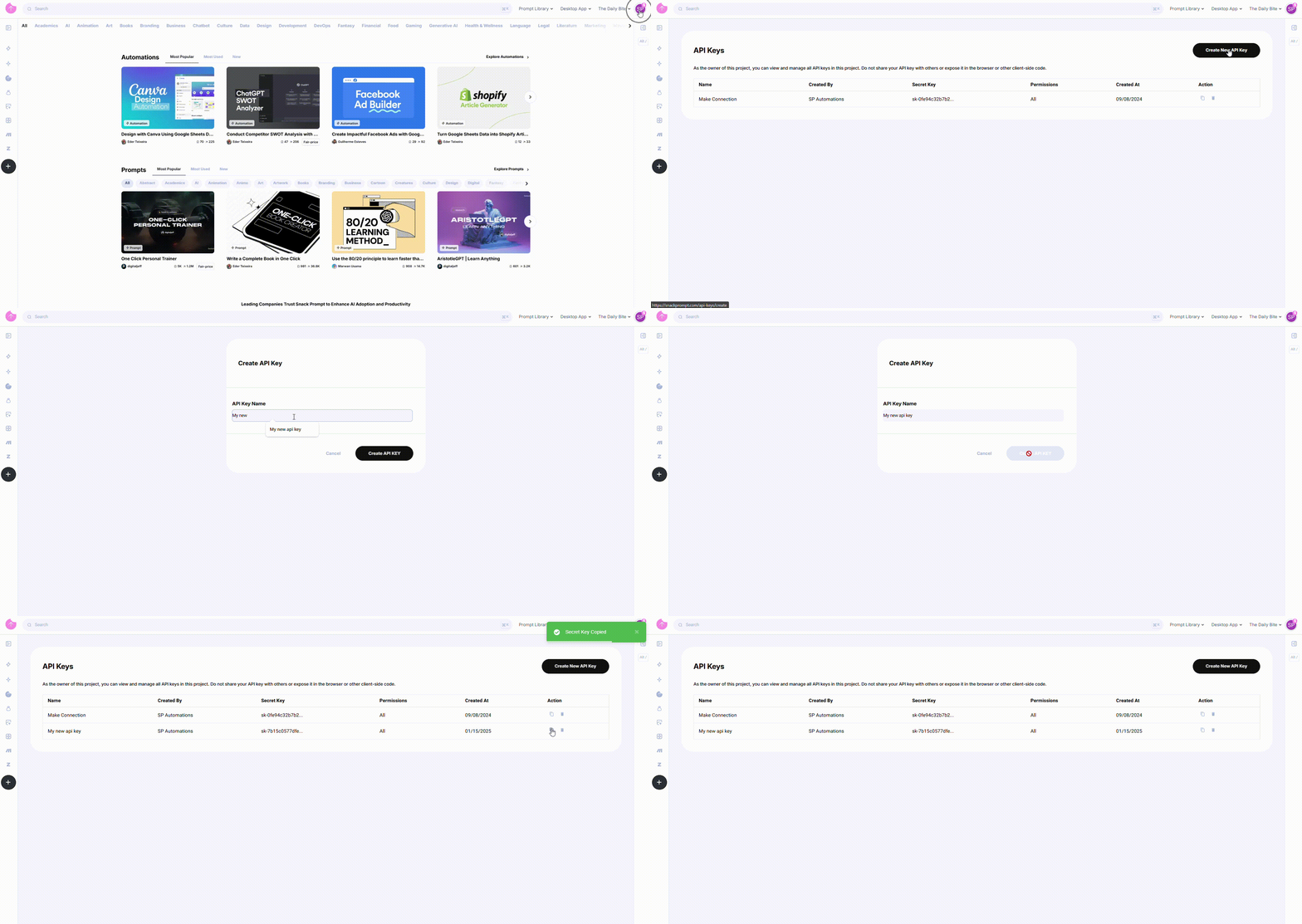
If you are looking for a way to authenticate yourself in Snack Prompt API to connect all your information and tools, follow the step-by-step guide below and do it quickly and easily.
- Log in to your Snack Prompt account.
- Navigate to the API Keys page: https://snackprompt.com/api-keys.
- Click the Create New API Key button.
- Provide a name for your Key to easily identify it later.
- Once created, you can:
- Copy the Key for immediate use.
- Delete the Key when it's no longer needed.
Note: API Keys do not have an expiration date and will remain valid until deleted.
2. Integrate my Aplication to Snack Prompt
In order for your platform to be able to provide Snack Prompt information and features to your users, you will need to generate an API Key. Find out how to do this for your users quickly and easily below.
Step 1: Initiate Authentication
- Redirect your users to our authentication URL:
https://snackprompt.com/auth/plugin?plugin_name=YOUR_PLUGIN_NAME
Replace YOUR PLUGIN_NAME with a codename that identifies your platform, use only lowercase letters and separated by dashes (kebab-case),
- Once the user reaches the platform, he must follow the Sncak Prompt login flow.
Step 2: API Key Generation
After successful authentication:
- Our system automatically generates a unique API Key for the user.
- The API Key is sent back to your application using
window.postMessage().
Step 3: Capture and Use the API Key
- In your application, implement a listener to capture the API Key:
// JavaScript sample
window.addEventListener('message', (event) => {
  // Verify the origin for security
  if (event.origin === 'https://snackprompt.com') {
    const { apiKey } = event.data;
    // Store the API Key securely
    // Use it for subsequent API calls
  }
});
- Now, your application already has the token needed to connect to all Snack Prompt features.
Always store and handle the API Key securely. Never expose it in client-side code or public repositories.
3. Using Your API Key
To authenticate your API requests, include your API Key in the request header as follows:
x-api-key: YOUR_API_KEY
Example Request
curl -X GET "https://api-integrations.snackprompt.com/v1/auth/token/validate" \
  -H "x-api-key: YOUR_API_KEY"
4. How to Validate an API Key
The Validate API Key endpoint allows you to confirm whether an API Key is valid and retrieve basic information about the authenticated user.
GET/v1/auth/token/validate- Response
Properties
| Name | Type | Description |
|---|---|---|
| user_id | string | Unique identifier of the authenticated user |
| user_email | string | Email address of the authenticated user |
Example
{
  "response": {
    "user_id": "Ak2o2WP6xrU8EqSLpmtwO4fEwlC3",
    "user_email": "leonardo@snackprompt.com"
  }
}
CURL Example
curl -X GET "https://api-integrations.snackprompt.com/v1/auth/token/validate" \
 -H "Content-Type: application/json" \
 -H "x-api-key: YOUR_API_KEY"