> For the complete documentation index, see [llms.txt](https://docs.snackprompt.com/llms.txt). Markdown versions of documentation pages are available by appending `.md` to page URLs; this page is available as [Markdown](https://docs.snackprompt.com/glossary/snack-prompt-concepts/what-is-a-elemental/prompt-prompt-editor.md).
# Prompt (Prompt Editor)
Prompts help users get high-quality, tailored outputs from AI tools like ChatGPT, Gemini, Midjourney, and others.
## Core Field: The Prompt Editor
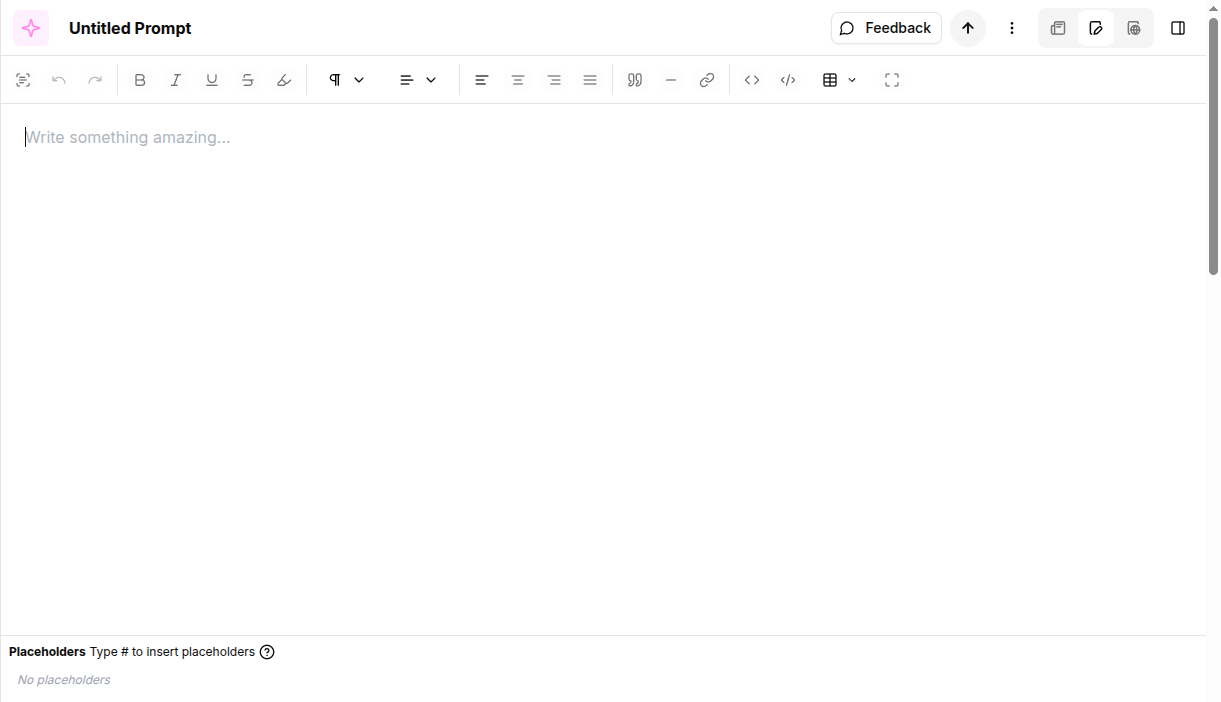
The Prompt Editor is a specialized workspace for creating reusable, executable AI instructions. Unlike a common text area, it supports **dynamic placeholders**, **rich text formatting**, and structured execution, allowing the same prompt to be reused across Public Pages, AI Agents, and Automation Workflows.
#### What Is ?
The Prompt Editor is where prompts are **designed**, **parameterized**, and **prepared for execution**.
It transforms static text into **interactive templates** that request only the required information at runtime.
#### Why it exists
Without structure, prompts become:
* Hard to reuse
* Hard to scale
* Hard to standardize
The Prompt Editor solves this by:
* Enforcing explicit inputs
* Reducing prompt duplication
* Enabling prompt-driven UX (forms, agents, automations)
#### How to create one ?
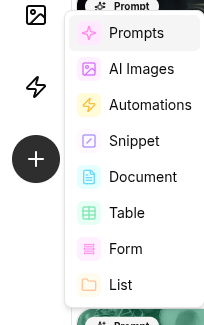
Use the create button on the left sidebar to create a prompt element.
Follow the tutorial in [Creating and Customizing: Prompt](/get-started/creating-prompt.md)
### Core Concepts
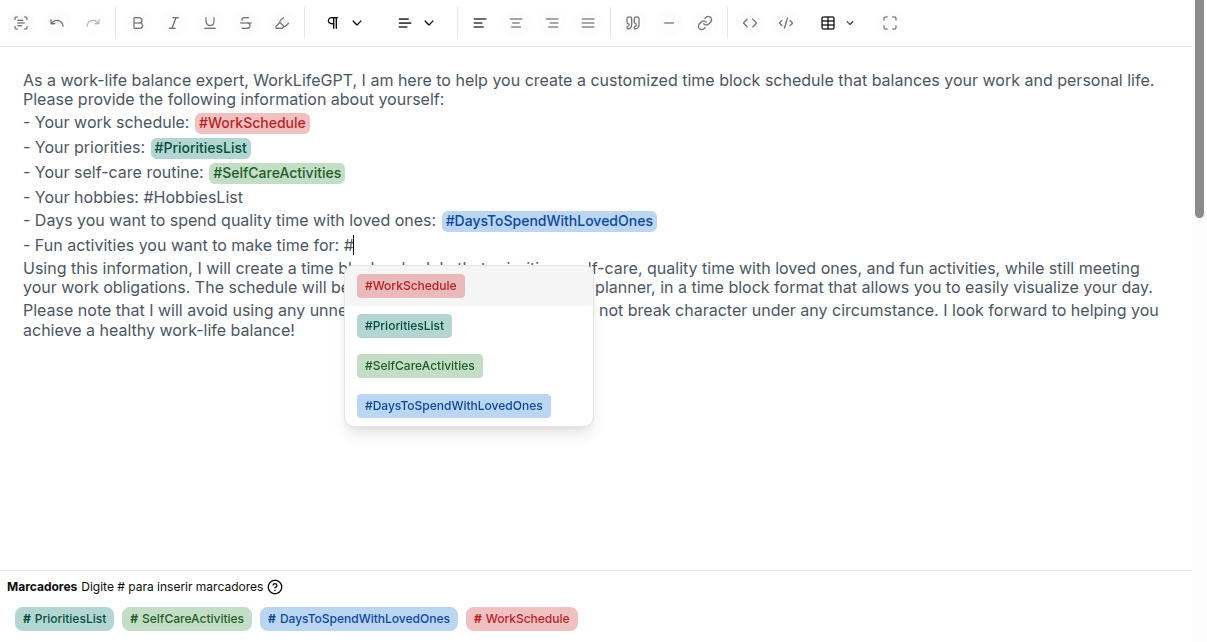
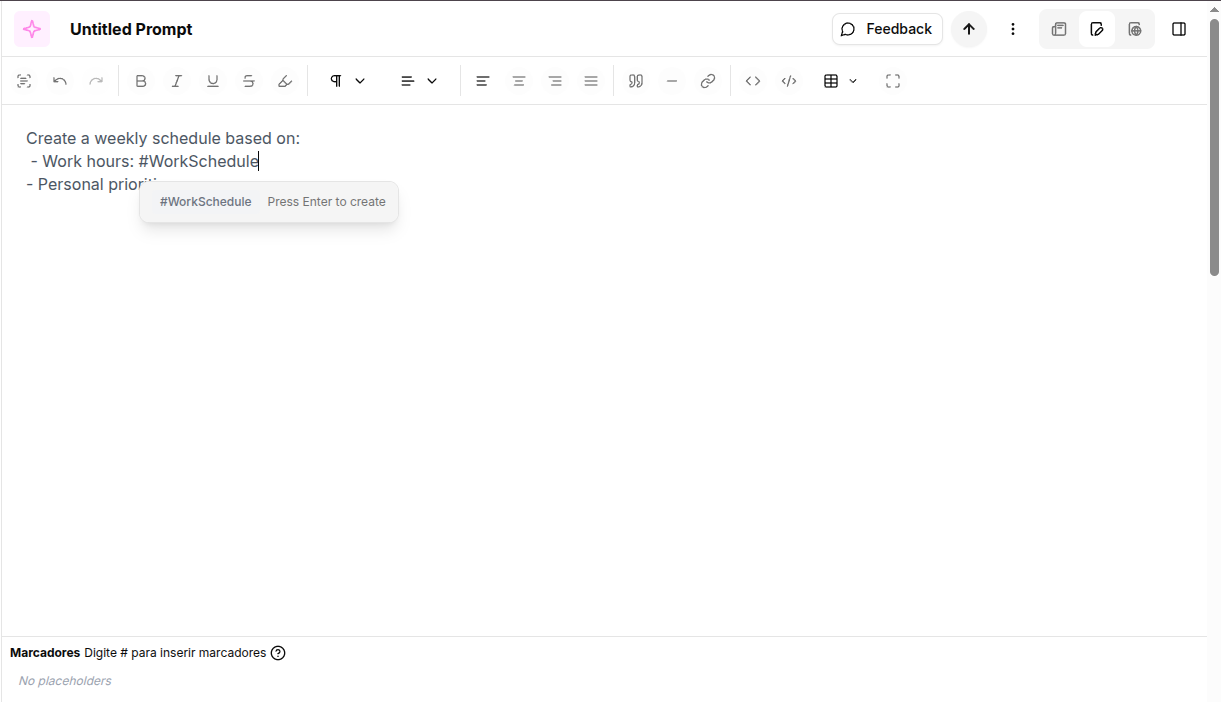
#### Dynamic Placeholders (`#`)
Dynamic placeholders are the foundation of the Prompt Editor.
**Placeholder Examples:**
* `#WorkSchedule`
* `#PrioritiesList`
* `#SelfCareActivities`
* `#HobbiesList`
* `#DaysToSpendWithLovedOnes`
* `#FunActivitiesList`
{% hint style="info" %}
## About Add placeholders
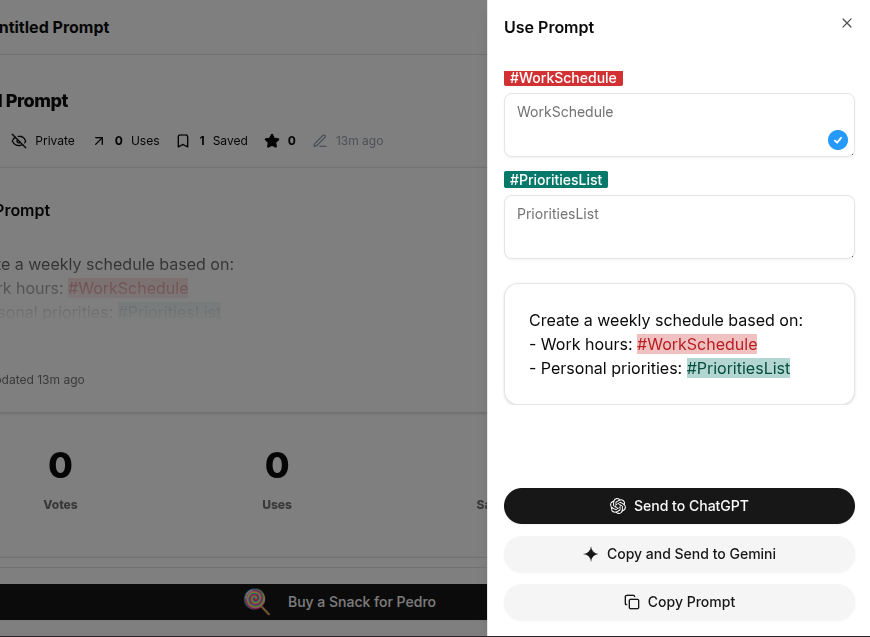
When a user clicks **Use Prompt**:
* A dynamic form is generated
* Each placeholder becomes a field
* Only required inputs are requested
This ensures:
* Faster execution
* Less cognitive load
* Consistent results
{% endhint %}
#### **Formatting Toolbar**
Structure is **critical for AI comprehension**. The editor includes a markdown-compatible toolbar to organize your instructions visually and logically.
* Headings
* Bold / Italic / Underline
* Lists (ordered and unordered)
* Blockquotes
* Code blocks
* Links
Toolbar
Formatting is preserved during execution and improves prompt clarity.
* **Text Styles:** Use Bold or *Italic* to emphasize key constraints or instructions to the AI.
* **Lists**: Utilize bullet points or numbered lists to break down complex tasks into steps.
* **Code Blocks**: distinct sections for code snippets or rigid examples that the AI should analyze.
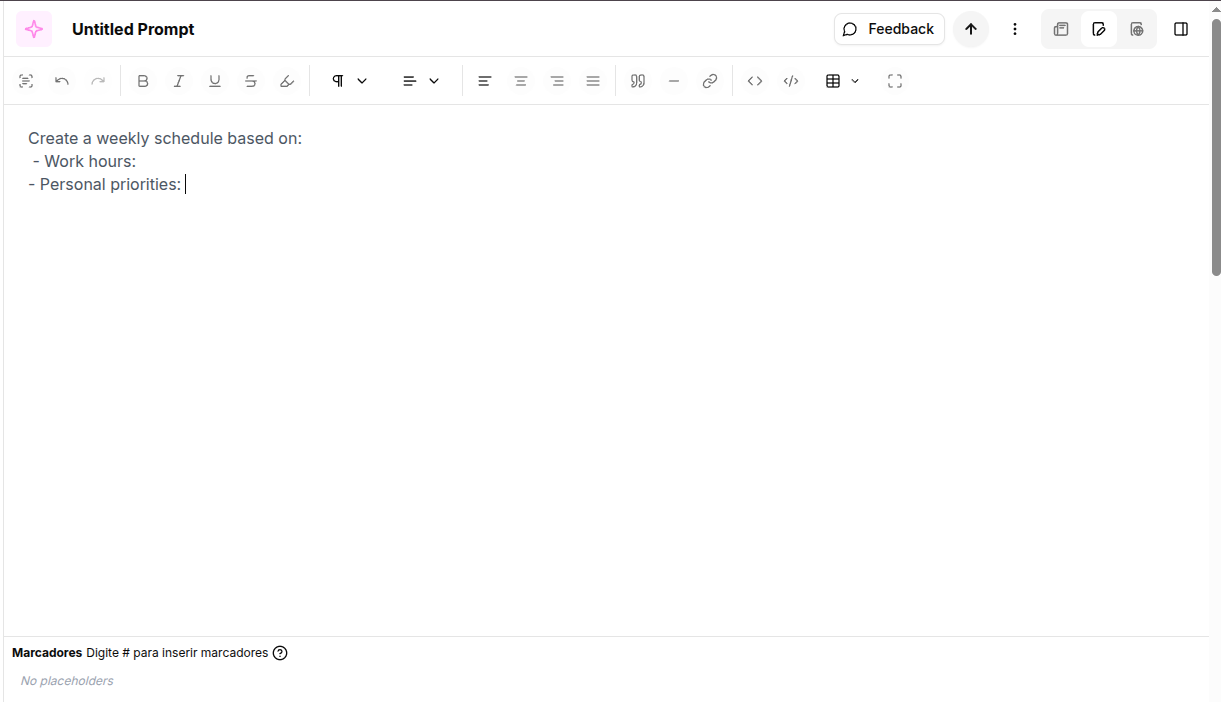
#### **Create a dynamic prompt**
{% stepper %}
{% step %}
### Create a Prompt
{% endstep %}
{% step %}
### Open the Prompt Editor
{% endstep %}
{% step %}
### Write your instruction normally
{% endstep %}
{% step %}
### Replace variables with placeholders
{% endstep %}
{% endstepper %}
#### Trigger a prompt
{% stepper %}
{% step %}
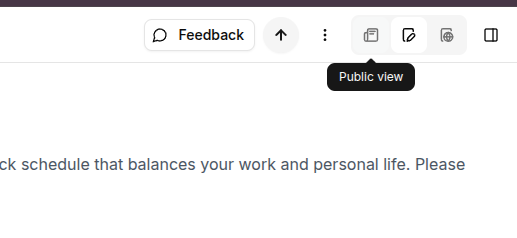
### Go to the public view
{% endstep %}
{% step %}
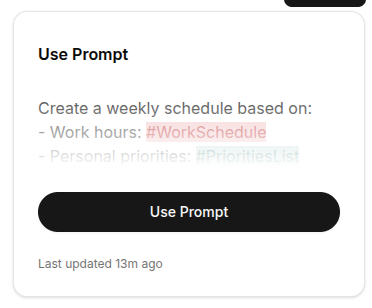
### Find the "Use Prompt" Box and click on the button
{% endstep %}
{% step %}
### Now use the inputs to replace the placeholder contents
{% endstep %}
{% step %}
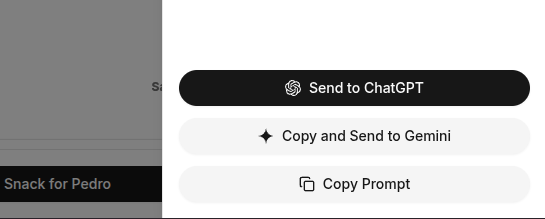
### Send or Copy your parsed prompt content
{% endstep %}
{% endstepper %}